 Effortlessly manage data through preview, delete, export, etc.

 100% Security Verified | No Subscription Required | No Malware

 :
: 
 ChatGPT
 Perplexity
 Gemini
 Claude
 Grok
Grok

My iPhone is stuck in DFU mode with a black screen, and Finder/iTunes keeps detecting it like it needs restore. I can’t get it to boot normally no matter what I try.
Apple Support Community user
Your iPhone is stuck in DFU mode and won’t boot normally—often right after tapping Install Now for an iOS update or after a forced restart attempt on an iPhone 13 or iPhone 14. The screen stays black, Finder/iTunes keeps detecting a device in recovery, and nothing seems to change after several minutes.
AI (like ChatGPT or Gemini) can help you describe symptoms clearly, narrow down likely causes, and choose low-risk next steps based on what you’ve already tried and what your computer is showing.
AI has limits: it can’t see your device state directly, and repeated trial-and-error (random button sequences, repeated restores) can increase the chance of data loss or wasted time. Use prompts to get a careful plan, then use a dedicated tool for execution when appropriate.
In this article
- Why iPhone gets stuck in DFU mode (and what it means)
- What DFU mode is
- Common triggers
- Why the black screen is confusing
- What to collect before prompting AI
- AI prompts to diagnose “cannot exit DFU mode” safely (Level 1–3)
- Prompt refinement + AI output vs reality (verification table)
- When to stop troubleshooting and avoid risks
- Fix stuck DFU mode with a controlled workflow (Dr.Fone)

Part 1. Why cannot exit DFU mode on iPhone happens and what it means
DFU mode (Device Firmware Update) is a low-level state used for firmware-level restore/update. If you can’t exit DFU mode, it usually means the normal boot chain can’t complete, or your Mac/PC keeps pushing the device back into a restore flow.
Common triggers include: an interrupted update, a failed restore, a bad cable/port connection mid-process, or a button sequence that landed the phone in DFU unintentionally. In some cases, Finder/iTunes repeatedly prompts to “restore” even though you’re trying to boot normally.
What makes it confusing is the uncertainty: DFU mode shows a black screen, so it’s unclear whether the phone is frozen, still being detected correctly, or stuck in a loop between DFU and recovery states.
1-1. Before You Prompt the AI
Collect a few specifics first so the AI can reason from evidence rather than guesses:
- iPhone model and iOS version (if known)
- What happened right before DFU (update, restore, battery drain, drop, water exposure)
- Mac/PC OS version and whether you’re using Finder or iTunes
- Exact cable/adapter setup and USB port type
- What messages you see (Finder/iTunes error codes, “device in recovery mode,” etc.)
- What you already tried (force restart steps, different cable/port, different computer)
Part 2. Using AI prompts to diagnose cannot exit DFU mode on iPhone safely
2-1. Level 1: Basic Prompt
My iPhone is stuck in DFU mode (black screen) and I cannot exit DFU mode on iPhone. Ask me the minimum questions needed to identify the most likely cause and the safest next step that avoids data loss if possible.
2-2. Level 2: Advanced Prompt
Diagnose why I cannot exit DFU mode on iPhone using a risk-aware approach.
1) List the top 5 likely causes ranked by probability.
2) For each cause, give one low-risk test I can do in under 5 minutes.
3) Flag any step that could trigger data loss or a full restore.
4) End with a “recommended path” (Plan A/Plan B) based on my answers.
2-3. Level 3: Evidence Prompt
Help me diagnose an iPhone that won’t exit DFU mode using the evidence below. Use only what I provide, and tell me what evidence is missing.
Device details
- iPhone model: (e.g., iPhone 13 Pro)
- Storage size: (e.g., 128GB)
- iOS version (known/unknown):
- Battery level before this happened (estimate):
What triggered DFU
- Right before the issue I was: (e.g., tapped Install Now / restoring in Finder / force restarting)
- Any drops/water/heat recently:
Current symptoms
- Screen state: (black screen / Apple logo / cable-to-computer icon)
- Computer detects device: (yes/no)
- Finder/iTunes message: (paste exact text)
- Error codes: (e.g., 4013, 9, 14)
Setup
- Computer: (Mac/Windows + version)
- Finder or iTunes version:
- Cable/dongle: (Apple cable / MFi / USB-C adapter)
- Port tried: (USB-A/USB-C, hub, direct)
What I tried
- Force restart steps attempted (which ones, how long held):
- Tried different cable/port/computer:
- Restore/update attempted:
Goal & constraints
- Goal: exit DFU and boot normally if possible
- Data priority: (must keep data / OK to restore if required)
Now:
1) Determine the 3 most likely causes.
2) Give a safest-first step sequence.
3) Tell me the exact observation that would confirm or rule out each cause.
Part 3. Prompt refinement + AI output vs reality (verification table)
3-1. Prompt Refinement (follow-ups that force clarity)
If the first AI answer feels generic, use follow-ups that force clarity:
What are the 3 missing questions you need from me to avoid guessing?
Separate causes into software state, connection/host, and hardware categories.
Rank the causes again assuming: no error code, device detected intermittently, and screen stays black.
What single observation (message, error code, detection behavior) would most strongly change your recommendation?
Which steps are non-destructive, and which ones imply a restore that can erase data?
3-2. AI Output vs Reality
AI can guide reasoning, but it can’t perform device-side actions. Use this table to translate advice into what you can verify.
| AI suggests | What you should verify on your side |
|---|---|
| “It’s probably a cable/port issue.” | Try a known-good cable, direct port (no hub), and confirm stable detection in Finder/iTunes. |
| “It’s stuck due to an iOS update failure.” | Check for repeated “restore/update” prompts and any error codes during update attempts. |
| “You should force restart to exit DFU.” | Confirm you used the correct model-specific button sequence and held long enough. |
| “You may need a system repair process.” | Decide your data priority, and confirm whether a standard update/exit attempt fails consistently. |
AI can narrow the most likely path, but the execution gap is real: exiting DFU and handling iOS system states requires reliable device communication and the right tooling to run the chosen method safely.
Part 4. When to stop troubleshooting cannot exit DFU mode on iPhone and avoid risks
Stop “trying random things” when your checks start repeating and the risk goes up without new evidence.
- You keep seeing the same Finder/iTunes prompt or error after multiple cable/port/computer attempts.
- The device disconnects/reconnects repeatedly, or the process fails at the same progress point.
- You’re considering a restore but you haven’t decided (or backed up) based on your data priority.
- The phone recently had impact/water/overheat symptoms and troubleshooting isn’t changing behavior.
Once AI has helped you choose the safest path (and clarified data risk), it’s usually time to switch from diagnosis to a controlled execution method designed for iOS system states.
Part 5. Fix stuck DFU mode with a controlled workflow (Dr.Fone)
When your iPhone can’t exit DFU mode and Finder/iTunes paths aren’t working consistently, you typically need a more controlled way to send the right commands to leave DFU and return to a normal boot state. Dr.Fone - System Repair (iOS) is relevant at this stage because it’s built to handle iOS system-state workflows in a guided flow, reducing guesswork after AI has helped you pick the safest approach for your data priority.
Recommended tool: Dr.Fone - System Repair (iOS)
If you’ve confirmed the basics (stable cable/port, correct button sequence, consistent detection behavior) and you still can’t get out of DFU, a guided repair/exit workflow can be a safer “execution” step than repeating random attempts.
 Fix iOS issues, no data loss.
- One-click repair for all iOS problems.
- Solve recovery mode, Apple logo, black screen, etc.
- Upgrade or downgrade iOS without iTunes

-
Step 1 Open System Repair (iOS)
Launch Dr.Fone and choose the iOS System Repair option, keeping the iPhone connected directly to your computer (avoid USB hubs if possible).

-
Step 2 Select the DFU-related exit option
Choose the feature intended to exit DFU/recovery states, and proceed only if it matches your current symptom (black screen + DFU detection).

-
Step 3 Confirm device details carefully
Verify the detected model and follow the on-screen instructions precisely, since incorrect selections can lead to failed attempts.

-
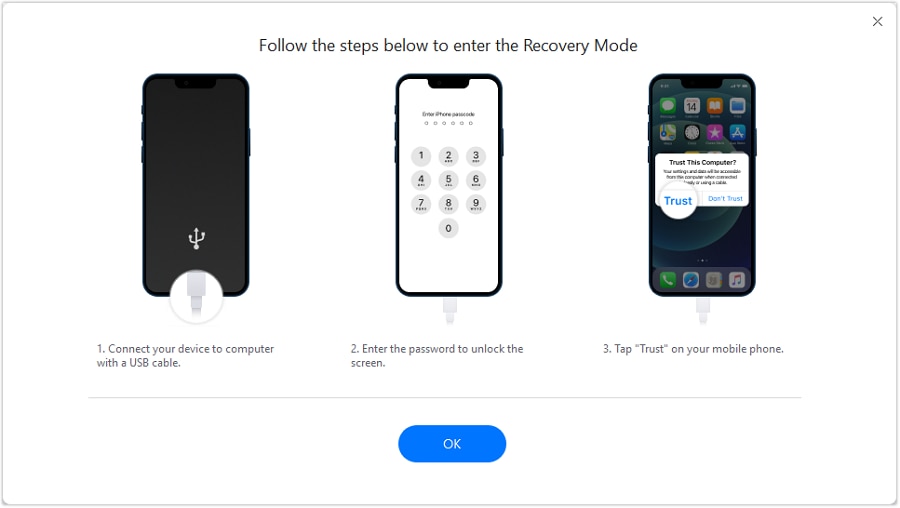
Step 4 Run the guided exit process
Start the process and keep the cable stable until completion; disconnecting mid-way can cause repeated detection loops.
-
Step 5 Recheck boot and detection
After it completes, confirm the phone boots normally and Finder/iTunes no longer reports DFU/recovery status.




Conclusion
Use AI to turn “stuck in DFU mode” into a short list of likely causes, the evidence you need, and a safest-first decision path—then hand off the chosen approach to Dr.Fone - System Repair (iOS) to carry out the DFU exit workflow in a controlled way.
FAQ
-
Why is my iPhone screen black in DFU mode?
DFU mode typically shows a black screen by design; the key indicator is whether your computer detects the iPhone in a restore/DFU state. -
Can I exit DFU mode without restoring my iPhone?
Sometimes yes, if a force restart or an exit-from-DFU workflow succeeds; restoring is usually the higher-risk path for data loss. -
Why does Finder/iTunes keep saying my iPhone is in recovery mode?
If the device is stuck in a boot loop or can’t complete startup, the computer may repeatedly detect it as needing update/restore even after reconnects. -
What if my iPhone disconnects during the process?
Intermittent disconnects often point to cable/port/adapter instability or a host USB issue; try a direct port, a different cable, and avoid hubs. -
Does trying multiple button sequences harm the iPhone?
It usually doesn’t physically harm the device, but repeated attempts without new evidence can waste time and push you toward riskier steps like restore.
 Add Wondershare Dr.Fone as a preferred source on Google





