 Effortlessly manage data through preview, delete, export, etc.

 100% Security Verified | No Subscription Required | No Malware

 :
: 
 ChatGPT
 Perplexity
 Gemini
 Claude
 Grok
Grok

My screen turns on and shows everything, but it won’t respond to any taps—can’t even get past the lock screen after a restart/update.
Reddit user, r/AndroidQuestions
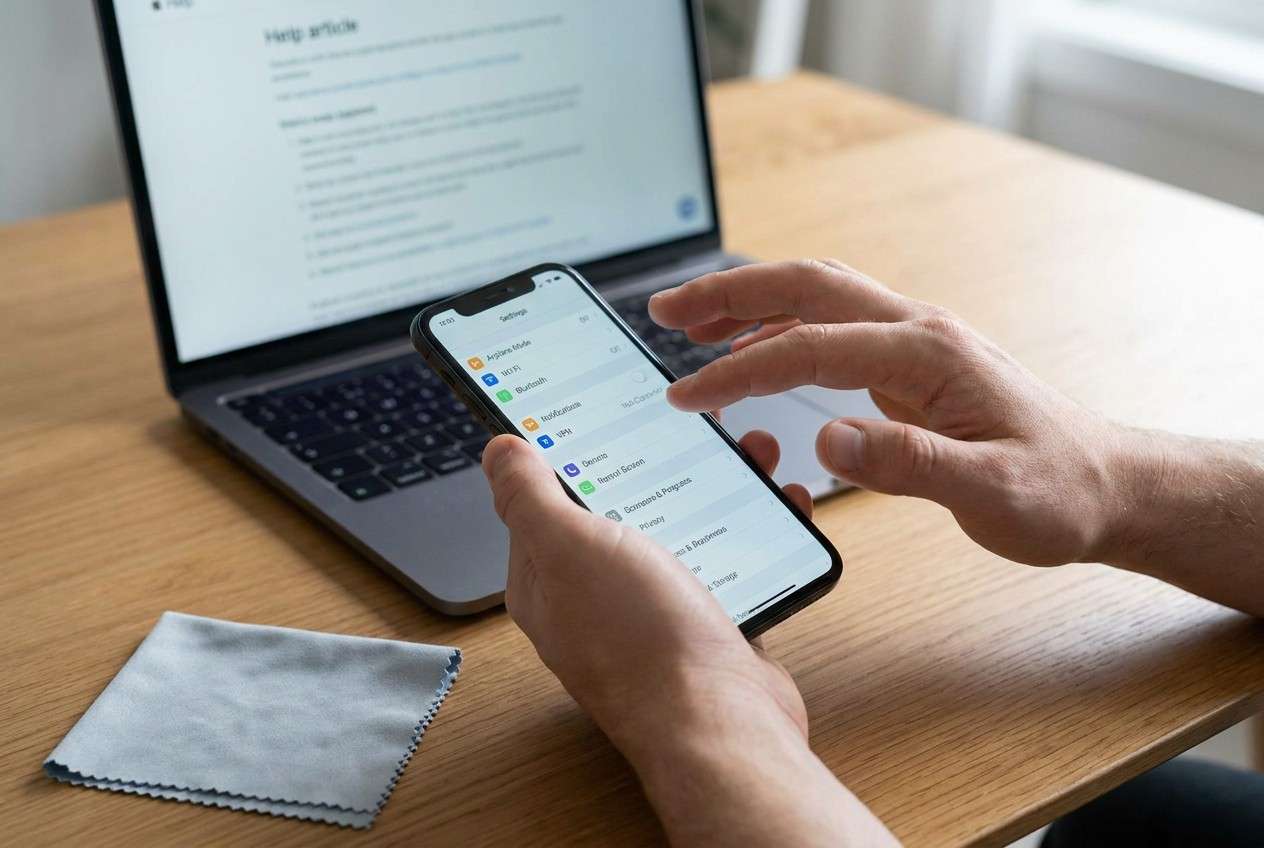
Your phone screen lights up and shows everything normally, but taps and swipes don’t register. This often happens right after a restart, after tapping Install now on an update, or after the phone takes a drop—and it’s hard to tell whether it’s a software glitch or a hardware issue.
AI (like ChatGPT or Gemini) can help you sort symptoms, narrow likely causes, and decide what’s safe to try next based on what you observe (for example: only the top half is dead, or it stops responding after the lock screen).
AI can’t test your digitizer, change device settings, or perform device actions for you. Trial-and-error can also increase risk (lockouts, data loss, or worsening damage), so it’s best to use AI for diagnosis and decision-making, then use a reliable tool for execution when needed.
In this article
- Why the display works but touch doesn’t (what it means)
- Common root-cause buckets
- Consistent vs intermittent failures
- Lock screen implications
- Info to collect before asking AI
- AI prompts to diagnose touch not responding safely
- When to stop troubleshooting and avoid risks
- Resolve lock screen access safely with Dr.Fone
- Quick checklist: what to observe when you can’t touch the screen
Part 1. Why phone display works but touch does not respond happens and what it means
A working display with a non-working touch usually points to one of three buckets: touch layer (digitizer) failure, software/driver/UI crash, or input being blocked (screen protector issues, moisture, accessibility overlays, or a lock screen you can’t interact with). The key is whether the problem is consistent (always dead) or intermittent (comes and goes).
This can show up on many devices—an iPhone 13 after an iOS update, an iPhone 14 after a restart, or an Android phone after battery drain. From the user side, it often feels like “the phone is on, but nothing changes after several minutes,” and you can’t tell if it’s frozen or just not reading touch.
The most important meaning: if touch is dead at the lock screen, you may be unable to enter PIN/pattern, which blocks basic troubleshooting steps on-device and can push you toward computer-based actions.
1-1. Before You Prompt the AI
Collect these basics first so the AI can narrow causes quickly:
- Phone brand/model and Android version (if known)
- What happened right before it started (update, drop, water, new screen protector, charging)
- Where touch fails (entire screen vs. edges vs. one area)
- Whether buttons work (power/volume) and whether the screen image is stable
- Whether it responds in Safe mode / Recovery mode (if you can reach them)
- Any recent changes (new launcher, accessibility app, display overlay, USB OTG use)
Part 2. Using AI prompts to diagnose touch not responding safely
2-1. Level 1: Basic Prompt
My phone display works, but the touch does not respond. Ask me the minimum number of questions needed to figure out whether this is likely software, hardware (digitizer), or something blocking input. Then give me the safest next steps in order, with what I should observe after each step.
2-2. Level 2: Advanced Prompt
Act as a mobile troubleshooting triage assistant. My screen shows normally but touch input doesn’t register.
1) Ask up to 8 targeted questions to classify the issue.
2) Based on my answers, rank the top 5 likely causes with brief reasoning.
3) For each cause, suggest 1–2 low-risk tests I can do without causing data loss or lockouts.
4) Flag any actions that could worsen damage or increase the chance of losing access.
2-3. Level 3: Evidence Prompt
Help me diagnose a phone where the display works, but the touch does not respond. Use my evidence, identify missing details, and propose the lowest-risk path.
Evidence (fill what you can):
- Phone model: (e.g., Samsung Galaxy S21 / Pixel 7)
- Android version: (e.g., Android 13)
- Screen condition: (no cracks / cracked glass / replaced recently)
- Trigger event: (e.g., after update, after drop, after water exposure)
- Touch failure pattern: (entire screen / top half / random taps / only keyboard)
- Does it work in certain screens?: (lock screen only / works in notifications / never works)
- Buttons: (power/volume OK? yes/no)
- Charging/heat: (gets hot? yes/no)
- Accessories: (screen protector, case, moisture, gloves)
- External control tried: (USB mouse via OTG? yes/no)
- Any error messages: (e.g., “System UI not responding”)
- What I must protect: (avoid data loss / avoid factory reset / regain access)
Tasks for you:
- Classify likely software vs hardware vs blocked input.
- Give a ranked cause list with confidence levels.
- Provide a step-by-step test plan that minimizes risk.
- Tell me what evidence would change your conclusion most.
2-4. Prompt Refinement
Use these follow-ups to make the AI’s output more actionable and less guessy:
What’s the single most important missing question you need to ask to separate “digitizer failure” from “system UI crash”?
Separate your likely causes into three categories: hardware, software, and input blocked. Put each cause in only one category.
Rank the causes again, but this time weigh heavily whether touch fails on the lock screen versus after unlocking.
List the top 6 observations I can check without unlocking the phone, and explain what each observation implies.
If I can connect a USB mouse via OTG, how would that change the diagnosis and next steps?
2-5. AI Output vs Reality
AI can help you decide what is most likely and what to try first—but the real-world outcome depends on what your device allows and whether touch hardware is damaged.
| AI conclusion (example) | Reality check (what can block it) |
|---|---|
| “Likely a software freeze; try force restart.” | Force restart sequences vary by model and may not address digitizer failure. |
| “Screen protector may block input; remove it.” | If the digitizer is failing, removing accessories won’t change anything. |
| “Use Safe mode to rule out apps.” | You may not be able to enter Safe mode without touch access. |
| “You can regain access by entering the PIN.” | If touch is dead at the lock screen, you may need a computer-based method. |
AI narrows the path; execution still requires device-supported actions (buttons, OTG mouse, recovery options) or a dedicated tool when you can’t interact with the screen.
Part 3. When to stop troubleshooting unresponsive touch and avoid risks
Stop “trying random fixes” when the situation is trending toward lockouts, damage, or irreversible steps.
- Touch is completely unresponsive on the lock screen, and repeated attempts risk too many failed unlock tries or delays.
- The phone shows signs of hardware damage (cracks, swelling, overheating, water exposure), and continued use could worsen it.
- You’re about to do a factory reset, flash firmware, or run tools that could erase data—without a clear diagnosis.
- The issue is intermittent but worsening, suggesting a failing digitizer/connector, and each reboot makes access less predictable.
Once you’ve used AI to classify the most likely bucket (software vs hardware vs blocked input), the next step is choosing the safest execution method that matches your access level.
Part 4. Phone display works but touch does not respond: resolve lock screen access safely with Dr.Fone
When touch doesn’t work, the immediate blocker is often the Android lock screen—you can’t enter your PIN/pattern to reach settings, back up data, or run on-device checks. After AI helps you confirm that the display is fine but interaction is blocked (especially at the lock screen), Dr.Fone - Screen Unlock (Android) becomes relevant as a practical way to execute an Android screen unlock workflow from a computer, rather than relying on touch input. This is most useful when button-only steps and OTG mouse control aren’t feasible or don’t work reliably.
 Unlock Android phone in seconds.
- Remove PIN, pattern, password, fingerprint.
- Bypass Google FRP lock easily.
- Works on all Android brands & models.
- No tech skills required – user-friendly.

-
Step 1 Install and open Dr.Fone on a computer
Download and launch Dr.Fone, then choose the Unlock Android Screen feature so you’re following the correct workflow for lock-screen access.

-
Step 2 Connect your Android phone via USB
Plug the device in with a stable cable, and keep it connected throughout the process to avoid interruptions that can cause repeated retries.

-
Step 3 Select the correct device information
Confirm the brand/model prompts carefully, because choosing the wrong device profile can lead to mismatched steps.

-
Step 4 Follow the on-screen instructions to start screen unlock
Proceed only after confirming you’re targeting the lock screen issue (not a display issue), and avoid unnecessary retries if the phone disconnects.

-
Step 5 Once access is restored, reassess touch input
After unlocking, test touch responsiveness and consider backing up and arranging hardware service if digitizer symptoms remain.




Part 5. Quick checklist: what to observe when you can’t touch the screen
If you can’t reliably interact with the device, these observations help AI (and you) separate “blocked input” vs “software/UI crash” vs “likely touch hardware failure,” without jumping into risky actions.
- Does touch fail on the lock screen, or only after unlocking? Lock screen failure often blocks on-device troubleshooting and changes your safest next steps.
- Is the failure consistent or intermittent? Consistent dead zones can point toward digitizer/connector issues; intermittent behavior can involve software/UI instability or worsening hardware.
- Does the screen image look stable? A stable display with no touch response can differ from a device that’s frozen or crashing.
- Do power/volume buttons still respond? Working buttons can enable model-specific restart/recovery attempts even when touch is unavailable.
- Any obvious blockers? Recent screen protector changes, moisture/water exposure, or overlays/accessibility changes can block or distort input.
- Can you use external control (USB OTG mouse)? If OTG control works, it can unlock additional low-risk checks that require navigation.
Conclusion
Use AI to pin down whether you’re dealing with blocked input, software instability, or likely digitizer failure—and to choose low-risk checks in the right order. When the core obstacle is lock screen interaction and touch can’t be used, hand off execution to a computer-based tool like Dr.Fone Screen Unlock so you can move forward without guesswork.
FAQ
-
Why does my screen show normally but touch does not respond?
The display panel can function while the touch layer (digitizer), its connector, or the input driver fails; it can also be blocked by moisture, overlays, or a system UI crash. -
How can I tell if it’s a hardware digitizer problem or a software glitch?
If touch never works (including on the lock screen) and the failure pattern is consistent (same dead zones), hardware is more likely; if it comes and goes after reboots/heat/app changes, software or intermittent hardware may be involved. -
Can a screen protector or moisture cause touch to stop responding?
Yes—thick protectors, bubbles, water droplets, or residue can produce phantom touches or no response; removing the protector and drying the screen is a low-risk check. -
What’s the safest thing to try first when touch is unresponsive?
Start with low-risk observations and a force restart method appropriate to your model, and avoid factory resets or repeated unlock attempts that can create delays or lockouts. -
If touch doesn’t work on the lock screen, how can I unlock the Android phone?
If OTG mouse control and button-only navigation aren’t viable, a computer-based workflow like Dr.Fone’s Screen Unlock (Android) can be used to execute the unlock steps without relying on touch.
 Add Wondershare Dr.Fone as a preferred source on Google





