 Effortlessly manage data through preview, delete, export, etc.

 100% Security Verified | No Subscription Required | No Malware

 :
: 
 ChatGPT
 Perplexity
 Gemini
 Claude
 Grok
Grok

I tried to clear space on our family tablet and accidentally deleted a bunch of kids’ videos. Now I’m scared to touch anything because I don’t know what’s actually backed up.
Reddit user, r/AndroidQuestions
Optimizing storage on a shared family tablet is easy to start—and easy to mess up if you delete the wrong photos, wipe an app’s data, or sign out of a shared account without realizing what it affects.
AI is useful here because it can turn a vague goal (“free up space”) into a clear workflow: what to check first, what to back up, what to delete last, and what “done” looks like.
AI can’t see your tablet, confirm what’s backed up, or safely perform device actions. Execution requires real tools and your final verification—especially before any irreversible step.
In this article
- Plan a safe storage cleanup (shared tablet)
- Why shared tablets fill up fast
- Where people get stuck (sequence)
- Point-of-no-return actions
- What “verification-first” means
- What the AI needs to know
- AI prompts: Basic to Evidence
- AI plan vs. real device constraints
- Execute safely with Dr.Fone
Part 1. How to plan optimize storage on a shared family tablet without missing critical steps
1-1. Why shared tablets fill up fast
A shared family tablet usually contains mixed ownership data: kids’ videos, school downloads, shared messaging apps, multiple cloud accounts, and “just in case” files that nobody remembers. Storage fills up fast, and quick cleanups often remove the wrong things.
1-2. Where people get stuck: sequence, not ideas
Even after an AI answer, people often feel stuck on sequence: Should I back up photos first? Which apps are safe to remove? Do I clear cache or uninstall? The uncertainty isn’t “what to do,” but “what to do first—and how to verify it worked.”
1-3. Point-of-no-return actions
The point-of-no-return moment is when you delete local photos/videos or clear app data (or factory reset) assuming everything is in the cloud. If that assumption is wrong, recovery may be impossible.
1-4. The workflow mindset: verification first, deletions last
Use AI to force a sequence with checks before you touch anything irreversible, then execute only after you can confirm what’s truly backed up and who owns what.
Part 2. What the AI needs to know
Share the context below so the AI can produce a safe, verification-first plan.
- Tablet OS (Android / iPadOS) and model (if known)
- Who uses it (adults/kids), and any “must-not-lose” data types (photos, school files, game progress)
- Accounts in use (Apple ID / Google accounts, family sharing, multiple profiles)
- Current storage pressure (e.g., “64GB device, 61GB used”) and what’s taking space (photos/videos, apps, downloads, offline media)
- Any backups already enabled (iCloud Photos, Google Photos, OneDrive, device backups)
- Connectivity constraints (slow Wi‑Fi, limited data, time window)
- App risks (banking/2FA apps, messaging apps, kids’ learning apps, games with local saves)
- Your definition of success (e.g., “free 10–15GB and keep everything important”)
Part 3. Using AI prompts to build a safer optimize storage on a shared family tablet workflow
Use the prompts below to force a sequence with checks before you touch anything irreversible.
3-1. Level 1: Basic prompt
Help me plan a safe workflow to optimize storage on a shared family tablet. I want to free up space without deleting anything important for other family members. Give me a short sequence with key checks before any deletion.
3-2. Level 2: Advanced prompt
Design a structured workflow to optimize storage on a shared family tablet with Preparation / Execution / Verification phases.
In each phase, separate critical steps vs optional steps, and highlight any actions that are irreversible or risky (like deleting photos, clearing app data, or removing accounts).
3-3. Level 3: Evidence prompt
Create a risk-managed plan to optimize storage on our shared family tablet using the details below, and include checks before / during / after each risky step.
Context: OS (Android 13), device storage (64GB total, 60GB used), users (2 adults + 2 kids), must-keep (all camera photos/videos, school PDFs), backups (Google Photos “maybe on”, unsure), biggest storage (videos, WhatsApp media, offline YouTube, games), time window (1 hour), Wi‑Fi (stable).
Output:
- A “Do Not Touch Until Verified” list
- A checklist to confirm backups are real (not just enabled)
- A minimal-change path to free (10GB) first, then a deeper-clean path if needed
3-4. Prompt refinement (follow-up prompts)
Ask me 10 yes/no questions that determine whether deleting local photos or clearing app data is safe, then produce two plans: “safe if all yes” and “safe if any no.”
Build a storage cleanup decision tree that starts with reversible actions (cache/offline downloads) and only reaches deletions after explicit verification gates.
List the top 8 “hidden storage” areas on a shared family tablet (downloads, offline media, messaging attachments, duplicate backups, etc.) and for each, give a verification method and rollback possibility.
Create a one-page preflight checklist that I must complete before any irreversible step, with pass/fail criteria (e.g., “randomly confirm 20 photos exist in cloud”).
Draft a family-safe “ownership map” template: what belongs to whom, where it’s stored, and what permission I need before removing it.
Part 4. AI plan vs. real device constraints
| Planning item | AI can help with | Real constraint on the tablet | Practical safeguard |
|---|---|---|---|
| Identify what’s safe to remove first | Order steps by lowest risk | Actual storage categories vary by OS/app | Use on-device storage breakdown as the source of truth |
| Confirm backups are valid | Provide verification checklist | AI can’t see cloud contents or sync status | Spot-check items in the cloud before deleting locally |
| Predict app data loss risk | Flag common high-risk apps | Each app handles local vs cloud saves differently | Test on one non-critical app/file before broad cleanup |
| Define “done” | Set measurable targets (e.g., free 10GB) | Free space can fluctuate after indexing/sync | Recheck free space after restart and after sync completes |
AI improves planning, sequencing, and risk controls, but it cannot execute actions on your tablet or verify what’s truly backed up.
4-1. When to stop planning and start execution
- You can name the top 3 storage drivers on the tablet and where they live (e.g., videos, offline downloads, messaging media).
- You have a written “Do Not Delete” list agreed by the family (at least for photos/videos and school content).
- You have completed backup verification for anything you might delete (spot-checks, not assumptions).
- You have chosen a target outcome (e.g., free 10GB now) and a rollback-aware order (reversible first, irreversible last).
Once those are true, you’re no longer guessing—you’re following a controlled sequence.
Part 5. Optimize storage on a shared family tablet: execute the workflow safely with Dr.Fone
Execution matters now because the only way to reclaim space is to apply the plan on the actual device—while respecting verification gates before any irreversible change. If you want an execution layer for backup/transfer and hands-on data management, Dr.Fone Basic - Data Manager can help you apply your approved plan more safely.
 Easily manage data through preview, delete, export, etc.
- Transfer all data between devices.
- Robust backup solutions for reliable data protection.
- Mirror screens to PC for meetings, teaching, and control.

-
Step 1 Lock in what must be kept
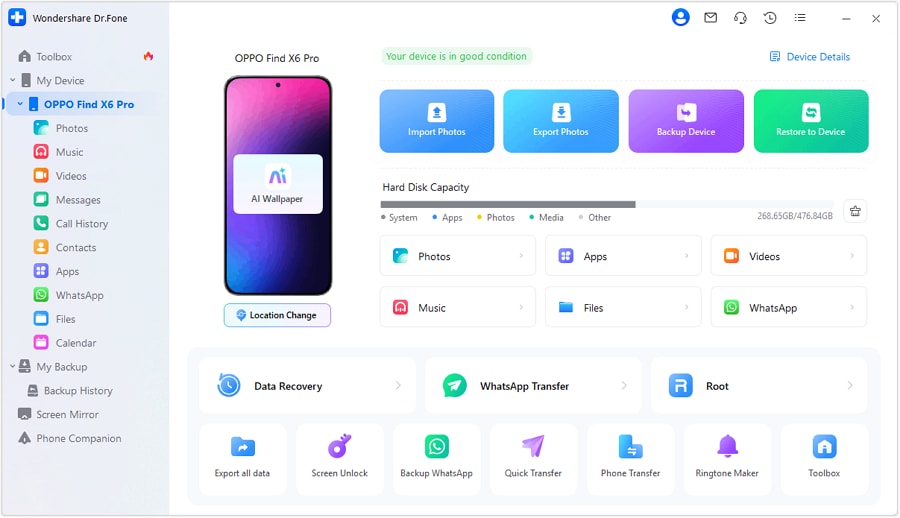
Action: Use Dr.Fone to create a backup/export of the highest-risk, highest-value data (especially photos/videos and key app data) before cleanup.
Limitation: Dr.Fone can execute backups/transfers, but it can’t decide what your family considers “important” without your input and checks.
-
Step 2 Reclaim space using lowest-risk actions first
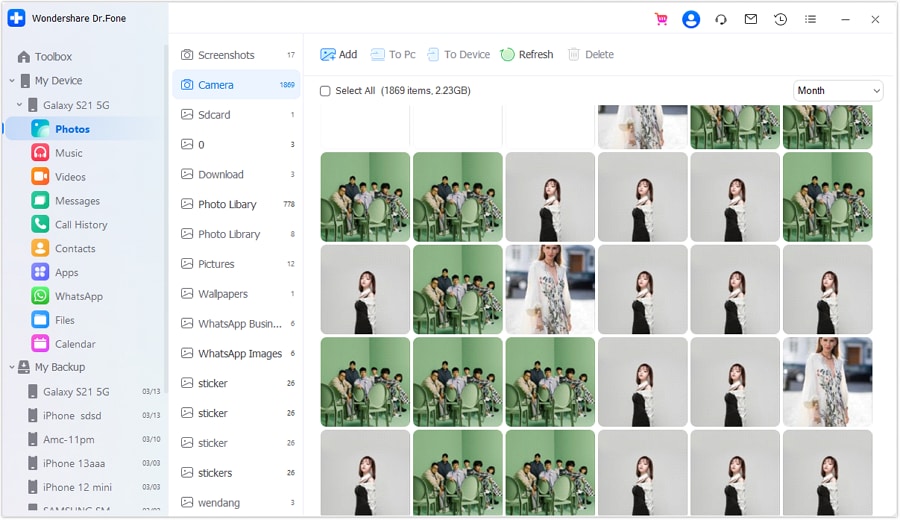
Action: Use Dr.Fone-supported device management workflows to remove or transfer non-essential items (e.g., large media/files) and reduce clutter based on your plan’s priority order.
Limitation: If you skip the plan’s verification gates, you can still remove the wrong content—tooling doesn’t replace decision discipline.
-
Step 3 Only after verification, perform high-risk cleanup
Action: If your plan still requires it, proceed with irreversible steps you explicitly approved (e.g., deleting local originals after confirmed cloud presence, or deeper cleanup actions).
Limitation: This is the point of no return; if your backup verification was incomplete, recovery may not be possible.

-
Step 4 Verify results and stop safely
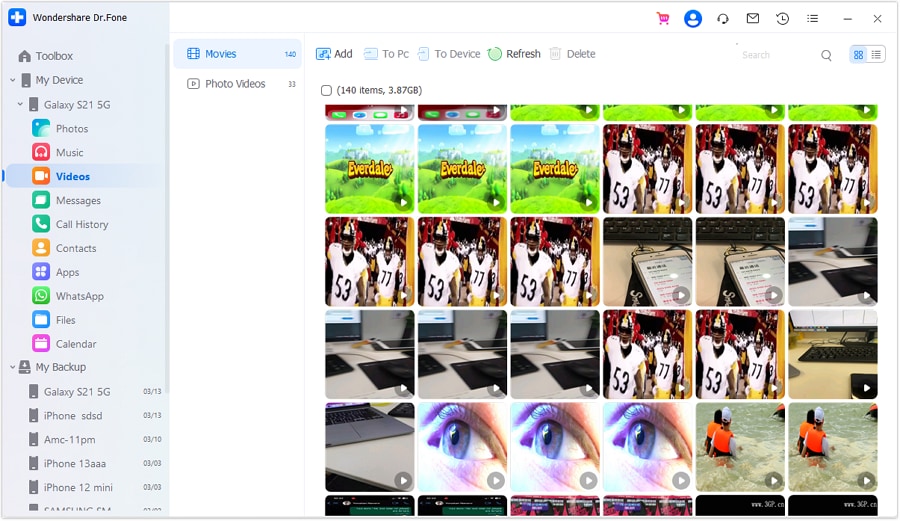
Action: Recheck free space after changes and after any sync/indexing completes, and confirm “must-keep” items still exist where you expect (cloud and/or local).
Limitation: Free space and sync status can fluctuate; avoid chaining irreversible actions without a fresh verification pass.




Conclusion
Use AI to design a verification-first workflow with clear gates and a last-step-only approach to irreversible actions, then use Dr.Fone as the execution layer to back up, transfer, and apply the approved cleanup on the real device.
FAQ
-
What’s the most common mistake when optimizing storage on a shared family tablet?
Deleting local photos/videos or clearing app data assuming it’s backed up, without spot-checking the backup. -
How do I verify a backup is real (not just “enabled”)?
Pick a random set of items (e.g., 20 photos across different dates) and confirm they appear in the cloud/backup on another device or web view before deleting locally. -
Should I uninstall apps or clear cache first?
Plan to start with reversible actions (cache/offline downloads) and only uninstall/clear app data after confirming you won’t lose logins, saves, or shared access. -
When is it safe to delete photos from the tablet?
Only after you confirm the correct account is used, sync is complete, and you’ve spot-checked that originals exist elsewhere—then delete in a controlled batch, not all at once. -
How much time should I budget for a safe cleanup?
Planning can be 10–20 minutes, but verification and backup/sync can take much longer depending on Wi‑Fi speed and media size; don’t schedule irreversible steps under time pressure. -
Can AI tell me exactly what to delete on my device?
No. AI can propose categories and a safe order, but it can’t see your files, confirm ownership, or verify backups—those require on-device review and execution tools.
 Add Wondershare Dr.Fone as a preferred source on Google





