 Effortlessly manage data through preview, delete, export, etc.

 100% Security Verified | No Subscription Required | No Malware

 :
: 
 ChatGPT
 Perplexity
 Gemini
 Claude
 Grok
Grok

My battery started draining like crazy right after an app update/reboot. I tried Safe Mode, but I still can’t tell what the results actually mean.
Reddit user, r/Android
Battery drain that suddenly worsens can feel impossible to pin down—especially when it starts right after you tap Install on an app update or reboot your phone (for example, on a Samsung Galaxy S22 or Google Pixel 7). You may try Safe Mode, but it’s still unclear what the result means when the battery keeps dropping.
AI can help you interpret your Safe Mode observations, narrow down likely causes (app conflict vs. system process vs. battery health), and decide what to check next with minimal risk. You bring the symptoms and context; AI helps structure the diagnosis.
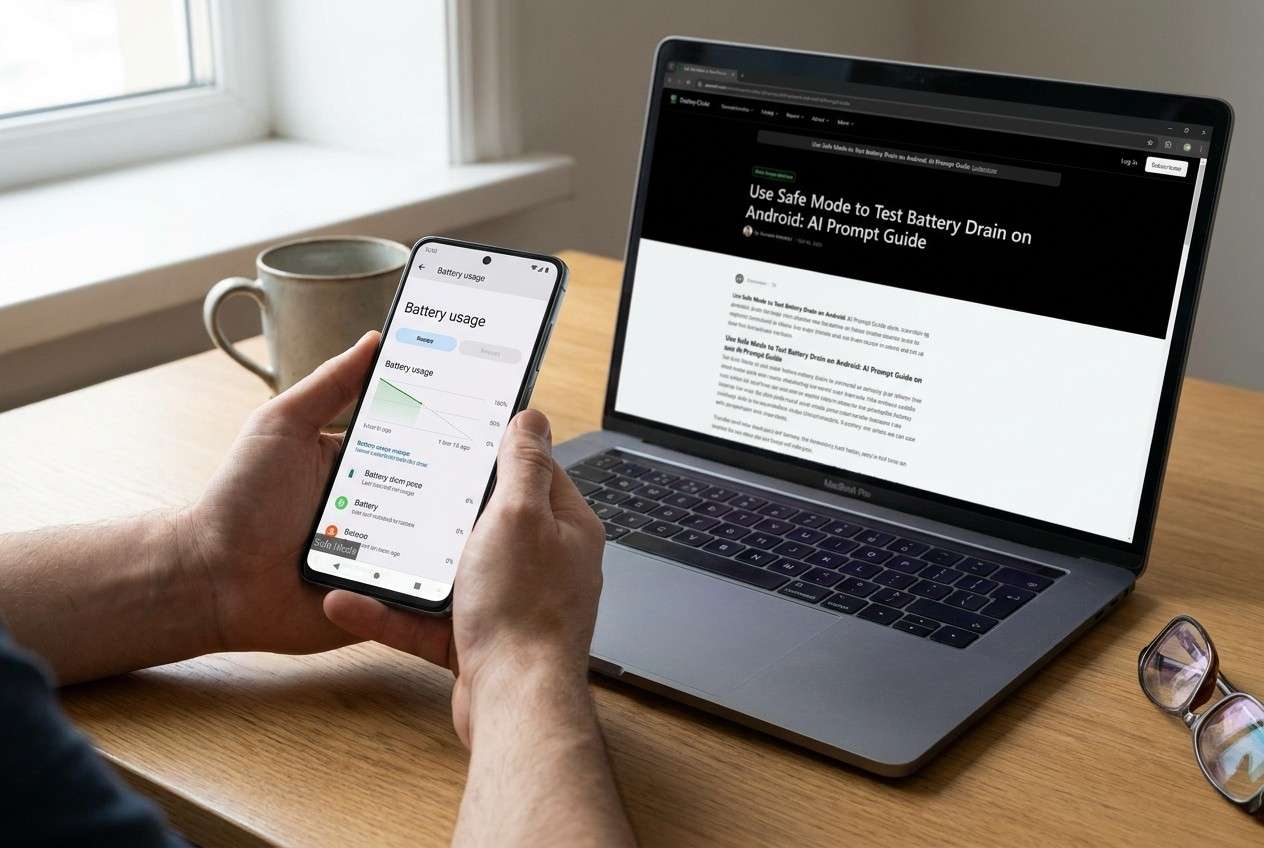
AI can’t verify your phone’s actual logs or change system behavior, and repeated trial-and-error can add risk (like wiping settings, losing time, or masking the real cause). The goal here is to use prompts to make careful decisions—then hand execution to a dedicated tool when needed.
In this article
- Part 1. Why Safe Mode battery drain test matters on Android
- What Safe Mode changes (and what it doesn’t)
- How to compare drain fairly
- What “improves” vs “no change” usually suggests
- What to record before asking AI
- Part 2. AI prompts for Safe Mode battery drain diagnosis
- Part 3. When to stop Safe Mode battery drain troubleshooting
- Part 4. Resolve Android battery drain after Safe Mode test with Dr.Fone
- Conclusion
Part 1. Why Safe Mode battery drain test matters on Android
Safe Mode starts Android with most third‑party apps disabled. If battery drain improves in Safe Mode, it usually points toward a third‑party app, widget, VPN, launcher, or background permission that’s misbehaving. If it doesn’t improve, the cause is more likely system-level (OS services, signal/search loops, corrupted components) or hardware/battery health.
A common pattern is: you updated Android or installed a new app, restarted, and then noticed faster drain plus extra heat or idle drain. After several minutes in Safe Mode, nothing seems to change—or the drain is “a bit better,” but not clearly enough to be confident.
Safe Mode is a diagnostic step, not a cure. What matters is comparing idle drain rate, temperature, screen-off behavior, and network conditions between normal mode and Safe Mode.
1-1. Before You Prompt the AI
Capture a quick baseline so the AI can reason from evidence:
- Battery % drop over a timed window (e.g., 30–60 minutes)
- Screen on vs. screen off during the test
- Wi‑Fi vs. mobile data, Bluetooth, GPS status
- Device temperature (cool/warm/hot)
- Recent changes (new app, OS update, new charger/cable, travel)
- Battery usage screenshot (if available) and top consumers
Part 2. AI prompts for Safe Mode battery drain diagnosis
2-1. Level 1: Basic Prompt
I tested Android battery drain in Safe Mode vs normal mode. Help me interpret what it means and list the most likely causes based on my results. Ask me only the minimum questions you need first.
2-2. Level 2: Advanced Prompt
Act like a cautious Android triage assistant. Based on my Safe Mode battery test, rank the likely causes from most to least likely and mark each as low/medium/high risk to investigate.
Constraints:
- Prefer low-risk checks first.
- Avoid steps that reset or erase data unless clearly justified.
- Separate: third-party app causes, system/OS causes, network/signal causes, and battery health causes.
My observations:
- In normal mode: [battery % drop] over [time], screen [on/off], temp [cool/warm/hot]
- In Safe Mode: [battery % drop] over [time], screen [on/off], temp [cool/warm/hot]
- Network: [Wi‑Fi/mobile], signal strength [good/poor], location [home/travel]
- Recent changes: [apps/updates/accessories]
Now ask up to 5 clarifying questions.
2-3. Level 3: Evidence Prompt
Diagnose my Android battery drain using Safe Mode evidence and propose the safest next steps.
Device info:
- Phone model: (e.g., Samsung Galaxy S22 / Pixel 7)
- Android version & security patch: (e.g., Android 14, March patch)
- Battery health indicator (if shown): (e.g., “Good”, cycle count, or not available)
- Age of device/battery: (e.g., 18 months)
Trigger:
- What happened right before drain started: (e.g., OS update, installed a VPN, changed launcher, new smartwatch)
Test method:
- Time window: (e.g., 45 minutes)
- Starting % and ending % in normal mode:
- Starting % and ending % in Safe Mode:
- Screen: (e.g., off for entire test / 10 minutes on)
- Connections: (e.g., Wi‑Fi on, Bluetooth off, GPS on)
- Temperature/heat: (e.g., warm near camera)
Evidence:
- Battery usage top items: (e.g., Android System, Google Play services, Instagram)
- Any warnings: (e.g., “App is draining battery”, “Charging slowly”)
- Logs available: (e.g., none / Battery Historian / OEM device care summary)
Output format:
1) What the Safe Mode comparison suggests (with confidence level)
2) Top 5 likely causes (ranked)
3) Low-risk checks I should do next (step-by-step)
4) What would justify system-level repair steps
5) What not to do yet (to avoid data loss or masking the issue)
2-4. Prompt Refinement
Use these follow-ups to tighten the diagnosis:
“What single missing detail would most change your ranking of causes?”
“Separate your suspected causes into: apps, system services, network/signal, battery health—no overlap.”
“Rank the top 3 causes and tell me the key evidence that would confirm or rule out each one.”
“Given my Safe Mode vs normal drain rates, what drain is ‘significant’ enough to blame third‑party apps?”
“Ask me for screenshots or metrics I can capture safely (no root, no developer changes) to reduce uncertainty.”
2-5. AI Output vs Reality
AI can guide reasoning, but it can’t validate your device state in real time:
| AI can infer from your input | Reality checks you still need |
|---|---|
| Safe Mode improvement suggests app-related drain | Re-test under the same conditions (network, screen-off time) |
| No Safe Mode change suggests system/network/battery | Check signal quality, heat, and battery usage consumers |
| Patterns point to specific categories (VPN, launcher, sync) | Verify by selectively disabling or uninstalling suspects |
| System corruption is plausible after updates | Use a dedicated repair flow if non-destructive checks fail |
AI bridges the “what it likely is” gap; execution requires device-level actions and tools that can safely apply system repair steps.
Part 3. When to stop Safe Mode battery drain troubleshooting
Stop iterating when the next “test” increases risk more than it increases clarity:
- Battery drain is paired with overheating, random shutdowns, or swelling/odor (safety risk).
- Drain does not improve in Safe Mode and core services (Android System/Play services) dominate usage repeatedly.
- You’re about to try factory reset, bootloader changes, or unknown “battery saver” apps just to experiment.
- The phone becomes unstable (boot loops, freezes, can’t charge normally) while you’re testing.
Once you’ve used Safe Mode to narrow the category, the next step is choosing a safer execution path—especially if signs point to system-level issues rather than a single uninstall.
Part 4. Resolve Android battery drain after Safe Mode test with Dr.Fone
If your Safe Mode test suggests the drain isn’t just a third‑party app—or your phone became unstable after an update—Dr.Fone - System Repair (Android) can be the practical next step to address underlying system issues in a guided way. This is most relevant when your evidence points to OS components (not one app) and you want a structured repair flow rather than repeating experiments. It’s also aligned with scenarios like Repair Samsung Phone Issues, where system behavior changes after updates or restarts and battery drain becomes a symptom rather than the root cause.
 Fix Android instantly – no skills needed.
- Solve boot loop, black screen, won’t turn on, etc.
- High success rate for all system issues.
- User-friendly interface with easy-to-follow steps.

-
Step 1 Confirm your diagnosis snapshot
Save your Safe Mode vs normal drain notes and battery usage screenshots before making changes, because later steps can alter what you see.

-
Step 2 Open Android System Repair
In Dr.Fone, choose System Repair (Android) and select the issue context carefully so you don’t run mismatched actions.

-
Step 3 Connect and identify the device
Connect via USB and verify the correct model details, since choosing the wrong profile can increase failure risk.

-
Step 4 Run the guided repair flow
Follow the on-screen steps to apply the system repair process, and avoid unplugging or multitasking on the computer during the operation.

-
Step 5 Re-test battery drain
After the phone boots normally, repeat the same timed drain test (same network and screen-off conditions) to confirm whether the baseline improved.




Conclusion
Safe Mode helps you separate “likely app-related” drain from “likely system/network/battery” drain, and AI prompts help you interpret the comparison and choose the lowest-risk next step. When the evidence points beyond a single app—or instability appears—handing execution to a system repair tool like Dr.Fone - System Repair (Android) lets you move from diagnosis to a structured resolution path.
FAQ
-
Does Safe Mode always prove an app is draining my battery?
No. It’s a strong indicator only if drain meaningfully improves under similar conditions; network and screen usage differences can skew results. -
How long should I test battery drain in Safe Mode?
Usually 30–60 minutes is enough to compare trends, but match the same conditions (screen off, same network) for a fair comparison. -
Why is my battery still draining fast in Safe Mode?
Common causes include weak signal/searching, system services stuck syncing, OS issues after an update, or battery health degradation. -
What should I check before attempting system-level repair?
Confirm signal strength, remove recently added accessories/apps, review top battery consumers, and repeat the test with consistent conditions. -
Can a recent Android update trigger battery drain even without new apps?
Yes. Indexing, sync loops, or system component conflicts can appear after updates, especially if the device was interrupted during installation or rebooted repeatedly.
 Add Wondershare Dr.Fone as a preferred source on Google





