 Effortlessly manage data through preview, delete, export, etc.

 100% Security Verified | No Subscription Required | No Malware

 :
: 
 ChatGPT
 Perplexity
 Gemini
 Claude
 Grok
Grok

My Android tablet says my PIN is wrong even though I’m sure it’s correct, and I don’t have any backup. I’m afraid to keep trying because the timer keeps getting longer and I can’t risk losing what’s on it.
Forum user
An Android tablet lockout can feel final when you don’t have a backup—especially on devices like a Samsung Galaxy Tab S7 or Lenovo Tab M10. It often happens right after you changed a PIN/pattern, enabled biometrics, or restarted after an update, and now the screen won’t accept what you’re sure is correct.
AI (like ChatGPT or Gemini) can help you describe the symptoms precisely, narrow likely causes, and choose the lowest-risk next step based on what you see on-screen (lock type, error messages, Google account prompts, OEM prompts).
AI can’t verify your identity, bypass security, or guarantee outcomes—and trial-and-error (random PIN attempts, unclear “unlock” videos, or repeated resets) can increase lockouts or trigger data-loss paths, which matters a lot when there’s no backup.
In this article
- Why Android tablet locked and no backup available happens and what it means
- What the lock screen is enforcing
- Lock “types” that look similar but behave differently
- Key clue: what changes after several minutes
- Before you prompt the AI: details to collect
- Using AI prompts to diagnose Android tablet lockout safely
- When to stop trying passwords on an Android tablet
- Unlock Android screen safely with Dr.Fone
- AI output vs reality: what to verify on the tablet
Part 1. Why android tablet locked and no backup available happens and what it means
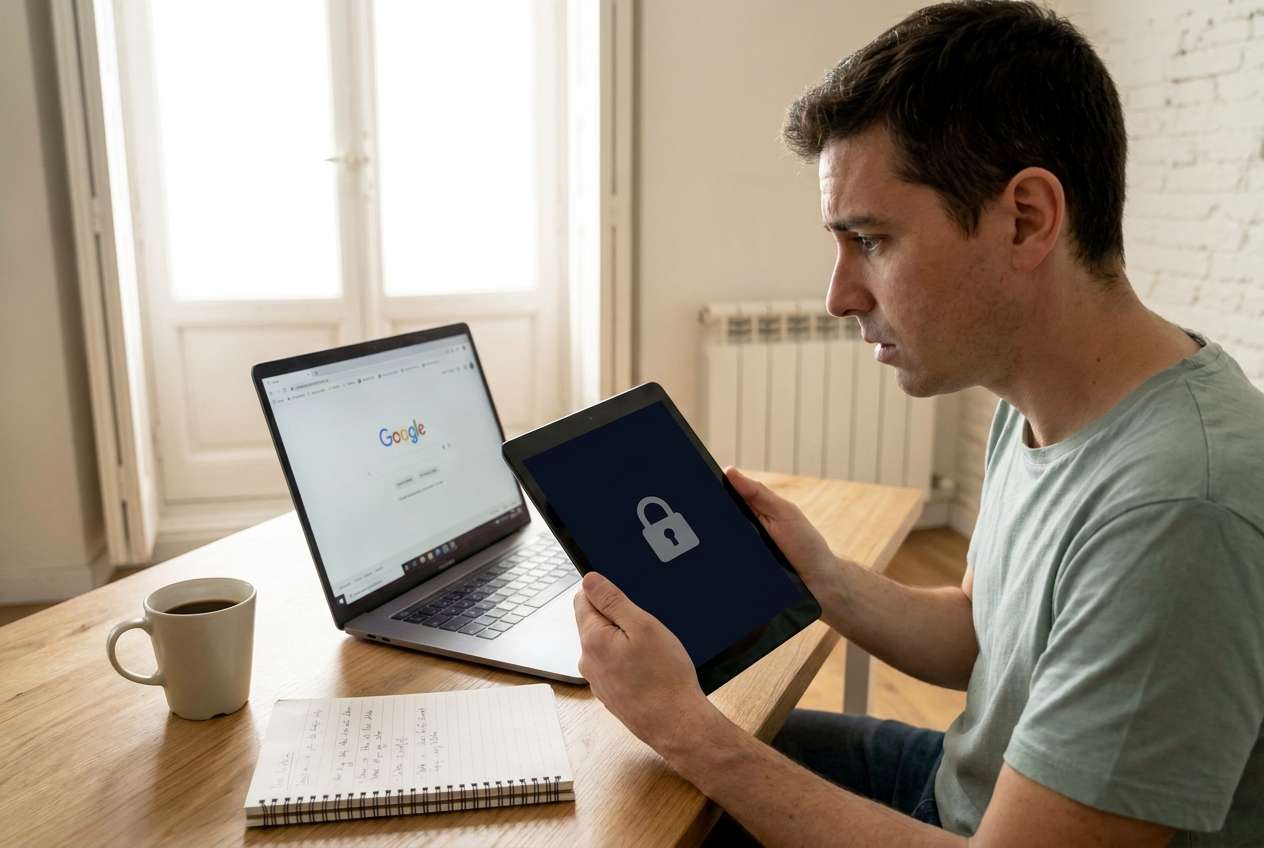
This situation usually means the tablet is enforcing a screen lock (PIN/pattern/password) and you don’t have a ready recovery path (cloud backup, local backup, or a remembered account flow). It’s common after tapping Restart or Install/Update, when the device requests the primary lock method again.
In practice, you may be facing one of a few different lock “types”: a standard Android lock screen, an OEM-specific lock (Samsung/MIUI), or a Google account verification step after changes. From the user side, it’s often confusing because the screen looks similar—but the recovery options differ.
A key clue is what happens after several minutes: nothing changes, the lock screen keeps looping, or it’s unclear whether the tablet is still processing an update or is fully stuck at the lock stage.
1-1. Before You Prompt the AI
Collect these details first so the AI can classify the lock scenario accurately:
- Tablet brand + model (from box/receipt if needed)
- Android version (if known) and approximate last successful unlock date
- Lock type: PIN / pattern / password / fingerprint / face
- Exact on-screen text (write it verbatim)
- Whether you see: “Forgot PIN/Pattern,” “Try again in X minutes,” or Google sign-in prompts
- What happened right before it locked (update, restart, new lock, new fingerprint)
- Whether Find My Device / OEM account features were ever enabled
Part 2. Using AI prompts to diagnose Android tablet lockout safely
2-1. Level 1: Basic Prompt
My Android tablet is locked, and I have no backup. Ask me the minimum questions needed to identify what type of lock I’m facing (screen lock vs Google verification vs OEM lock), then suggest the lowest-risk next steps that don’t increase lockouts or data loss.
2-2. Level 2: Advanced Prompt
Diagnose my Android tablet lockout with no backup. Based on my answers, rank the most likely causes from 1–5 and assign a risk level (low/medium/high) to each suggested action. Include “what evidence would confirm this” for each cause, and explicitly avoid steps that could trigger data loss unless unavoidable.
2-3. Level 3: Evidence Prompt
You are helping me triage an Android tablet lockout without a backup. Use the details below to classify the lock type and propose safe next steps.
Device
- Brand/model: (e.g., Samsung Galaxy Tab S7)
- Android version: (e.g., Android 12 / unknown)
- Bought used/new: (e.g., used)
What happened before the lock
- Last action: (e.g., changed PIN, restarted after update, added fingerprint)
- Time since last successful unlock: (e.g., yesterday / weeks)
What I see now
- Lock method shown: (PIN / pattern / password)
- Exact message: (e.g., “Try again in 30 seconds”)
- Options present: (e.g., “Forgot password,” “Emergency call,” “Use Google account”)
- Any account prompts: (Google sign-in / Samsung account / none)
Constraints
- No backup available: yes
- I want to avoid data loss: yes
Output format
1) Lock type classification (with confidence %)
2) 3–5 safest next steps in order
3) What NOT to do and why
4) What evidence to check next on the tablet screen
2-4. Prompt Refinement
Use these follow-ups to tighten the diagnosis and reduce risk:
What 5 questions do you still need answered to be confident, and why does each question matter?
Separate possibilities into categories: screen lock mismatch, account verification, device policy/MDM, and hardware/OS issues.
Rank the top 3 likely causes again using only the on-screen evidence I provided—no assumptions.
What single piece of evidence would most quickly distinguish between a normal lock screen and a Google verification step?
If I try one low-risk step first, what should it be, and what outcome would tell me to stop immediately?
Part 3. When to stop trying passwords on an Android tablet
Stop and reassess if any of these appear, because continued attempts can worsen lockouts or push you toward data-loss outcomes:
- The tablet shows longer lockout timers (minutes to hours) after attempts
- You’re being redirected to a different sign-in flow than before (new prompts you didn’t see earlier)
- You suspect the tablet is managed (work/school prompts, “device policy,” or admin restrictions)
- You cannot confirm which account (Google/OEM) is tied to the device, and guessing may create more dead ends
Once you’ve used AI to classify the lock type and constraints, the next phase is execution—choosing a method that matches your device and risk tolerance.
Part 4. Unlock Android screen safely with Dr.Fone
If your AI diagnosis indicates you’re dealing with a screen lock problem (PIN/pattern/password) and you need a practical way to carry out the next step, Dr.Fone - Screen Unlock (Android) is designed for executing that process in a guided workflow. This is most relevant when you’ve already confirmed the lock type, ruled out obvious low-risk options (like the correct account flow), and you want a clearer, model-aware path to proceed while staying mindful about data-loss tradeoffs.
-
Step 1 Open Screen Unlock (Android)
Launch Dr.Fone on a computer and choose Unlock Android Screen, making sure you’re using the Android option (not iOS) to avoid wrong workflows.

-
Step 2 Connect the tablet reliably
Connect the tablet via USB and keep the connection stable (avoid hubs/loose cables) so the process isn’t interrupted mid-step.

-
Step 3 Select the correct device details
Follow the on-screen prompts to choose the brand/model as accurately as possible, because mismatches can lead to failed attempts or unexpected outcomes.

-
Step 4 Follow the guided unlock flow
Proceed through the guided steps to remove the screen lock, and pause if the tool indicates prerequisites or warnings relevant to your device state.

-
Step 5 Set a new lock and plan backups
After access is restored, immediately set a new lock method you can retain and enable a backup method to avoid repeating a no-backup scenario.

Part 5. AI Output vs Reality
AI can guide decisions, but it can’t perform actions on your device. Here’s how to keep expectations grounded:
| AI suggests | What you should verify in reality |
|---|---|
| “It’s probably a normal PIN lock” | Whether there’s any Google/OEM sign-in prompt or countdown lockout timer |
| “Try an account-based recovery” | Whether the tablet is online and you can access the same account credentials |
| “Avoid resets to protect data” | Whether any remaining options on-screen exist before data-destructive paths |
| “Use a dedicated tool for execution” | Whether your exact brand/model/Android version is supported by the method |
AI helps you choose the next step; the actual unlock attempt (and any consequences) depends on the tablet’s security state, model support, and the method you execute.
Recommended tool: Dr.Fone for executing screen-unlock steps
If you’ve already used AI to classify the lock type as a local screen lock (not Google/OEM verification) and you’re ready to execute a guided workflow on a computer, Dr.Fone can help you proceed in a more structured, model-aware way.
 Unlock Android phone in seconds.
- Remove PIN, pattern, password, fingerprint.
- Bypass Google FRP lock easily.
- Works on all Android brands & models.
- No tech skills required – user-friendly.

Before you proceed, double-check that you selected the correct brand/model in the tool and pay attention to any on-screen prerequisites and warnings, especially if preserving data is your top priority.




Conclusion
Use AI to classify what kind of lock you’re facing, identify the safest evidence-based next step, and avoid trial-and-error that can raise risk when there’s no backup; then hand off execution to a dedicated workflow like Dr.Fone - Screen Unlock (Android) when you’re ready to perform the chosen approach.
FAQ
-
Why is my Android tablet locked even though I’m entering the correct PIN?
Common reasons include keyboard/layout differences, caps/spacing issues (for passwords), a recently changed lock not fully remembered, or being on a different prompt than expected (e.g., account verification vs screen lock).
-
What does “Try again in 30 seconds/minutes” mean on an Android tablet?
It indicates too many incorrect attempts; continuing to guess can increase the timeout and reduce your options.
-
Is there a “Forgot pattern/PIN” option on all Android tablets?
No. Availability depends on Android version, OEM customization, and whether account-based recovery was enabled and the device is online.
-
How can I tell if it’s a Google verification screen instead of a normal lock screen?
Google verification typically asks for a Google account sign-in and may reference device protection; a normal lock screen usually only requests the local PIN/pattern/password without requiring account credentials.
-
Does Dr.Fone - Screen Unlock (Android) work for every tablet model?
Support varies by brand/model/Android version; check compatibility within the tool’s prompts and follow the model selection carefully to avoid mismatched steps.
 Add Wondershare Dr.Fone as a preferred source on Google





