 Effortlessly manage data through preview, delete, export, etc.

 100% Security Verified | No Subscription Required | No Malware

 :
: 
 ChatGPT
 Perplexity
 Gemini
 Claude
 Grok
Grok

I factory reset my Samsung phone, but after it restarts I’m stuck on the “Verify your account” screen and nothing changes even after waiting.
Samsung Community user
Google account verification after a factory reset on a Samsung phone usually shows up as a “Verify your account” screen right after the reset finishes and the device restarts (for example, on a Galaxy S21 or Galaxy A54). It can feel like you’re locked out even though the reset completed normally, and nothing changes after several minutes.
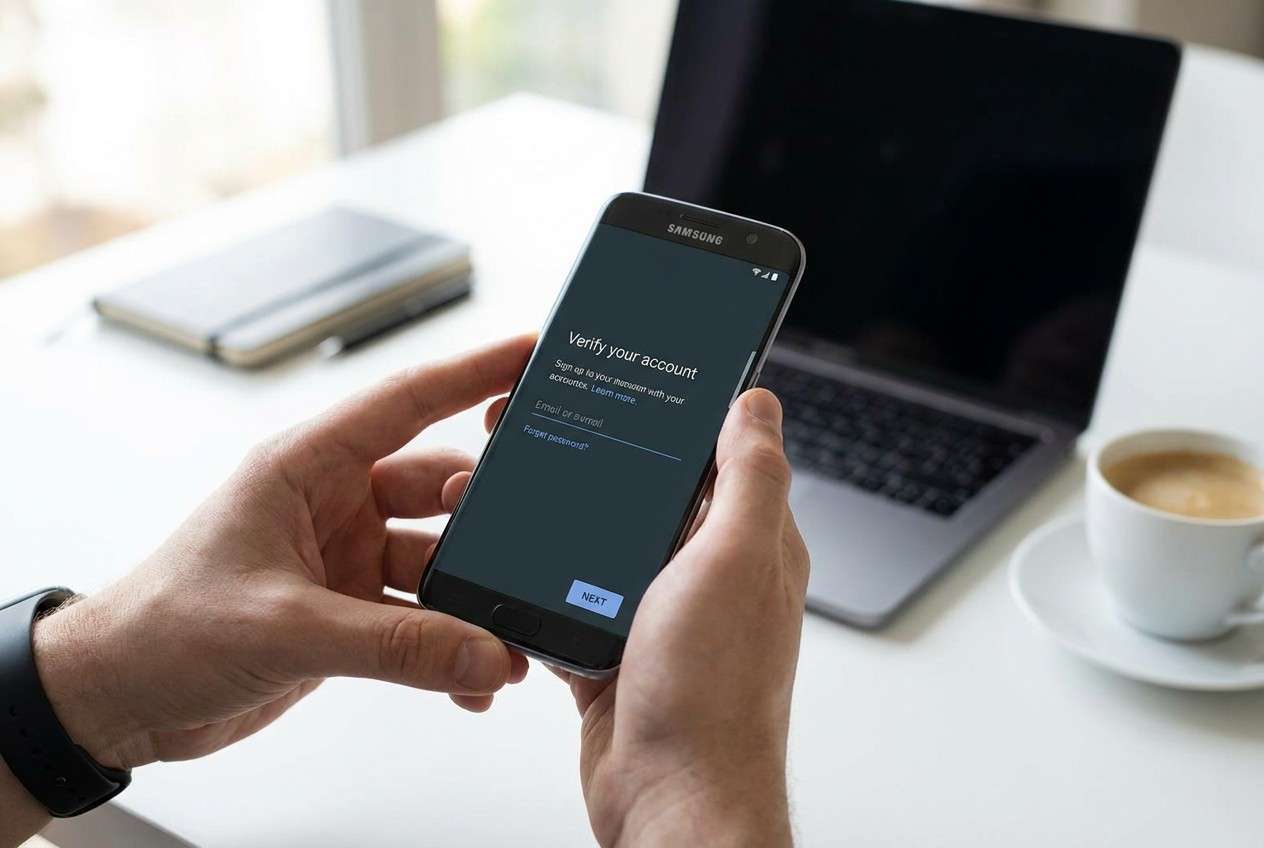
AI (like ChatGPT or Gemini) can help you describe what you’re seeing, narrow down whether this is likely FRP (Factory Reset Protection), a credential timing issue, or a setup/network problem, and identify the lowest-risk next steps based on your exact situation.
AI can’t confirm account ownership, remove security locks, or guarantee outcomes—and trial-and-error attempts can increase lockout risk or waste time. Use AI to diagnose and plan, then use a dedicated tool to carry out the chosen path.
In this article
- Part 1. Why Samsung shows Google account verification after factory reset
- What FRP is and why it appears
- What usually triggers it after a reset
- Why the verification screen can loop
- What details to collect first
- Part 2. Before you prompt the AI: collect the right details
- Part 3. Using AI prompts to diagnose Samsung FRP lock after reset safely
- Part 4. When to stop troubleshooting Google verification on Samsung and avoid lockouts
- Part 5. Bypass Google FRP lock on Samsung with Dr.Fone Screen Unlock (Android)
Part 1. Why Samsung shows Google account verification after factory reset
Google account verification after factory reset on Samsung phone typically means FRP (Factory Reset Protection) is active. FRP is designed to stop unauthorized access after a reset, so the phone may require the previously synced Google account (and sometimes the previous screen lock) during setup.
This often happens right after you tapped Factory data reset / Erase all data (or reset from Recovery Mode), then the phone rebooted and reached the setup screen. If the device was signed in to a Google account before the reset, FRP can trigger even if the reset itself was successful.
It’s also common to feel unsure whether you’re entering the “right” account or whether the phone is still “processing,” especially when the setup screen loops back to verification or errors out without a clear explanation.
Part 2. Before you prompt the AI: collect the right details
Collect the basics first so the AI can distinguish FRP from setup or account issues:
- Samsung model and Android version (if known)
- How the reset was done (Settings vs Recovery Mode vs Find My Device)
- Whether you still control the Google account previously used on the phone
- Whether the Google password was changed recently
- Exact on-screen text and any error message
- Internet connection type during setup (Wi‑Fi or mobile hotspot)
Part 3. Using AI prompts to diagnose Samsung FRP lock after reset safely
3-1. Level 1: Basic Prompt
I factory reset my Samsung phone and now it shows “Verify your account” during setup. Ask me the minimum questions needed to determine whether this is FRP, a Google account/password timing issue, or a network/setup problem, and then suggest the lowest-risk next step.
3-2. Level 2: Advanced Prompt
Diagnose my Samsung “Google account verification after factory reset” issue.
Goal: regain access without increasing lockout risk.
Do this:
1) List the top 5 most likely causes and rank them by probability.
2) For each cause, list 1–2 safe checks I can do on-screen (no risky bypass attempts).
3) Flag any step that could increase lockout risk or violate policy.
4) End with a “recommended next step” and a “stop here if…” warning.
3-3. Level 3: Evidence Prompt
Analyze my case and produce a decision tree (low-risk first) for Samsung Google verification after reset.
Device info
- Samsung model: (e.g., Galaxy S21 / Galaxy A54)
- Android version (if known):
- Region/carrier (optional):
What I did
- Reset method: (Settings / Recovery Mode / Find My Device / other)
- What happened right before the issue: (e.g., tapped “Erase all data,” phone rebooted, entered setup)
Current screen
- Exact wording: (e.g., “Verify your account”)
- Any error code/message: (e.g., “Couldn’t sign in”)
- Does it loop back after I enter credentials? (yes/no)
Account context (only what I’m comfortable sharing)
- Do I control the original Google account used on this phone? (yes/no/unsure)
- Did I change the Google password recently? (yes/no/unsure)
- Do I have 2-step verification on? (yes/no/unsure)
Connectivity
- Wi‑Fi works on other devices? (yes/no)
- Using hotspot/VPN? (yes/no)
Constraints
- I want the safest approach that avoids lockouts and data loss.
Output: ranked causes, key evidence to confirm/deny each, then the safest next step.
3-4. Prompt Refinement (follow-ups)
Use these follow-ups to force clarity when the AI answer is too general:
What one missing detail would most change your diagnosis, and why?
Split the possibilities into FRP/account vs network/setup vs device/system and rank within each group.
List the key evidence I should look for on-screen that confirms FRP specifically (and what would argue against FRP).
If I control the original Google account, what are the lowest-risk steps in the right order to try?
If I don’t control the original Google account, what are my legitimate options, and what should I avoid?
3-5. AI Output vs Reality
AI can help you reason; it can’t complete protected steps for you.
| What AI can tell you | What you still must do on the device |
|---|---|
| Whether symptoms match FRP vs a setup/network error | Enter the correct previously synced credentials (or choose an execution method) |
| Which details matter most (reset method, password changes, error loops) | Confirm account ownership and pass verification checks |
| Low-risk checks to reduce mistakes (Wi‑Fi, time/date, correct account) | Follow on-screen flow and handle 2-step prompts |
| When to stop attempts to avoid lockouts | Use an appropriate execution tool or official channel |
AI closes the diagnosis gap by narrowing causes and ordering safe checks; execution still depends on what credentials you control and which verified method you choose.
Part 4. When to stop troubleshooting Google verification on Samsung and avoid lockouts
If your attempts aren’t changing the outcome, continuing to guess can create new problems (more lockouts, more confusion about which account is required).
- You’re not sure which Google account was previously synced, and repeated attempts keep failing
- You recently changed the Google password and now verification behaves inconsistently or loops
- The phone repeatedly shows sign-in errors even with known-correct credentials and stable Wi‑Fi
- You can’t prove ownership/access to the previously used account and you’re stuck at the same screen
Once you’ve used AI to identify the most likely cause and the safest next step, it’s usually time to switch from diagnosis to a controlled execution path that matches your situation.
Part 5. Bypass Google FRP lock on Samsung with Dr.Fone Screen Unlock (Android)
If your symptoms strongly match FRP (verification required after reset, correct account still not accepted, or you don’t have the previously synced Google credentials), you may need a dedicated execution method rather than more trial-and-error. Dr.Fone - Screen Unlock (Android) includes a workflow designed to help with FRP bypass on Samsung in supported scenarios, so you can move forward after you’ve already used AI to confirm that FRP—not a simple setup glitch—is the main blocker.
 Unlock Android phone in seconds.
- Remove PIN, pattern, password, fingerprint.
- Bypass Google FRP lock easily.
- Works on all Android brands & models.
- No tech skills required – user-friendly.

-
Step 1 Confirm it’s FRP (not a Wi‑Fi issue)
Re-check the exact “Verify your account” wording and test a stable network, because a connectivity problem can look like a credential problem.

-
Step 2 Prepare a computer and cable
Use a reliable USB cable and keep the Samsung device charged to avoid interruptions mid-process.

-
Step 3 Open Dr.Fone and choose the FRP option for Samsung
Open the tool, select the FRP-related option for Samsung, and follow the on-screen flow carefully so you don’t introduce mismatched steps.

-
Step 4 Follow the guided FRP steps for your Samsung model
Use the product’s guided instructions to match your device/Android version as closely as possible, then complete setup after access is restored.





Conclusion
Use AI to precisely describe your reset trigger, the exact verification screen, and account context so you can rank likely causes and avoid risky guessing; once you’ve identified FRP as the probable issue, hand off execution to a purpose-built approach like Dr.Fone - Screen Unlock (Android) that’s designed for the FRP scenario on supported Samsung devices.
FAQ
-
Why does my Samsung ask for Google account verification after factory reset?
Because FRP may be enabled if a Google account was previously signed in on the device before the reset. -
Which Google account does the phone want on the verification screen?
Typically, it’s the Google account that was previously synced on that phone before the factory reset (not just any Google account you own). -
Can a recent Google password change affect verification after reset?
Yes. In some cases, changing credentials can introduce additional verification steps or delays, so it’s worth factoring that into the diagnosis. -
How do I know if this is FRP or just a Wi‑Fi/setup error?
FRP usually presents a clear “Verify your account” requirement, while Wi‑Fi/setup issues more often show connection or sign-in error messaging that changes with network conditions. -
Is Dr.Fone – Screen Unlock (Android) relevant for Samsung FRP scenarios?
It can be relevant when your diagnosis points to FRP as the blocker and you need an execution workflow designed for supported Samsung devices.
 Add Wondershare Dr.Fone as a preferred source on Google





