 Effortlessly manage data through preview, delete, export, etc.

 100% Security Verified | No Subscription Required | No Malware

 :
: 
 ChatGPT
 Perplexity
 Gemini
 Claude
 Grok
Grok

I transferred WhatsApp from my iPhone to Android and the chats are there, but a lot of photos and videos are missing. I don’t want to overwrite anything again—what should I check before I retry?
Reddit user, r/whatsapp
Moving WhatsApp chats from iPhone to Android with attachments can fail if you miss one prerequisite, choose the wrong transfer method, or overwrite the wrong data at the wrong time.
AI can help you map the safest sequence, identify what to check on both phones, and define “stop points” so you don’t continue until the evidence looks right.
AI can’t access your devices, confirm what’s actually on them, or perform the transfer—so once the plan is verified, you’ll need a real device tool to execute the steps reliably.
In this article
- How to Plan iPhone to Android WhatsApp Transfer with Attachments Without Missing Critical Steps
- Common failure points to avoid
- The “point of no return” you must delay
- What to verify before any irreversible step
- How to handle existing Android WhatsApp data
- What the AI Needs to Know
- Using AI Prompts to Build a Safer Workflow
- When to Stop Planning and Start Execution
- Execute the Workflow Safely with Dr.Fone
Part 1. How to Plan iPhone to Android WhatsApp Transfer with Attachments Without Missing Critical Steps
You’re switching from an iPhone to a new Android phone and you need WhatsApp chats plus media (photos, videos, documents) to come across intact. You may also have existing WhatsApp data on the Android device you don’t want to lose.
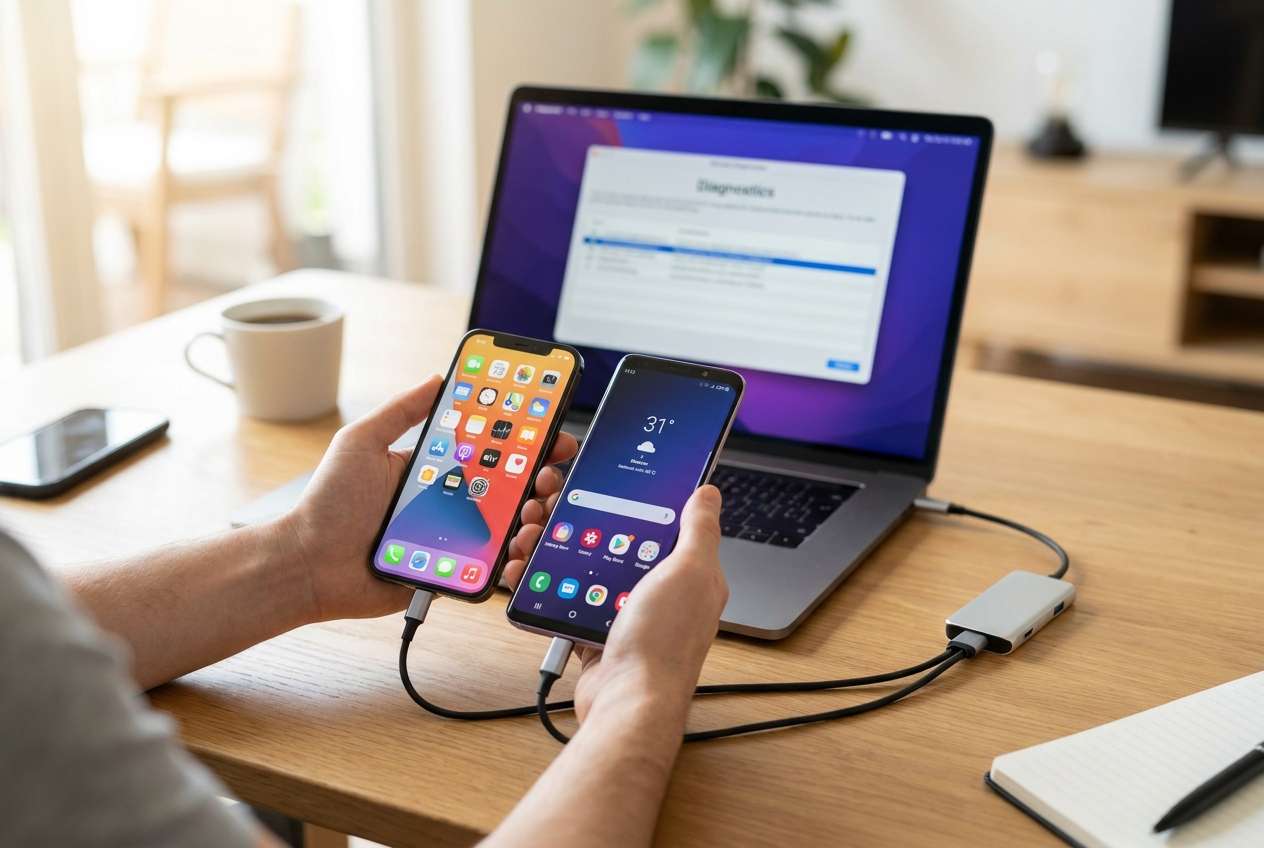
Most AI answers tell you what to do but not when to stop, what to verify, and which choices are irreversible. The common failure points are: wrong cable/permissions, insufficient storage, incompatible OS/WhatsApp versions, and starting a transfer that overwrites the target WhatsApp database.
The point of no return is typically when you initiate a transfer that replaces WhatsApp data on the Android device (or triggers WhatsApp re-initialization). You should not reach that moment until you’ve verified storage, versions, account access, and whether the target device has data worth preserving.
Part 2. What the AI Needs to Know
Answer these so the workflow can be sequenced safely and your verification checks are realistic:
- iPhone model + iOS version
- Android model + Android version
- WhatsApp version on each device (and whether it’s Business or standard)
- Same phone number will be used on Android? (yes/no)
- Is WhatsApp already set up on the Android device? (fresh install / active with chats)
- Do you need all attachments or only recent media? (all / last X months)
- Approx WhatsApp size on iPhone (WhatsApp Storage screen estimate)
- Free storage available on Android (GB) and iPhone (GB)
- Cable/adapters available (Lightning-to-USB-C, USB-A, etc.)
- Any constraints: work device policy, MDM, broken screen, limited time window
- Your risk tolerance: can the Android WhatsApp data be overwritten? (allowed / must preserve)
Part 3. Using AI Prompts to Build a Safer Workflow
Use the prompts below to force a step-by-step plan with explicit checks and stop points before anything irreversible happens.
3-1. Level 1: Basic Prompt
I need a planning checklist to transfer WhatsApp from iPhone to Android and keep attachments. Build a minimal sequence of preparation → transfer → verification, and list the top mistakes that cause missing media. Do not give execution clicks—only what to confirm before moving on.
3-2. Level 2: Advanced Prompt
Create a structured workflow for “iphone to android WhatsApp transfer with attachments” with three phases: Preparation, Execution (high-level only), and Verification.
In each phase, label items as Critical or Optional, and include clear stop/go criteria before any irreversible step (like overwriting WhatsApp data on the Android phone).
3-3. Level 3: Evidence Prompt
Plan my transfer workflow using these facts: iPhone (iOS 17), Android (Android 14), same phone number (yes), WhatsApp type (standard), WhatsApp size on iPhone (18 GB), free storage on Android (35 GB), Android WhatsApp status (already active with some chats), cable (Lightning-to-USB-C available).
Give checks before, during, and after the transfer, including: storage buffer recommendations, how to confirm I’m on the right WhatsApp account, what “success evidence” looks like (e.g., open 3 old chats from different years, confirm media thumbnails load, search works), and what to do if attachments appear missing after completion.
3-4. Prompt Refinement
Put the workflow into a table with columns: Step, Why it matters, How to verify, Stop/Go rule, Risk if skipped.
Assume I cannot lose existing Android WhatsApp chats—propose a decision tree that avoids overwriting and shows the safest branching path.
Define “attachment integrity” verification as a test plan: sample size, which media types to test (photos/videos/docs/voice notes), and what failures mean.
List the top 10 “silent failure” signs (transfer finishes but content is incomplete) and the exact checks to catch each one early.
Create a pre-flight checklist I can screenshot and follow in under 2 minutes before starting the irreversible step.
3-5. AI Plan vs. Real Device Constraints
| Planning with AI | Real device constraints |
|---|---|
| Can sequence steps and set stop/go criteria | Must rely on actual device prompts, permissions, and cable behavior |
| Can identify overwrite risks and preservation options | Existing WhatsApp data on the Android device can be replaced during transfer |
| Can propose verification tests for attachments | Only the devices can reveal whether media actually opens and downloads correctly |
| Can outline fallback paths if something fails | Recovery options depend on what was overwritten and what backups truly exist |
AI improves planning and reduces avoidable mistakes, but it cannot execute the transfer, read your device state, or guarantee outcomes without a real tool performing the device-side actions.
Part 4. When to Stop Planning and Start Execution
- You’ve confirmed the target state: which device is the “source,” which is the “destination,” and whether the Android WhatsApp data may be overwritten.
- You have evidence checks defined (what you will open/search/test) and a clear stop point if results look incomplete.
- Storage, OS/WhatsApp versions, and cable/adapter readiness are confirmed—not assumed.
- You’ve chosen your safest path for preserving anything already on the Android phone (or explicitly accepted replacement).
At this point, the risk shifts from “bad plan” to “bad execution,” so you move forward only if your pre-flight checks are green.
Part 5. Execute the Workflow Safely with Dr.Fone
Execution is where most losses happen—especially when an action silently replaces WhatsApp data on the destination device. Once your plan is locked and your stop/go rules are clear, use Dr.Fone as the execution layer.
-
Step 1 Prepare devices and open the WhatsApp transfer tool
Charge both phones, ensure a stable cable connection, and confirm sufficient free storage on the Android device for chats plus attachments. Then open the WhatsApp transfer tool on your computer/device tool interface.
Limitation: AI can’t detect real storage, cable reliability, or permission prompts—verify on-device before proceeding.

-
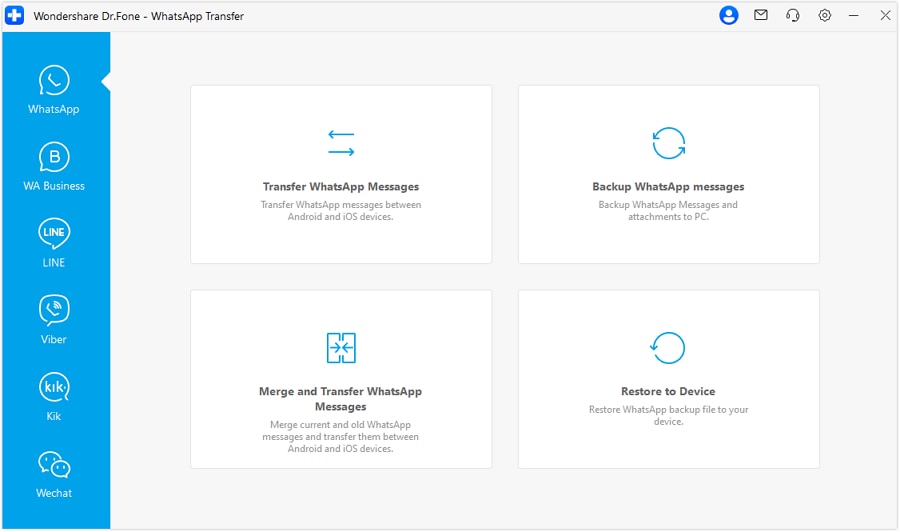
Step 2 Start the iPhone-to-Android WhatsApp transfer flow
Proceed to the WhatsApp transfer area and start the transfer process at a high level (before any overwrite/replace step), watching for device prompts and required permissions.
-
Step 3 Confirm source/destination and acknowledge the irreversible moment
Confirm which device is the source (iPhone) and which is the destination (Android). Proceed carefully when the process indicates it will write/replace WhatsApp data on the destination.
Limitation: Once the destination WhatsApp database is replaced, you may not be able to restore prior Android WhatsApp content unless you had a verified backup—do not proceed unless you accepted that outcome.

-
Step 4 Verify attachments and chat integrity immediately
After completion, open WhatsApp on Android and run your evidence tests (old chats, search, media types, random attachments) before you sign out of the iPhone or wipe/reset anything.
Limitation: AI can suggest what to test, but only you can confirm media opens correctly and that downloads/thumbnails/search behave as expected.

Recommended Tool for Reliable Transfer Execution
If you’ve finished planning and want a practical way to execute the transfer with clearer control over the process, use Dr.Fone - WhatsApp Transfer as the execution layer—then run your attachment integrity checks immediately after the transfer completes.
 Transfer WhatsApp across Android & iOS.
- Backup & restore WhatsApp to PC securely.
- Preview & export chats selectively.
- Works with all iPhone & Android models.
Keep your workflow “check-driven”: confirm storage and account identity first, delay any overwrite step until you’re ready, and treat post-transfer verification (including media open/play tests) as mandatory before you make irreversible cleanup changes.




Conclusion
Use AI to design a cautious, check-driven workflow with clear stop/go rules, then use Dr.Fone to execute the actual iPhone to Android WhatsApp transfer with attachments and validate results before taking any irreversible cleanup steps.
FAQ
-
What’s the biggest risk when transferring WhatsApp from iPhone to Android with attachments?
Overwriting the destination WhatsApp data and only noticing missing media or partial history after the source state has changed. -
How do I verify attachments transferred correctly (not just chat text)?
Test a defined sample: open several chats from different time periods and confirm photos load, videos play, documents open, and voice notes play—don’t rely on thumbnail presence alone. -
When is the “point of no return”?
When you start the transfer step that writes a new WhatsApp database to the Android device (or re-initializes WhatsApp there). Treat that as irreversible unless you have a verified backup. -
Should I wipe the iPhone after the transfer finishes?
Not until your verification checks pass and you’ve used WhatsApp on the Android device long enough to confirm media behavior and message history are stable. -
Why can’t AI just tell me the exact steps that will work?
Because AI can’t see your device state, WhatsApp account status, permissions prompts, storage conditions, or what Dr.Fone is showing at runtime.
 Add Wondershare Dr.Fone as a preferred source on Google





