 Effortlessly manage data through preview, delete, export, etc.

 100% Security Verified | No Subscription Required | No Malware

 :
: 
 ChatGPT
 Perplexity
 Gemini
 Claude
 Grok
Grok

I’m about to give my phone to a family member, but I’m worried I’ll either delete the wrong photos or miss a hidden folder and leave something private behind. What’s the safest order to do this?
Reddit user, r/AndroidQuestions
Cleaning private photos off a phone sounds simple, but missing one step can mean either permanent loss (you deleted the wrong things) or accidental exposure (photos stay in hidden caches, albums, or synced apps).
AI is useful for turning a vague goal (“remove private photos”) into a structured workflow with preparation, verification checks, and a clear point-of-no-return you don’t cross too early.
AI can’t actually inspect your device, confirm what’s still stored, or securely erase data—so once the plan is locked, you still need real device tools to execute it reliably.
In this article
- How to plan without missing critical steps
- Define the real risk (loss vs. exposure)
- Map all places photos can exist
- Set the “point of no return” gate
- Decide the handover mode
- What the AI needs to know
- Using AI prompts to build a safer workflow
- When to stop planning and start execution
- Execute safely with Dr.Fone
Part 1. How to Plan Clean Private Photos Before Giving Phone to Family Without Missing Critical Steps
1-1. Define the real risk: permanent loss vs. accidental exposure
You’re about to hand your phone to a family member, and you want to remove private photos without breaking your photo library, losing important memories, or leaving recoverable traces behind.
1-2. Map where private photos can still exist (beyond “Gallery”)
The uncertainty usually isn’t “how to delete a photo”—it’s the sequence: whether to back up first, how to verify what’s backed up, where photos might still exist (Albums, Recently Deleted, hidden folders, app caches, cloud sync), and how to confirm the phone is actually clean.
1-3. Set the point of no return (and forbid yourself to cross it early)
The point of no return is any secure erase or factory reset step: once you do it, you may not be able to recover anything you forgot to save—so your workflow must force verification before you reach that moment.
1-4. Decide the handover mode upfront
Before you write steps, decide whether you’re doing selective removal (remove only private items) or a full handover clean slate (erase/reset). This choice changes the order of backup, deletion, account sign-out, and verification.
Part 2. What the AI Needs to Know
Share your device context so the workflow can be sequenced safely and verified properly.
- Phone model and OS (e.g., iPhone 13 iOS 17 / Samsung S22 Android 14)
- Your photo sources (Camera roll only, or also WhatsApp/Telegram, Downloads, screenshots, hidden albums)
- Cloud/sync status (iCloud Photos / Google Photos / OneDrive / Dropbox; on/off; multiple accounts)
- Your goal (remove only private photos vs. hand over the phone “like new”)
- What must be kept (albums, dates, metadata, Live Photos, shared albums)
- Your backup destination (PC/Mac, external drive, cloud) and available storage
- Your time window and risk tolerance (fast cleanup vs. maximum certainty)
- Whether the recipient will use your account or their own (same Apple ID/Google account vs. new)
Part 3. Using AI Prompts to Build a Safer Clean Private Photos Before Giving Phone to Family Workflow
Use the prompts below to make the AI produce a checklist-driven plan with explicit verification gates before any irreversible action.
3-1. Level 1: Basic Prompt
I’m giving my phone to a family member and need to clean private photos without accidentally deleting things I still need.
Build a short, step-by-step plan that includes a backup-first approach and a “stop and verify” checkpoint before any irreversible step.
3-2. Level 2: Advanced Prompt
Create a workflow to clean private photos before giving my phone to family, separated into Preparation, Execution, and Verification.
Mark each step as critical or optional, and include specific checks for hidden albums, “Recently Deleted/Trash,” messaging app media folders, and cloud sync pitfalls.
3-3. Level 3: Evidence Prompt
Here’s my situation: (Android 14, Samsung S22), photos exist in (Camera, Screenshots, WhatsApp Media, Downloads), and I use (Google Photos with 2 Google accounts).
I want to remove (about 250 private photos/videos) but keep everything else and preserve timestamps.
Build a plan with:
- Before checks (what to confirm before touching anything)
- During checks (how to confirm I’m deleting only the intended items)
- After checks (how to confirm nothing remains locally or in trash)
Include a “point of no return” step (secure erase/factory reset) and list the exact verification conditions required before I’m allowed to do it.
3-4. Prompt Refinement
Produce the workflow as a table with columns: Step, Goal, Where on phone, Risk, Verification, Stop/Go gate.
List the top 10 “places private photos still hide” for my device/apps, and add one verification method per place (no vague wording).
Ask me only the minimum 7 questions needed to eliminate ambiguity, then regenerate the plan using my answers.
Define two end-states: A) remove specific private items only and B) hand over phone clean—then show how the steps diverge and where the irreversible step appears in each.
Add a pre-flight checklist that proves backup completeness (sample-check rules like “open 20 random files across dates/albums,” “confirm video playback,” “confirm original quality”).
3-5. AI Plan vs. Real Device Constraints
| AI can help with | AI cannot do |
|---|---|
| Design a safe sequence and checks | See your phone’s actual albums, caches, or sync state |
| List likely data locations and risks | Confirm what is truly deleted vs. recoverable |
| Define verification gates and stop rules | Perform backups, deletions, or secure erases |
| Reduce mistakes by forcing clarity | Guarantee results without real execution tools |
AI improves planning and reduces avoidable mistakes, but it cannot execute the cleanup or verify device state—execution requires device-level actions and tools.
Part 4. When to Stop Planning Clean Private Photos Before Giving Phone to Family and Start Execution
- You have a written list of exact targets (which albums/apps, date ranges, file types) and exact non-targets (what must not be touched).
- You have a backup destination ready with enough space, and a defined backup proof method (spot-check rules, counts, playback checks).
- You have identified your point of no return step (secure erase/factory reset) and set strict “go/no-go” verification conditions.
- You have decided the handover mode: selective removal vs. full handover clean slate, including account sign-out expectations.
If all four are true, planning is doing its job—next you switch to careful execution with verification in between.
Part 5. Clean Private Photos Before Giving Phone to Family: Execute the Workflow Safely with Dr.Fone
Execution now matters because the risk isn’t theoretical: one wrong tap can permanently remove memories, and one missed location can leave private media behind. After your verification gates are clear, you can use Dr.Fone - Data Eraser to carry out the plan more reliably.
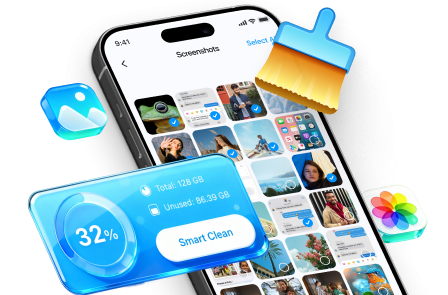
 Erase all data on iOS & Android
- Military-grade wiping to fully protect your privacy.
- Generate verified erasure reports better for device resale.
- Selectively erase private data and remove junk & large files.
-
Step 1 Open Dr.Fone and choose Data Eraser (don’t erase yet)
Start in the tool and identify the erase/cleanup entry point, but treat this as setup only. Your plan’s “stop/go gate” should still block any irreversible action until backup proof and location checks are done.

-
Step 2 Back up the photos you must keep (and capture proof)
Back up your photos/videos to your computer, then validate the backup by opening a sample set across dates/albums (including videos) and confirming expected counts.
 Note: AI cannot confirm backup integrity or completeness—only your spot-check rules and real file opening can.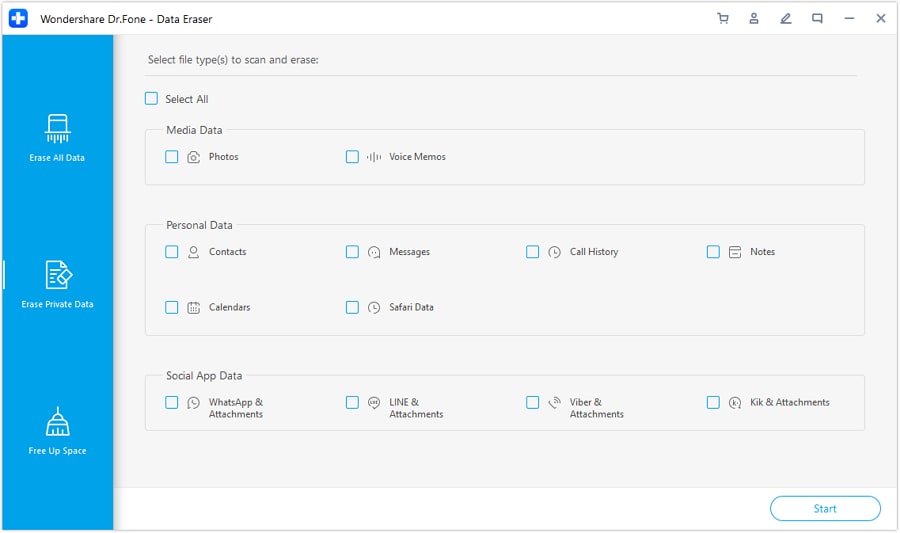
-
Step 3 Remove targeted private photos, then clear “Trash/Recently Deleted” locations
Delete only the intended items, then ensure they’re also removed from “Recently Deleted/Trash” and any app-specific media folders you identified during planning. Re-check the gallery and app folders against your plan’s target/non-target list.
Note: AI can’t see what still remains in hidden albums, caches, or secondary accounts—you must re-check the exact locations from your plan.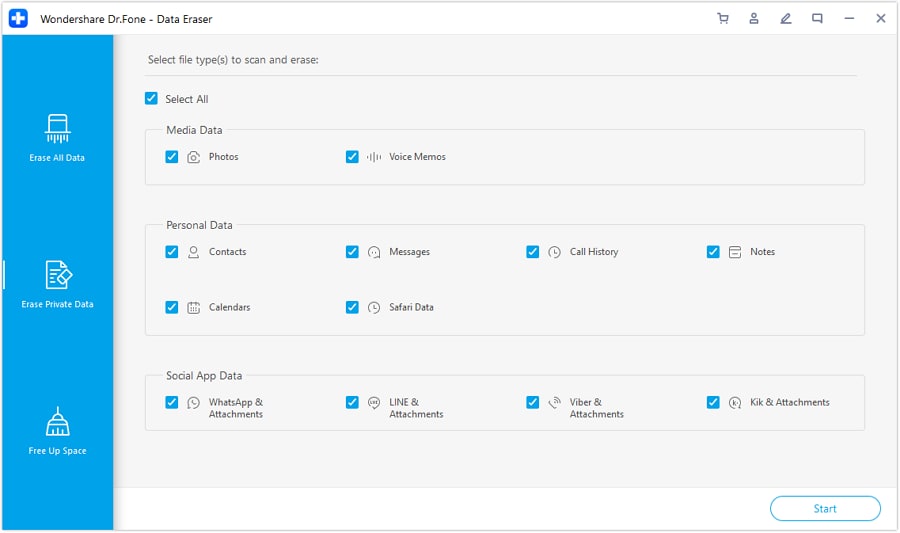
-
Step 4 Do the irreversible cleanup only after verification (secure erase/factory reset if chosen)
If your plan is “hand over clean,” perform the secure erase/factory reset only after your backup proof checks pass and you’ve confirmed sign-outs/sync settings won’t re-download private photos.
Note: This is the point of no return—once secure erase/factory reset is done, recovery may be impossible if you missed something.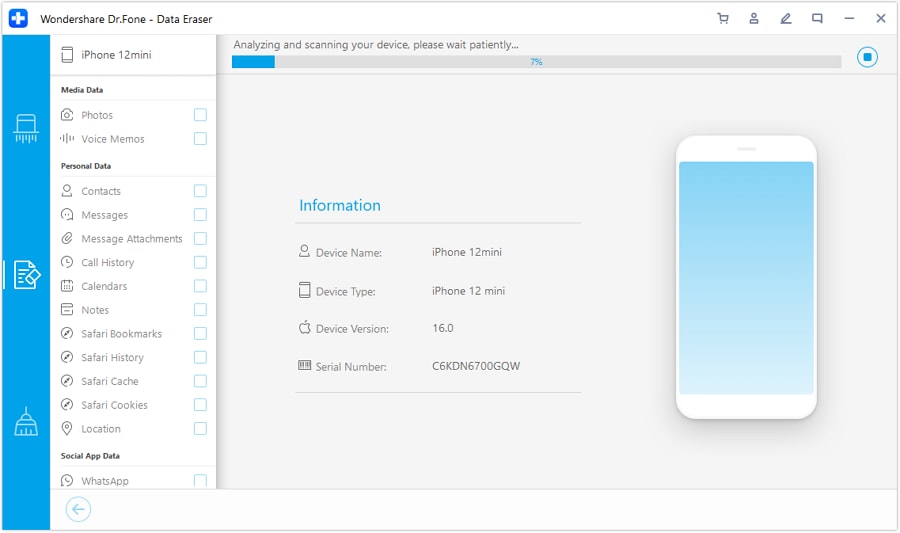




Conclusion
Use AI to design a verification-first workflow with a clear stop/go gate before any irreversible step, then use a real tool like Dr.Fone to carry out the backup and cleanup actions safely.
FAQ
-
How do I avoid deleting photos that I actually want to keep?
Back up first, then prove the backup by opening random samples (including videos) and checking counts before you delete anything. -
If I delete photos from the Gallery, are they definitely gone?
Not always. Many phones and apps keep a “Recently Deleted/Trash” area, and some apps store copies in their own media folders. -
What’s the biggest cloud-sync risk when cleaning private photos?
Deleting locally can delete in the cloud (or vice versa), and switching accounts or re-enabling sync can restore items you thought were gone. -
When should I do a secure erase or factory reset?
Only after backup proof is complete and you’ve verified all identified photo locations (including trash/hidden/app folders). That step is irreversible. -
Can AI tell me whether my phone is truly clean?
No. AI can only provide a checklist and verification rules; it cannot inspect device storage, caches, or account sync state.
 Add Wondershare Dr.Fone as a preferred source on Google





