 Effortlessly manage data through preview, delete, export, etc.

 100% Security Verified | No Subscription Required | No Malware

 :
: 
 ChatGPT
 Perplexity
 Gemini
 Claude
 Grok
Grok

My iPad keeps looping on the Apple logo, then the screen goes black and restarts again and again—right after I tapped “Install Now.” I don’t know if it’s still updating or truly stuck, and I’m worried Recovery Mode might erase my data.
Forum user
An iPad boot loop can look like the Apple logo appears, the screen goes black, then it restarts—again and again—often right after you tap Install Now for iPadOS or after a forced restart. It can happen on an iPad Pro and still feel similar to what people see on an iPhone 13 or iPhone 14. Nothing seems to change even after several minutes, so it’s unclear whether the device is still updating or stuck.
AI (like ChatGPT or Gemini) can help you sort symptoms, narrow likely causes, and decide whether Recovery Mode is a reasonable next step—or whether a different low-risk check makes more sense first.
AI can’t “see” what your iPad is doing internally, and trial-and-error steps (repeated force restarts, random button combos, or restoring too early) can raise the risk of data loss. Use AI to plan carefully, then use the right tool to execute.

In this article
- Why Recovery Mode matters in an iPad boot loop
- What Recovery Mode is (and isn’t)
- When it helps vs when it won’t
- Software-stuck vs hardware/connection clues
- What to collect before asking AI
- AI prompts to decide safely
- When to stop troubleshooting (risk control)
- Fix it more safely with Dr.Fone
- Conclusion
Part 1. Why should i use recovery mode for ipad boot loop happens and what it means
Recovery Mode is often considered when an iPad won’t start normally and keeps restarting, especially after an iPadOS update attempt, a storage-near-full situation, or a failed sync/restore. It’s essentially a controlled “communication state” that can let a computer (or a system tool) interact with the device when normal boot can’t complete.
In a boot loop, Recovery Mode can be helpful if the loop is driven by a software startup failure (e.g., update didn’t finish, system files didn’t load, or a startup check fails). But it’s not a guaranteed answer: a failing battery, damaged cable/port, or hardware issue can mimic the same symptoms.
If your iPad started looping right after you restarted it or after an update prompt, the key question is whether the loop is software-stuck (good Recovery Mode candidate) or hardware/connection-related (Recovery Mode may not hold or may fail repeatedly).
When Recovery Mode is a good idea
- The loop began after an iPadOS update attempt or interrupted install.
- Symptoms suggest a startup/software failure (e.g., update didn’t finish).
- A computer can recognize the iPad (more stable path for diagnostics/repair).
When Recovery Mode may not help (or may fail)
- Cable/port/computer instability causes repeated disconnects.
- Power/battery instability causes immediate reboots or overheating.
- Underlying hardware issues mimic the same boot-loop pattern.
1-1. Before You Prompt the AI
Collect these basics first so the AI can narrow causes quickly:
- iPad model and approximate age
- What happened right before the loop (update, restore, low battery, drop, water exposure)
- Current screen behavior (Apple logo only, progress bar, computer/cable icon)
- Whether a computer recognizes the iPad via USB
- Battery/charging behavior (gets warm, charge icon appears, only works on cable)
Part 2. Using AI prompts to diagnose should i use recovery mode for ipad boot loop safely
2-1. Level 1: Basic Prompt
My iPad is stuck in a boot loop (Apple logo → black screen → restarts). It started after [update / restart / restore]. Should I use Recovery Mode, and what low-risk checks should I do first to avoid data loss?
2-2. Level 2: Advanced Prompt
Act as a diagnostic assistant. Based on my symptoms, rank the most likely causes of an iPad boot loop and tell me whether Recovery Mode is appropriate right now.
Include: (1) cause ranking with confidence, (2) what evidence would confirm/deny each cause, (3) the lowest-risk next action first, and (4) specific data-loss risks for each action.
My details: iPad model: [ ], iPadOS update attempted: [yes/no], storage was near full: [yes/no/unknown], shows progress bar: [yes/no], computer recognizes iPad: [yes/no], liquid/drop exposure: [yes/no].
2-3. Level 3: Evidence Prompt
Help me decide if I should use Recovery Mode for an iPad boot loop by analyzing my evidence and proposing the safest plan.
Device info
- iPad model: (e.g., iPad Pro 11-inch, iPad Air 4)
- Approximate iPadOS version before issue: (e.g., iPadOS 17.x)
- Free storage before issue: (e.g., ~1–2 GB free / unknown)
Trigger
- What I did right before: (e.g., tapped “Install Now,” then it rebooted)
- Any recent restore/sync: (yes/no)
Current symptoms
- Screen loop pattern: (e.g., Apple logo for 10s → black 3s → repeats)
- Progress bar: (never appears / stuck at % / completes then restarts)
- Charging behavior: (shows charge icon / only boots on charger / unknown)
Connection tests
- Cable type: (Apple/USB-C/MFi/unknown)
- Computer detects device: (Finder/iTunes sees it / doesn’t / intermittent)
- Any error codes: (e.g., 4013, 9, none)
Constraints
- Data priority: (must avoid loss / ok to restore)
- Time window: (e.g., need it working within 1 hour)
Output: (1) most likely category (software vs connection vs hardware), (2) whether to try Recovery Mode now, (3) the exact order of next steps from lowest to highest risk, (4) what result at each step means.
2-4. Prompt Refinement
Use these follow-ups to make the AI’s guidance more accurate and less risky:
What two missing questions would change your recommendation about using Recovery Mode?
Separate causes into software, cable/port/computer, and hardware—then rank within each category.
If I try Recovery Mode and it fails, what’s the next lowest-risk step, and what should I avoid doing repeatedly?
Which single observation (progress bar behavior, computer detection, or charging behavior) is the strongest clue here—and why?
Give me a decision tree: If Finder/iTunes detects it → do X; if not → do Y.
2-5. AI Output vs Reality
AI can suggest a sensible diagnostic path, but it can’t guarantee which state your iPad will enter or how long a step will take.
| AI suggests | What can happen in reality |
|---|---|
| “Try Recovery Mode next” | The iPad may not stay in Recovery Mode due to cable/port issues or power instability |
| “It’s probably a software update hang” | It could be low storage, corrupted update, or a failing battery causing restarts |
| “Use a computer to check detection” | Some computers/ports won’t recognize the iPad reliably without a known-good cable |
| “Restoring will resolve it” | Restore can erase data, and failures may point to hardware or connection problems |
AI helps you choose the least risky next move and interpret outcomes; execution still depends on the device, power stability, and connection reliability.
Part 3. When to stop troubleshooting should i use recovery mode for ipad boot loop and avoid risks
Stop and reassess when the signs point away from simple software recovery or when repeated attempts could increase data-loss risk.
- The iPad disconnects repeatedly from the computer during Recovery Mode attempts or shows recurring error codes
- The device won’t hold charge, gets unusually hot, or reboots immediately even on a known-good charger
- You’ve attempted multiple force restarts/Recovery Mode entries and symptoms don’t change at all
- Data is critical and the next suggested step involves restore/erase without a verified backup
Once you’ve used AI to narrow the likely cause and define the safest sequence, the next step is using a purpose-built method to enter/exit Recovery Mode cleanly and proceed with system-level actions carefully.
Part 4. Should i use recovery mode for ipad boot loop: fix or resolve it safely with Dr.Fone
If AI indicates your boot loop is likely software-related (update hang, startup failure, or unstable boot state), a controlled way to enter or exit Recovery Mode can help you move forward without guessing button timing. Dr.Fone - System Repair (iOS) is relevant at this stage because it provides a practical workflow to manage Recovery Mode and proceed with system repair steps more consistently than repeated manual attempts—especially when your iPad keeps restarting before you can complete actions.
-
Step 1 Install and open Dr.Fone – System Repair (iOS)
Download and launch the tool on your computer, and keep your iPad connected with a stable, known-good cable to reduce disconnects.

-
Step 2 Select System Repair and connect the iPad
Choose the iOS/iPadOS system repair area and wait for the device to be recognized before moving on.

-
Step 3 Use Enter/Exit Recovery Mode
Trigger Recovery Mode (or exit it) from the Recovery Mode feature to avoid repeated manual button attempts that can add confusion during a boot loop.

-
Step 4 Proceed with the appropriate repair flow
Follow the on-screen selection that matches your situation, and avoid any option that implies erase/restore if your priority is preventing data loss.
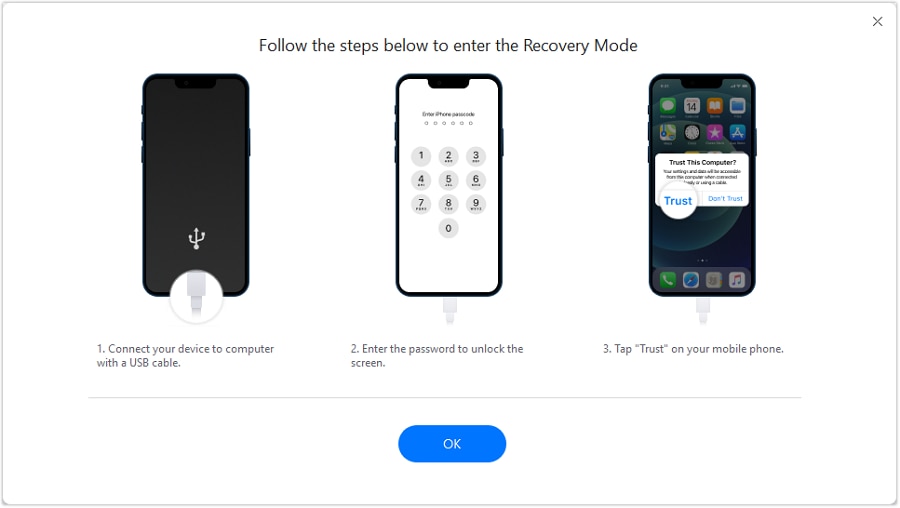
-
Step 5 Recheck boot stability after completion
After the process, confirm the iPad can boot past the Apple logo and stay on long enough to verify storage, battery, and update status.

Recommended solution (tool-based execution)
If you’ve used AI to identify “software-stuck” as the most likely category, the practical challenge is executing Recovery Mode steps consistently during constant restarts. A system repair workflow can reduce guesswork (timing, repeated button attempts, and unstable detection) and help you move through Recovery Mode-related actions more predictably.
 Fix iOS issues, no data loss.
- One-click repair for all iOS problems.
- Solve recovery mode, Apple logo, black screen, etc.
- Upgrade or downgrade iOS without iTunes

Keep the “lowest-risk first” discipline from your AI plan: prioritize stable power and stable cable/port detection, then enter/exit Recovery Mode cleanly, and avoid restore/erase paths unless you’ve accepted the data-loss tradeoff and have a verified backup.




Conclusion
Use AI to translate your boot-loop symptoms into a ranked set of likely causes and a low-risk decision order for whether Recovery Mode makes sense, then hand off execution to a tool that can enter/exit Recovery Mode reliably and guide the next system-level steps with fewer guesses.
FAQ
-
Should I use Recovery Mode if my iPad shows an Apple logo loop with no progress bar?
Often yes as a next diagnostic step, but first confirm charging stability and whether a computer can detect the device to rule out power/connection issues. -
Will Recovery Mode erase my iPad?
Entering Recovery Mode alone doesn’t erase data; data loss risk appears when you choose restore/erase actions. -
What if my iPad won’t stay in Recovery Mode?
That can point to cable/port issues, insufficient power, or hardware instability; try a known-good cable, direct USB port, and stable charger, then reassess. -
Is a boot loop more likely after an iPadOS update?
It can be, especially if the update was interrupted, storage was low, or the device restarted mid-install. -
How do I decide between waiting and taking action?
If the screen behavior is unchanged for an extended period and repeats predictably, treat it as stuck rather than “still updating,” and prioritize low-risk detection checks.
 Add Wondershare Dr.Fone as a preferred source on Google





