 Effortlessly manage data through preview, delete, export, etc.

 100% Security Verified | No Subscription Required | No Malware

 :
: 
 ChatGPT
 Perplexity
 Gemini
 Claude
 Grok
Grok

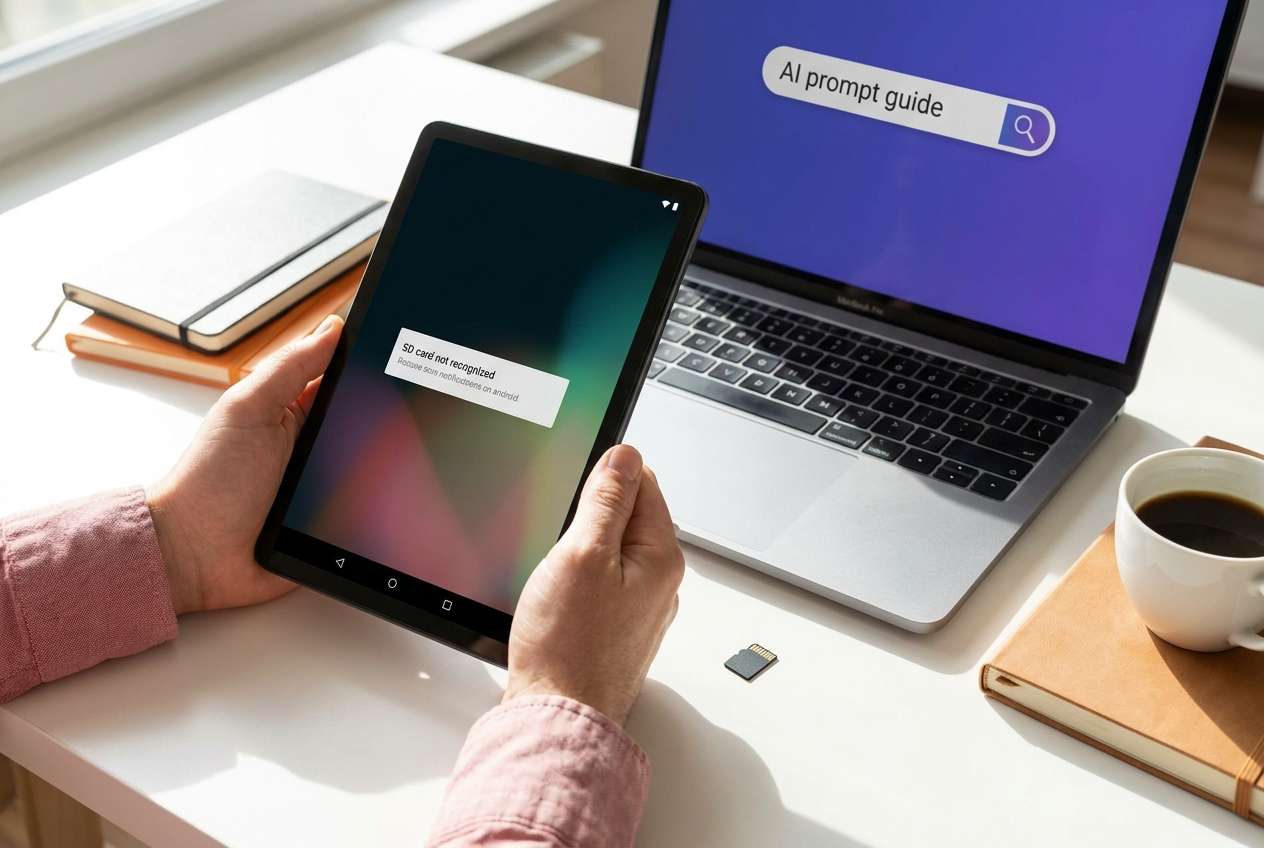
My Android tablet says “SD card missing/unsupported,” and the microSD never shows up in Storage or Files—even after I reboot. I can’t tell if it’s still loading or if it’s actually failing.
Reddit user, r/AndroidQuestions
A microSD card that suddenly isn’t recognized on an Android tablet usually shows up as “SD card missing,” “Unsupported,” or it simply doesn’t appear in Storage or Files. This often happens right after you insert the card, reboot the tablet, or move data around—then nothing changes after several minutes, and it’s unclear whether the tablet is still “loading” or failing.
AI (like ChatGPT or Gemini) can help you describe the exact symptoms, narrow likely causes (card, reader, Android settings, file system), and decide what evidence to collect next—without jumping into risky trial-and-error.
AI can’t verify hardware condition or safely perform recovery actions for you. Repeated formatting, “repair” prompts, or random apps can reduce the chance of retrieving data later, so it’s worth using AI to slow down and choose low-risk steps first.
In this article
- Part 1. Why microSD card not recognized on Android tablet happens and what it means
- Common triggers
- What the messages mean
- Decide whether you need the data
- Before you prompt the AI
- Part 2. Using AI prompts to diagnose Android tablet not detecting microSD card safely
- Part 3. AI output vs reality: what to verify in real life
- Part 4. When to stop troubleshooting and avoid risks
- Part 5. Resolve Android tablet microSD card not recognized with Dr.Fone
Part 1. Why microSD card not recognized on Android tablet happens and what it means
1-1. Common triggers
This issue typically starts after a simple trigger: inserting the card, tapping Restart, moving photos/videos, or using the same card in another device and then returning it to the tablet. If you recently switched ecosystems (for example, coming from an iPhone 13 or iPhone 14 where microSD isn’t part of the workflow), it’s also easy to miss Android-specific mounting/format expectations.
1-2. What the messages mean
“What it means” depends on what you see: the tablet may be failing to mount the card, detecting it but rejecting its file system, or intermittently losing connection due to power/contacts/slot wear. The wording matters: “Corrupted,” “Unsupported,” and “Blank SD card” point to different paths.
1-3. Decide whether you need the data
The biggest practical question is whether you still need data from the card. If yes, treat the card as read-only and focus on diagnosis first—many “fixes” begin by formatting, which can make recovery harder.
1-4. Before you prompt the AI
Gather a few details first so the AI can narrow causes quickly:
- Tablet brand/model and Android version (if known)
- microSD capacity and brand (e.g., 128GB SanDisk)
- What changed right before the issue (inserted card, restart, file transfer, update)
- Exact on-screen message (or what menus show)
- Whether the card works in another device/reader
- Whether you need data back or it’s okay to erase
Part 2. Using AI prompts to diagnose Android tablet not detecting microSD card safely
2-1. Level 1: Basic Prompt
My Android tablet doesn’t recognize my microSD card. I inserted it and restarted, but it doesn’t show in Storage/Files. Ask me the minimum questions needed to identify the most likely cause and the safest next step, assuming I want to avoid data loss.
2-2. Level 2: Advanced Prompt
Diagnose why my Android tablet isn’t detecting my microSD card.
1) List the top 5 likely causes in order of probability.
2) For each cause, give one low-risk test I can do (no formatting, no “repair” apps).
3) Flag any step that could reduce data recovery chances.
4) End with a decision tree: “If X, do Y; if not, do Z.”
2-3. Level 3: Evidence Prompt
Act as a troubleshooting analyst. Use my evidence to narrow the cause of a microSD card not recognized issue and recommend low-risk next steps.
Device
- Android tablet model: (e.g., Galaxy Tab A8)
- Android version: (e.g., Android 13 / unknown)
- Battery level / charging: (e.g., 20% / plugged in)
microSD card
- Brand + capacity: (e.g., Samsung EVO 256GB)
- Age/usage: (e.g., 2 years, daily)
- Was it used in another device recently? (yes/no + which)
Trigger
- What I did right before it stopped working: (e.g., moved videos, then tapped Restart)
Symptoms
- Exact message: (e.g., “SD card unsupported”)
- Does it appear anywhere? (Settings > Storage / Files app / notifications)
- Any intermittent behavior? (works for seconds, then disappears)
Cross-checks
- Works in another phone/PC card reader? (yes/no/unknown)
- Tried another card in this tablet? (yes/no + result)
Goal constraints
- I must recover data first: (yes/no)
- I can accept erasing the card: (yes/no)
Now:
1) Categorize the problem as card/file system/slot/software.
2) Rank the most likely causes.
3) Recommend the safest 3 tests.
4) Tell me what NOT to do if I need the data.
2-4. Prompt Refinement
If the AI response is too broad, use these follow-ups to force clarity:
“What 3 questions would most change your diagnosis, and why?”
“Separate your causes into card hardware, card file system, tablet slot/contacts, and Android settings/software.”
“Rank the causes again assuming: (A) the card works in a PC reader, (B) the card fails everywhere.”
“What single piece of evidence should I collect next to confirm the top cause (and where exactly do I look in Android menus)?”
“List steps I should avoid because they increase risk of permanent data loss.”
Part 3. AI output vs reality: what to verify in real life
AI can guide decisions, but it can’t verify the physical state of the card or perform safe recovery actions for you.
| What AI may conclude | What you should verify in real life |
|---|---|
| “The card isn’t seated properly.” | Power off, reinsert gently, test for consistent detection (no wiggling). |
| “It’s an unsupported file system.” | Check whether Android shows “Unsupported” and whether a PC reads the partition. |
| “The slot/reader is failing.” | Test a known-good microSD in the same tablet to isolate the slot. |
| “The card is corrupted.” | Confirm across devices/readers and avoid formatting if data matters. |
AI is strongest at prioritizing likely causes and reducing risky guessing; execution still depends on what the tablet, card, and other readers actually detect.
Part 4. When to stop troubleshooting a microSD card not recognized issue and avoid risks
If your goal is to preserve data, stop “fixing” the moment your next action could overwrite or change what’s on the card.
- The tablet repeatedly prompts you to format the card to use it.
- The card is intermittent (appears/disappears) or the tablet freezes when it’s inserted.
- The card fails in multiple devices/readers, suggesting hardware-level instability.
- You’ve already tried basic low-risk checks and symptoms are worsening (slower detection, more errors).
Once you’ve used AI to narrow the most likely category (card vs slot vs file system), the next step is choosing a controlled execution method that prioritizes data preservation.
Part 5. Resolve Android tablet microSD card not recognized with Dr.Fone
If the microSD isn’t recognized and you still need the files, the practical goal shifts from “make Android mount it” to “retrieve what’s still accessible without adding more risk.” At that point, using Dr.Fone - Data Recovery (Android) becomes relevant because it’s designed to support the Recover Data from Android Device workflow in a more structured way than ad-hoc trial steps, helping you move from AI-guided diagnosis to careful execution.
 Scan Android phones and tablets directly.
- Preview and recover only what you want.
- Supports WhatsApp, photos, videos, contacts, and more.
- Works with 6000+ Android devices.

-
Step 1 Stabilize the situation first
Stop repeated reinserts/restarts and keep the tablet powered to reduce intermittent disconnects during checks.

-
Step 2 Launch Dr.Fone Data Recovery (Android) on a computer
Open the Dr.Fone Data Recovery (Android) module and keep your tablet ready to connect, avoiding other phone-management tools running at the same time.

-
Step 3 Connect the Android tablet thoughtfully
Use a reliable USB cable and follow the on-screen connection requirements; if prompts appear on the tablet, read them carefully to avoid accidental actions that could overwrite data.

-
Step 4 Select data types and start a recovery scan
Choose the file types you need most first (photos/videos/docs) to minimize unnecessary operations and focus on high-value data.

-
Step 5 Preview and save recovered files to the computer
Save results to your computer (not back to the microSD) to prevent overwriting anything that might still be recoverable.




Conclusion
Use AI to translate your symptoms into likely causes, rank low-risk checks, and identify what evidence matters most—then hand off execution to a controlled recovery approach (such as Dr.Fone) if you need data back and want to avoid risky trial-and-error.
FAQ
-
Why does my Android tablet say “SD card unsupported”?
Usually the card is formatted with a file system the tablet can’t mount, the partition table is damaged, or the card is beginning to fail; avoid formatting if you need the data. -
What’s the safest first check when a microSD card isn’t recognized?
Test the card in a known-good card reader/PC and test a different known-good microSD in the tablet to isolate whether the issue is the card or the tablet slot. -
Can I fix the issue by formatting the microSD card?
Formatting can make the card usable again, but it can also reduce data recovery chances; only do it if you’ve already recovered what you need or you don’t need the data. -
Why does the microSD card show sometimes and then disappear?
Intermittent detection often points to poor contact in the slot, power/reader instability, or a failing card controller; minimize reinserts and prioritize data preservation. -
If my tablet can’t read the card, is the data definitely gone?
Not necessarily—“not recognized” can be a mounting/file-system problem rather than total data loss, which is why diagnosis plus careful recovery-oriented execution matters.
 Add Wondershare Dr.Fone as a preferred source on Google





