 Effortlessly manage data through preview, delete, export, etc.

 100% Security Verified | No Subscription Required | No Malware

 :
: 
 ChatGPT
 Perplexity
 Gemini
 Claude
 Grok
Grok

My iPhone says “iPhone Unavailable” after too many passcode attempts. I’m scared to try again because I don’t want to lock it longer or lose data—what’s the safest next step?
Apple Support Community user
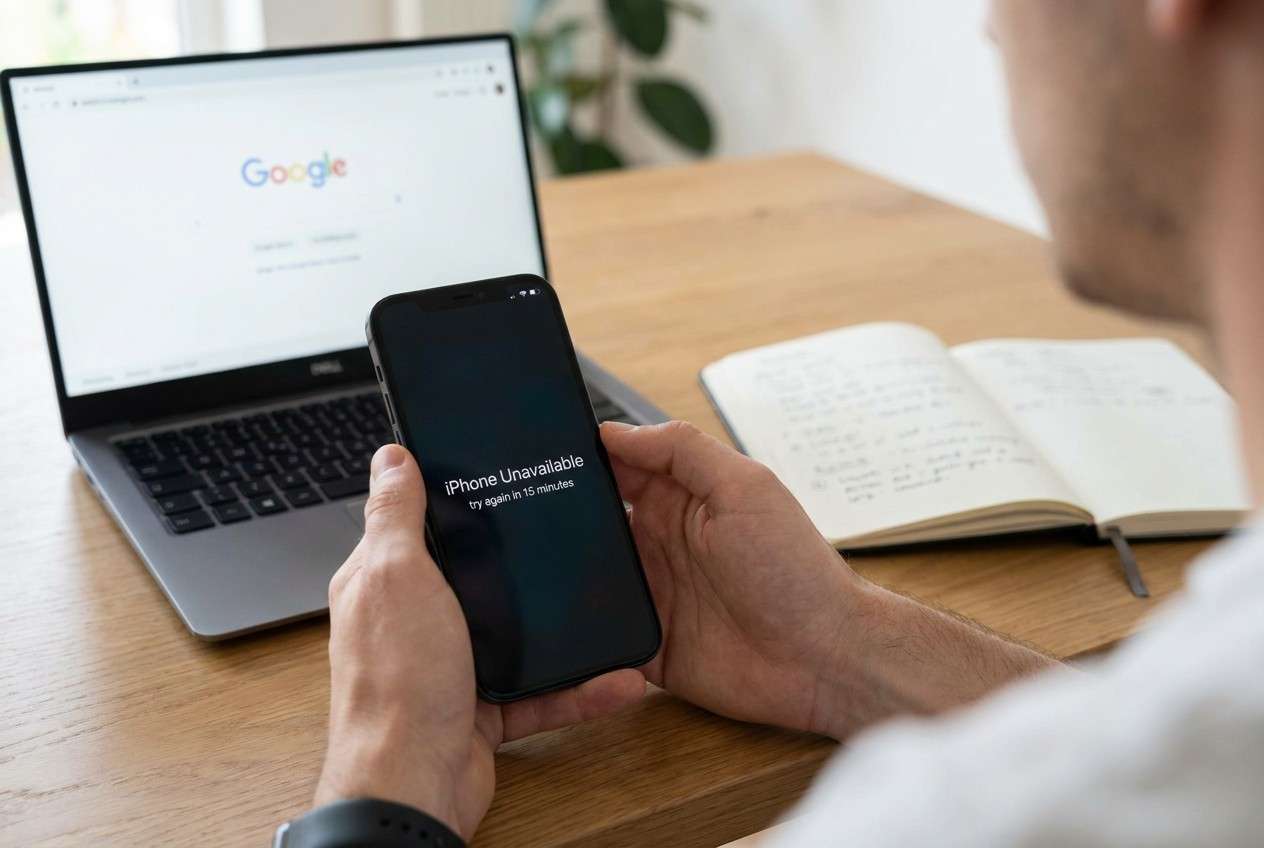
Your iPhone may show “iPhone Unavailable” after too many passcode attempts—often right after you tried a few guesses, used Face ID in a hurry, or tapped Try Again repeatedly. On an iPhone 13 or iPhone 14, it can feel like the device is locked out for good because nothing changes after several minutes.
AI tools (like ChatGPT or Gemini) can help you interpret the screen message, narrow down what’s most likely happening, and identify low-risk next checks based on your exact situation.
AI can’t see your device state directly, and trial-and-error steps can increase lockout time or push you toward data loss. Treat AI as a decision support layer—then use a dedicated iOS system tool for the actual execution when needed.
In this article
- Part 1. Why “iPhone Unavailable” happens and what it means
- Common triggers
- Why it can look “stuck”
- What iOS is doing in the background
- Why guessing can make it worse
- Part 2. Before you prompt the AI: collect the right facts
- Part 3. Using AI prompts to diagnose safely
- Part 4. When to stop troubleshooting to avoid risks
- Part 5. Fix it safely with Dr.Fone (guided workflow)
Part 1. Why iPhone unavailable after too many passcode attempts happens and what it means
This message typically appears when iOS detects repeated incorrect passcode entries and applies escalating security delays. Depending on iOS version and settings, the iPhone may enforce longer waiting periods—or require a reset path to regain access.
1-1. Common triggers that lead to “iPhone Unavailable.”
It often starts after a small trigger: a child entered random codes, a pocket-dial sequence happened, or you attempted several passcodes right after a restart (when Face ID/Touch ID won’t work until the passcode is entered once).
1-2. Why it can look “stuck” (even when it isn’t)
What makes it confusing is the uncertainty: the countdown may not appear, the delay may feel stuck, and it’s unclear whether the iPhone is still processing a timer, disabled, or requiring a computer-based recovery path.
1-3. What iOS is doing in the background
In general, iOS uses security delays to slow repeated attempts. This is why random retries are risky: they can increase lockout time and reduce your chances of a clean, low-risk resolution.
1-4. Why guessing can make it worse
If you’re not completely sure of the correct passcode, further incorrect entries can escalate the situation. Use AI to plan a conservative next step, then verify on-device evidence before acting.
Part 2. Before you prompt the AI: collect the right facts
Gather a few facts first so the AI can narrow the safest next step:
- iPhone model and iOS version (if known)
- Exact on-screen text (e.g., “iPhone Unavailable” vs “Security Lockout”)
- Whether there’s a visible timer or “Try again in X minutes”
- Whether you know the correct passcode
- Whether you have access to the Apple ID and a trusted phone number
- Whether you have a recent backup (iCloud/Finder/iTunes)
Part 3. Using AI prompts to diagnose iPhone unavailable after too many passcode attempts safely
3-1. Level 1: Basic Prompt
My iPhone shows “iPhone Unavailable” after too many passcode attempts. Ask me the minimum questions needed to identify the safest next step without risking data loss, and don’t suggest random retries.
3-2. Level 2: Advanced Prompt
Diagnose my “iPhone Unavailable” situation as a ranked list of likely causes and low-risk next steps.
Requirements:
1) Rank the top 3 most likely scenarios.
2) For each scenario, list what evidence would confirm it.
3) Flag any step that could increase lockout time or cause data loss.
4) End with a conservative decision rule for what to do next.
3-3. Level 3: Evidence Prompt
Help me assess the safest path for an iPhone showing “iPhone Unavailable” after passcode attempts. Use only cautious, reversible checks first.
Device & context
- iPhone model: (e.g., iPhone 13 Pro)
- iOS version: (unknown / estimated)
- What I did before this happened: (e.g., entered several passcodes after restart)
- Current screen text: (exact wording)
- Timer shown?: (none / “Try again in 15 minutes” / other)
- Can I confirm the correct passcode? (yes/no/unsure)
Account & access
- Apple ID login available? (yes/no)
- Trusted phone number available? (yes/no)
- Another signed-in Apple device available? (yes/no)
Data & backups
- iCloud backup likely? (yes/no/unsure)
- Computer backup (Finder/iTunes)?: (yes/no/unsure)
- Most important data at risk: (photos/chats/notes/etc.)
What I need from you
1) Identify the most likely state (delay vs lockout vs recovery required).
2) Provide a decision tree with the lowest-risk first.
3) Tell me what NOT to do to avoid making it worse.
4) Specify what outcome should trigger the use of a system repair tool instead of manual attempts.
3-4. Prompt Refinement (follow-ups)
Use these follow-ups to make the AI’s answer more actionable and safer:
“What 3 questions do you still need from me to reduce uncertainty the most?”
“Separate possibilities into: timer delay, account-related lockout, and system/UI glitch.”
“Rank the causes again, assuming I do know the correct passcode, then rank again assuming I don’t.”
“What single piece of evidence would most strongly confirm each cause (screen text, timer behavior, Apple ID prompts, computer detection)?”
“List the lowest-risk actions I can take in the next 10 minutes that won’t increase lockout time.”
3-5. AI Output vs Reality
AI can guide decisions, but it can’t validate the device state the way iOS tools can.
| What AI can infer | What you must verify on the device |
|---|---|
| Whether it’s likely a timed delay vs a lockout | Exact message wording and whether a timer appears/changes |
| Whether retrying passcodes is risky | Whether you truly know the correct passcode and can enter it accurately |
| Whether account-based options are relevant | Apple ID availability, trusted number access, and other Apple devices |
| Whether system-level issues are plausible | Whether the iPhone is detected by a computer and can enter recovery modes |
AI helps you avoid wrong turns (like repeated guesses), but execution still requires iOS-level actions. If you’re stuck in an abnormal state or standard paths aren’t working, a system repair workflow is often the next practical handoff.
Part 4. When to stop troubleshooting iPhone unavailable after too many passcode attempts and avoid risks
If the situation is unclear, the safest strategy is to stop actions that can worsen lockouts and switch to a controlled approach.
- The lockout timer isn’t appearing or isn’t changing after a long wait, and you’re unsure what state the phone is in
- You’re tempted to keep guessing the passcode (risking longer delays or permanent lockout behavior)
- You can’t verify Apple ID access or trusted number recovery paths right now
- You need data preservation and want to avoid improvising with resets or random button sequences
Once you’ve used AI to narrow the likely state and risks, the next step is choosing an execution method that matches that diagnosis—preferably one designed for iOS system states rather than repeated manual experimentation.
Part 5. iPhone unavailable after too many passcode attempts: fix or resolve it safely with Dr.Fone
When “iPhone Unavailable” won’t clear, you can use Dr.Fone - System Repair (iOS) as the execution layer to address iOS system issues in a more guided way after AI has helped you identify the most plausible scenario and risks. This is most relevant when the device appears stuck in an unusual state (no meaningful timer changes, inconsistent behavior, or trouble progressing through standard recovery screens) and you want a structured workflow rather than trial-and-error. Dr.Fone’s Repair iOS Issues feature focuses on handling iOS-level problems through a controlled repair process.
 Fix iOS issues, no data loss.
- One-click repair for all iOS problems.
- Solve recovery mode, Apple logo, black screen, etc.
- Upgrade or downgrade iOS without iTunes

-
Step 1 Open System Repair (iOS)
Launch Dr.Fone and choose System Repair (iOS) so you’re working in the correct module for iOS system states.

-
Step 2 Connect the iPhone by cable
Connect your iPhone to the computer directly (avoid unstable hubs) to reduce disconnects during the process.

-
Step 3 Select the iOS repair option
Choose the appropriate repair mode based on your situation, and proceed carefully because some paths may affect device data depending on state.

-
Step 4 Follow the guided firmware steps
Let the tool guide downloading/using the correct iOS package, and don’t interrupt the connection once the repair starts.

-
Step 5 Recheck device access after completion
After the process finishes, confirm whether the iPhone boots normally and whether the lock screen behavior has changed before attempting additional actions.




Conclusion
Use AI to clarify what “iPhone Unavailable” most likely indicates in your case, identify what evidence matters, and avoid risky trial-and-error—then hand off execution to a dedicated iOS system workflow like Dr.Fone - System Repair (Android) when you need a controlled way to address the underlying iOS state.
FAQ
-
Does “iPhone Unavailable” go away on its own?
Sometimes, if a timer is active and you wait without further attempts, it may allow another try. If there’s no timer or behavior doesn’t change, it may not resolve by waiting alone. -
What’s the difference between “iPhone Unavailable” and “Security Lockout”?
They’re both lock states related to failed passcode attempts, but wording and available options can vary by iOS version and device state. -
Should I keep trying passcodes if I’m not 100% sure?
No. Additional incorrect attempts usually increase delays and can escalate the lockout situation. -
If I know the correct passcode, why can’t I enter it now?
After too many failed tries, iOS can enforce waiting periods; also, stress and repeated attempts can lead to accidental mis-entry. Confirm whether a timer is present and changing. -
When is a system repair tool relevant for this issue?
When the iPhone appears stuck in an abnormal state (no progress, inconsistent screens, or difficulty proceeding through standard recovery flow) and you want a structured, tool-guided execution path.
 Add Wondershare Dr.Fone as a preferred source on Google





