 Effortlessly manage data through preview, delete, export, etc.

 100% Security Verified | No Subscription Required | No Malware

 :
: 
 ChatGPT
 Perplexity
 Gemini
 Claude
 Grok
Grok

My kid’s tablet restarted, and now it’s either stuck on a lock screen I don’t remember or it just keeps looping. I don’t know if it’s actually broken or if we’re just locked out—should I repair it or replace it?
Reddit user, r/AndroidQuestions
A kids tablet can suddenly become “not worth it” when it’s locked, unresponsive, or stuck in a loop—often right after a restart, a system update, or too many wrong passcode attempts. Nothing seems to change after several minutes, and it’s unclear whether it’s still working or just stuck.
AI (like ChatGPT or Gemini) can help you sort symptoms into likely causes, estimate risk, and decide whether you’re dealing with a simple access issue or a deeper hardware problem that makes replacement more sensible.
AI can’t verify the device state or safely perform trial-and-error steps for you—so repeated resets, random button combos, or guesswork can increase lockouts, trigger account locks, or raise data-loss risk. Use AI to narrow the path, then use a dedicated tool to carry out the chosen action.
In this article
- Part 1. How to tell if a kids tablet is worth repairing or replacing
- Access-related vs device health-related issues
- Common triggers after restart or updates
- A quick “reality check” before replacing
- Before you prompt the AI
- Part 2. AI prompts for deciding whether to repair or replace a kids tablet
- Part 3. When to stop troubleshooting a kids tablet and avoid data loss
- Part 4. A quick checklist to choose repair vs replace (without guesswork)
- Part 5. Unlock a kids tablet safely (execution after AI triage)
Part 1. How to tell if a kids tablet is worth repairing or replacing
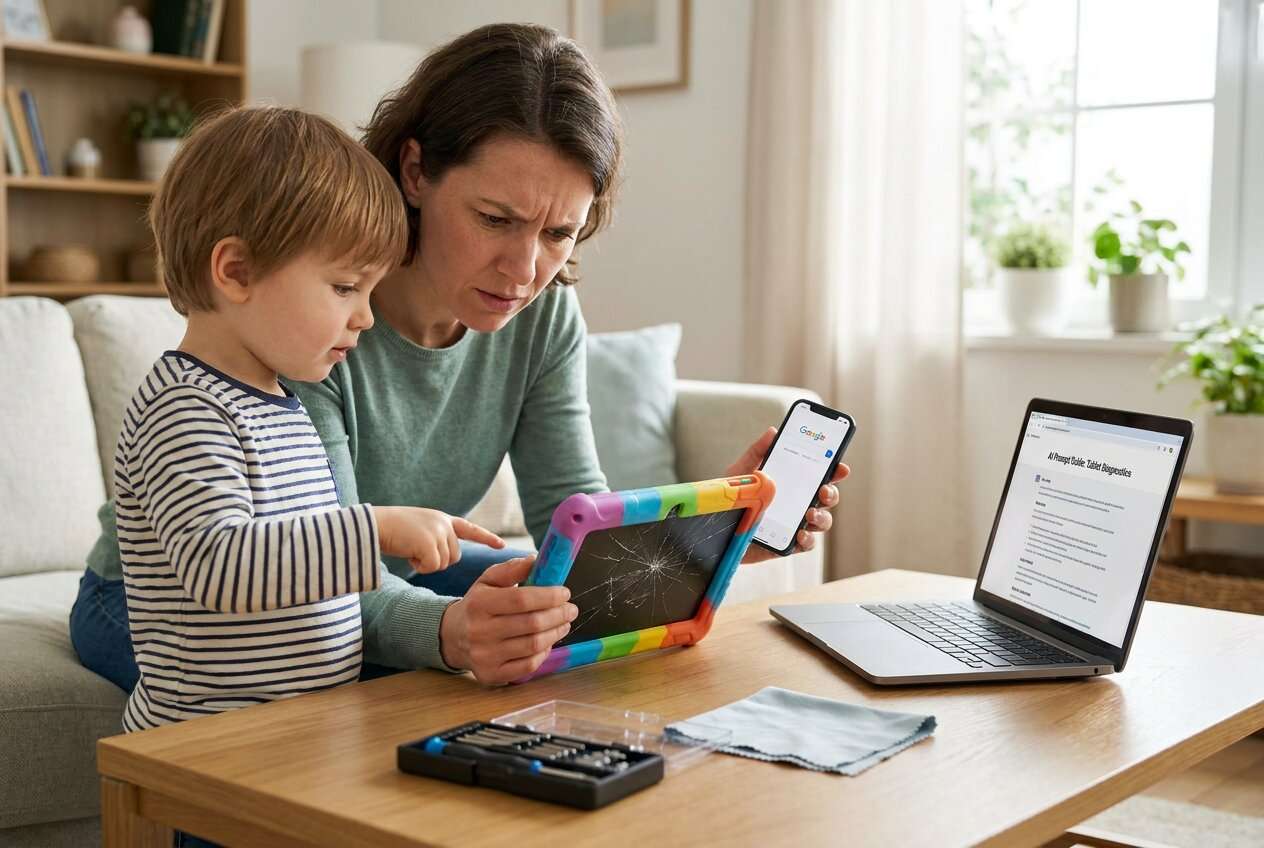
Most “repair vs replace” decisions come down to whether the problem is access-related (forgotten PIN/pattern, child lock, too many attempts) or device health-related (battery swelling, charging failure, screen damage). Access issues can look severe—“it’s unusable”—even when the hardware is fine.
A common trigger is after you tap Restart, the tablet powers back on and asks for a lock you don’t remember, or it shows “Try again later” after many attempts. Families often consider replacing immediately, even though the real blocker is just getting back in.
As a quick reality check: if you’d hesitate to replace a working phone like an iPhone 13 or iPhone 14 over a lock screen, it may be worth treating a kids tablet lockout as an access problem first—then reassessing after you regain control.
1-1. Before You Prompt the AI
Gather a few facts so the AI can distinguish “locked out” from “failing device”:
- Tablet brand/model (and Android version if known)
- What happened right before the issue (restart, update, new app, too many attempts)
- Current screen text (exact wording) and whether it changes
- Whether you need to keep local data (photos, downloads, app progress)
- Any signs of hardware trouble (cracked display, overheating, battery swelling)
Part 2. AI prompts for deciding whether to repair or replace a kids tablet
2-1. Level 1: Basic Prompt
I’m deciding if a kids tablet is worth repairing or replacing. Here’s what happened right before the problem: [restart/update/wrong PIN attempts]. Current symptom: [locked screen / “Try again later” / won’t boot / won’t charge]. Can you list the most likely causes and the lowest-risk next steps to confirm which it is?
2-2. Level 2: Advanced Prompt
Act like a device triage assistant. Based on my details, rank the top 5 likely causes from most to least likely, and label each as **access issue**, **software issue**, or **hardware issue**. For each cause, give:
1) what evidence would confirm it,
2) a low-risk check I can do without wiping data,
3) what actions increase risk (lockout, data loss, account lock).
My details: [paste symptoms + what I tried].
2-3. Level 3: Evidence Prompt
Help me decide whether to repair or replace a kids tablet by diagnosing the situation from evidence.
**Device info**
- Tablet model: (e.g., Samsung Galaxy Tab A Kids Edition / Lenovo Tab M10)
- Approx. age: (e.g., 18 months)
- OS: (e.g., Android 11)
**What triggered it**
- Right before issue: (e.g., after tapping Restart / after an update / after too many wrong PIN attempts)
**Current symptom (exact text/behavior)**
- Screen message: (e.g., “Too many pattern attempts. Try again in 30 seconds”)
- Changes over time: (e.g., stays the same after 10 minutes)
**Access context**
- Lock type: (PIN/pattern/password/biometric)
- Google account on device: (yes/no/unsure)
- Child profile/parental controls: (yes/no)
**Hardware signals**
- Charging behavior: (charges normally / slow / not charging)
- Screen condition: (cracked/uncracked)
- Heat/battery swelling: (none/suspected)
**Goal & constraints**
- Need to keep data: (yes/no/unsure)
- Budget limit: (low/medium/high)
Now:
1) Identify the most likely category (access/software/hardware).
2) Recommend the safest next step to confirm the diagnosis.
3) Explain when replacement is the rational choice.
2-4. Prompt Refinement
Use these follow-ups to force clearer, safer guidance:
What’s the single missing detail that would change your recommendation the most, and why?
Separate my possibilities into **access**, **software**, and **hardware**—no overlap—and give one confirming test for each.
Rank the causes again, but this time weight **data-loss risk** higher than convenience.
What evidence would indicate the tablet is fine and I should focus only on regaining access?
If I try only one thing next, what should it be to minimize lockouts and avoid resets?
2-5. AI Output vs Reality
AI helps you reason; it doesn’t validate the device state in real time.
| What AI can infer | What you still must verify |
|---|---|
| Likely cause category (access vs hardware) | Whether the tablet is actually charging and holding power |
| Risk ranking for next steps | Whether your exact model/Android version changes outcomes |
| Signs that replacement is sensible | Actual repair cost and parts availability in your region |
| Whether a lockout path is plausible | Whether you have the required account ownership/credentials |
AI narrows decision paths and reduces guesswork; execution still requires careful, model-appropriate actions using the right tool, especially when access is blocked.
Part 3. When to stop troubleshooting a kids tablet and avoid data loss
Stop “trying random fixes” when the situation is trending toward lockouts, wipes, or physical risk.
- The tablet shows escalating lock timers (“Try again in 30 minutes/24 hours”) after repeated attempts.
- You’re considering a factory reset but you’re not 100% sure about account ownership or data needs.
- There are hardware danger signs (battery swelling, overheating, burnt smell, bulging back cover).
- The device won’t power on reliably even after confirmed charging and a known-good cable/adapter.
Once you’ve used AI to classify the problem as primarily access-related, the next step is to switch from experimentation to a controlled execution method designed for Android lock screens.
Part 4. A quick checklist to choose repair vs replace (without guesswork)
Use this as a simple “decision filter” based on the same risk themes above (access vs software vs hardware, and data-loss risk).
- Treat it as repair (access) first if the tablet powers on normally, stays on, and the main blocker is a lock screen (forgotten PIN/pattern, “Try again later,” child lock).
- Stop and prioritize safety if you see swelling, overheating, a burnt smell, or a bulging back cover—replacement is often the rational choice here.
- Confirm charging basics with a known-good cable/adapter/port before concluding “it won’t charge.”
- Protect data by avoiding repeated passcode attempts and random resets when lock timers are escalating or account ownership is unclear.
- Decide after access when possible: once you can get in, reassess performance, battery behavior, and whether the child profile setup is still worth keeping.
Part 5. Unlock a kids tablet safely (execution after AI triage)
If your AI triage points to an access blockage (forgotten PIN/pattern, repeated attempts, or a lock screen you can’t clear), the practical next move is to use a purpose-built unlock workflow rather than repeating guesses. Dr.Fone - Screen Unlock (Android) is relevant here because it’s built to carry out the Unlock Android Screen process in a guided way, helping you move from “diagnosis” to “action” when the tablet is otherwise unusable.
 Unlock Android phone in seconds.
- Remove PIN, pattern, password, fingerprint.
- Bypass Google FRP lock easily.
- Works on all Android brands & models.
- No tech skills required – user-friendly.

-
Step 1 Confirm it’s an access problem
Re-check for hardware red flags (swelling/overheating) and stop if present, because unlocking won’t help a failing battery or board.

-
Step 2 Open Screen Unlock (Android)
Launch Dr.Fone and choose the screen unlock module so you’re following a controlled flow instead of trial-and-error.

-
Step 3 Connect the tablet carefully
Use a stable USB cable/port and keep the tablet powered to avoid interruptions during the process.

-
Step 4 Follow the guided unlock steps
Proceed with the on-screen instructions for your device type, selecting options that match your tablet model to reduce avoidable errors.

-
Step 5 Reassess repair vs replace after access
Once you can get in, evaluate performance, battery health, and child profile setup to decide if replacement is still justified.




Conclusion
Use AI to classify the problem (access vs software vs hardware), rank likely causes, and choose the least risky next step—then hand off execution to a controlled method like Dr.Fone Screen Unlock (Android) when the real blocker is getting past the lock screen.
FAQ
-
Is a locked kids tablet usually worth repairing or replacing?
If the hardware is fine and the main issue is lock-screen access, it’s often worth resolving access first, then deciding based on performance and battery health.
-
What symptoms suggest replacement is the better choice?
Battery swelling, overheating, charging failure with known-good accessories, or repeated power instability are strong signals that replacement may be safer than continued troubleshooting.
-
Will more passcode attempts make the problem worse?
Yes—many Android devices increase lockout timers after repeated failures, which can slow recovery and complicate next steps.
-
What details should I give AI to get a reliable recommendation?
Model, what happened right before the issue, exact on-screen message, whether a child profile/parental controls are enabled, and whether keeping data matters.
-
If I factory reset, will the tablet definitely work again?
A reset can remove some software issues, but it can also introduce account verification hurdles and data loss; it’s not a guaranteed “back to normal” outcome.
 Add Wondershare Dr.Fone as a preferred source on Google





