 Effortlessly manage data through preview, delete, export, etc.

 100% Security Verified | No Subscription Required | No Malware

 :
: 
 ChatGPT
 Perplexity
 Gemini
 Claude
 Grok
Grok

I updated my iPhone and now it’s stuck on the Apple logo/boot loop. I’m not sure if I should try DFU mode or use a system repair method first—what’s the safest next step?
Forum user
An iPhone (for example, iPhone 13 or iPhone 14) can suddenly get stuck in a boot loop, show the Apple logo, or land in Recovery Mode right after you tapped Install Now for an iOS update or restarted the device.
AI can help you analyze what you’re seeing, narrow down likely causes (software glitch vs. cable/port issue vs. update failure), and decide whether DFU mode is worth attempting before moving to a system repair workflow (using tools like ChatGPT or Gemini).
AI can’t verify what your phone is actually doing internally, and trial-and-error (especially repeated restores) can increase the risk of data loss or wasted time—so the goal is to choose the lowest-risk next step based on your symptoms.
In this article
- Part 1. Why try DFU before iPhone system repair and what it means
- What DFU mode is (vs. Recovery Mode)
- When people consider DFU
- The data-loss and misdiagnosis trade-off
- Before you prompt the AI
- Part 2. Using AI prompts to decide if DFU mode is necessary
- Part 3. AI output vs reality: what to verify on the device
- Part 4. When to stop DFU attempts to avoid data loss
- Part 5. Should you try DFU before system repair with Dr.Fone

Part 1. Why try DFU before iPhone system repair and what it means
DFU (Device Firmware Update) is a deeper recovery state than standard Recovery Mode. People consider it when the iPhone won’t boot normally, Recovery Mode doesn’t complete, or Finder/iTunes can’t reliably reinstall iOS.
The trade-off is that DFU is often paired with restore-style actions that can erase data, and it’s easy to misread symptoms: a phone that “looks frozen” might still be processing an update, or a flaky cable can mimic a failed firmware attempt.
If nothing changes after several minutes and you’re unsure whether the device is still updating, you’re in the exact scenario where AI-based symptom sorting can help you decide whether DFU is appropriate before you escalate.
1-1. Before You Prompt the AI
Gather a few details first so the AI can sort causes accurately:
- iPhone model and iOS version (if known)
- What happened right before the issue (update, restore, battery died, storage full)
- Current screen state (Apple logo, Recovery Mode cable icon, black screen, boot loop)
- Computer + cable details (Mac/Windows, Finder/iTunes, official cable, different USB port)
- Whether you need to protect data (high/medium/low priority)
Part 2. Using AI prompts to decide if DFU mode is necessary
2-1. Level 1: Basic Prompt
My iPhone won’t boot and I’m deciding whether to try DFU mode before system repair.
Ask me the minimum questions needed to recommend the lowest-risk next step,
based on my symptoms and my data-loss tolerance.
2-2. Level 2: Advanced Prompt
Act as a cautious iOS triage assistant.
Based on my answers, rank the most likely causes (software crash, failed update, storage issue, cable/port problem, hardware)
and recommend the lowest-risk next step.
Constraints:
- Prefer steps that minimize data-loss risk.
- Tell me when DFU is appropriate vs. when to try Recovery Mode or other checks first.
- For each recommendation, label risk: low/medium/high and explain why.
2-3. Level 3: Evidence Prompt
Help me decide if I should try DFU before system repair by analyzing evidence.
Device: iPhone model (e.g., iPhone 13 Pro), storage size, battery health (if known)
Trigger: what I did right before (e.g., tapped Install Now, forced restart, storage nearly full)
Current state: (Apple logo / boot loop / Recovery Mode screen / black screen) and how long it has stayed this way
Computer: Mac/Windows, Finder/iTunes version, any error codes shown (e.g., 4013, 9, 14)
Connection: cable type (Apple/third-party), USB port/hub, tried another cable/port?
What I already tried: force restart, waiting time, Recovery Mode update/restore attempt, different computer
Data priority: must keep data / prefer to keep / ok to erase
Goal: recommend the safest next step and explain whether DFU is justified or premature.
2-4. Prompt Refinement
Use these follow-ups to tighten the AI’s reasoning:
“What key questions are missing that would change your recommendation the most?”
“Separate likely causes into software, connection/PC, and hardware categories and rank them.”
“What single piece of evidence would best confirm or rule out a failed update vs. a connection issue?”
“Given I want to avoid data loss, what steps come before DFU, and what steps come after DFU?”
“If an error code appears, how does that change your ranking and the safest next action?”
Part 3. AI output vs reality: what to verify on the device
AI can guide decisions, but it can’t guarantee what the device will do next:
| What AI can infer | What you must verify on the device |
|---|---|
| DFU may be unnecessary if symptoms fit a cable/port communication issue | Whether a different cable/port/computer changes detection reliability |
| A boot loop after update often points to a software-level startup failure | Whether the phone can complete Recovery Mode “Update” without restore |
| Long Apple logo hangs may indicate low storage or incomplete install | Whether the device progresses after adequate time on power |
| Some error-code patterns suggest hardware risk | Whether errors repeat across computers/cables and persist after basic checks |
AI helps you choose the most cautious sequence; execution still depends on real-world results (detection, error codes, and whether iOS reinstallation completes).
Part 4. When to stop DFU attempts to avoid data loss
Stop and reassess if you hit any of these signals:
- The iPhone repeatedly disconnects during restore/update even after changing cable, port, and computer.
- The same restore-related error code keeps returning across multiple attempts.
- You’re about to choose a restore path but you cannot afford to lose data and don’t have a backup.
- The device shows signs of possible hardware trouble (overheating, physical damage, liquid exposure, or sudden power-offs).
Once you’ve used AI to narrow the likely cause and risk level, hand off execution to a controlled workflow where each step is reversible when possible.
Part 5. Should you try DFU before system repair with Dr.Fone
If your AI diagnosis suggests DFU is high-risk, unclear, or you mainly need a safer way to move in/out of recovery states, Dr.Fone - System Repair (iOS) can work as the execution layer: it helps you perform structured system-level actions (including Enter/Exit Recovery Mode) without relying on manual button timing alone.
 Fix iOS issues, no data loss.
- One-click repair for all iOS problems.
- Solve recovery mode, Apple logo, black screen, etc.
- Upgrade or downgrade iOS without iTunes

This is especially useful when the phone is stuck on the Recovery Mode screen or bouncing between the Apple logo and reboot, and you want to try lower-risk stabilization steps before escalating.
You can follow the product flow here: Dr.Fone - System Repair (iOS) and the Recovery/DFU mode guidance here: Enter/Exit Recovery/DFU Mode guide.
-
Step 1 Stabilize the connection
Connect the iPhone directly to a computer USB port with a reliable cable (avoid hubs) to reduce disconnect-related failures.

-
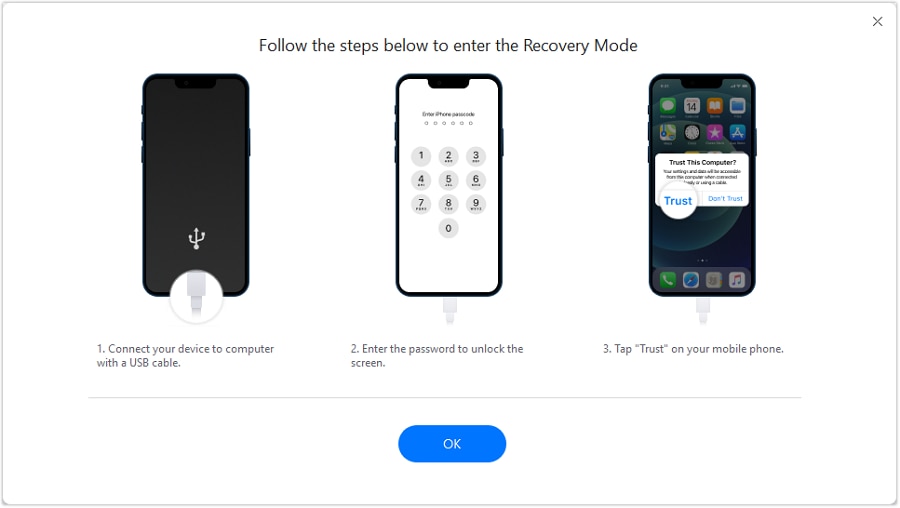
Step 2 Try Enter/Exit Recovery Mode first
Use Dr.Fone’s Enter/Exit Recovery Mode to exit a stuck recovery screen before attempting deeper steps.

-
Step 3 Proceed to iOS system repair mode
Run the system repair flow in Dr.Fone if the device still won’t boot normally, choosing the least data-disruptive option available.

-
Step 4 Escalate only if evidence supports it
If the AI-ranked causes still point to firmware-level corruption and other steps fail, consider DFU-related actions knowing they may increase data-loss risk.
-
Step 5 Confirm the outcome with one clean reboot test
After the process, test a normal restart once (avoid repeated forced restarts) to see if the boot loop is truly resolved.




Conclusion
Use AI to translate your symptoms into a ranked, risk-aware decision (DFU now vs. later), then hand off execution to Dr.Fone for controlled actions like entering/exiting Recovery Mode and running iOS system repair steps without relying on guesswork.
FAQ
-
Should I try DFU mode first if my iPhone is stuck on the Apple logo?
Not usually—DFU is typically a later step; start by confirming power, waiting long enough for updates to finish, and ruling out connection issues before escalating. -
What’s the difference between Recovery Mode and DFU mode?
Recovery Mode is a standard reinstall/update state; DFU is deeper and used when Recovery Mode fails, but it often carries higher risk (including potential data loss). -
Can a bad cable make DFU or restore fail?
Yes. Unstable USB connection is a common reason restores fail or devices disconnect mid-process, which can look like a firmware issue. -
How do I decide between DFU and system repair tools?
Use symptom evidence: if detection is unstable or you’re stuck toggling recovery states, a structured system repair workflow can be safer than jumping straight to DFU. -
If I can’t lose data, what’s the safest approach?
Avoid restore-first choices; prioritize steps that don’t wipe data, confirm backups if possible, and stop if the only remaining path implies erasing the device.
 Add Wondershare Dr.Fone as a preferred source on Google





