 Effortlessly manage data through preview, delete, export, etc.

 100% Security Verified | No Subscription Required | No Malware

 :
: 
 ChatGPT
 Perplexity
 Gemini
 Claude
 Grok
Grok

I tapped “Install now,” and after the restart my phone just loops on the logo. How can I tell if this is a software issue or failing hardware?
Forum user
A phone that won’t boot (stuck on the logo, bootlooping, or showing a black screen) can feel ambiguous: is it just a bad update or a failing component? This often happens right after tapping Install now, freeing storage, or forcing a restart—then nothing seems to change even after several minutes.
AI (like ChatGPT or Gemini) can help you describe the symptoms clearly, narrow likely causes, and decide which checks are low-risk versus risky. The goal is a better diagnosis, not guesswork.
AI can’t see your phone’s internals or run real device tests, and trial-and-error can accidentally increase risk (data loss, lockouts, overheating). Use AI to plan; use trusted tools to execute carefully.
In this article
- How to tell if a phone boot problem is software or hardware
- Software-leaning signs
- Hardware-leaning signs
- Mixed causes
- Before you prompt the AI
- Using AI prompts to diagnose boot problems safely
- When to stop troubleshooting to avoid risks
- Unlock Android screen access after boot troubleshooting with Dr.Fone
- Conclusion
Part 1. How to tell if a phone boot problem is software or hardware
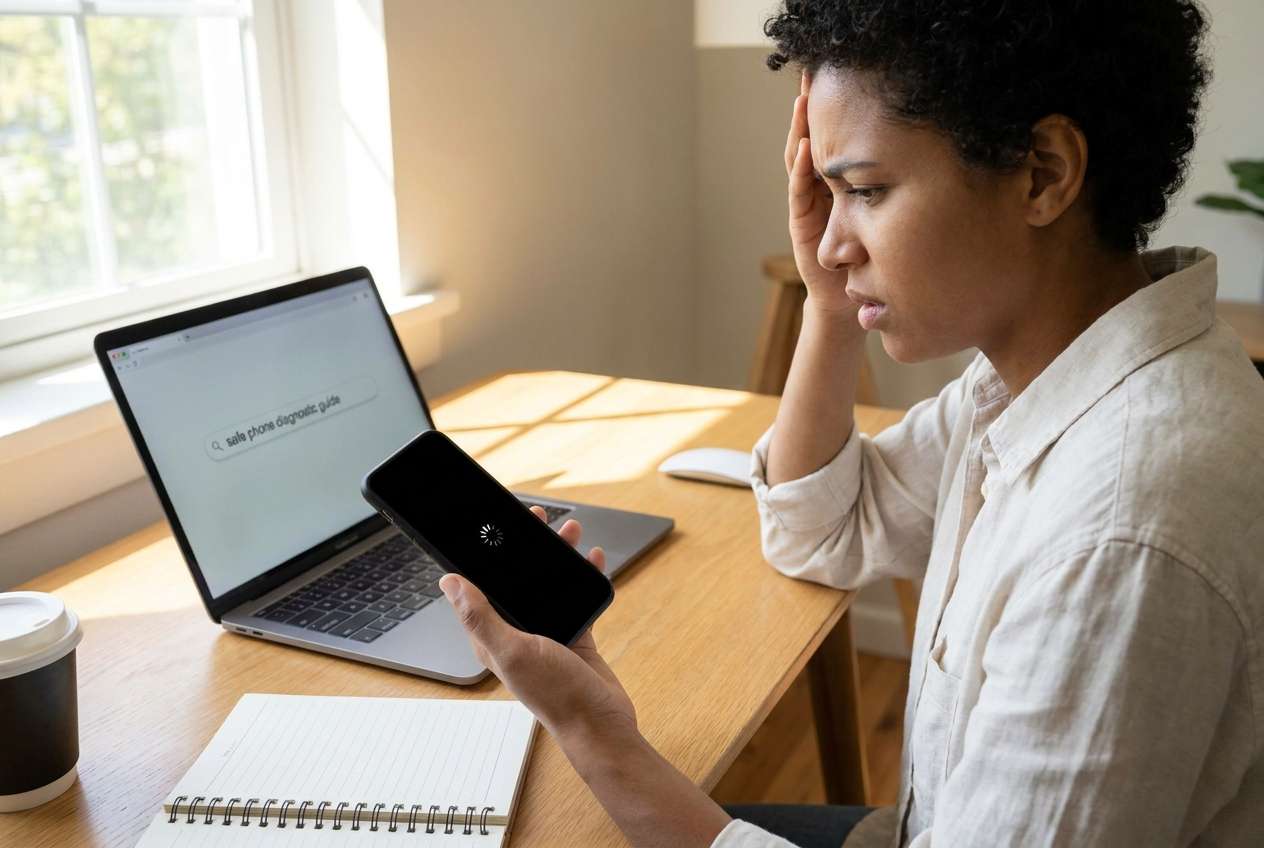
1-1. Software-leaning signs
Boot problems are often software-related when they follow a system update, app install, storage cleanup, rooting, or a sudden crash—and you can still reach Recovery/Fastboot modes. Typical signs include repeated restarts (bootloop) or getting stuck at the logo while the device still vibrates, charges, or is recognized by a computer.
1-2. Hardware-leaning signs
They’re more likely hardware-related when there’s recent physical stress (drop, water exposure, swelling battery), abnormal heat, a burning smell, random shutdowns at low battery, or the phone won’t respond to charging or button combos at all. A completely dead, unrecognized device can point to power, battery, or board issues.
1-3. Mixed causes
Mixed cases happen too: a degraded battery can trigger bootloops, and corrupted storage can look like “hardware” because the phone can’t load the system. That’s why symptom details matter.
1-4. Before you prompt the AI
Gather the facts first so the AI can separate “likely” from “possible”:
- Device brand/model and approximate age
- What happened right before the issue (update, restart, new app, low storage)
- What you see now (logo, black screen, bootloop, error text)
- Whether it can enter Recovery/Fastboot/Download mode
- Charger/port behavior (charging icon, LED, gets warm)
- Whether a PC/Mac detects it (ADB/Fastboot/Device Manager)
Part 2. Using AI prompts to diagnose boot problems safely
2-1. Level 1: Basic Prompt
My phone won’t boot. Help me decide if this is more likely a software problem or hardware problem based on symptoms. Ask me only the most important questions first, and suggest low-risk checks before anything that could erase data.
2-2. Level 2: Advanced Prompt
Act as a triage assistant for a boot failure. Based on my answers, rank the top 5 likely causes from most to least likely, and label each as software, hardware, or mixed.
For each cause, suggest one low-risk check and one higher-risk step (with a warning if it might cause data loss or lockouts).
Also tell me what evidence would change your ranking.
2-3. Level 3: Evidence Prompt
Diagnose whether my boot problem is software or hardware using evidence only.
Device: (e.g., Samsung Galaxy S22 / Pixel 7)
Age/condition: (e.g., 2 years, battery drains fast)
What happened right before: (e.g., tapped Install now for an update; forced restart)
Current symptom: (e.g., stuck on logo for 20+ minutes / bootloop / black screen)
Can enter modes: (Recovery: yes/no; Fastboot/Download: yes/no)
Charging behavior: (e.g., shows charging icon, or none; heats up/not)
PC detection: (e.g., shows as “Android” device / not detected)
Physical events: (e.g., drop, water, swelling, overheating—yes/no)
Data priority: (high/medium/low)
What I already tried: (e.g., different cable, force restart, safe mode)
Output:
1) A ranked list of likely causes with confidence (low/med/high)
2) The safest next 3 actions
3) What I should avoid right now
4) What would indicate I need professional hardware inspection
2-4. Prompt Refinement
Use these follow-ups to force clarity and reduce risky guessing:
“What 3 questions do you still need answered to separate software corruption from hardware failure?”
“Split your ranked causes into software, hardware, and mixed, and explain the single best piece of evidence for each.”
“Which step on your list has the highest chance of data loss, and what’s a safer alternative to try first?”
“If the phone is detected by a computer but won’t boot, how does that change your ranking?”
“List the minimum observations that would justify stopping troubleshooting and seeking hardware service.”
2-5. AI Output vs Reality
AI can help you decide; it can’t validate the device state the way real tools and tests can.
| What AI can infer | What you still must verify |
|---|---|
| “Update-related bootloop is likely software.” | Whether the device reliably enters Recovery/Download and stays stable. |
| “No charging response suggests power/battery.” | Cable/adapter/port condition, charging current, and battery swelling signs. |
| “PC detection implies partial system functionality.” | Whether it’s detected consistently (not intermittent) and in which mode. |
| “Factory reset might help software corruption.” | Whether you can accept data loss and whether reset triggers lock/security issues. |
AI helps you choose the next lowest-risk move. Execution still depends on what the device actually allows (modes available, stability, security state, and whether you can keep data).
Part 3. When to stop troubleshooting a boot problem to avoid risks
Stop and switch to safer recovery or professional help if you see any of these:
- The phone gets unusually hot, smells odd, or the battery/cover looks swollen.
- The device won’t charge or won’t be detected anywhere after multiple known-good cables/chargers.
- Symptoms worsen with each restart attempt (shorter boot cycles, new artifacts, random shutdowns).
- The next suggested step requires erasing data or could trigger a lock you can’t pass (and your data priority is high).
Once you’ve narrowed “software vs hardware,” the practical next step is often access recovery—so you can back up, verify accounts, or proceed with device-specific actions without getting blocked by a lock screen.
Part 4. Unlock Android screen access after boot troubleshooting with Dr.Fone
If your diagnosis suggests the boot issue is primarily software-related and the device can now reach the lock screen (or you’re blocked after repeated attempts, a reset, or a change in security state), Dr.Fone - Screen Unlock (Android) becomes relevant as the execution tool for regaining access in a controlled flow. AI can help you decide whether unlocking is appropriate and what risks apply; Dr.Fone handles the on-device steps for Unlock Android Screen when you’re ready to proceed.
 Unlock Android phone in seconds.
- Remove PIN, pattern, password, fingerprint.
- Bypass Google FRP lock easily.
- Works on all Android brands & models.
- No tech skills required – user-friendly.

Use it especially when access is the bottleneck preventing backup, settings checks, or normal sign-in. You can follow the guided flow in the Android lock screen removal guide and start from the Screen Unlock (Android) feature page.
-
Step 1 Confirm the device is stable enough to stay on
Charge with a known-good cable and avoid repeated forced restarts if the phone heats up or shuts down unpredictably.

-
Step 2 Open Dr.Fone and select Screen Unlock (Android)
Choose the Android screen unlock option and proceed carefully, since some unlock methods may have device-dependent data implications.

-
Step 3 Connect your phone via USB and follow the model-specific prompts
Use the exact brand/model selections requested to reduce mismatches, and don’t disconnect mid-process unless the on-screen instructions tell you to.

-
Step 4 Complete the guided unlock flow and re-check access
Once access is restored, immediately verify you can sign in, reach Settings, and stabilize the device before attempting any further system changes.

-
Step 5 Back up and document the symptoms for next steps
After access, capture what you see (error screens, storage state, battery health signs) so your next decision—software remediation vs hardware inspection—is evidence-based.




Conclusion
Use AI to turn your boot symptoms into a ranked “software vs hardware” shortlist and to choose the lowest-risk checks first; once the path is clear and access is the bottleneck, hand off execution to a practical tool like Dr.Fone – Screen Unlock (Android) to regain entry and proceed safely.
FAQ
-
How do I know if my bootloop is software-related?
If it started after an update/app change and you can still enter Recovery/Download/Fastboot modes, it’s more often software or a mixed cause rather than a dead component. -
What are strong signs my boot problem is hardware?
No charging response, no detection by a computer, heat/swelling, water exposure, or random power cuts can point to battery, power, or board issues. -
Should I factory reset to fix a boot problem?
Only if your data priority is low and you accept the risk of data loss and potential lockouts; AI can help you evaluate whether less destructive checks still fit your symptoms. -
If my phone reaches the lock screen but I’m locked out, what can I do next?
At that point the boot issue may be secondary; using a dedicated screen unlock workflow (such as Dr.Fone – Screen Unlock (Android)) can help you regain access so you can back up and continue diagnosis. -
Why does my phone get stuck on the logo for a long time after an update?
It can be normal briefly, but extended stalls can indicate stalled optimization, corrupted system files, low storage, or power instability—details like time elapsed and heat/charging behavior matter.
 Add Wondershare Dr.Fone as a preferred source on Google





