 Effortlessly manage data through preview, delete, export, etc.

 100% Security Verified | No Subscription Required | No Malware

 :
: 
 ChatGPT
 Perplexity
 Gemini
 Claude
 Grok
Grok

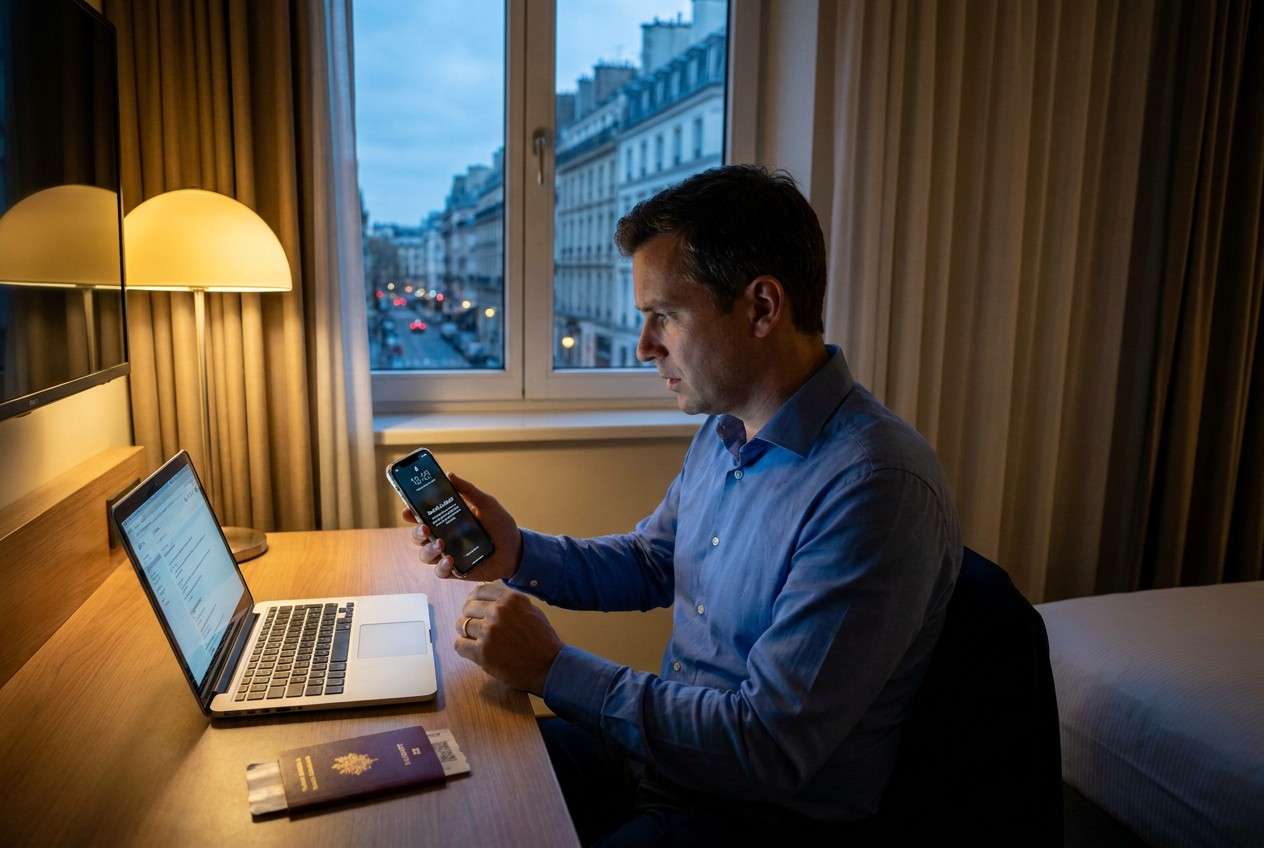
I landed, restarted my work iPhone, and now it says “iPhone Unavailable.” I’m abroad and can’t get into email or MFA, and I’m scared that trying things will make it worse or trigger a wipe.
Reddit user, r/iPhone
Your work iPhone can lock you out at the worst time—right after you tap Install Now, restart after a flight, or enter the passcode wrong a few times on an iPhone 13 or iPhone 14. Abroad, that can also mean you can’t reach company email, MFA prompts, or travel apps, and nothing changes even after several minutes.
AI (like ChatGPT or Gemini) can help you sort symptoms into likely causes, identify what evidence matters, and propose low-risk next steps in the right order—especially when you’re stressed and short on time. AI can’t see your device status, your company’s MDM rules, or whether a step might trigger a wipe, so avoid trial-and-error that could escalate lockouts or compromise work data.
In this article
- Part 1. Why work iPhone locked while traveling abroad happens and what it means
- Common lock categories
- What the screen message tells you
- Why labeling the lock type comes first
- What to gather before prompting AI
- Part 2. Using AI prompts to diagnose a locked work iPhone overseas safely
- Part 3. When to stop troubleshooting a locked work iPhone abroad and avoid risks
- Part 4. AI output vs reality: what AI can do vs what you must verify
- Part 5. Resolve a work phone lock safely with Dr.Fone (Android)
1. Classify the lock type from the exact on-screen message.
“iPhone Unavailable/Security Lockout,” remove iCloud activation lock, and MDM bypass are different problems with different safe actions.
2. Use AI to triage, not to improvise risky actions.
Ask AI to rank likely causes, request specific evidence, and propose low-risk next steps—while explicitly avoiding wipe-triggering or lock-escalating attempts.
3. Stop early when signals suggest MDM control or escalating lock timers.
If you see Remote Management, Security Lockout, or can’t access Apple ID/work MFA elsewhere, the safest path is often escalation to IT/Apple rather than more attempts.
Part 1. Why work iPhone locked while traveling abroad happens and what it means
“Work iPhone locked” usually falls into one of a few buckets: passcode lockouts, Apple ID/activation checks, or company management (MDM) restrictions. Traveling adds extra triggers like eSIM changes, time zone shifts, VPN profiles, or security policies reacting to a new country/login pattern.
What you see matters: “iPhone Unavailable” / “Security Lockout”, a Forgot Passcode option, an Activation Lock screen, or a Remote Management enrollment page all point to different root causes and different safe actions.
The uncertainty is normal: it’s often unclear whether the phone is still updating, waiting on a network check, or blocked by a work policy—so the goal is to label the lock type first, then decide what’s safe to try.
1-1. Before You Prompt the AI
Gather these basics so the AI can narrow causes without guessing:
- Exact on-screen message (quote it verbatim)
- iPhone model + iOS version (if known)
- What happened right before the lock (update, restart, SIM/eSIM change, wrong passcodes)
- Whether it’s company-managed (Intune, Jamf, Workspace ONE, “Remote Management” screen)
- Whether you have access to Apple ID, work email, and MFA on another device
Part 2. Using AI prompts to diagnose a locked work iPhone overseas safely
2-1. Level 1: Basic Prompt
My work iPhone is locked while I’m traveling abroad. The screen says: “[PASTE EXACT MESSAGE]”. Right before this, I [updated/restarted/entered passcode wrong/etc.]. Help me identify what type of lock this is (passcode lockout vs Activation Lock vs MDM Remote Management) and list the safest next steps that minimize the risk of data loss.
2-2. Level 2: Advanced Prompt
Act like a cautious mobile triage assistant. Based on my symptoms, rank the most likely causes (1–5) and for each cause give:
- Why it fits
- What evidence would confirm/deny it
- Lowest-risk next step (no data loss)
- “Do not do yet” actions that might trigger a wipe or longer lockout
My details: screen message: “[TEXT]”; device: [MODEL]; what I did before: [EVENT]; company-managed: [YES/NO/UNKNOWN]; I’m abroad in [COUNTRY] using [WIFI/CELL/VPN].
2-3. Level 3: Evidence Prompt
Help me diagnose this locked work iPhone abroad using only observable evidence and low-risk checks. Ask me any missing questions first, then give a decision tree.
Evidence I can provide:
- iPhone model: (e.g., iPhone 13 Pro)
- iOS version: (e.g., iOS 17.5, unknown if locked)
- Exact message on screen: (e.g., “iPhone Unavailable—try again in 15 minutes”)
- Options shown: (e.g., “Emergency”, “Forgot Passcode?”, “Erase iPhone”, none)
- Is there a “Remote Management” screen? (yes/no)
- Apple ID known and accessible on another device? (yes/no)
- Work MDM/MFA available on another device? (yes/no)
- Network context abroad: (e.g., hotel Wi‑Fi, roaming, corporate VPN)
Constraints: I want steps that avoid data loss and avoid triggering security wipes. If the safe path is “contact IT/Apple,” say so clearly.
2-4. Prompt Refinement
What single question would most reduce uncertainty right now, and why?
Separate the possibilities into: passcode lockout, Apple ID/Activation, MDM policy, and hardware/OS failure—then rank within each.
List the top 3 pieces of evidence on the screen that uniquely distinguish these lock types.
What actions should I avoid because they can increase lock time or trigger a wipe on managed devices?
If I have no access to my work email/MFA, what’s the safest escalation path while traveling?
Part 3. When to stop troubleshooting a locked work iPhone abroad and avoid risks
Use stop signals to prevent turning a recoverable lock into a longer lockout or a wipe.
- The screen shows “Remote Management” or an enrollment page you can’t complete
- You see “Security Lockout” or escalating time delays after passcode attempts
- The phone offers Erase iPhone, but you can’t confirm backup/MDM consequences
- You can’t access the required Apple ID / work MFA from another trusted device
Once you’ve identified the lock category with AI, the next step is choosing an execution path that matches your device type and policy constraints—without improvising.
Part 4. AI output vs reality: what AI can do vs what you must verify
AI can guide analysis, but you still need real-world confirmation and the right execution tool.
| What AI can do | What you must verify/do on-device |
|---|---|
| Interpret the exact lock message and map it to likely lock types | Confirm the verbatim screen text and which buttons/options appear |
| Propose low-risk checks in a safe order | Ensure your company’s MDM rules won’t treat attempts as suspicious |
| Flag “high-risk” actions (erase, repeated attempts, bypass tools) | Decide whether you can accept consequences like data loss or policy violations |
| Recommend the right escalation path | Execute recovery/unlock steps using approved methods/tools |
AI reduces guesswork; it doesn’t replace device access, company policy constraints, or the execution steps that actually remove a lock.
Part 5. Resolve a work phone lock safely with Dr.Fone (Android)
If your “work iPhone” situation turns out to be a work phone lock on an Android device (for example, a mixed-fleet work phone, or a backup/work Android while abroad), you can hand off the execution to Dr.Fone - Screen Unlock (Android) to run a more structured on-computer unlock workflow. This is most relevant when you’ve already used AI to confirm it’s an Android screen lock (not an Apple ID/MDM iPhone restriction) and you want to avoid repeated on-device attempts that may worsen lock timers or policy triggers.
 Unlock Android phone in seconds.
- Remove PIN, pattern, password, fingerprint.
- Bypass Google FRP lock easily.
- Works on all Android brands & models.
- No tech skills required – user-friendly.

5-1. Steps (Dr.Fone – Unlock Android Screen)
-
Step 1 Confirm the device is Android
Verify the locked device is an Android phone (not iPhone/Activation Lock), because this workflow applies to Android screen locks only.

-
Step 2 Open Dr.Fone and select Screen Unlock
On your computer, launch Dr.Fone and choose Screen Unlock (Android), staying cautious about work/MDM policies before proceeding.

-
Step 3 Connect the phone and choose the Android unlock option
Connect via USB and select the Unlock Android Screen path, following the on-screen device selection carefully to avoid mismatched steps.

-
Step 4 Follow the guided removal flow
Continue with the guided process from the official instructions to complete the screen-lock removal with minimal guesswork.

-
Step 5 Re-secure access after entry
After you regain access, immediately set a compliant lock method and reconnect required work accounts/MDM as your organization requires.




Conclusion
Use AI to classify the exact lock type from what you see on-screen, rank the most likely causes, and choose low-risk next steps without escalating the situation; then hand off the execution to the correct method—such as an Android screen-unlock workflow when the locked work device is Android—while keeping company policy and data-risk constraints front and center.
FAQ
-
Why did my work iPhone lock more easily while traveling abroad?
Travel can coincide with updates, restarts, VPN/profile changes, and security policies reacting to unusual location/sign-in patterns, increasing the chance of lockouts or management prompts. -
How do I tell if this is passcode lockout vs Activation Lock?
Passcode lockout usually shows “iPhone Unavailable” or timed retry messages; Activation Lock typically asks for an Apple ID tied to the device after erase/restore or reactivation. -
What does “Remote Management” mean on a work iPhone?
It usually indicates the device is managed by your organization (MDM) and may require company credentials or IT actions to proceed safely. -
Should I keep trying passcodes while I’m abroad?
Repeated attempts can extend lock timers and may trigger stricter security states; it’s safer to pause, identify the lock type, and follow the lowest-risk path. -
Can Dr.Fone unlock a locked iPhone screen?
The referenced Dr.Fone module here is Screen Unlock (Android), intended for Android screen locks; iPhone lock scenarios often require Apple/MDM-approved workflows.
 Add Wondershare Dr.Fone as a preferred source on Google





