 Effortlessly manage data through preview, delete, export, etc.

 100% Security Verified | No Subscription Required | No Malware

 :
: 
 ChatGPT
 Perplexity
 Gemini
 Claude
 Grok
Grok

My phone battery is fine on paper, but in real life it dies before the day ends. I don’t want to turn everything off and make the phone annoying—what settings should I actually change?
Forum user
“Best” battery settings aren’t universal—they depend on what you’re willing to trade (performance, convenience, notifications, or display quality). This guide shows how to use AI prompts to turn “I just want better battery” into a clear, testable settings profile that fits your daily constraints.
In this article
- Part 1. How to Choose the Best Phone Battery-Life Settings Without Guessing
- Why “best” depends on trade-offs
- How AI helps clarify priorities
- Why a short real-world trial still matters
- What this guide will help you decide
- Part 2. How to Compare Battery-Life Settings Based on Real Priorities
- Part 3. Using AI Prompts to Evaluate Battery-Life Settings More Clearly
- Part 4. When to Stop Researching and Make the Call
- Part 5. After Choosing: Switch or Prepare Smoothly with Dr.Fone
Part 1. How to Choose the Best Phone Battery-Life Settings Without Guessing
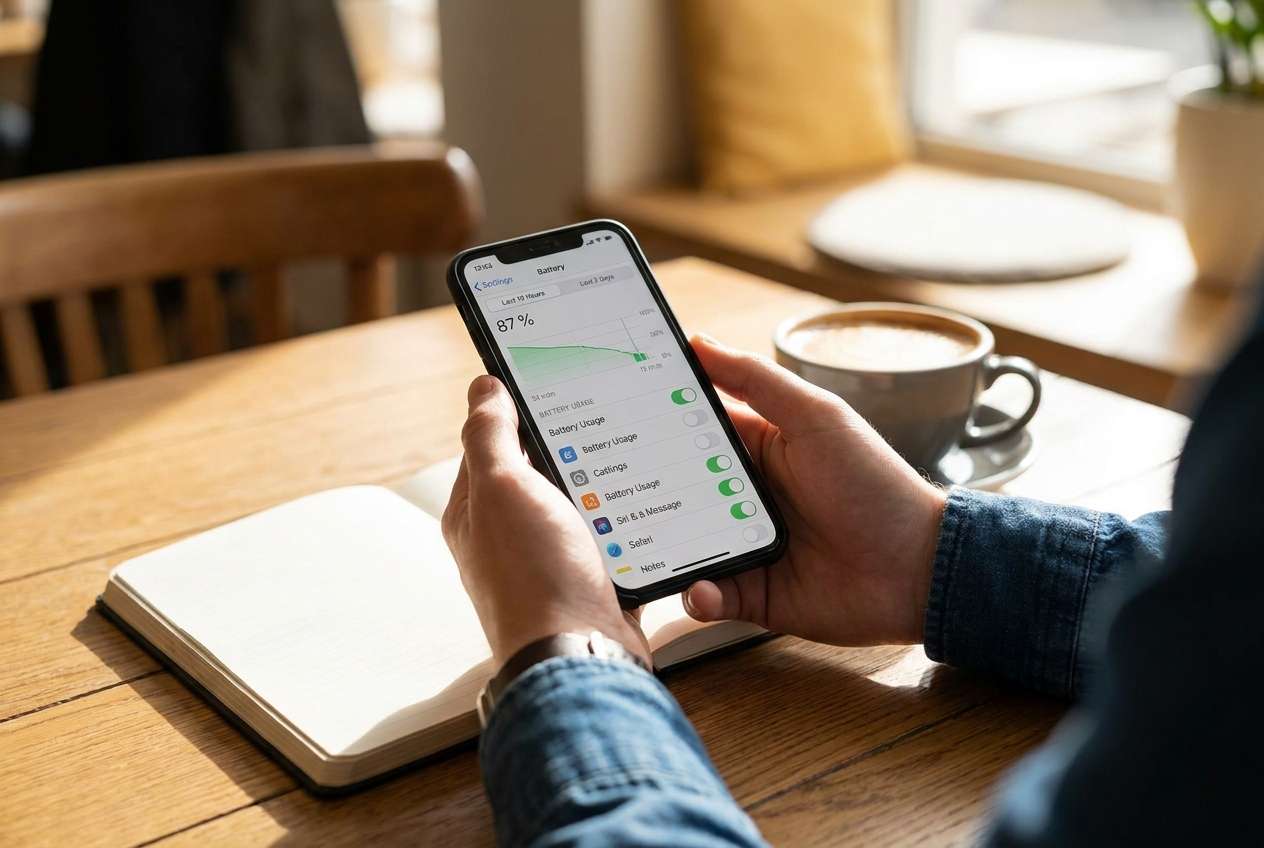
1-1. Why “best” depends on trade-offs
“Best” battery settings depend on what you’re willing to trade: performance, convenience, notifications, or display quality.
1-2. How AI helps clarify priorities
AI can help you turn “I just want better battery” into a clearer set of priorities—then map those priorities to specific settings that make sense for your day.
1-3. Why a short real-world trial still matters
AI can’t feel your real friction (missed alerts, lag, dim screen annoyance), so you’ll still want a short real-world trial after you pick a setup—and if you end up switching phones or resetting, the follow-through steps matter.
1-4. What this guide will help you decide
Instead of chasing generic tips, you’ll compare settings as “bundles” (for example, Balanced vs Aggressive), then tighten only the drains that cost you the least.
Part 2. How to Compare Battery-Life Settings Based on Real Priorities
2-1. Compare settings as bundles (Balanced vs Aggressive)
Most battery advice treats everyone the same: “turn on battery saver,” “lower brightness,” “disable background refresh.” The problem is that these changes don’t cost everyone the same—some people can’t miss notifications, others can’t stand a dim screen, and some rely on location all day.
The real comparison is usually between battery stability (predictable all-day use) and phone convenience (always-on features, instant syncing, full-speed performance). Two people can apply “battery saving settings” and one feels fine while the other regrets it within hours.
A practical way to decide is to compare settings as “bundles” (Balanced vs Aggressive) and pick the bundle that matches your daily constraints—then only tighten the most expensive drains.
2-2. What the AI needs to compare
To compare battery-life settings in a way that matches your life, share:
- Your phone OS and model (Android + brand/skin, or iPhone model + iOS version)
- Your typical day: screen-on time, commute, travel, charging access
- Your non-negotiables (e.g., instant notifications, hotspot, camera, navigation, music)
- Main battery pain (dies by 3pm, idle drain overnight, heats up, sudden drops)
- Connectivity reality (weak signal areas, 5G vs LTE, Wi‑Fi vs cellular most of the day)
- App suspects (social, video, work chat, navigation, games) and notification volume
- Display preferences (high brightness outdoors, high refresh rate, always-on display)
- Location needs (always, while using, or rarely)
- Willingness to change habits (manual syncing, scheduled DND, fewer widgets)
- Whether battery health is already degraded (older phone, fast percentage drops)
Part 3. Using AI Prompts to Evaluate Battery-Life Settings More Clearly
Use these prompts to force a trade-off-based recommendation instead of generic tips.
3-1. Level 1: Basic Prompt
I want better battery life on my phone without making it annoying to use. Compare a “balanced” vs “maximum battery” settings approach for my situation, and tell me which one fits me better.
3-2. Level 2: Advanced Prompt
I need you to compare battery-life settings by trade-offs, not just listing tips.
Ask me any missing questions, then propose two settings profiles (Balanced and Aggressive) covering display, connectivity (5G/LTE/Wi‑Fi), background activity, notifications, location, and battery saver modes.
For each profile, explain who it suits best, what will feel different day-to-day, and which 3 changes give the biggest gain with the least regret for my priorities.
3-3. Level 3: Evidence Prompt
Here’s my context: [phone model/OS], I’m usually on [Wi‑Fi/cellular/mixed], I need [must-have: navigation/work chat/2FA/music/etc.], and my battery problem is [idle drain / dies mid-day / heats up / sudden drops].
Recommend a settings profile for me and justify it.
For each major change, clearly state what I gain and what I give up, and identify one key assumption (about my usage, signal quality, or app behavior) that—if false—would flip your recommendation to the other profile.
3-4. Prompt Refinement (follow-ups)
Rank the top 8 battery settings changes by impact and pain cost for my must-have apps, then recommend only the top 3 “high impact / low regret” changes.
If I refuse to change [e.g., brightness, always-on display, 5G, notifications], what is the next-best plan—and what battery improvement range should I realistically expect?
Which settings reduce idle drain overnight specifically, and how do they differ from settings that help screen-on drain?
Identify the most likely “regret points” for me (missed alerts, slower uploads, delayed sync, worse navigation accuracy). How do I mitigate each regret without giving up all battery gains?
Give me a 48-hour test plan: what to change first, what to measure (screen-on time, idle drop), and what result would mean the setting is worth keeping.
Part 4. When to Stop Researching and Make the Call
4-1. AI recommendation vs real-world fit
| Likely AI recommendation or conclusion | What real-life use may change or reveal |
|---|---|
| “Use an Aggressive battery profile if you’re often away from chargers.” | You may hate delayed notifications or background sync gaps (especially for work chat, 2FA, mail). |
| “Drop brightness/refresh rate for big gains.” | Outdoors visibility or scrolling comfort may matter more than you expected, causing quick rollback. |
| “Limit location/background activity to stop drain.” | Navigation, fitness tracking, smart home geofencing, or ride-hailing reliability may suffer. |
| “Prefer Wi‑Fi / disable 5G in weak coverage.” | Your real coverage pattern might make LTE more stable—or you may see no improvement if signal is already strong. |
AI can clarify likely fit and trade-offs, but hands-on use (missed alerts, comfort, speed, and daily habits) is what ultimately determines whether a battery setup feels “better” or just “stricter.”
4-2. When to stop researching and make the call
- You can name your top two priorities (e.g., “all-day battery” and “no missed work messages”) and your top one non-negotiable (e.g., “navigation must stay reliable”).
- You’ve chosen one settings profile (Balanced or Aggressive) and limited it to 3–5 changes, not 15.
- You know your likely regret point (notifications, brightness, performance, location accuracy) and you have a mitigation plan.
- You’ve defined a simple success metric for 48 hours (e.g., “end day above 25%” or “overnight drop under 5–8%”).
Once you can predict what will feel different—and you’re okay with that trade—you’re ready to try a profile instead of reading another list.
Part 5. After Choosing: Switch or Prepare Smoothly with Dr.Fone
After you settle on a battery strategy, the practical next step is making sure your data is safe and portable—especially if your battery issues point to a deeper problem (aging battery, runaway apps, or you’re considering a phone upgrade). If you suspect iOS system glitches are contributing to abnormal behavior, Dr.Fone - System Repair (iOS) can help you address iOS system errors and keep the follow-through process smoother.
 Fix iOS issues, no data loss.
- One-click repair for all iOS problems.
- Solve recovery mode, Apple logo, black screen, etc.
- Upgrade or downgrade iOS without iTunes

5-1. Practical follow-through after you pick a battery profile
- Create a clean backup before you change anything big. Use a backup workflow before major resets or deep cleanup (photos, messages, contacts, and app data where supported).
- If you decide to switch phones, transfer the essentials in one pass. Move your core data so you can test battery life without spending days fixing migration gaps.
- If you’re reselling or recycling, erase personal data properly. Remove personal data after you’ve confirmed everything important is backed up.

5-2. If you need to repair iOS system errors (guided steps)
-
Step 1 Open Dr.Fone on your computer
Launch Dr.Fone and enter the toolbox so you can access system-level repair options.

-
Step 2 Choose System Repair and select iOS
Go to System Repair and pick iOS to proceed with an iPhone/iPad repair workflow.

-
Step 3 Continue to iOS System Repair
Confirm the iOS repair path so the tool can guide you through the next steps.

-
Step 4 Proceed with Standard Mode
Use Standard Mode when appropriate to address system errors while aiming to keep your data intact.





Conclusion
AI is best used here as decision support: it helps you choose a battery settings profile based on real trade-offs, but daily use is the final proof—and if your decision leads to switching, resetting, or reselling, Dr.Fone can help you execute the practical follow-through more safely.
FAQ
-
Can I trust AI to tell me the “best” battery settings?
Trust it for structured trade-offs and a sensible plan; don’t treat it as proof. You still need a short real-world test because your signal quality, apps, and habits decide the outcome. -
What’s the single most important trade-off in battery settings?
Background convenience vs control: the more you restrict background activity (sync, location, notifications), the more battery you save—but the more you risk delays and friction. -
How do I avoid a generic spec-style checklist?
Force the decision around your must-haves (work chat, navigation, hotspot, camera) and ask for a two-profile comparison (Balanced vs Aggressive) with “gain vs give up” for each change. -
Which settings usually help the most with the least regret?
Typically: smarter display behavior (auto-brightness + shorter timeout), reducing unnecessary background refresh for non-essential apps, and managing connectivity in weak-signal areas—but the “least regret” part depends on your non-negotiables. -
What should I prepare after I choose a settings profile?
A 48-hour test plan, a rollback list (what you’ll undo first if it annoys you), and a backup—especially if you’re considering a reset or upgrade due to battery health. -
If I’m switching phones because of battery, what’s the safest approach?
Back up first, transfer essentials second, then wipe the old device only after you confirm you can sign into critical apps (banking/2FA) on the new phone.
 Add Wondershare Dr.Fone as a preferred source on Google





