 Effortlessly manage data through preview, delete, export, etc.

 100% Security Verified | No Subscription Required | No Malware

 :
: 
 ChatGPT
 Perplexity
 Gemini
 Claude
 Grok
Grok

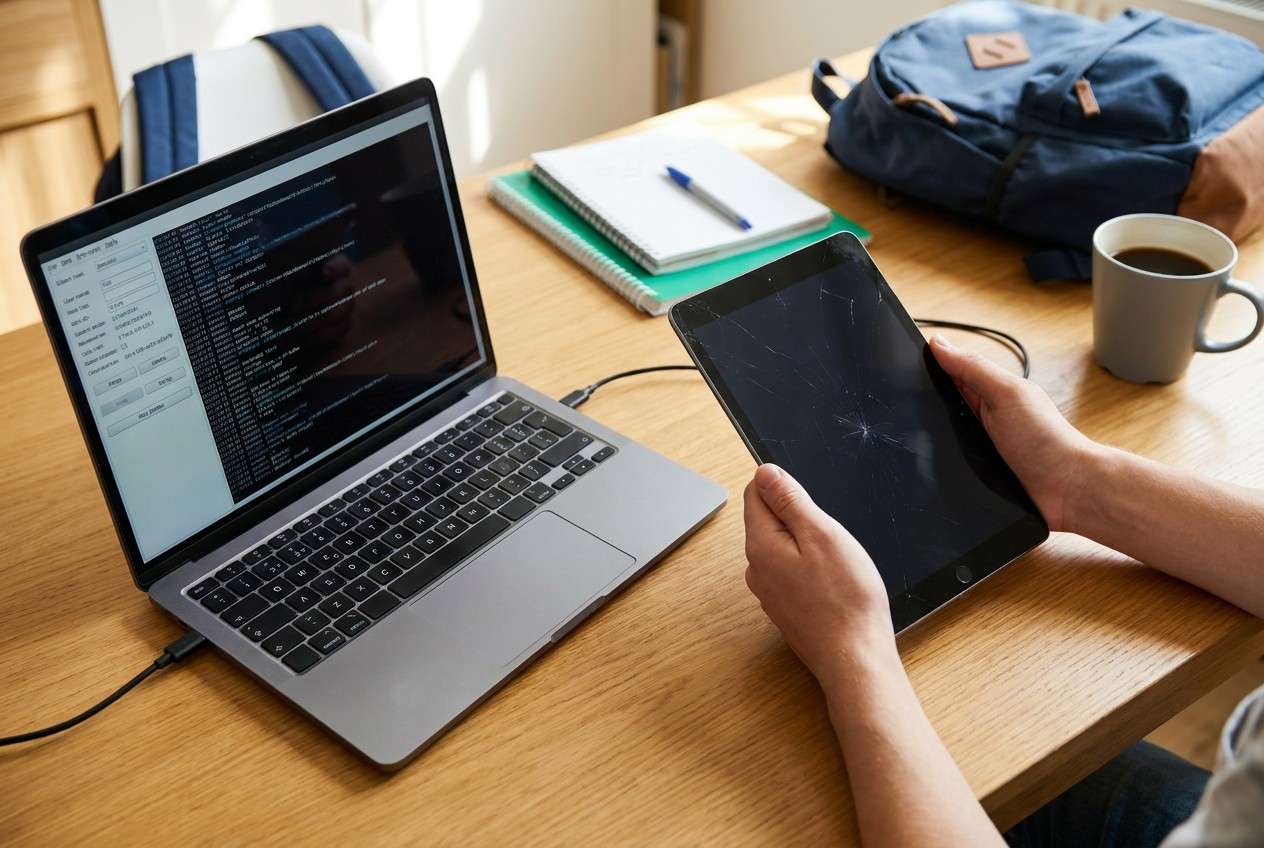
I dropped my tablet right before a deadline. It powers on but the screen won’t respond, and after it restarted I can’t unlock it to get my school PDFs off.
Reddit user, r/AndroidQuestions
A broken tablet can turn into an urgent deadline problem fast—your school PDFs, slides, or photos may still be on the device, but the screen won’t respond, the touch is unreliable, or you’re locked out after a restart.
AI (like ChatGPT or Gemini) can help you describe symptoms precisely, narrow likely causes (screen failure vs lock screen vs storage issues), and choose low-risk next steps to avoid making file access harder.
AI can’t “reach into” your tablet or extract files for you, and trial-and-error actions (random button combos, repeated reboots, factory reset attempts) can increase the chance of data loss or lockouts—so use AI for diagnosis and hand off execution to the right tool when needed.
In this article
- Why extracting school files from a broken Android tablet gets complicated
- Access vs. files: what’s usually blocked
- Common post-drop / post-restart patterns
- Why USB transfer often fails until unlocked
- What to collect before prompting AI
- Using AI prompts to diagnose broken tablet file access safely
- Prompt refinement and AI output vs reality checks
- When to stop troubleshooting and avoid risks
- Unlock Android screen to access school files with Dr.Fone
Part 1. Why extracting school files from a broken Android tablet gets complicated
When you need to extract school files from a broken tablet, the blocker is usually access, not the files themselves: the data may be intact, but you can’t reliably unlock the device, approve a USB connection, or navigate to share/backup. This is common on Android tablets that require the lock screen after a restart.
A typical scenario: you dropped the tablet, it rebooted, and now the display is dim/cracked or touch doesn’t register—so you can’t enter the PIN/pattern to reach your class folders. It can feel like “nothing is happening” even after several minutes because the device may be on, but you can’t confirm it.
This is similar to access problems people hit across devices (even an iPhone 13 or iPhone 14 after a restart), but on Android tablets, file access is especially dependent on unlocking and USB authorization.
1-1. Before You Prompt the AI
Collect a few basics first:
- Tablet brand/model and Android version (if known)
- What happened right before the issue (drop, update, restart, low battery)
- Current state (boots? stuck on logo? screen visible but touch dead?)
- Lock type (PIN/pattern/password) and whether you know it
- Whether it was previously connected to this computer (USB trusted before?)
- Any SD card inserted (and whether files might be there)
Part 2. Using AI prompts to diagnose broken tablet file access safely
2-1. Level 1: Basic Prompt
My Android tablet is broken and I need to access school files. The screen is [cracked/black/on but touch not working], it happened after [drop/update/restart], and now I’m [locked out/can’t enter PIN/can’t approve USB]. Please list the most likely causes and the lowest-risk next steps to try first, avoiding anything that could erase data.
2-2. Level 2: Advanced Prompt
Act as a cautious troubleshooting assistant. I need to get school files off a broken Android tablet without increasing data-loss risk.
**Symptoms:** [screen state], [touch response], [charging/boot behavior], [any error messages].
**Trigger:** [drop/update/restart/battery died].
**Access constraints:** I [do/do not] know the lock code; USB debugging was [on/off/unknown]; this PC was [previously trusted/not trusted].
1) Rank the top 5 likely causes (access/lock-screen/display/storage/boot).
2) For each cause, suggest 1–2 verification checks that don’t risk data.
3) Propose a “safest-first” plan and clearly mark any step that could cause data loss or lockouts.
2-3. Level 3: Evidence Prompt
Help me diagnose why I can’t extract school files from my broken Android tablet, and recommend low-risk next steps. Use a decision-tree approach.
**Device info**
- Tablet brand/model: (e.g., Samsung Galaxy Tab A8)
- Android version (if known):
- Storage: (e.g., 64 GB)
- SD card present: (yes/no/unsure)
**What happened**
- Just before the issue: (e.g., dropped it / tapped “Install now” / battery died, then rebooted)
- Any water exposure: (yes/no)
**Current symptoms**
- Screen: (black / flickering / shows image)
- Touch: (works / partially / not at all)
- Boots: (stuck on logo / reaches lock screen / keeps restarting)
- Charging indicators: (yes/no)
- Sounds/vibration/notifications: (yes/no)
**Access details**
- Lock type: (PIN/pattern/password)
- I know the code: (yes/no)
- Previously connected to my computer: (yes/no)
- USB debugging enabled before: (yes/no/unknown)
**Goal**
- Files needed: (e.g., PDFs in Downloads, Google Drive offline files, Photos of homework)
- Deadline urgency: (today/this week)
Output:
A) Most likely scenario + why
B) What I should NOT do (data-loss risks)
C) Safest extraction paths in order (include prerequisites like “must unlock screen”)
Part 3. Prompt refinement and AI output vs reality checks
3-1. Prompt Refinement
If the AI answer feels generic, tighten it with follow-ups:
What 3 questions do you still need answered to choose the safest extraction path?
Separate causes into categories: **display/touch**, **lock screen**, **boot/system**, **storage failure**—then rank them by likelihood from my symptoms.
What single piece of evidence would most strongly confirm the top ranked cause?
List only steps that are **read-only / non-destructive** first; put anything risky in a ‘last resort’ section with warnings.
If the tablet was never trusted to my PC, what options still exist without enabling new permissions on-screen?
3-2. AI Output vs Reality
AI guidance can be directionally correct, but your device may behave differently in practice.
| AI suggests | Reality check you should do |
|---|---|
| “Just connect USB and copy files.” | Many Android tablets require unlock + USB authorization before files appear on a computer. |
| “Use recovery mode steps.” | Some button sequences vary by model, and repeated attempts can cause delays or lockouts. |
| “Your screen is dead—use an adapter.” | OTG/HDMI support isn’t guaranteed, and you may still need to unlock to proceed. |
| “Unlocking is the next step.” | Some unlock methods can trigger data loss depending on brand/model—verify first. |
AI helps you decide what’s likely and what to try first; it doesn’t perform actions on the device. Once you’ve identified that the lock screen is the bottleneck, you’ll need a practical execution method that fits your model and risk tolerance.
Part 4. When to stop troubleshooting broken tablet file extraction and avoid risks
Stop and reassess if you hit any of these signals:
- You’re about to try a step that mentions factory reset, “wipe,” or “erase” and you haven’t confirmed backups.
- The tablet is boot-looping, getting hot, or showing signs of hardware instability (random shutdowns, swelling, burning smell).
- You’re locked into repeated attempts and see warnings about try again later or escalating lock delays.
- The screen/touch is failing so badly you can’t reliably confirm what you’re tapping, increasing the chance of accidental destructive actions.
Once you’ve used AI to narrow the cause (for example, “I can’t access files because I can’t unlock the screen”), it’s safer to shift from guessing to an execution tool that matches that specific bottleneck.
Part 5. Unlock Android screen to access school files with Dr.Fone
If AI-based diagnosis points to the lock screen as the main barrier—especially after a restart where the tablet demands a PIN/pattern—Dr.Fone - Screen Unlock (Android) becomes relevant because it focuses on removing the lock screen so you can regain on-device access and then export or sync your school files through normal apps and connections.
 Unlock Android phone in seconds.
- Remove PIN, pattern, password, fingerprint.
- Bypass Google FRP lock easily.
- Works on all Android brands & models.
- No tech skills required – user-friendly.

-
Step 1 Confirm the goal is access (not “repair”)
Decide which files matter (Downloads, Docs, Photos, offline Drive) so you can back them up immediately after you regain access.
-
Step 2 Open Dr.Fone and choose “Screen Unlock (Android)”
Select the module and follow the on-screen flow for your tablet brand/model, since supported unlock methods can differ.

-
Step 3 Select the Android unlock option for your device
Proceed into the Android screen unlock path so the tool can guide you based on your tablet type.

-
Step 4 Enter the remove screen lock flow and follow the guided mode
Proceed carefully through the prompts, and pause if you see wording that suggests data may be erased for your device type.

-
Step 5 Choose the correct brand/model path, then back up school files immediately
Use the compatible path for your specific brand/model, then export school files right away (copy to cloud storage or a computer) to reduce the chance of losing access again during reboots or lock changes.

After access is restored, stabilize your setup for the next deadline by adding a backup routine (cloud sync or periodic PC copies) so one cracked screen doesn’t block future submissions.




Conclusion
Use AI to translate your symptoms into a likely cause and a safest-first plan—especially to confirm whether the real blocker is the lock screen, the display/touch hardware, or boot behavior—then hand off the actual unlock step to Dr.Fone when access is the prerequisite to copying your school files out through normal channels.
FAQ
-
Can I extract school files if the tablet screen is black but the device is on?
Sometimes, but it depends on whether you can unlock and whether the computer was previously trusted; a black screen often blocks the approvals needed for file transfer. -
Will a USB cable let me copy files without unlocking the tablet?
Often no—many Android devices require the lock screen to be unlocked and the data connection to be authorized before storage appears on a PC. -
What if I forgot the PIN and the tablet restarted?
After a restart, Android usually requires the primary PIN/password (not fingerprint), so you may need an unlock approach before you can access files. -
Is it safe to keep trying random button combinations to “enter recovery”?
It can waste time and sometimes increases risk if you land in menus that include wipe/reset options; stop if you’re not sure what a menu item does. -
Where are school files usually stored on Android tablets?
Common places include Downloads, Documents, app folders (e.g., classroom apps), DCIM/Photos, and offline files inside cloud apps—once you regain access, search by filename/type (PDF/PPTX/JPG).
 Add Wondershare Dr.Fone as a preferred source on Google





