 Effortlessly manage data through preview, delete, export, etc.

 100% Security Verified | No Subscription Required | No Malware

 :
: 
 ChatGPT
 Perplexity
 Gemini
 Claude
 Grok
Grok

I updated iOS, and now I tap an app, it flashes for a second, then drops me back to the Home Screen. It keeps happening and I can’t tell what’s actually broken versus what’s still “settling” after the update.
Apple Support Community user
Apps that keep closing right after an iOS update can feel random: you tap an app, it flashes, then drops you back to the Home Screen. This often shows up on models like iPhone 13 or iPhone 14, especially right after you tapped Install Now and the phone restarted.
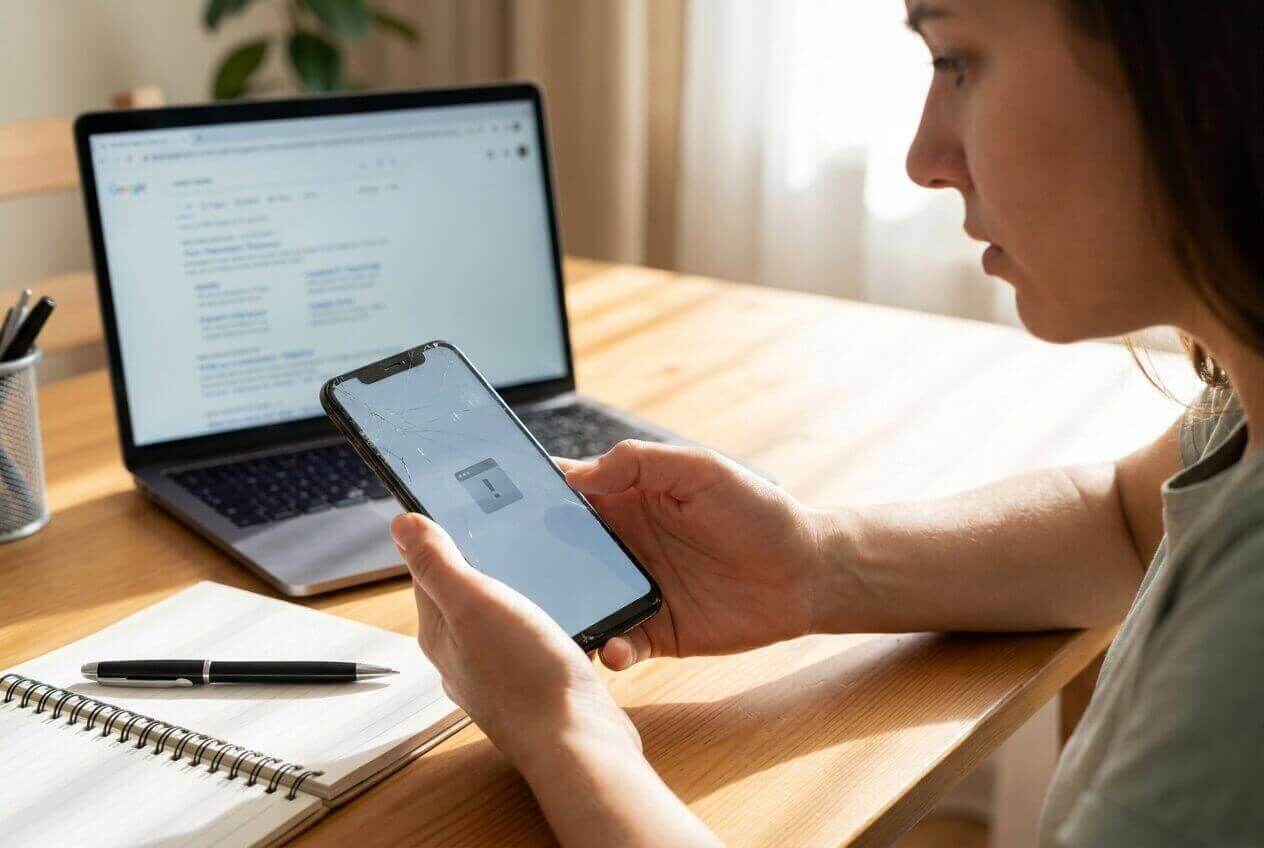
AI (like ChatGPT or Gemini) can help you describe the symptoms precisely, narrow likely causes, and decide which checks are low-risk versus which actions could make things worse.
AI can’t see your device state, logs, storage, or account flags—so trial-and-error can accidentally trigger extra lockouts, data loss, or longer downtime if you guess wrong.
In this article
- Why iPhone apps keep crashing after iOS update happens and what it means
- App compatibility issues
- Post-update housekeeping (indexing, caches, background tasks)
- Device constraints (especially low storage)
- Before you prompt the AI: details to collect
- Using AI prompts to diagnose iPhone apps crashing after iOS update safely
- AI output vs reality: what you can actually verify
- When to stop troubleshooting iPhone apps crashing after update and avoid risks
- Unlock Android screen to regain access during iPhone troubleshooting
Part 1. Why iPhone apps keep crashing after iOS update happens and what it means
After an iOS update, crashes usually mean one of three things is off: the app’s compatibility, the system’s post-update housekeeping (indexing, caches, background tasks), or a device constraint like low storage. The tricky part is that the phone may look “idle” while background work continues.
A common trigger is updating overnight or after tapping Install Now, then immediately opening the same apps you used before (banking, social, email) and seeing repeated crashes or freezes. Nothing changes after several minutes, so it’s unclear whether the phone is still stabilizing or something is actually broken.
Treat the first hour after an update like a “settling” window—then shift to structured checks so you don’t accidentally wipe data or lock accounts while trying fixes.
Before You Prompt the AI
Collect a few concrete details so the AI can narrow causes without guessing:
- iPhone model and iOS version (Settings > General > About, if accessible)
- Which apps crash (all apps vs specific apps)
- When it started (immediately after update vs later)
- Storage level (Settings > General > iPhone Storage)
- Network context (Wi‑Fi/cellular/VPN on/off)
- Any recent account/security changes (password resets, 2FA prompts)
Part 2. Using AI prompts to diagnose iPhone apps crashing after iOS update safely
Level 1: Basic Prompt
My iPhone apps started crashing right after an iOS update. Ask me the minimum questions needed to narrow the likely causes, then give me a short list of low-risk checks first (no data loss), and tell me what to avoid.
Level 2: Advanced Prompt
Diagnose why apps keep crashing after my iOS update.
Requirements:
1) List the **top 5 likely causes** ranked by probability.
2) For each cause, give **one confirming sign** and **one quick test**.
3) Label each test as **Low / Medium / High risk** (risk = data loss, account lockout, downtime).
4) End with a “stop and reassess” rule if symptoms don’t change.
Level 3: Evidence Prompt
Act as a triage assistant for iPhone app crash loops after an iOS update. Use my evidence to narrow causes and suggest the safest next steps.
Evidence
- iPhone model: (e.g., iPhone 13 Pro)
- iOS version installed: (e.g., iOS 17.x / 18.x)
- When crashes began: (e.g., immediately after update + reboot)
- Crash pattern: (e.g., only 3 apps / most apps / only after login)
- Exact symptom: (e.g., app opens then closes to Home Screen in 2 seconds)
- Storage free: (e.g., 1.5 GB free)
- Battery/temperature: (e.g., warm during charging)
- Network/VPN: (e.g., Wi‑Fi on, VPN enabled)
- Apple ID status: (e.g., prompted to re-enter password)
- App update status: (e.g., updates pending in App Store)
- Any device management: (e.g., work MDM profile installed / none)
Output format
1) Most likely causes (ranked) with short reasoning
2) Low-risk checks first (step-by-step, reversible)
3) “What not to do yet” list
4) What evidence would change the diagnosis most
Prompt Refinement
Use these follow-ups to make the AI’s answer less generic and more testable:
“What **2–3 questions** do you still need answered to stop guessing?”
“Separate likely causes into **app-specific vs system-wide vs account/network** categories.”
“Re-rank the causes if I tell you: **only third-party apps crash, Apple apps are fine**.”
“What is the single strongest piece of evidence I should check next (storage, App Store updates, VPN, crash after login)?”
“Give me a decision tree: if X is true, do Y; if not, do Z (only low-risk steps).”
AI Output vs Reality
Use this to translate AI suggestions into what you can actually verify:
| AI output (what it might suggest) | Reality check (what you can confirm) |
|---|---|
| “It’s probably low storage” | Check iPhone Storage and whether apps crash more when storage is <2–3 GB free |
| “Apps need updates for compatibility” | Confirm App Store shows pending updates and whether updated apps stop crashing |
| “VPN/network is interfering” | Toggle VPN, try another network, and see if crashes happen only after login/API calls |
| “System is still indexing after update” | Look for heat/battery drain and whether behavior improves after charging + idle time |
AI helps you prioritize and reduce risk, but it can’t apply changes, confirm device telemetry, or guarantee which variable is responsible—so your next steps should stay reversible until a clear pattern appears.
Part 3. When to stop troubleshooting iPhone apps crashing after update and avoid risks
If you’ve done basic, reversible checks (storage, updates, VPN off, restart) and the pattern points to deeper issues, the goal becomes preventing secondary problems like account lockouts or accidental data loss.
Stop and reassess if:
- Crashes expand from a few apps to most apps, or the phone becomes unstable system-wide
- You’re repeatedly re-entering passwords/2FA and worry you’ll lock an account
- You’re tempted to try erase/reset steps without a verified backup
- You can’t access a needed second device (for codes/backups) because it’s locked out
Once you’ve narrowed the likely cause with AI, it’s usually time to hand off the “do the action” part to the right tool or official path—especially when access recovery is involved.
Part 4. Unlock Android screen to regain access during iPhone troubleshooting
When iPhone apps keep crashing after an update, many people rely on a secondary Android phone for 2FA codes, password manager access, or backup communication—until that Android device is locked due to forgotten PIN/pattern or too many attempts. At that point, AI can help you choose the lowest-risk approach, but you still need a practical way to carry out the access step. That’s where Dr.Fone - Screen Unlock (Android) becomes relevant: it’s designed to perform the on-device screen unlock workflow so you can regain access to accounts and verification methods needed to stabilize your iPhone setup.
 Unlock Android phone in seconds.
- Remove PIN, pattern, password, fingerprint.
- Bypass Google FRP lock easily.
- Works on all Android brands & models.
- No tech skills required – user-friendly.

Steps
-
Step 1 Prepare the computer and cable
Install Dr.Fone and use a reliable USB cable (avoid unstable hubs to reduce connection failures).

-
Step 2 Open Screen Unlock
In Dr.Fone, choose Unlock Android Screen and confirm you’re working on the correct device to avoid mistakes.

-
Step 3 Connect the Android phone
Plug in the locked Android device and keep it connected throughout the process to prevent interruptions.

-
Step 4 Follow the model-specific unlock path
Use the guided prompts to match your device brand/model, since steps can differ and some paths may have data implications.

-
Step 5 Verify access to critical apps
After access returns, immediately check items you need for iPhone recovery (2FA, email, password manager) and update your lock settings.




Conclusion
Use AI to turn vague “apps keep crashing” symptoms into a ranked, evidence-based short list of likely causes and low-risk checks; then hand off any access-dependent execution—like regaining entry to a locked Android device needed for codes and accounts—to a purpose-built tool so you can proceed without escalating risk.
FAQ
-
Why do iPhone apps keep crashing after an iOS update?
Common causes include pending app updates, low storage, temporary post-update background processes, VPN/network interference, or an app version that’s not yet fully compatible.
-
How can I tell if it’s only one app or the whole system?
If Apple apps are stable and only one or two third-party apps crash, it’s more likely app-specific; if many unrelated apps crash, it points to system-wide constraints like storage or post-update instability.
-
What’s the safest first check when apps crash immediately on launch?
Check free storage and App Store updates first; both are low-risk and frequently explain crash-on-open behavior after updates.
-
Can repeated login attempts make the situation worse?
Yes. If crashes happen after login, repeated attempts can trigger security throttles or temporary account locks—pause and verify network/VPN status and account prompts first.
-
Why would I need to unlock an Android phone while fixing an iPhone issue?
If your 2FA codes, recovery email, or password manager are on an Android backup device, being locked out can block you from signing back into iOS apps cleanly.
 Add Wondershare Dr.Fone as a preferred source on Google





