 Effortlessly manage data through preview, delete, export, etc.

 100% Security Verified | No Subscription Required | No Malware

 :
: 
 ChatGPT
 Perplexity
 Gemini
 Claude
 Grok
Grok

I thought moving to a new tablet would be simple, but I realized too late some of my photos and app files were only on the old device. Now I’m scared to reset it because I’m not 100% sure what actually transferred.
Reddit user, r/AndroidQuestions
You’re moving data from an old Android tablet to a new tablet, and the biggest risk is skipping one small prerequisite (like sync status, encryption, or storage space) that later blocks or corrupts the transfer.
AI can help you map the workflow in the right order, flag what must be verified first, and reduce avoidable mistakes—especially when your data is spread across apps, local storage, cloud accounts, and SD cards.
AI can’t access your tablets, confirm what’s truly synced, or perform the transfer itself; once the plan is correct, you’ll need real device tools to execute the actions safely.
In this article
- Part 1. How to plan the transfer without missing critical steps
- Common real-world situations that break transfers
- Why people get stuck even after “good” AI answers
- The point of no return you must avoid
- What a safe sequence should achieve
- Part 2. What the AI needs to know
- Part 3. Using AI prompts to build a safer workflow
- Part 4. When to stop planning and start execution
- Part 5. Execute the workflow safely with Dr.Fone
Part 1. How to plan the transfer without missing critical steps
1-1. Common real-world situations that break transfers
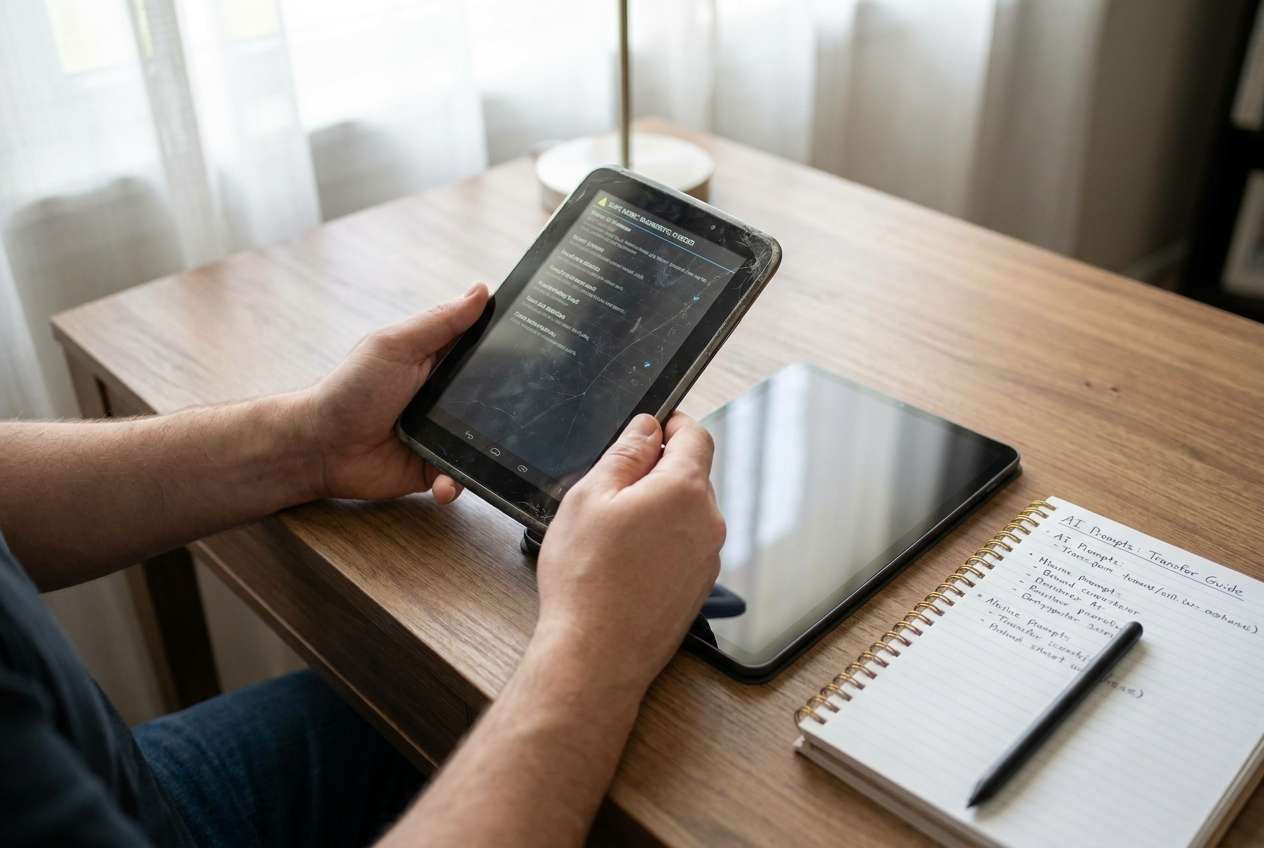
A common situation: the old tablet is slow, partially broken, or low on storage, and you’re not sure which data is “on the device” vs “already in the cloud.” You may also have multiple Google accounts, a microSD card, and apps that don’t sync automatically.
1-2. Why people get stuck even after “good” AI answers
Even after getting an AI answer, people get stuck because the sequence is unclear: should you update the OS first, sync first, transfer first, or clean up first? Missing the verification steps can lead to discovering too late that photos weren’t backed up, app data didn’t migrate, or messages/notes were stored locally.
1-3. The point of no return you must avoid
There’s also at least one point of no return: factory resetting, wiping, or trading in the old tablet before you confirm the new tablet contains readable copies of the important data (and you’ve tested sign-ins) can make recovery impossible.
1-4. What a safe sequence should achieve
Your plan should (1) inventory what must move, (2) separate cloud-synced vs local-only data, (3) define pass/fail checks you’ll use on the new tablet, and (4) add a hard “stop checkpoint” before any irreversible action.
Part 2. What the AI needs to know
Share your situation so the workflow can be sequenced correctly and verified before any irreversible step.
- Old tablet model and Android version (if known)
- New tablet model and Android version (if known)
- What you must move (photos/videos, downloads, documents, WhatsApp, SMS, contacts, calendar, notes, music, app data, etc.)
- Where data currently lives (Google Photos, local Gallery/DCIM, SD card, third-party cloud, internal storage)
- Accounts involved (how many Google accounts; any work/school profiles)
- Condition constraints (cracked screen, weak battery, unstable Wi‑Fi, low storage, USB cable availability)
- Security constraints (screen lock known, encryption enabled, 2FA, locked apps)
- Deadline and risk tolerance (same-day move vs cautious multi-day)
- Your “do not lose” list (top 10 items/folders/apps that matter most)
Part 3. Using AI prompts to build a safer workflow
Use the prompts below to get a step-by-step plan with clear checks before you touch anything irreversible.
3-1. Level 1: Basic Prompt
Help me create a safe plan to transfer everything from my old Android tablet to a new Android tablet.
List the steps in the correct order and include what I should verify after each step.
Do not include execution instructions—only planning and checks.
3-2. Level 2: Advanced Prompt
Design a structured workflow for an old Android tablet → new tablet transfer plan with three phases: Preparation, Execution, Verification.
In each phase, separate critical steps vs optional steps, and note the risks if skipped (e.g., unsynced photos, app data loss, account lockout).
End with a ‘stop’ checkpoint before any irreversible action like factory reset.
3-3. Level 3: Evidence Prompt
Create a transfer plan using my context and include specific checks before/during/after.
Ask me any missing questions first.
Context: old tablet (Samsung Tab A, Android 9), new tablet (Lenovo Tab, Android 13).
Data: photos/videos (~18 GB), Downloads folder (~4 GB PDFs), contacts/calendar (Google), WhatsApp, a note app, and some offline files on microSD (64 GB).
Constraints: old tablet battery drains fast, Wi‑Fi is unstable, I have two Google accounts (personal + family), and I might trade in the old tablet.
Output:
- A checklist of what evidence to collect (e.g., counts, screenshots, folder sizes)
- A step order with ‘go/no-go’ gates
- A final verification list that must be satisfied before I wipe/reset anything.
3-4. Prompt Refinement
Rewrite the plan as a table with columns: Step, Purpose, Required Inputs, Risk if skipped, Verification method, Pass/Fail criteria.
Add a ‘minimum viable transfer’ path that guarantees only my top 5 must-have items move first, before the full transfer.
Insert explicit checks for cloud sync status vs local-only data, and tell me exactly how to detect each category conceptually (no device actions).
Add a ‘failure recovery’ branch: if the old tablet dies mid-transfer, what data is still safe and what was at risk?
List the top 10 common mistakes in Android tablet-to-tablet transfers and map each mistake to the step where it’s prevented.
3-5. AI plan vs. real device constraints
| Planning with AI (good for) | Real device constraint (what AI can’t do) |
|---|---|
| Sequencing steps to avoid missed prerequisites | Confirm actual sync state or physically access app storage |
| Identifying high-risk points and stop-checks | Perform the transfer, connect devices, or read device storage directly |
| Creating verification criteria (counts, spot-checks, sign-in tests) | Validate file integrity on-device or resolve driver/connection issues |
| Building a rollback plan before irreversible actions | Execute backups, restores, or migrations inside real tools |
AI improves planning, but cannot execute; once the workflow is clear and your checks are defined, you need real device tools to carry out the transfer.
Part 4. When to stop planning and start execution
- You have a written “must-move” inventory (apps + folders + accounts) and a clear destination for each item (cloud vs direct transfer).
- You’ve defined pass/fail verification for the top items (e.g., photo count range, folder sizes, sample file opens, account sign-ins).
- You’ve identified the irreversible moment(s) you will not cross until verification is complete (wipe/reset/trade-in).
- You have the required constraints resolved (power, cable/Wi‑Fi approach, enough free storage, correct accounts, screen lock access).
At this point, uncertainty should be about carrying out steps—not about what the steps are or how you’ll confirm success.
Part 5. Execute the workflow safely with Dr.Fone
Execution now matters because the plan only reduces risk if you follow the sequence and confirm the checks before you cross any irreversible step.
To perform the actual tablet-to-tablet move, you’ll need an execution tool such as Dr.Fone - Phone Transfer.

-
Step 1 Launch the transfer tool and confirm your plan
Open the transfer tool and align the workflow with your “must-move first” priorities (so critical items move before anything optional).

-
Step 2 Set the device path correctly (old → new)
Confirm you’re transferring from the old Android tablet to the new tablet, and pause if prompts/permissions appear that could restrict access to photos, files, or app data.

-
Step 3 Select data categories and start the transfer
Transfer must-have categories first, then complete the rest. If the connection drops, stop and resume only after you re-check what was already copied to avoid gaps.

-
Step 4 Monitor progress and verify before any irreversible action
Use your evidence-based checklist (counts, spot-checks, sign-ins, sample opens) to confirm the new tablet has readable copies. Do not wipe/reset/trade-in until verification passes.

Recommended tool for tablet-to-tablet transfer execution
If you already have a verified plan (inventory → transfer order → pass/fail checks), a dedicated transfer utility can help you execute that plan more consistently than ad-hoc manual copying.
 Move data between iOS to Android and vice versa.
- Transfer contacts, SMS, photos, videos, music, and more types.
- Available with all phones with Android and iOS versions.
- Simple, click-through process.

Whatever tool you use, keep your “stop checkpoint” intact: you should only factory reset, wipe, or trade in the old tablet after you’ve confirmed the new tablet contains usable copies and you can sign into required accounts.




Conclusion
Use AI to design a cautious, verifiable old Android tablet to new tablet transfer plan with clear stop-checks, then use Dr.Fone to execute the transfer and verify results before you do anything irreversible with the old tablet.
FAQ
-
What data is most likely to be missed in a tablet-to-tablet transfer?
Locally stored photos/videos, Downloads folders, app-specific local files, and apps that don’t sync (some note apps, offline media, certain chat backups). -
What’s the biggest “point of no return” mistake?
Factory resetting, wiping, or trading in the old tablet before verifying the new tablet has readable copies and you can sign into the required accounts. -
How do I verify the transfer without spending hours checking everything?
Use evidence-based sampling: compare totals (photo counts/folder sizes), open a small set of files across categories, and validate sign-ins for critical apps and cloud accounts. -
Should I clean up the old tablet before transferring?
Only after you’ve moved and verified your must-have data. Early cleanup can accidentally delete the only copy of local files. -
Can AI tell me whether my photos are fully synced to Google Photos?
No. AI can tell you what to check and what “synced vs local-only” means, but it cannot see your device or your account status.
 Add Wondershare Dr.Fone as a preferred source on Google





