 Effortlessly manage data through preview, delete, export, etc.

 100% Security Verified | No Subscription Required | No Malware

 :
: 
 ChatGPT
 Perplexity
 Gemini
 Claude
 Grok
Grok

After a factory reset, my phone boots to the Google sign-in screen and says the device was reset. I can’t get past setup even though the phone turns on normally.
Reddit user, r/AndroidQuestions
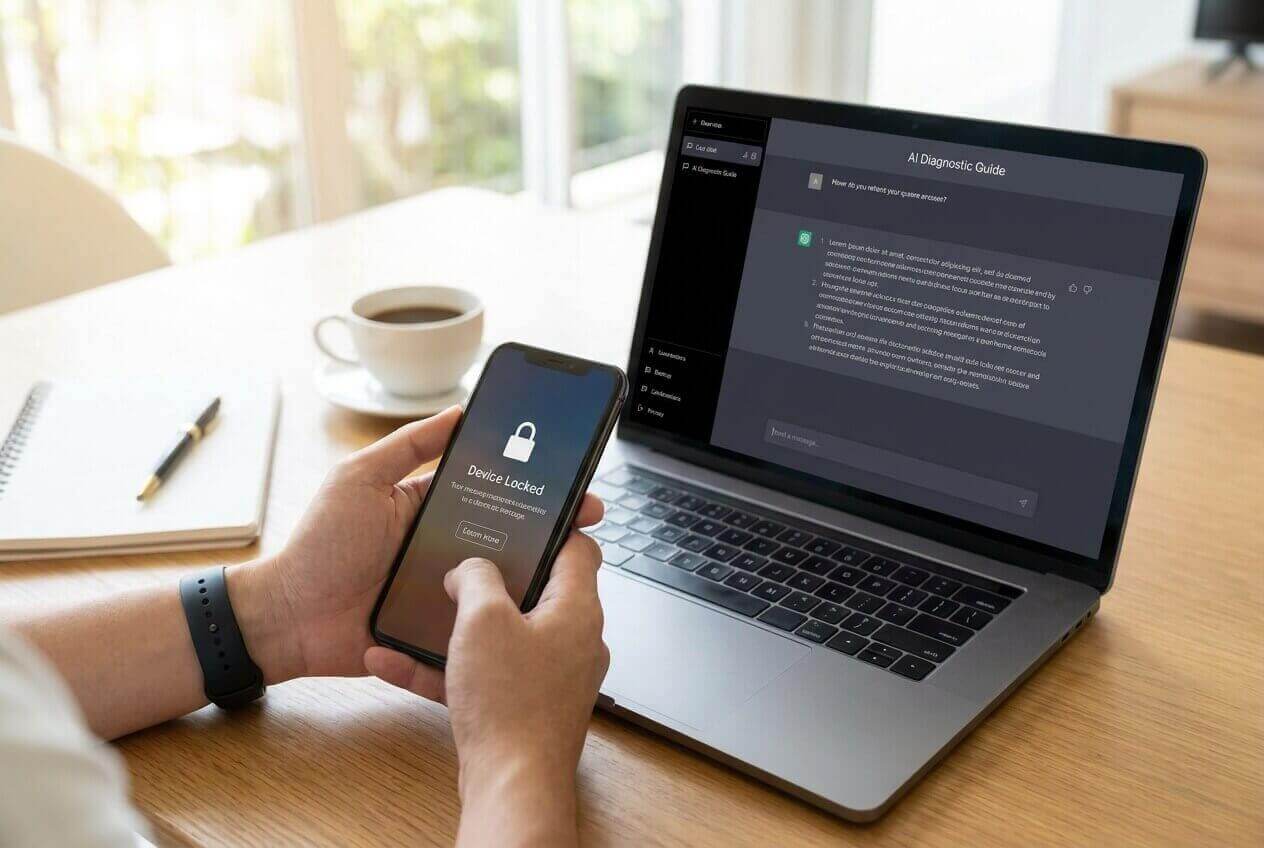
An account-locked phone often appears right after a factory reset or setup restart—you get stuck on a Google sign-in (or similar) screen and can’t reach the home screen. AI tools (like ChatGPT or Gemini) can help you describe the exact message, distinguish FRP vs other lock types, and choose the lowest-risk next steps before contacting support.
In this article
- Part 1. Why an account-locked phone happens after reset and what it means
- Typical messages you might see
- FRP vs other lock types
- What happened before the lock matters most
- Before you prompt the AI (prep checklist)
- Part 2. Using AI prompts to diagnose an account-locked phone safely
- Part 3. AI Output vs Reality
- Part 4. When to stop troubleshooting an account-locked phone and avoid risks
- Part 5. Account-locked phone next steps using Dr.Fone Screen Unlock (Android)
Part 1. Why an account-locked phone happens after reset and what it means
Typical messages you might see
This situation is common on Android after a factory reset, especially if you used “Erase all data” in Settings, used Recovery Mode, or restarted during setup.
You may see messages like: “This device was reset. To continue, sign in with a Google Account previously synced on this device.”
FRP vs other lock types
In plain terms, that “previously synced Google Account” prompt is often Google Factory Reset Protection (FRP) doing its job: verifying the phone is being activated by the rightful owner.
However, it can be confused with other locks (screen PIN/pattern, OEM unlock restrictions, or carrier-related activation blocks), so the exact wording matters.
What happened before the lock matters most
Even if you’ve dealt with device issues on an iPhone 13 or iPhone 14, Android “account lock” screens are a different category. What matters most is what happened before the lock and which account the device expects.
Before you prompt the AI (prep checklist)
Collect these details first to avoid guessing:
- Android brand/model and approximate Android version
- Exact on-screen message (copy it verbatim if possible)
- What you did right before it happened (factory reset, update, setup restart)
- Whether you know the previously synced Google account
- Whether you have proof of ownership (receipt, carrier record, Google account access)
Part 2. Using AI prompts to diagnose an account-locked phone safely
Level 1: Basic Prompt
My Android phone is account-locked after a reset. The exact message says: “[paste exact text]”. I reset it by: “[what you did]”. Please tell me the most likely lock type (FRP vs screen lock vs other), and the safest next step I should try without risking more lockouts.
Level 2: Advanced Prompt
Diagnose my “account locked phone” issue using the details below, then rank the top 3 likely causes with probabilities and lowest-risk next steps.
Details:
- Brand/model: [ ]
- Android version (if known): [ ]
- Exact message on screen: [ ]
- Trigger: (factory reset / update / restart during setup / other) [ ]
- Do I know the previously synced Google account? (yes/no/unsure) [ ]
- Any recent password changes (last 24–72h)? [ ]
- Risk constraints: I want to avoid data loss and avoid extra lock timers.
Also list what I should not do (actions that can make FRP or lock timers worse).
Level 3: Evidence Prompt
Act as a diagnostic assistant for an account-locked Android phone. Ask any missing questions first, then give a structured diagnosis.
Evidence I can provide:
- Phone brand: (e.g., Samsung) [ ]
- Phone model: (e.g., Galaxy S21) [ ]
- Android version: (e.g., Android 12) [ ]
- Region/carrier: (e.g., unlocked / Verizon) [ ]
- Lock screen stage: (e.g., Google sign-in during setup / PIN screen / “device is locked” notice) [ ]
- Exact error text: (paste) [ ]
- Trigger event: (e.g., after tapping “Erase all data” / after Recovery reset / after setup restart) [ ]
- Was the device previously used by someone else (second-hand)? [ ]
- Do I have access to the prior Google account + password? [ ]
- Any password change timing: (e.g., changed yesterday) [ ]
- Proof of ownership available: (e.g., receipt / carrier login) [ ]
Output format required:
1) Determine whether this is FRP, screen lock, or another activation lock.
2) List 3–5 confirming signs for the most likely category.
3) Provide the safest sequence of next steps, starting with steps that don’t increase lock risk.
4) Identify “red flag” actions to avoid.
5) Tell me when I should stop and contact the OEM/carrier/support.
Prompt Refinement
Use these follow-ups to tighten the diagnosis:
What 3 questions would most quickly confirm whether this is FRP versus a normal screen lock?
Based on the exact error text I pasted, rank the likely causes again and explain what evidence supports each one.
Separate your suggestions into: zero-risk checks, low-risk steps, and high-risk steps I should avoid.
What single screenshot or setting detail would be the strongest clue here, and where exactly would I see it?
If the phone is second-hand, what are the realistic ownership-verified paths versus dead ends?
Part 3. AI Output vs Reality
AI can help you reason about the lock type and risk, but the real-world outcome depends on the device’s security state, account history, and what verification is possible.
| What AI can help with | What you must verify in reality |
|---|---|
| Interpreting the exact lock message | Whether the phone is tied to a prior Google account (FRP) |
| Identifying safest next steps | Whether you can pass ownership checks (credentials/receipts) |
| Predicting risk of repeated resets | Whether lock timers or verification delays are active |
| Creating a support-ready summary | Whether device policies allow unlocking in your case |
AI narrows the path; execution still needs legitimate credentials or an appropriate tool/workflow that fits your device and situation.
Part 4. When to stop troubleshooting an account-locked phone and avoid risks
Stop and shift to a safer path if any of these happen:
- You don’t know (and can’t recover) the previously synced Google account, and the device insists on it during setup.
- You’ve already tried multiple times and now see longer wait timers, “Try again later,” or repeated verification delays.
- The phone is second-hand and the previous owner is unreachable, with no proof-of-purchase trail.
- You’re considering unofficial bypass steps that require risky downloads, unknown apps, or repeated resets.
Once you’ve used AI to classify the lock type and constraints, the next step is choosing a legitimate execution method that matches the diagnosis.
Part 5. Account-locked phone next steps using Dr.Fone Screen Unlock (Android)
If your diagnosis points to Google FRP (for example, you’re blocked at Google sign-in after a reset), execution becomes the practical hurdle: you need a controlled workflow that matches your device brand/model and avoids random attempts that can add delays or lockouts. Dr.Fone - Screen Unlock (Android) is relevant at this stage because it provides a guided process for bypassing Google FRP on Android devices, helping you move from “likely cause” to an actionable path in a more consistent way.
 Unlock Android phone in seconds.
- Remove PIN, pattern, password, fingerprint.
- Bypass Google FRP lock easily.
- Works on all Android brands & models.
- No tech skills required – user-friendly.

Before you start, confirm the lock type using the exact screen message (FRP appears during setup and asks for a previously synced Google account). Also prepare a stable setup: charge the phone and use a reliable USB connection to reduce interruptions that can cause retries or extended verification delays.
-
Step 1 Open Dr.Fone and enter Screen Unlock
Launch the tool on your computer and open the Screen Unlock feature to begin a guided flow.

-
Step 2 Select your mobile device brand
Pick the correct Android device brand to ensure the guidance matches your scenario and avoids mismatched steps.

-
Step 3 Choose the FRP-related option
Select the FRP unlock/bypass function that matches being blocked at Google sign-in during setup after a reset.

-
Step 4 Select the correct device model
Follow the brand/model prompts carefully so the workflow aligns with your device’s requirements.

-
Step 5 Follow the guided workflow and complete setup carefully
Continue step-by-step as shown for your device, avoid extra factory resets mid-process, and after you regain access to setup, finish Android activation without rushing account changes that could trigger additional verification checks.




Conclusion
Use AI to classify the lock (FRP vs screen lock vs other), identify confirming evidence, and choose the lowest-risk next step without escalating lock timers or losing data; then hand off execution to a practical workflow—such as Dr.Fone Screen Unlock (Android) for FRP scenarios—based on what your diagnosis actually shows.
FAQ
-
What does “This device was reset” mean on Android?
It usually indicates Google FRP is active, requiring the Google account previously synced to the device before the reset.
-
Is an “account locked phone” the same as a screen PIN lock?
Not always—FRP blocks you during setup after a reset, while a screen lock typically appears before you can reach setup or the home screen.
-
Can changing my Google password make the lock last longer?
Yes. Recent credential changes can trigger verification delays; waiting and using the correct prior account details often matters.
-
What information should I give support to speed things up?
Provide the exact on-screen message, device model, proof of ownership, when/how the reset happened, and whether you know the previously synced Google account.
-
When is Dr.Fone Screen Unlock (Android) relevant for this issue?
When your diagnosis indicates FRP is the blocker during setup and you need a guided execution workflow aligned to your Android device.
 Add Wondershare Dr.Fone as a preferred source on Google





