 Effortlessly manage data through preview, delete, export, etc.

 100% Security Verified | No Subscription Required | No Malware

 :
: 
 ChatGPT
 Perplexity
 Gemini
 Claude
 Grok
Grok

I freed up space on my old tablet and now my family photo album looks empty. I’m not sure if the photos are still syncing/indexing or if they’re actually gone—what should I check first without making things worse?
Reddit user, r/AndroidQuestions
Family photos can vanish from an old tablet after a cleanup, a gallery app change, or tapping Delete to free up space—especially if the device is slow and storage is nearly full. Sometimes the album looks empty for minutes and it’s unclear whether anything is still syncing or indexing.
AI (like ChatGPT or Gemini) can help you map what happened, identify which “deletion path” likely occurred (Trash, SD card, cloud sync, app cache, factory reset), and decide what evidence to collect before you take any risky steps.
AI can’t confirm what’s physically recoverable on your specific tablet, and repeated trial-and-error (new installs, downloads, updates, “cleaner” apps) can reduce the chances of a successful recovery. The safest workflow is: diagnose first, then execute carefully.
In this article
- Part 1. Why deleted family photos on an old tablet may still be recoverable
- What “deleted” can mean on Android
- Actions that change where photos live
- Visibility vs sync vs true deletion
- Facts to collect before prompting AI
- Part 2. Using AI prompts to diagnose photo loss on an old tablet safely
- Part 3. AI output vs reality: checks you should still do
- Part 4. When to stop troubleshooting photo recovery to avoid risks
- Part 5. Recover deleted family photos from an old tablet with Dr.Fone Data Recovery (Android)
Part 1. Why deleted family photos on an old tablet may still be recoverable
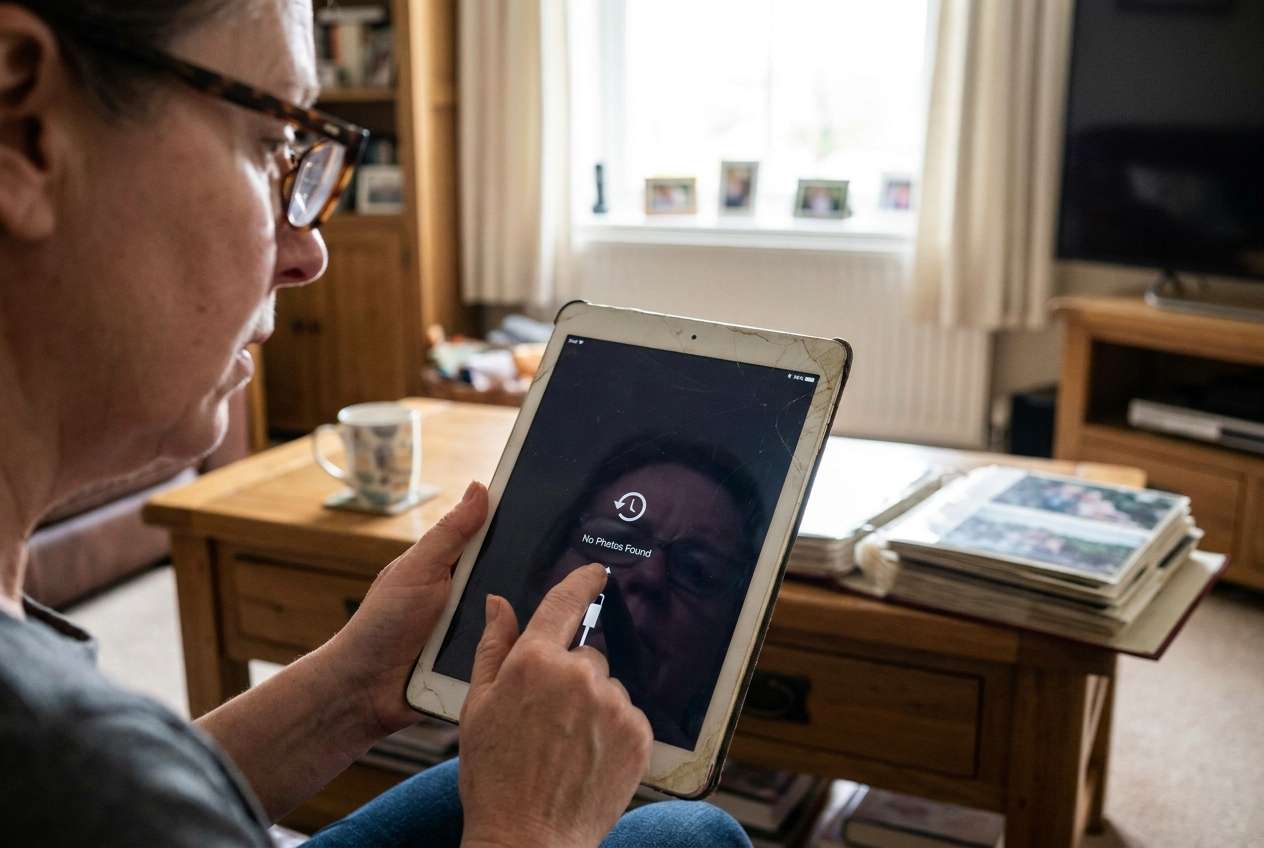
“Deleted” can mean several different things on Android tablets: moved to a Trash/Recently Deleted folder, removed from an app view but still on storage, deleted from internal memory, or removed due to cloud sync rules. If the photos originally came from an iPhone 13 or iPhone 14 (then transferred to the tablet), there may also be duplicates across apps or cloud accounts.
What you did right before noticing the loss matters: for example, tapping “Free up space”, clearing gallery data, removing an SD card, switching gallery apps, or running a system update/restart. Those actions change where the photos live (internal storage vs SD card vs cloud) and whether they’re still referenced by the gallery.
The key uncertainty: is this a visibility/indexing problem (photos exist but aren’t showing), a sync problem (photos removed because cloud state changed), or a true deletion event (files removed from storage)?
1-1. Before you prompt the AI
Collect a few facts first so the AI can narrow causes without guesswork:
- Tablet brand/model + Android version (if known)
- Where the photos were stored (internal, SD card, cloud-synced app)
- What app you used to view them (Gallery, Google Photos, Samsung Gallery, etc.)
- What you did right before they disappeared (delete, cleanup, restart, app update)
- Whether you’ve added new photos/apps since (reduces recoverability)
Part 2. Using AI prompts to diagnose photo loss on an old tablet safely
2-1. Level 1: Basic prompt
I deleted family photos on an old Android tablet and now they’re missing. Ask me the minimum questions needed to determine whether this is (1) Trash/Recently Deleted, (2) cloud sync removal, (3) SD card issue, (4) gallery indexing/cache issue, or (5) true deletion from internal storage. Then give the lowest-risk next step for each likely cause.
2-2. Level 2: Advanced prompt
Act as a cautious troubleshooting analyst. Based on my answers, rank the most likely causes of missing/deleted photos on an old Android tablet from most to least likely, and label each cause with a risk level (low/medium/high) for actions that could overwrite recoverable data. Only suggest steps that preserve recovery chances first.
2-3. Level 3: Evidence prompt
Diagnose my “deleted family photos from old tablet” situation using the evidence below.
Device info
- Tablet model: (e.g., Samsung Galaxy Tab A 10.1)
- Android version: (e.g., Android 9 / unknown)
- Storage status: (e.g., 95% full / plenty free)
Where photos were
- Location: (internal storage / SD card / unknown)
- Photo app used: (e.g., Gallery / Google Photos)
- Cloud accounts signed in: (e.g., Google account / none)
What changed right before loss
- Action: (e.g., tapped “Delete” / “Free up space” / cleared app data / restarted)
- Any new installs/updates since: (yes/no)
Symptoms now
- Do photos appear in Trash/Recently Deleted?: (yes/no/unknown)
- Do they show in Files app storage folders (DCIM/Pictures)?: (yes/no/unknown)
- SD card status/behavior: (e.g., not detected / works on PC)
Constraints
- My priority: (recover as many photos as possible / recover specific dates)
- I can/can’t use a computer: (can/can’t)
Output: (1) top 3 most likely causes with reasoning, (2) what NOT to do, (3) safest sequence of next steps, (4) what evidence would confirm the top cause.
2-4. Prompt refinement
Use these follow-ups to tighten the diagnosis and avoid risky detours:
“What 5 questions are you still missing that would change your ranking the most?”
“Separate your causes into: app-level visibility, account/sync, SD card/media, internal storage deletion, and system-level reset/update.”
“Rank causes again assuming I installed new apps and took new photos after deletion—how does that change risk and priority?”
“What single piece of evidence would best confirm each cause (Trash status, DCIM folder check, account sync setting, SD card mount behavior)?”
Part 3. AI output vs reality: checks you should still do
AI can infer likely causes, but it can’t verify what still exists on your tablet’s storage without proper scanning and careful handling.
| AI says | Reality check you should do |
|---|---|
| “Check Trash/Recently Deleted first” | Confirm the exact app’s Trash (Gallery vs Google Photos differ). |
| “It may be a sync removal” | Verify which Google account is signed in and whether backup/sync was on. |
| “It could be on the SD card” | Test whether the SD card mounts reliably and whether folders are visible in a file manager. |
| “It might still be on internal storage” | Minimize new writes (photos/apps) before any recovery attempt. |
AI helps you choose the safest path; execution still requires tools and careful steps to avoid overwriting recoverable data.
Part 4. When to stop troubleshooting photo recovery to avoid risks
Stop and switch to a recovery-focused approach if any of these happen:
- You already installed multiple apps, downloaded files, or took new photos since deletion (higher overwrite risk).
- The tablet shows storage errors, random reboots, or the SD card repeatedly disconnects (risk of further corruption).
- You feel tempted to run “cleaner/booster” tools or do a factory reset to “fix it” (high risk to recovery chances).
- The photos are time-critical or irreplaceable and you’re stuck repeating the same checks without new evidence.
Once you’ve used AI to narrow the most likely cause, the next step is choosing a controlled execution method that prioritizes data safety over experimentation.
Part 5. Recover deleted family photos from an old tablet with Dr.Fone Data Recovery (Android)
If your AI diagnosis suggests the photos were truly deleted from internal storage (or you can’t find them in Trash, cloud, or SD folders), this is the point where an execution tool is useful—because careful scanning and recovery workflows are difficult to reproduce manually. Dr.Fone - Data Recovery (Android) is relevant here as a practical way to attempt Recover Data from Android Device while you keep changes to the tablet minimal and follow a guided, repeatable process.
 Scan Android phones and tablets directly.
- Preview and recover only what you want.
- Supports WhatsApp, photos, videos, contacts, and more.
- Works with 6000+ Android devices.

-
Step 1 Stabilize the tablet first
Stop installing apps or saving new files on the tablet to reduce overwriting any recoverable photos.

-
Step 2 Set up Dr.Fone on a computer
Install and open Dr.Fone, then choose the Android data recovery function so you can run recovery steps without adding more load to the tablet.

-
Step 3 Connect the tablet carefully
Connect via USB and follow on-screen connection permissions; avoid disconnecting mid-process to prevent scan interruptions.

-
Step 4 Scan specifically for photos
Select photo-related categories where possible to keep the scan focused and reduce unnecessary processing time.

-
Step 5 Preview and recover to a safe location
Recover files to the computer (not back to the same tablet storage) to avoid overwriting other recoverable items.




Conclusion
Use AI to clarify what “deleted” likely means on your old tablet, identify the safest next checks, and avoid actions that shrink recovery chances; then hand off execution to a dedicated workflow like Dr.Fone - Data Recovery (Android) when you’re ready to run a controlled recovery attempt.
FAQ
-
Can I recover photos if I deleted them months ago?
Sometimes, but chances drop over time because normal use can overwrite deleted data; stop new downloads and photos before attempting recovery. -
Where is “Recently Deleted” on an Android tablet?
It depends on the app (Gallery vs Google Photos); check the app’s Library/Trash area and confirm the retention window if shown. -
What if the photos were in Google Photos but now they’re gone?
Sign in to the correct Google account and check Trash and backup/sync settings; deletions may sync across devices under the same account. -
Will taking new photos reduce recovery chances?
Yes—new data can overwrite space where deleted photos used to be, so pause new captures and installs until you decide on recovery steps. -
Do I need an SD card reader if my photos were on an SD card?
It can help for verification (testing the card on a computer), but first confirm whether the tablet still detects the card consistently.
 Add Wondershare Dr.Fone as a preferred source on Google





