 Effortlessly manage data through preview, delete, export, etc.

 100% Security Verified | No Subscription Required | No Malware

 :
: 
 ChatGPT
 Perplexity
 Gemini
 Claude
 Grok
Grok

I changed my Android pattern, restarted after an update, and now the pattern I’m sure is correct won’t unlock. I don’t want to factory reset because I need the data—what can I safely try next?
Forum user
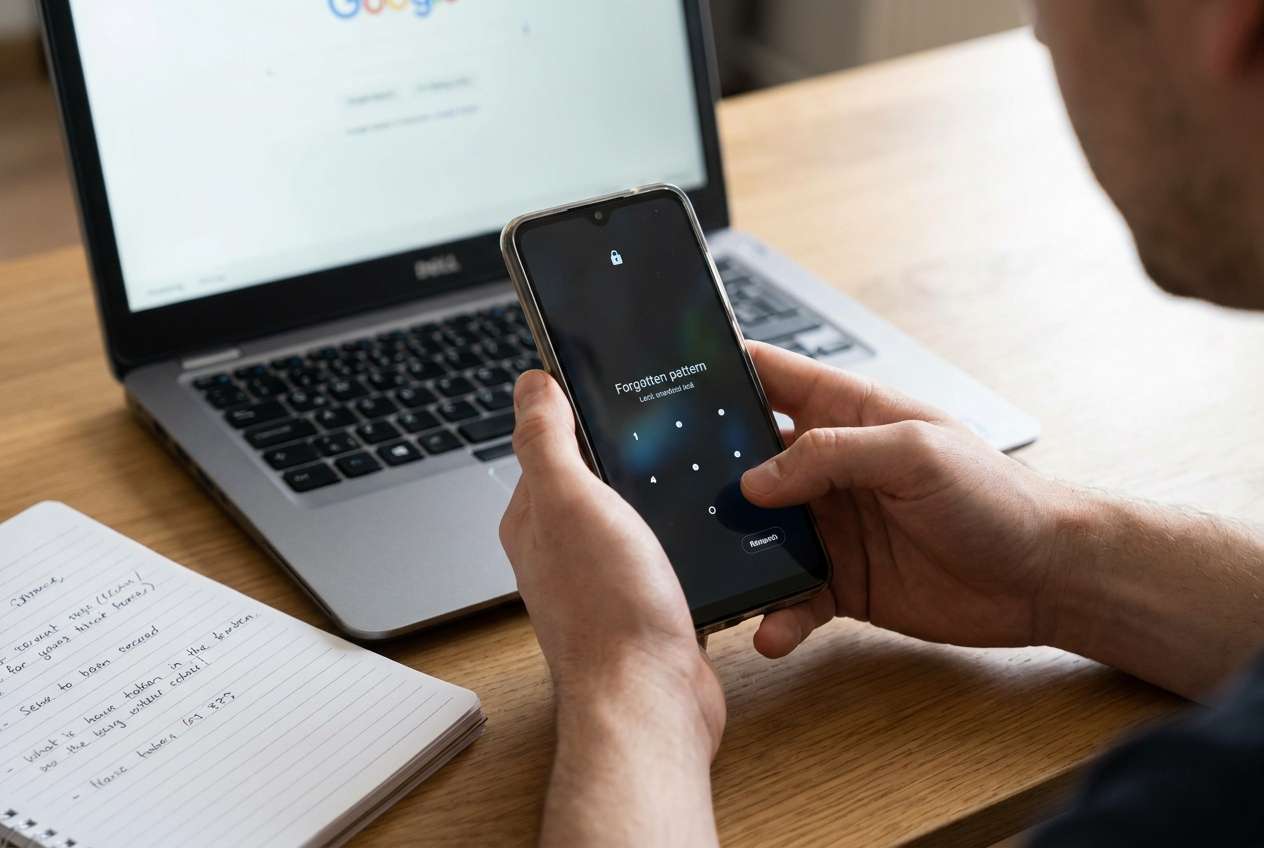
Forgetting an Android pattern lock can feel like a dead end—especially if you’re trying to avoid a factory reset on a device like a Samsung Galaxy S21 or Google Pixel 7. This often happens right after you changed the lock, restarted the phone, or installed an update, and then the pattern you “know” suddenly won’t work. After several attempts, nothing changes except the lockout timer, and it’s unclear what option won’t risk your data.
AI (like ChatGPT or Gemini) can help you slow down and analyze what you’re seeing: the exact lock screen messages, your Android version, whether the phone is managed by work/school, and what recovery options might exist on your device. The goal is to narrow likely causes and identify the lowest-risk next steps.
AI also has limits: it can’t confirm your device’s exact security state or safely “try things” for you. With lock screens, trial-and-error can escalate restrictions, trigger longer lockouts, or push you toward data-loss paths, so the safest approach is structured diagnosis first, then careful execution.
In this article
- Why does “forgot Android pattern lock without factory reset” happen
- What it usually means
- Common real-world triggers
- Recovery-style vs reset-style paths
- What to collect before asking AI
- Using AI prompts to diagnose Android pattern lockout safely
- When to stop troubleshooting to avoid data loss
- Unlock Android screen safely with Dr.Fone
- A practical decision checklist (no-reset vs reset-only)
Part 1. Why does “forgot Android pattern lock without factory reset” happen
“Forgot Android pattern lock without factory reset” usually means you’re locked out but still hoping for a path that keeps local data intact. Whether that’s possible depends on how the phone is secured (screen lock type, Android version, encryption state) and what account or management is attached (Google account, OEM account, work profile/MDM).
In real situations, the trigger is often mundane: you changed the pattern and later entered the old one, your muscle memory draws it slightly differently, or a restart/update resets your confidence. Sometimes the phone accepts the pattern but still refuses entry due to policy (work device) or because a different lock method took priority (PIN after restart).
What it means practically: some methods are recovery-style (account verification, approved unlock flows) and some are reset-style (data wipe). Your first job is to identify which category you’re in before you do anything that increases risk.
1-1. Before You Prompt the AI
Collect a few facts first so the AI can narrow down the safest route:
- Android brand/model and approximate year
- Android version (if you know it) and whether it was updated recently
- Lock screen type(s): pattern only, or pattern + PIN/password fallback
- Any on-screen messages (lockout timer, “Try again in…”, “Device is managed”, etc.)
- Whether it’s a personal device or a work/school-managed device
- Whether “Find My Device” / OEM account features were previously enabled
Part 2. Using AI prompts to diagnose Android pattern lockout safely
2-1. Level 1: Basic Prompt
I’m locked out of my Android phone because I forgot the pattern. I want options that avoid a factory reset if possible. Ask me the minimum questions needed (model, Android version, messages on screen, whether it’s managed, accounts enabled), then list the safest next steps in order of lowest risk first.
2-2. Level 2: Advanced Prompt
Act like a cautious Android access-recovery triage assistant.
Goal: reduce risk of data loss and avoid lockout escalation.
1) Ask up to 8 clarifying questions.
2) Based on my answers, rank the most likely causes of this lockout (top 3) and explain why.
3) For each cause, propose “low-risk checks” first, then “higher-risk options,” clearly labeling anything that may lead to data loss or longer lockouts.
4) If a no-reset path is unlikely on my setup, tell me early and explain what would confirm that.
2-3. Level 3: Evidence Prompt
Diagnose my Android pattern lockout using the details below and output: (a) most likely scenario, (b) what evidence supports it, (c) safest next steps, (d) what to avoid.
**Device info**
- Brand/model: (e.g., Samsung Galaxy S21 / Pixel 7)
- Region/carrier (if relevant): (e.g., unlocked, Verizon)
- Approx. Android version: (e.g., Android 12/13/14)
- Security patch timing: (e.g., updated last week / not sure)
**Lockout details**
- Lock type: (pattern only / pattern + PIN / unknown)
- What I did right before this: (e.g., tapped “Install now,” restarted, changed pattern)
- On-screen text: (paste exact message)
- Lockout timer behavior: (e.g., “Try again in 30s,” increasing delays)
**Account/management**
- Is this a work/school device (MDM)? (yes/no/unsure)
- Google account on device: (yes/no/unsure)
- OEM account used (Samsung/Xiaomi/etc.): (yes/no/unsure)
- Find My Device enabled previously: (yes/no/unsure)
**Constraints**
- Data sensitivity: (high/medium/low)
- I can access: (SIM, Wi‑Fi, Google account credentials, purchase proof, another device)
Now: rank likely paths that avoid factory reset vs those that require reset, and tell me what would confirm each path.
2-4. Prompt Refinement
Use these follow-ups to force clarity and reduce guesswork:
“What are the missing questions that block you from choosing a safe next step, and why do they matter?”
“Separate possibilities into categories: account-based recovery, OEM tools, work-managed restrictions, and reset-only outcomes.”
“Rank the causes by likelihood given my exact on-screen message, and tell me which single detail would most change the ranking.”
“List ‘do-not-do’ actions that commonly increase lockouts or push users into data-loss routes.”
“What evidence would indicate this device requires the PIN/password after a restart rather than accepting a pattern?”
2-5. AI Output vs Reality
AI can organize decision-making, but your device enforces security rules that AI can’t override.
| AI suggests | Reality to verify on your phone |
|---|---|
| “Try account-based recovery first.” | Your Android version/OEM may not offer a no-reset unlock flow. |
| “This looks like a work-managed policy.” | You must confirm “Device is managed” indicators or admin-enforced lock rules. |
| “A reset may be required.” | Some setups are truly reset-only; delaying can increase downtime but not change the outcome. |
| “Use a dedicated unlock tool.” | Results depend on model/OS/security state; follow the exact flow and warnings. |
AI helps you choose the right path and avoid unnecessary risk; the actual access recovery requires performing device-specific steps carefully and accepting constraints your phone enforces.
Part 3. When to stop Android lock screen troubleshooting to avoid data loss
Stop “trying random fixes” when the cost of another attempt is higher than the value of more guessing.
- Lockout timers are increasing rapidly, or you’re close to a long cooldown window.
- You see signs of work/school management and don’t have admin support or permissions.
- You can’t confirm key facts (Android version, account access, Find My Device status), so each step becomes a blind gamble.
- The only remaining options you’re seeing (or being advised) involve wiping data, and your data sensitivity is high.
Once you’ve used AI to narrow which outcome is realistic (no-reset vs reset-only), it’s time to switch from diagnosis to a controlled execution method that matches your device and risk tolerance.
Part 4. Unlock Android screen safely with Dr.Fone - Screen Unlock (Android)
If your AI diagnosis indicates account-based recovery won’t work on your setup—or you need a more guided, device-specific execution path—Dr.Fone - Screen Unlock (Android) becomes relevant as a practical tool to carry out the unlock process in a controlled way. This is especially useful when you’ve already confirmed your model, Android version range, and constraints (data sensitivity, access to a computer, and whether the phone is managed). Use it to execute the chosen path carefully rather than cycling through risky attempts on the lock screen.
 Unlock Android phone in seconds.
- Remove PIN, pattern, password, fingerprint.
- Bypass Google FRP lock easily.
- Works on all Android brands & models.
- No tech skills required – user-friendly.

You can review the product details on the Dr.Fone screen unlock page and follow the structured flow in the Android lock screen removal guide.
-
Step 1 Confirm your device constraints
Verify whether it’s work-managed and whether you can accept any potential data-impact warnings before proceeding.
-
Step 2 Launch Screen Unlock (Android) on your computer
Open Dr.Fone and choose the Android screen unlock function, matching prompts to your device brand/model to reduce missteps.

-
Step 3 Select the Android unlock option
Choose the Android screen unlock path that matches what you’re trying to remove (pattern/PIN/password) to avoid following the wrong flow.

-
Step 4 Access the screen lock removal function
Proceed into the remove screen lock function and read any warnings shown for your device/Android version before continuing.

-
Step 5 Follow the on-screen model-specific steps and re-secure access
Proceed exactly as shown for your device type, and pause if the tool indicates a path may affect data so you can reassess. After access is restored, immediately set a new lock method you can reliably store and confirm your Google/OEM account settings for future recovery.





Part 5. A practical decision checklist (no-reset vs reset-only)
Before you commit to any path, use the same logic AI is applying: confirm what you’re seeing, minimize lockout escalation, and decide whether a no-reset route is realistic on your exact setup.
5-1. Confirm which category you’re in
- Account/verification-based recovery: depends on your Android version/OEM and whether a verified recovery flow exists on that device.
- Work/school managed restrictions (MDM): policies may require admin support and can block user-led recovery routes.
- Reset-only outcome: many modern configurations are designed to be reset-resistant, meaning access recovery may require wiping the device.
5-2. What to avoid while deciding
- Repeated pattern guesses that extend lockout timers and increase downtime.
- Proceeding without confirming key facts (device model, Android version range, on-screen message, managed status).
- Jumping straight to wipe/reset actions if your data sensitivity is high and you haven’t validated alternatives.
Conclusion
Use AI to structure the situation—identify what kind of lockout you’re in, what evidence matters, and which paths are realistically low-risk—then hand off to a dedicated execution tool like Dr.Fone - Screen Unlock (Android) when you’re ready to perform the chosen steps carefully and consistently.
FAQ
-
Can I recover access after forgetting an Android pattern without losing data?
Sometimes, but it depends on Android version, OEM rules, and whether a verified account-based recovery route is available; many modern setups are intentionally reset-resistant. -
Does a work or school managed phone change the unlock options?
Yes. Management policies can enforce lock rules and block non-admin recovery paths, even if you own the hardware. -
Why does my phone say “Try again in 30 seconds” and keep increasing the time?
Android increases delays after repeated failed attempts to slow guessing and protect the device; continuing attempts can extend lockouts. -
If I recently restarted the phone, why might it ask for a PIN instead of accepting the pattern?
Some devices require the primary credential (PIN/password) after restart for security, even if a pattern was used previously. -
What details should I provide to get useful AI guidance for a lockout?
Model, Android version range, exact lock screen message, whether it’s managed, what you did right before the issue, and which accounts/features were enabled.
 Add Wondershare Dr.Fone as a preferred source on Google





