 Effortlessly manage data through preview, delete, export, etc.

 100% Security Verified | No Subscription Required | No Malware

 :
: 
 ChatGPT
 Perplexity
 Gemini
 Claude
 Grok
Grok

Resetting a messy media library on an old tablet sounds simple, but one missed step can permanently erase photos, downloads, playlists, or app-stored media you didn’t realize mattered.
Forum user
Resetting a messy media library on an old tablet sounds simple, but one missed step can permanently erase photos, downloads, playlists, or app-stored media you didn’t realize mattered.
AI can help you map the safest sequence—what to verify first, what to export, what to ignore, and where people usually lose data when they “just delete everything.”
AI can’t actually read your tablet’s storage, confirm what’s backed up, or perform device actions; once the plan is locked, you still need real tools to execute the reset and backup steps reliably.

In this article
- How to plan a reset workflow without missing critical steps
- What makes old tablets risky for cleanups
- Why “backup” is ambiguous without evidence
- The point of no return to gate
- What a safe sequence looks like
- What the AI needs to know
- AI prompts to build a safer workflow
- When to stop planning and start execution
- Execute safely with Dr.Fone
Part 1. How to Plan reset a messy media library on old tablet Without Missing Critical Steps
You have an older tablet with years of accumulated screenshots, WhatsApp/Telegram media, duplicated albums, offline videos, and half-synced cloud folders. Storage is full, apps are crashing, and you want a clean media library again.
You ask AI for advice and get a list like “back up your photos, then delete duplicates,” but it’s unclear what “backup” means for your tablet, which folders are safe to delete, and what order prevents re-sync from recreating the mess.
The point of no return is when you factory reset the tablet or bulk-delete the DCIM/Photos folders—after that, recovery may be impossible if backups weren’t verified first.
Part 2. What the AI Needs to Know
Answer these so the AI can plan a workflow that matches your tablet and risk level:
- Tablet brand/model and OS (Android version / iPadOS version if applicable)
- Approx. storage size and free space (e.g., 32 GB total, 0.8 GB free)
- Where your media currently lives: Photos/DCIM, Downloads, app folders (WhatsApp/Telegram), SD card, cloud sync folders
- Your cloud setup (Google Photos/iCloud/OneDrive/Dropbox), and whether sync is currently ON
- What “reset” means to you: clean up folders, rebuild library, or full factory reset
- What must not be lost (e.g., family photos, offline course videos, chat media, recorded audio)
- Any constraints: broken screen, no SIM, no SD slot, unstable Wi‑Fi, no PC/Mac available
- Your tolerance for downtime (minutes vs hours) and for reorganizing later (low vs high)
Part 3. Using AI Prompts to Build a Safer reset a messy media library on old tablet Workflow
Use the prompts below to force a clear sequence with verification gates before any irreversible action.
3-1. Level 1: Basic Prompt
I want to reset a messy media library on an old tablet without losing important photos or videos. Please outline a safe step-by-step workflow with a clear order of operations and the key “do not proceed until verified” checkpoints. Keep it planning-only—no device actions performed by you.
3-2. Level 2: Advanced Prompt
Design a workflow to reset my tablet’s messy media library with Preparation / Execution / Verification sections.
Include: critical steps vs optional cleanups, a decision branch for “clean up without factory reset” vs “factory reset,” and explicit stop points before irreversible actions (bulk delete or factory reset).
List the minimum evidence I should collect at each checkpoint to confirm it’s safe to continue.
3-3. Level 3: Evidence Prompt
Plan a safer reset workflow for my messy media library with checks before/during/after each phase. Here’s my context:
- Device: (Android tablet, 32 GB, ~0.5 GB free)
- Media locations: (DCIM, Downloads, WhatsApp Media, Telegram, app cache folders)
- Cloud: (Google Photos installed; sync status unknown; sometimes duplicates appear)
- Goal: (either clean library + reclaim space, or factory reset if needed)
- Must keep: (family photos from 2018–2024, saved videos in Downloads, voice recordings)
- Constraints: (Wi‑Fi is unstable; I have a Windows laptop available)
Output:
- A preparation checklist that proves backups exist (examples: “X items visible in cloud,” “backup folder size,” “spot-check 10 random files open correctly”)
- An execution sequence with the single highest-risk moment called out and gated
- A post-reset verification plan (example: confirm album counts, play random videos, confirm chat media policy)
3-4. Prompt Refinement
Convert the workflow into a table with columns: Step / Why it matters / Evidence required / Risk if skipped / Stop-go decision.
Ask me 10 yes/no questions to resolve ambiguity about sync, storage location, and what counts as “important,” then regenerate the plan.
Add a “sync-control protocol” that specifies exactly when to turn sync off/on to prevent the mess from reappearing after cleanup.
Create a “must-keep media map” that lists likely folders to protect (DCIM, Pictures, Movies, Music, Downloads, WhatsApp/Telegram) and how to validate each is backed up before deletion.
3-5. AI Plan vs. Real Device Constraints
| What AI can plan well | What AI cannot do | What you must verify on-device | What goes wrong if you skip it |
|---|---|---|---|
| Sequencing and risk gates | Read your tablet storage in real time | Backup completeness and file playability | You delete originals that weren’t actually backed up |
| Folder/category mapping | Confirm which apps store media where | Which folders are yours vs regenerated cache | Deleted files reappear or essential files disappear |
| Sync-safe timing | Toggle sync or prevent auto-resync | Current sync state and duplicate behavior | Cloud re-downloads clutter or overwrites organization |
| Post-reset checklist | Validate device health after reset | Accounts, permissions, and media visibility | You think it’s clean, then missing items surface later |
AI improves planning, but it cannot execute backups, deletions, or resets; you still need to perform and confirm those steps on the real device.
Part 4. When to Stop Planning reset a messy media library on old tablet and Start Execution
- You can name the exact outcome you want (clean-up only vs factory reset) and what “done” looks like (space reclaimed, albums rebuilt, duplicates reduced).
- You have a written inventory of what must be preserved (folders + media types + date ranges) and where it currently resides.
- Your plan includes at least two verification gates (backup existence + spot-check opens/plays) before any bulk deletion or reset.
- You’ve identified the irreversible moment (bulk delete or factory reset) and set a “no-go unless evidence is satisfied” rule.
Once those are true, further planning usually adds noise; the next value comes from controlled execution with verification.
Part 5. Reset a messy media library on old tablet: Execute the Workflow Safely with Dr.Fone
Execution now matters because the risk isn’t theoretical: storage pressure, unstable sync, and old hardware make partial backups and accidental deletion more likely if you improvise. If you’re ready to act, Dr.Fone Basic - Data Manager can help you carry out the backup, cleanup/reset, and restore steps you already planned.
 Easily manage data through preview, delete, export, etc.
- Transfer all data between devices.
- Robust backup solutions for reliable data protection.
- Mirror screens to PC for meetings, teaching, and control.

AI can help you define the order and the evidence gates, but it still can’t confirm what’s actually on your device. The safest approach is to execute your plan in a controlled sequence: back up first, clean up or reset only after backup verification, then restore and verify with spot-checks (not just counts).
-
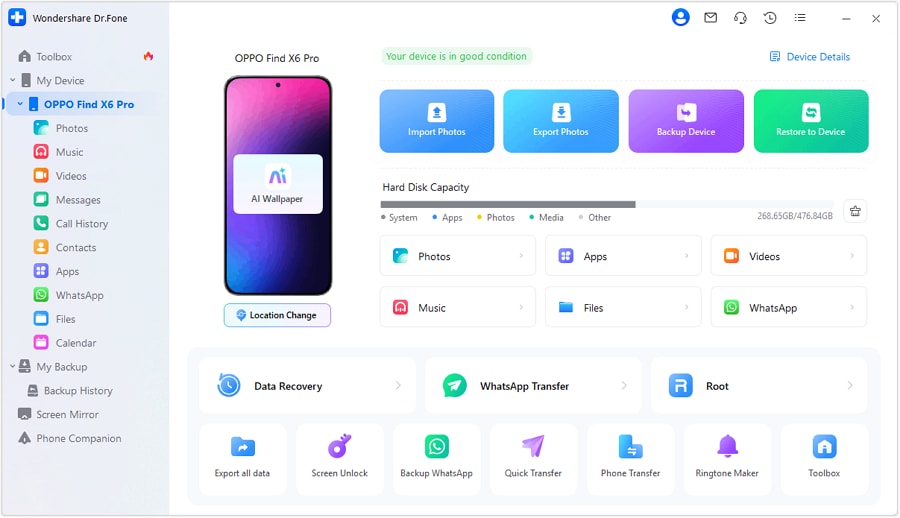
Step 1 Connect the tablet and prepare for export/backup
Connect your tablet to your computer so you can follow your plan’s Preparation phase and begin exporting/backing up media to a destination you can verify (for example, your Windows laptop storage).
-
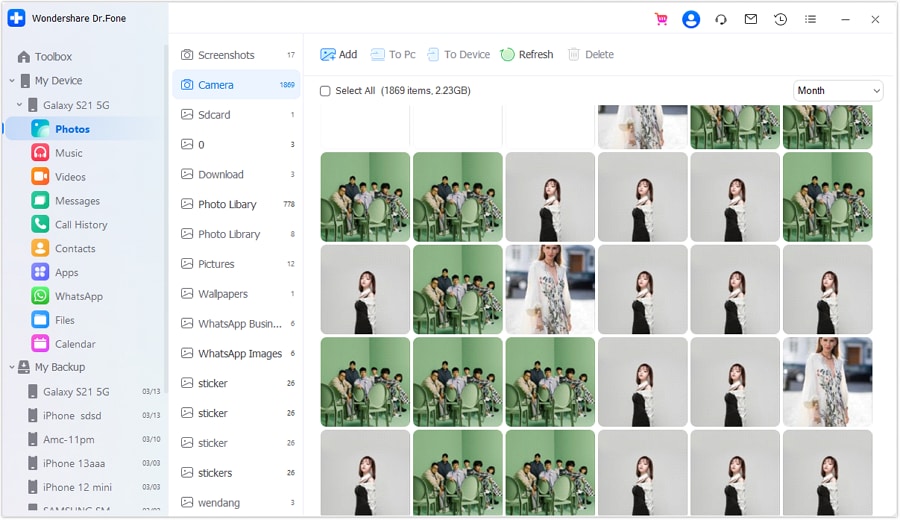
Step 2 Access the photo library and match it to your “must-keep” inventory
Open the media view (for example, Photos) and cross-check what you see against your must-keep list (date ranges, key albums, and folders like DCIM/Downloads/WhatsApp).
-
Step 3 Export/backup and verify readability before you delete anything
Export the items/folders you decided to preserve, then perform your evidence checks (folder sizes, sample opens/plays, and random spot-checks) before taking any irreversible action.

-
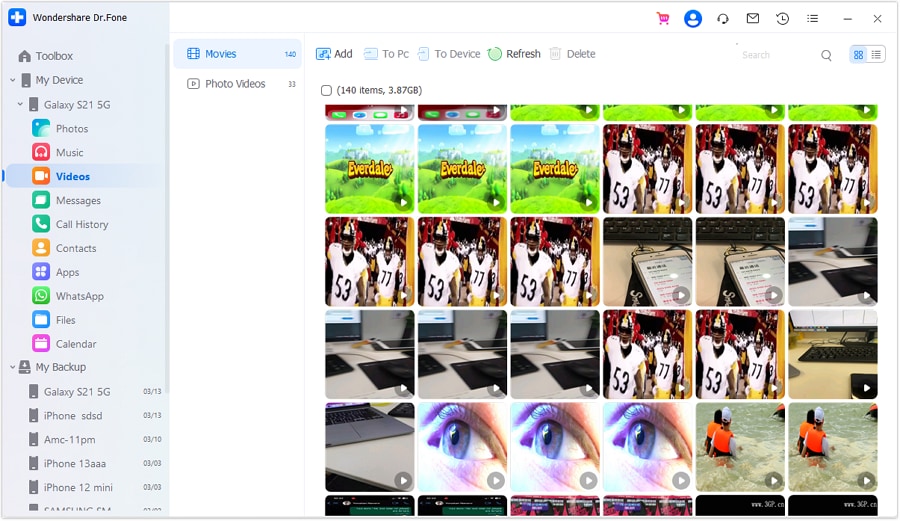
Step 4 Clean up or reset only after backup gates are satisfied, then restore and re-verify
Follow the branch you selected (targeted cleanup vs factory reset). Afterward, restore only what you intended and run post-reset verification (open random photos, spot-play videos, and confirm key albums/folders).




Conclusion
Use AI to define the safest sequence, evidence checkpoints, and the “do not proceed” gates; then use a real execution tool like Dr.Fone to perform the backup/reset/restore steps carefully and verify results before you consider the job finished.
FAQ
-
What’s the biggest risk when “resetting” a media library on an old tablet?
Deleting originals that were never fully backed up, or triggering sync behavior that overwrites/duplicates your cleaned library. -
Is a cloud app showing thumbnails proof my media is safe?
Not necessarily. You need evidence like downloadable originals, correct item counts for key ranges, and spot-checking that files open/play. -
When is it safe to factory reset?
Only after you’ve verified backups with at least one spot-check set (e.g., open 10 random photos, play 5 videos, confirm key folders exist in the backup destination). -
Should I turn sync off during cleanup?
Often yes, but only with a plan. The wrong timing can cause re-downloads, duplication, or “helpful” reorganization you didn’t want. -
Why does the mess come back after I clean up?
Because the source of truth (cloud library, messaging apps re-downloading media, or cached folders) wasn’t controlled, or sync resumed before the new structure was stable.
 Add Wondershare Dr.Fone as a preferred source on Google





