 Effortlessly manage data through preview, delete, export, etc.

 100% Security Verified | No Subscription Required | No Malware

 :
: 
 ChatGPT
 Perplexity
 Gemini
 Claude
 Grok
Grok

We enrolled devices into MDM thinking we were “almost done,” and that’s exactly when things broke—someone didn’t have account recovery set up, another phone wiped, and we had no proof the backups were actually restorable.
Reddit user, r/sysadmin
Mobile workspace setup for remote workers can go sideways when one dependency is skipped—like backup confirmation, account ownership, or security policies that quietly trigger data loss.
AI can help you structure a workflow so you know what happens first, what must be verified, and what to postpone until you have evidence the plan is safe. But AI can’t touch devices, enroll phones, move files, or confirm what actually happened on hardware—execution still requires real tools and real checks.
In this article
- How to plan without missing critical steps
- Why “generic steps” fail
- Prerequisites and sequencing
- Verification gates before irreversible actions
- Where the point-of-no-return shows up
- What the AI needs to know
- AI prompts to build a safer workflow
- AI plan vs. real device constraints
- Execute the workflow safely with Dr.Fone
Part 1. How to Plan Mobile Workspace Setup for Remote Workers Without Missing Critical Steps
A common situation: you’re preparing employee phones for remote work (email, chat, VPN, 2FA, and company files), and you need consistency across iOS and Android with minimal downtime.

1. Force sequencing, not just a checklist.
Ask AI to produce prerequisites and dependency order so you don’t start “setup” before identity, backups, and approvals are ready.
2. Add “stop and verify” gates before irreversible actions.
Require explicit pass/fail evidence (what “done” looks like) before MDM enrollment, resets, profile installs, or policy changes that can wipe data or break access.
3. Treat execution and verification as separate phases.
AI can design the workflow, but real devices and tools must execute backups/transfers and confirm outcomes with screenshots, logs, and connectivity tests.
After asking AI for “steps,” you often get a generic list—but not the sequence, the prerequisites, or the verification gates (what “done” looks like for security, access, and data integrity).
The point-of-no-return moment usually arrives earlier than expected: enrolling a device into MDM (or applying a corporate profile) can trigger an automatic wipe or force encryption/policy changes. If you haven’t verified backups, account recovery, and app access first, you can’t easily undo the impact.
Part 2. What the AI Needs to Know
Provide the context needed to produce a safe, checkable plan.
- Device mix (iOS/Android models, OS versions, BYOD vs company-owned)
- Apps required (email client, chat, VPN, MFA/SSO, files, password manager)
- Security requirements (MDM enrollment, passcode rules, encryption, screen lock timeout)
- Data types at risk (local photos, chats, app data, offline files) and where they should end up
- Identity setup (Apple ID/Google account ownership, company SSO, recovery email/phone access)
- Connectivity constraints (remote-only, limited bandwidth, travel, cellular-only)
- Timing constraints (cutover window, business hours, “must work by Monday”)
- Compliance needs (audit evidence, minimum OS, logging, retention)
- Who can approve “wipe/enroll/reset” decisions and when
Part 3. Using AI Prompts to Build a Safer Mobile Workspace Setup Workflow
Use the prompts below to force a sequence with verification gates before any irreversible actions.
3-1. Level 1: Basic Prompt
Draft a step-by-step plan to set up a secure mobile workspace for remote workers across iOS and Android.
Include a short checklist of prerequisites and a “stop and verify” point before any action that could cause data loss.
Do not include tool-specific clicks—planning only.
3-2. Level 2: Advanced Prompt
Create a structured workflow for mobile workspace setup for remote workers with three phases: Preparation, Execution, and Verification.
Within each phase, label tasks as Critical vs Optional, and add explicit pass/fail checks (what evidence confirms the step is complete).
Include a gate that prevents MDM enrollment or any reset until backups and account recovery are confirmed.
3-3. Level 3: Evidence Prompt
I’m setting up remote-work mobile access for (25 users) using (10 iPhones on iOS 17, 15 Androids on Android 14); mix is (BYOD) with required apps (Outlook, Teams, VPN, Okta Verify, OneDrive).
MDM enrollment may (wipe or enforce policy).
Build a workflow with checks before/during/after each phase, including: backup verification, account recovery readiness, app sign-in validation, VPN connectivity test, and a rollback plan if enrollment breaks access.
Use example acceptance criteria (e.g., “VPN connects in <30 seconds,” “MFA prompt works on cellular”) and list the exact “do not proceed unless…” gates.
3-4. Prompt Refinement
Convert the plan into a single table with columns: Step, Owner (IT/User), Prerequisites, Action, Evidence to collect, Failure handling, “Stop/Go” gate.
Identify the top 5 failure modes (e.g., MFA lockout, lost Apple ID access, VPN profile conflict) and add a prevention check for each.
Separate the workflow into BYOD vs company-owned branches, and state which steps change and why.
Add a minimum-viable setup path (email + chat + MFA + VPN) and a full setup path (files + password manager + device hardening), each with verification criteria.
Produce a cutover script for users (what they do, what they’ll see, what screenshots to capture) without referencing tool menus.
Part 4. AI Plan vs. Real Device Constraints
| AI can plan well | Real devices/tools must handle |
|---|---|
| Sequencing and dependencies (what must happen first) | Actual backups, restores, and data transfers |
| Risk gates and acceptance criteria (“do not proceed unless…”) | Enrolling devices, applying policies, and confirming policy effects |
| Consistency across teams (repeatable checklist, evidence list) | Authenticating accounts, generating logs/screenshots, and validating app behavior |
| Failure handling playbooks (rollback paths, escalation triggers) | Executing resets/wipes and recovering from lockouts |
AI improves planning and reduces avoidable mistakes, but it cannot execute device actions or verify outcomes without real tooling and real-world checks.
4-1. When to Stop Planning and Start Execution
- You have a device/app inventory and know which users are BYOD vs company-owned.
- You have verification criteria for each critical step (what counts as “working”) and who signs off.
- You have a data-safety gate: backups verified + account recovery confirmed before any enrollment/reset/wipe risk.
- You have a rollback path (what to undo, who to contact, and what evidence to capture) if access breaks.
At this point, the plan is specific enough that further brainstorming adds less value than controlled execution.
Part 5. Mobile Workspace Setup for Remote Workers: Execute the Workflow Safely with Dr.Fone
Execution is where irreversible outcomes can occur—especially around backups, transfers, and any moment that could lead to overwriting or losing data—so run the workflow only after your verification gates are ready. If your plan includes device-side backup/transfer operations, Dr.Fone - Phone Transfer can help you carry out those steps in a controlled way.
 Move data between iOS to Android and vice versa.
- Transfer contacts, SMS, photos, videos, music, and more types.
- Available with all phones with Android and iOS versions.
- Simple, click-through process.

-
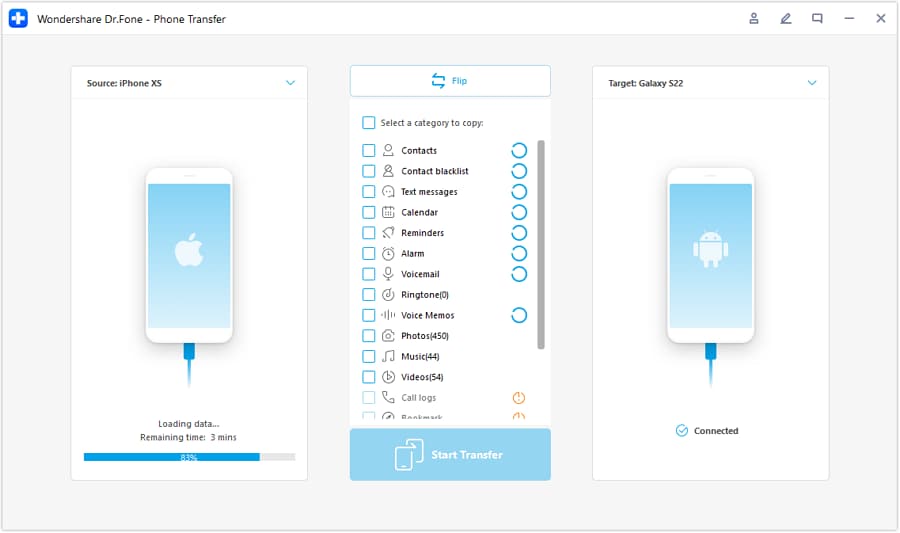
Step 1 Lock the baseline and protect data
Before any high-risk changes (enrollment/reset/profile/policy), run the backup/transfer tasks defined in your plan so you have a protected baseline.

-
Step 2 Set the transfer direction and scope (as defined by your plan)
Use the workflow you designed to decide what data types must be preserved and where they should end up, then set the transfer path accordingly.
-
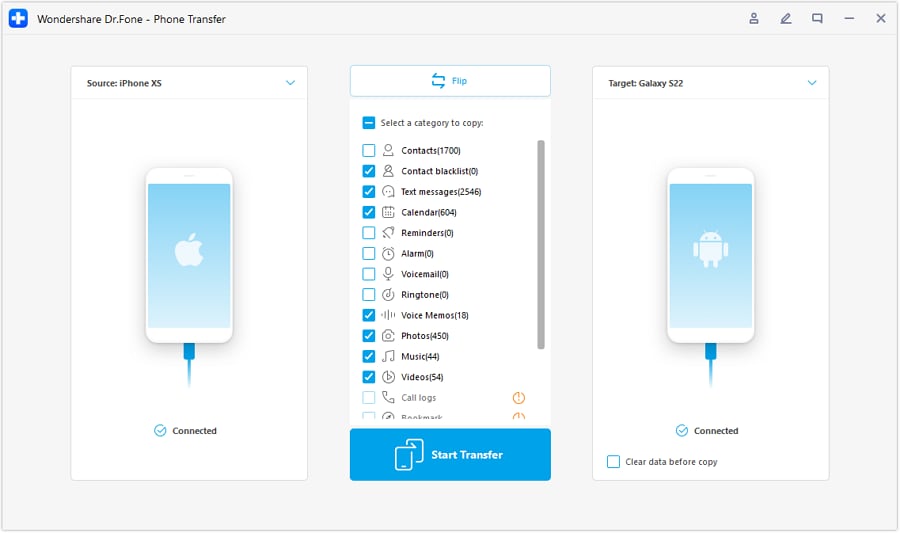
Step 3 Choose the data you need to keep before applying changes
Only include data types your plan identified as at risk (and required for business continuity). Avoid changing the scope mid-run unless you also update evidence collection and approval.
-
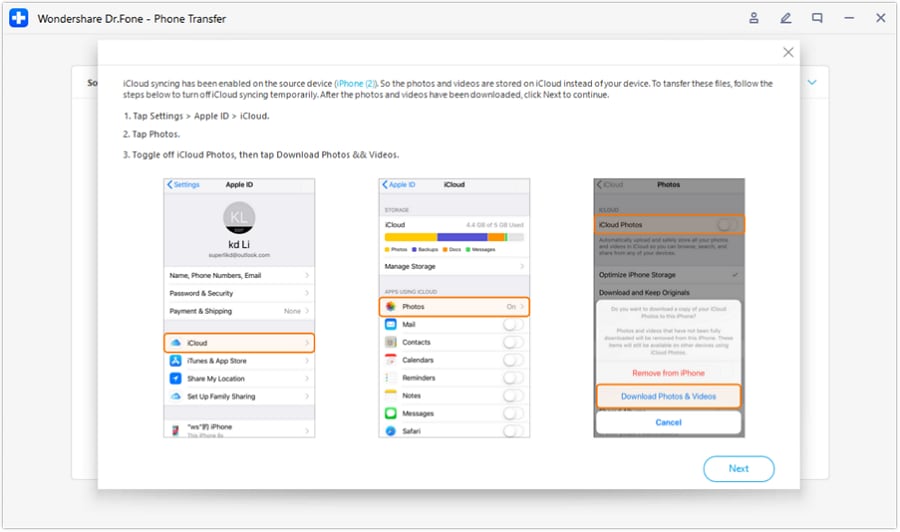
Step 4 Verify outcomes and capture evidence before closing
Confirm data integrity and that required access works (apps, accounts, connectivity) for each user/device. Verification is only as good as your acceptance criteria—if “working” isn’t defined (e.g., VPN test on cellular), you may miss failures until the user is remote.




Conclusion
Use AI to design a gated, evidence-based workflow that prevents skipped steps and stops you before irreversible moments; then use Dr.Fone to carry out the validated execution steps on real devices.
FAQ
-
What’s the most irreversible mistake in mobile workspace setup for remote workers?
Triggering a wipe/reset (often via enrollment or policy) before confirming backups and account recovery—once data is erased, recovery may be partial or impossible. -
How do I know my backup is “verified,” not just “created”?
Define a check that proves restore-ability (e.g., spot-check a restore or confirm key data types are present and accessible), not just that a backup file exists. -
When should I involve the user vs do it centrally?
Involve the user when credentials, MFA prompts, or personal account recovery are required—plan explicit handoff points so you don’t stall mid-process. -
What evidence should I collect for compliance or later troubleshooting?
Device identifiers, OS versions, completion timestamps, required app sign-in success, VPN test results, and any policy/enrollment confirmation—mapped to each step’s acceptance criteria. -
Can AI tell me whether a specific phone is safe to enroll or reset right now?
No—AI can define the gating checks, but only real verification (on the device/accounts) can confirm readiness.
 Add Wondershare Dr.Fone as a preferred source on Google





