 Effortlessly manage data through preview, delete, export, etc.

 100% Security Verified | No Subscription Required | No Malware

 :
: 
 ChatGPT
 Perplexity
 Gemini
 Claude
 Grok
Grok

I restarted my phone and now some photos and contacts look like they disappeared. Cloud sync is still running and I'm scared it's going to “spread" the loss to my other devices—should I pause syncing before I make it worse?
Forum user
Data loss often feels worse when cloud sync is still running—because it's unclear whether your phone (even something like an iPhone 13/iPhone 14 or an Android device) is about to “spread" the problem to other devices. This commonly happens right after a restart, a reset, or after tapping Sync now or Install now during an update.
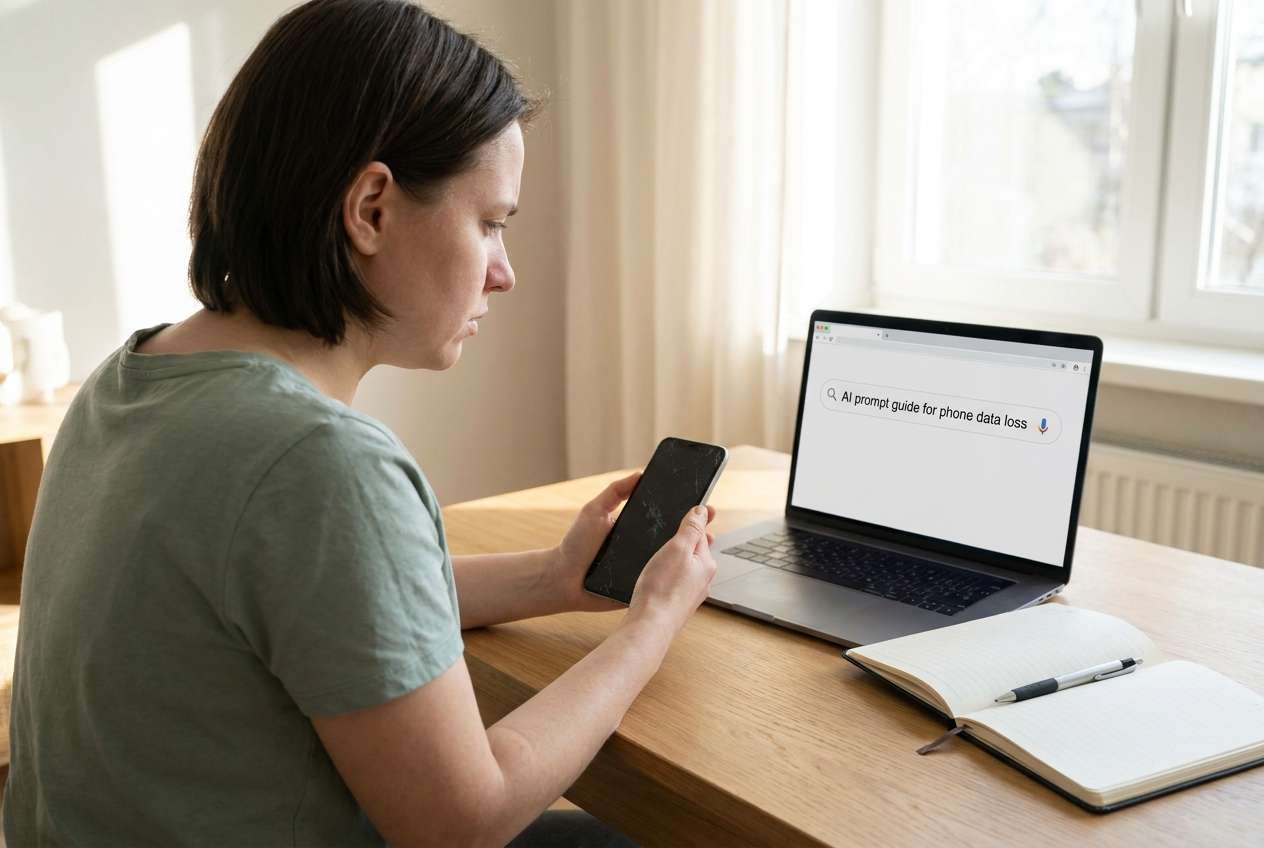
AI can help you diagnose what kind of loss you're seeing (deleted locally vs. removed everywhere, sync conflict vs. account mismatch) and decide whether pausing sync is low-risk or high-risk based on your exact symptoms. You can use tools like ChatGPT or Gemini to structure your thinking and avoid missing key evidence.
AI can't see your phone's real-time sync state or guarantee what a cloud service will do next—so repeated trial-and-error (toggling accounts, reinstalling apps, signing out) can accidentally overwrite newer cloud copies or lock you out of access when you need it most.
In this article
- Part 1. Why you should pause cloud sync after phone data loss
- How sync can “propagate" a bad state
- When pausing sync helps vs hurts
- What makes the situation confusing
- Before you prompt the AI
- Part 2. Using AI prompts to assess cloud sync risk after data loss
- Part 3. When to stop troubleshooting cloud sync after phone data loss
- Part 4. Unlock Android screen to manage cloud sync safely with Dr.Fone
- Conclusion
Part 1. Why you should pause cloud sync after phone data loss
If you notice photos, contacts, or notes disappearing after a restart or after you changed settings, cloud sync may be propagating deletions across devices—or merging conflicting versions in a way that looks like “loss." In some cases, the data isn't gone; it's just not loading due to an account, network, or permissions issue.
Pausing sync can be a protective move when you suspect the phone is uploading a “bad state" (empty folders, corrupted database, mass deletions). But pausing can also delay a beneficial re-download if the cloud copy is actually intact and the phone is the one that's out of date.
When pausing sync is protective
- You suspect the phone is pushing an empty/corrupted state to the cloud (for example, folders suddenly showing 0 items).
- You're seeing rapid changes that look like deletions or “mass disappearance."
- You need time to verify which copy (cloud vs. phone) is authoritative before any more changes happen.
When pausing sync can slow recovery
- If the cloud copy is intact and the phone is merely out of date, pausing may delay re-download.
- If the issue is an account mismatch, permissions, or local indexing/display, pausing doesn't fix the root cause.
- You may lose useful “self-correction" behavior where the app reindexes and repopulates after a while.
The confusing part: from the user perspective, nothing changes after several minutes, and it's unclear whether the phone is still syncing, stuck, or already finished.
1-1. Before You Prompt the AI
Collect a few facts first so the AI can narrow causes quickly:
- Which cloud service is involved (Google Photos/Drive, Samsung Cloud, OneDrive, iCloud, WhatsApp backup, etc.)
- What changed right before the loss (update, reset, storage cleanup, app reinstall, account sign-in/out)
- What type of data is missing (photos, contacts, messages, app data) and where it was stored
- Whether the phone is currently accessible, locked, or partially usable
- Whether other devices show the same missing items
Part 2. Using AI prompts to assess cloud sync risk after data loss
2-1. Level 1: Basic Prompt
I lost data on my phone and cloud sync may be running. Ask me the minimum questions needed to decide whether I should pause sync right now, and explain the safest next step without risking overwriting cloud copies.
2-2. Level 2: Advanced Prompt
Act as a cautious mobile data triage assistant. Based on my answers, rank the top 5 most likely causes of my data loss (sync propagation, account mismatch, app cache/index issue, permissions/storage issue, actual deletion), and for each cause list:
1) what evidence would confirm it,
2) the risk of pausing vs not pausing sync,
3) the lowest-risk next action I can take.
If any step could overwrite or delete cloud data, label it HIGH RISK.
2-3. Level 3: Evidence Prompt
Help me decide whether to pause cloud sync after phone data loss using a structured triage.
Device & access
- Phone model: (e.g., Galaxy S22 / Pixel 7)
- Is the phone currently locked out or usable: (locked / usable / partially usable)
- OS version (if known):
What happened
- What I did right before the issue: (e.g., restarted, factory reset, signed out of Google, tapped “Sync now", ran a cleaner app)
- When the data went missing: (approx time)
- Whether anything is still changing: (e.g., counts changing, spinning sync icon, “uploading…")
Data scope
- What data is missing: (photos / contacts / notes / files / app data)
- Where it was primarily stored: (on-device / SD card / cloud-only / mixed)
- Whether another device shows the data intact: (yes/no/unknown)
Cloud & account
- Cloud service: (Google Photos/Drive, Samsung Cloud, OneDrive, iCloud, etc.)
- Account currently signed in: (email/ID—don't include full address)
- Any recent account changes: (password reset, 2FA, added/removed account)
Goal & constraints
- My priority: (prevent further loss vs restore visibility vs regain access)
- I can/can't sign out, uninstall apps, or reboot because:
Now:
1) Give a pause-sync decision (pause now / don't pause / gather one more fact).
2) List the top 3 pieces of evidence I should check first.
3) Provide a low-risk sequence of actions in order, with clear “stop" points.
2-4. Prompt Refinement
If the AI answer feels too generic, use these follow-ups:
“What single missing question would change your pause-sync recommendation the most?"
“Separate your causes into sync propagation vs local indexing vs account/auth vs storage/permissions and rank within each category."
“List the key evidence I can verify without signing out, uninstalling, or clearing data."
“If I do nothing for 30 minutes, what's the most likely worst-case and what indicator would warn me it's happening?"
“Give me a decision tree with 3 branches: pause now, keep syncing, or airplane mode—based on observable signs."
2-5. AI Output vs Reality
AI can help you think clearly, but it can't confirm what your device/cloud is actually doing in the moment.
| What AI can infer | What you still must verify on-device |
|---|---|
| Whether symptoms fit sync propagation vs local display issue | Actual sync status indicators and timestamps inside the app/service |
| Which actions are “high risk" in general | Your exact account state, device policy, and whether data is cloud-only |
| A safest-order checklist (what to do first) | Whether the phone is accessible enough to follow that order |
| When to stop experimenting | Whether access issues (lockouts) prevent safe checks |
AI helps with decision quality; execution still depends on whether you can access settings, cloud apps, and accounts safely—especially if the phone is locked.
Part 3. When to stop troubleshooting cloud sync after phone data loss
Use these stop signals to avoid making the situation worse:
- You see signs of mass deletion propagating (items disappearing across devices or web views while you watch).
- You're about to try a high-risk step (signing out of the main account, clearing app data, factory reset) without confirming where the authoritative copy lives.
- You can't reliably verify the account/sync state because the phone is locked out or unstable (boot loops, repeated crashes).
- The cloud service shows conflicting versions or “recently deleted/trash" changes you don't understand and fear permanently emptying.
Once you've used AI to narrow likely causes and identify the safest next check, the next step is making sure you can execute the chosen checks (like pausing sync or verifying the signed-in account) without getting stuck at the lock screen.
Part 4. Unlock Android screen to manage cloud sync safely with Dr.Fone
If your main blocker is that you can't access your Android settings or cloud app to pause sync, confirm the signed-in account, or check what's actually syncing, you may need a practical way to regain access first. Dr.Fone - Screen Unlock (Android) is relevant at this point because it focuses on enabling you to unlock the Android screen so you can carry out the low-risk plan you and the AI already identified—such as turning on airplane mode, pausing sync, or verifying cloud status—without improvising risky steps.
 Unlock Android phone in seconds.
- Remove PIN, pattern, password, fingerprint.
- Bypass Google FRP lock easily.
- Works on all Android brands & models.
- No tech skills required – user-friendly.

-
Step 1 Confirm your goal (access, not experimentation)
Decide the exact setting you need to reach (e.g., sync toggle, account page) and avoid extra changes that could overwrite cloud data.

-
Step 2 Open Dr.Fone – Screen Unlock (Android)
Use the Unlock Android Screen workflow from Dr.Fone so you can attempt to regain access to the device when the lock screen blocks your checks.

-
Step 3 Follow the on-screen model-specific path carefully
Proceed only with the option that matches your device prompts, because some unlock methods can have different data implications depending on brand/model.

-
Step 4 After unlocking, immediately stabilize sync risk
Turn on airplane mode or pause sync first (if your AI triage recommended it) before opening apps that might auto-sync.

-
Step 5 Verify the authoritative copy before resuming sync
Check the cloud web view or another device first, then resume syncing only when you're confident which side has the correct data.




Conclusion
AI is most useful here for triaging symptoms, ranking likely causes, and choosing the lowest-risk next step (pause, don't pause, or gather one more fact). Once you've made that decision, the handoff is practical: regain access if needed and then carry out the chosen steps carefully—using a tool like Dr.Fone for Android screen access when the lock screen is the main obstacle.
FAQ
-
Should I pause cloud sync immediately after phone data loss?
Pause is often safest if you suspect deletions or corrupted state might propagate; if you suspect the cloud copy is correct and the phone is just not loading data, pausing may delay recovery—use evidence (other devices/web view) to decide. -
Can pausing sync cause me to lose data?
Pausing typically prevents new changes from uploading/downloading, but data loss risk usually comes from later actions (signing out, clearing app data, deleting “recently deleted," or resuming sync in the wrong direction). -
What's the safest first check before changing anything?
Check the same account on the cloud service web interface or another device to see whether the data is truly missing there too. -
Is airplane mode better than pausing sync?
Airplane mode is a blunt but quick way to stop network activity when you can't find per-app sync controls; it's useful short-term while you confirm what's happening. -
What if I use-cloud-sync-after-phone-data-loss-ai-prompt-gu.html
 Add Wondershare Dr.Fone as a preferred source on Google





