 Effortlessly manage data through preview, delete, export, etc.

 100% Security Verified | No Subscription Required | No Malware

 :
: 
 ChatGPT
 Perplexity
 Gemini
 Claude
 Grok
Grok

I started deleting “junk” on our shared tablet and suddenly an app signed out and nobody knew the login. Now I’m scared to clean anything because I might break school access or lose photos.
Forum user
A family tablet can accumulate photos, school files, downloads, and accounts fast—and missing one step can mean accidental data loss or a broken login for everyone.
AI helps you structure the workflow: decide what to keep, what to archive, what to delete, and in what order—so you don’t “clean up” your way into losing something important.
AI can’t see your tablet, confirm what’s backed up, or perform device actions safely; once the plan is verified, you still need real tools to run backups, transfers, and cleanup actions.
In this article
- How to plan a family-tablet digital declutter without missing critical steps
- Why shared tablets are higher risk
- What usually goes wrong (timing, not intent)
- Define the “point of no return”
- Don’t start irreversible actions before sign-off
- What the AI needs to know
- Using AI prompts to build a safer workflow
- When to stop planning and start execution
- Execute the workflow safely with Dr.Fone
Part 1. How to Plan digital declutter workflow for a family tablet Without Missing Critical Steps
You’re trying to reclaim storage and reduce chaos on a shared tablet used by multiple people (kids + adults), and you need a workflow that doesn’t break apps, accounts, or school access.

The uncertainty usually isn’t what to delete—it’s when to delete it: which items must be backed up first, which logins must be recorded, and how to confirm everything is retrievable before you remove anything.
The point of no return is when you start irreversible actions (permanent deletion, “empty recently deleted,” app data wipes, or a factory reset). You should not reach that moment until verification is complete and someone has explicitly signed off.
Part 2. What the AI Needs to Know
Answer these so the workflow can be sequenced safely and verified properly:
- Tablet type (iPadOS / Android), model (if known), and approximate storage usage
- Who uses it (adults, kids), and whether it’s shared accounts or separate profiles/users
- What “declutter” means for you (free space target, speed, privacy, organization)
- Data types to protect (photos/videos, school docs, downloads, notes, messages, app data)
- Cloud services in use (iCloud, Google Photos/Drive, OneDrive, Dropbox) and whether sync is enabled
- Any “must not break” apps (school portal, banking, parental controls, MFA authenticator)
- Whether you plan to sell/hand down the tablet (changes the risk level and end steps)
- Your available computer (Windows/macOS) and cable access for local backup/transfer
- Time window and tolerance for downtime (today, weekend, before school, etc.)
Part 3. Using AI Prompts to Build a Safer digital declutter workflow for a family tablet Workflow
Use the prompts below to make AI produce a plan you can actually verify before any deletion.
3-1. Level 1: Basic Prompt
I need a safe digital declutter workflow for a shared family tablet.
Plan the steps in the correct order so I can free storage without losing photos, school files, or access to important apps.
Include a short “do not proceed until verified” checkpoint before any irreversible deletion.
3-2. Level 2: Advanced Prompt
Design a structured workflow for decluttering a family tablet with Preparation / Execution / Verification phases.
Label each step as Critical or Optional, and highlight the point of no return actions (e.g., emptying “Recently Deleted,” deleting app data, factory reset).
Include explicit “stop-and-check” criteria before moving from Preparation to Execution and from Execution to irreversible cleanup.
3-3. Level 3: Evidence Prompt
Create a declutter plan for this tablet context and include checks before / during / after each risky action.
Context: device (Android tablet), storage (64GB, 59GB used), users (2 kids + 1 adult), key apps (school app, YouTube Kids, WhatsApp), cloud (Google Photos ON, Google Drive ON), goal (free 15GB), constraints (only 2 hours tonight), must keep (all photos from 2022–2026, school PDFs), privacy (remove old downloads and browser data).
Output:
- A step-by-step workflow with pre-flight checklist, backup/transfer validation, and recovery test (e.g., open 5 random photos, re-download 2 school PDFs)
- A “delete list” vs “archive list” template
- A final gate that prevents me from doing irreversible deletion until evidence checks pass (e.g., “backup completed + spot-check successful”)
3-4. Prompt Refinement
Rewrite the workflow as a table with columns: Step, Why, Risk if skipped, How to verify, Stop criteria.
Add a dedicated section for account/login protection: what credentials/MFA need to be confirmed before removing apps or profiles.
Separate the cleanup into reversible vs irreversible actions, and require verification after each irreversible category.
Create a “kid-safe” version: steps that prevent deleting school items or changing parental control settings by mistake.
Add a “handoff” variant: if the tablet will be given to another family member, what must be backed up/exported before any wipe.
Part 4. When to Stop Planning digital declutter workflow for a family tablet and Start Execution
| Planning item | What AI can do | What the tablet/tools must do | Proof you should capture |
|---|---|---|---|
| Define what to keep vs remove | Build rules and categories | Show actual files/apps and sizes | Screenshots of storage + target folders |
| Backup strategy | Propose safest sequence | Perform backup/transfer successfully | Backup completion record + file counts |
| Verification tests | Suggest spot-check methods | Open files, confirm logins, restore samples | Evidence photos/videos open + test downloads |
| Irreversible deletion gate | Define “do not proceed” criteria | Execute deletions/resets | Confirmation that backups are accessible |
AI improves planning and reduces missed steps, but it cannot see your tablet, confirm sync integrity, or execute actions—those must be done on the real device with real software.
- You have a written keep/archive/delete decision list that all family members agree on.
- You’ve identified every high-risk item (photos, school docs, authenticator/MFA, messaging app data) and how it will be preserved.
- You have a verification checklist (spot-checks + recovery test) and clear pass/fail criteria.
- You’ve chosen your point of no return actions (e.g., empty “Recently Deleted” / factory reset) and explicitly deferred them until verification passes.
If those are true, planning is complete enough to move into controlled execution with checkpoints.
Part 5. Digital declutter workflow for a family tablet: Execute the Workflow Safely with Dr.Fone
Once you’ve verified the plan, you still need a way to carry out backups, transfers, and cleanup actions on the real device. For this execution phase, Dr.Fone Basic - Data Manager can help you manage tablet data with less guesswork.
 Easily manage data through preview, delete, export, etc.
- Transfer all data between devices.
- Robust backup solutions for reliable data protection.
- Mirror screens to PC for meetings, teaching, and control.

Execution matters now because this is where mistakes become permanent—especially when deletions propagate through sync or when a reset removes local-only data.
-
Step 1 Create a protected backup/transfer baseline
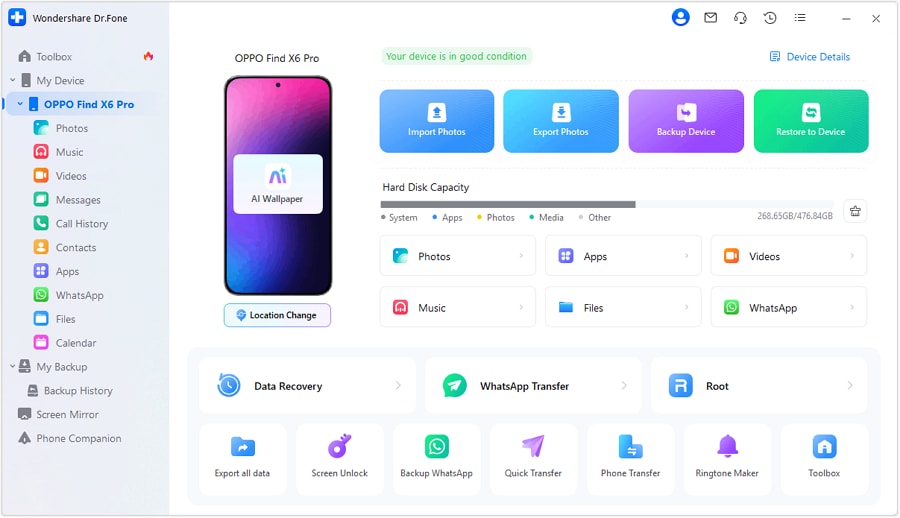
Use Dr.Fone to back up or transfer the tablet’s key data (especially photos/videos and documents) to a computer before you remove anything significant.
Limitation: AI can’t confirm the backup is usable—verify by opening a sample of files from the backup location on the computer.
-
Step 2 Perform reversible cleanup first (low-risk space gains)
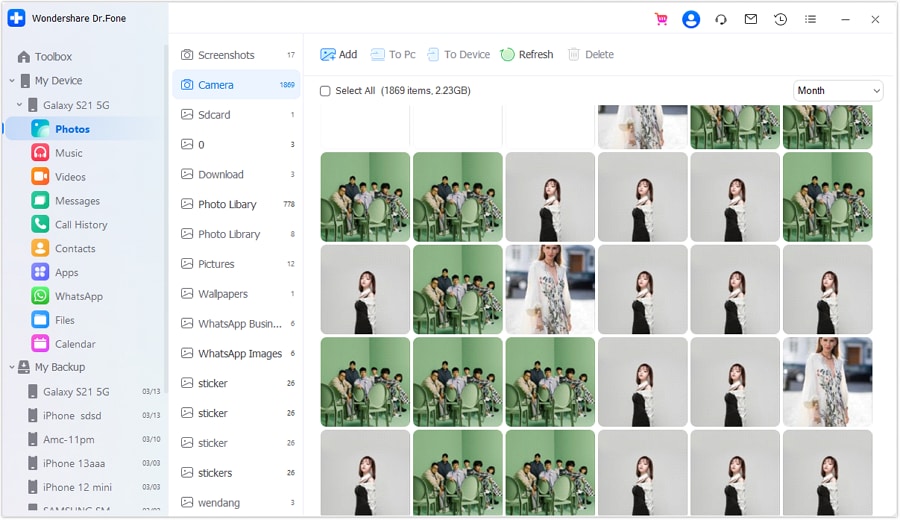
Start with reversible actions and only touch items already approved by your keep/archive/delete decision list.
Limitation: AI can’t see what’s truly duplicated or synced—do not “bulk delete” anything you haven’t spot-checked against your keep list.
-
Step 3 Preview and select what to remove or move (confirm before you act)

Review items carefully before removing them, and prefer moving/archiving over deletion until your verification checklist is passed.
Limitation: If you remove the wrong items on a shared device, you may not notice until someone needs them (school PDFs, photos, or app access).
-
Step 4 Run the irreversible actions only after verification passes
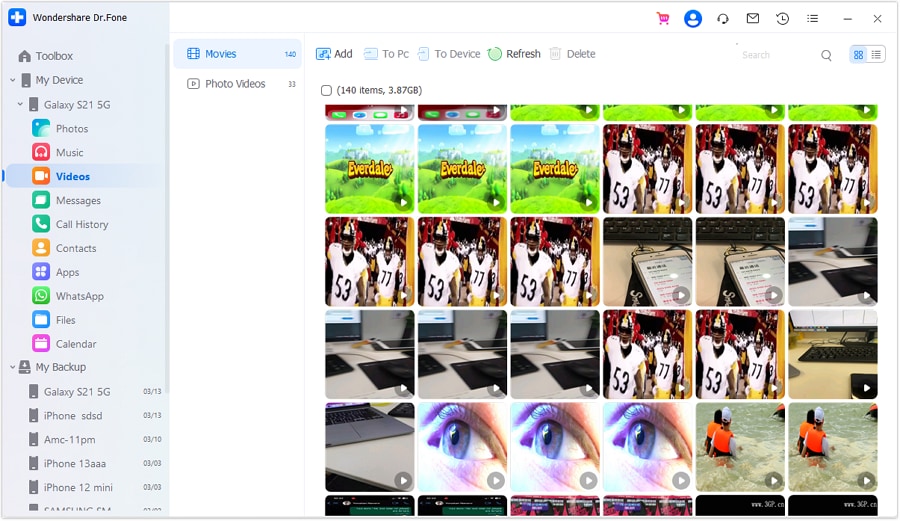
Only after your recovery tests succeed, use Dr.Fone for any final high-impact step you chose (for example, securely erasing private leftovers or preparing the device for handoff).
Limitation: Once irreversible steps run, recovery may be impossible—pause and re-check your verification checklist before confirming any wipe/erase/reset action.




Conclusion
Use AI to design the declutter workflow, define stop criteria, and build verification checks; then use Dr.Fone to execute backups, transfers, and cleanup actions on the actual tablet once you’ve verified you’re not approaching the point of no return prematurely.
FAQ
-
What’s the biggest risk in a family-tablet declutter?
Deleting something that isn’t actually backed up (or breaking a shared login/MFA flow) and only noticing later when school or photos are needed. -
Why can’t AI just tell me what to delete?
AI can’t see file contents, sync status, or which items are locally stored only; it can only help you design rules and checks. -
How do I know my backup is “real,” not just “completed”?
Do a spot-check: open a random set of photos/videos, confirm at least a couple of school PDFs, and verify you can access the backup from the computer without the tablet connected. -
When is it safe to empty “Recently Deleted” or do a factory reset?
Only after your verification checklist passes and you’ve confirmed access to accounts, backups, and required apps; treat this as the point of no return. -
Should I declutter before or after a school deadline/trip?
After, if possible—time pressure increases mistakes. If you must do it before, limit scope to reversible cleanup and postpone irreversible actions.
 Add Wondershare Dr.Fone as a preferred source on Google





