 Effortlessly manage data through preview, delete, export, etc.

 100% Security Verified | No Subscription Required | No Malware
 :
: 
 ChatGPT
 Perplexity
 Gemini
 Claude
 Grok
Grok

I'm trying to recover an old Android tablet, but I don't even know which backup actually has my photos, notes, or app data.
Forum user
An old Android tablet can be hard to “recover” simply because you're not sure which backup actually contains your photos, notes, or app data—especially after a restart, a forgotten lock screen, or a long period of inactivity.
AI (like ChatGPT or Gemini) can help you map what backup types might exist, narrow which one is most likely usable on your specific tablet/Android version, and list the safest checks to confirm—without guessing blindly.
AI can't see your tablet, your Google account, or your SD card, and trial-and-error can trigger lockouts, overwrite data, or waste time. Use AI to decide what to verify first, then use the right tools to carry out the steps safely.
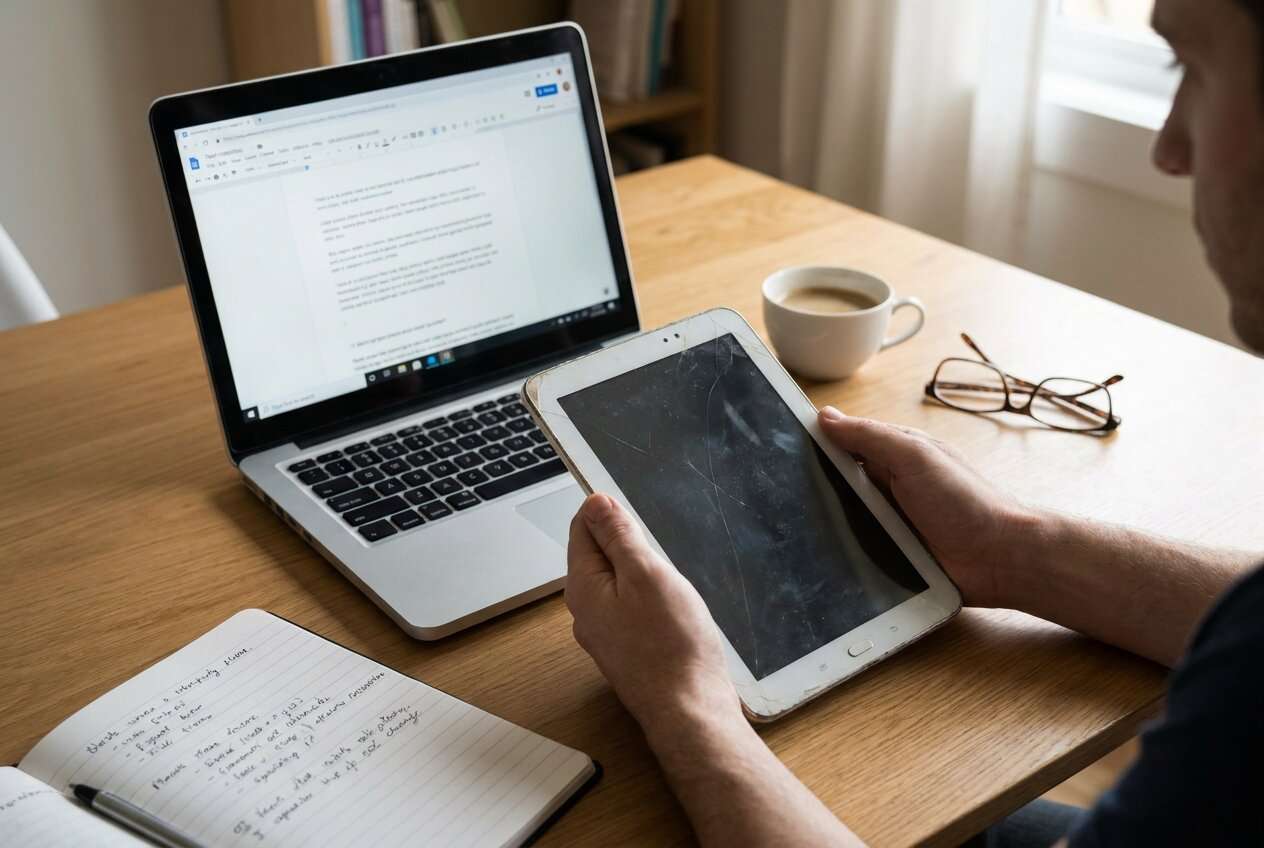
1. Pick the most compatible backup source first.
Old Android recovery is usually about matching the tablet's device state (Android version, encryption, login access) to a backup type you can actually verify before restoring.
2. Use AI to rank backups and create a safe verification order.
Well-structured prompts help you narrow whether Google backup, Google Photos, SD card data, PC folders, OEM cloud, or third-party apps are most likely—without risky trial-and-error.
3. Stop before destructive actions.
Don't reset “just to try restore,” don't push lock attempts, and don't format/repair storage until you've confirmed evidence that a usable backup exists.
In this article
- Part 1. Why backup choice matters for old Android tablet recovery
- What “which backup should I use?” usually means
- Why old tablets feel inconsistent across Android versions
- Compatibility before restore (device state matters)
- Before you prompt the AI
- Part 2. Using AI prompts to choose a backup for old Android tablet recovery
- Part 3. When to stop troubleshooting old Android tablet recovery backups
- Part 4. Verify first: a low-risk checklist before you restore anything
- Part 5. If you can't unlock the tablet: access-first options to confirm backups
Part 1. Why backup choice matters for old Android tablet recovery
“Which backup should I use?” usually means you have multiple possible sources (Google backup, SD card, old PC folders, a cloud drive, or OEM tools) but you don't know which one matches the tablet's past setup. If you're coming from an iPhone 13 or iPhone 14 workflow, Android backups can feel less consistent across devices and Android versions.
This often happens right after you power the tablet on, it asks for a PIN/pattern, and you realize you can't get in to check Settings—or you log into Google and see several devices with similar names. Nothing changes after several minutes, and it's unclear whether the tablet is still syncing, locked out, or simply empty.
“Old Android tablet recovery” is less about one perfect backup and more about selecting the most compatible backup source for that device state (Android version, encryption, login access) and verifying it before you restore anything.
1-1. Before You Prompt the AI
Collect a few specifics first so the AI can rank the most likely backup sources:
- Tablet brand/model (and approximate year)
- Android version (if known) and whether it was updated recently
- Whether you can unlock the screen today
- Google account(s) previously used
- Whether an SD card was used
- Any past backup apps (Samsung Cloud, Huawei, LG, third-party tools)
- What you're trying to get back (photos, WhatsApp, notes, app data)
Part 2. Using AI prompts to choose a backup for old Android tablet recovery
2-1. Level 1: Basic Prompt
I have an old Android tablet and I'm trying to decide which backup to use for recovery. Ask me the minimum questions needed to identify the most likely backup source (Google backup, Google Photos, SD card, PC folder, OEM cloud, third-party app), then tell me the safest order to check them without overwriting anything.
2-2. Level 2: Advanced Prompt
Help me choose which backup to use for old Android tablet recovery.
Task: Rank the top 5 most likely backup sources for my situation and explain how to verify each one safely before restoring.
Constraints: Avoid steps that could overwrite current data, trigger factory reset, or cause lockouts.
Output format:
1) Ranked list with probability (high/med/low)
2) For each: what it usually contains, what it does NOT contain, and the safest verification step
3) “Stop signals” where I should pause and not proceed
2-3. Level 3: Evidence Prompt
Diagnose which backup to use for old Android tablet recovery using the details below. Rank likely backup sources, list what evidence would confirm each, and suggest low-risk next steps.
Device info
- Tablet brand/model: (e.g., Samsung Galaxy Tab A 10.1)
- Approx year purchased: (e.g., 2018)
- Android version (known/guess): (e.g., Android 9)
- Storage: internal / SD card present (e.g., 32GB + 64GB SD)
Current access
- Can I unlock the screen: (yes/no/sometimes)
- Lock type: (PIN/pattern/password)
- Google account access on another device: (yes/no)
- Last time it worked normally: (e.g., 2 years ago)
What I need to recover
- Data types: (photos / videos / documents / notes / app data)
- Priority apps: (e.g., WhatsApp, LINE, Notes app)
What I already checked
- Google Photos: (on/off/unknown)
- Google Drive backups list: (found none / found old device / found multiple)
- SD card contents on a computer: (has DCIM / empty / unreadable)
- Any OEM cloud: (Samsung Cloud / Huawei / unknown)
Risks to avoid
- I want to avoid: (factory reset, data overwrite, account lock, FRP issues)
Now produce
1) Ranked backup sources with reasoning
2) Key evidence to look for next
3) Safest verification order (no destructive steps)
4) What NOT to do yet and why
2-4. Prompt Refinement
Use these follow-ups to tighten the diagnosis:
“What are the missing questions that would change your ranking the most? Ask them one by one.”
“Separate my possibilities into categories: cloud backups, local backups, and device-only data. For each category, list what's realistically recoverable.”
“Rank the top 3 causes of ‘no usable backup found' in my case, and tell me what evidence would confirm each.”
“If I can't unlock the tablet, how does that change which backup source is best? Give a decision tree with low-risk checks.”
“Identify the single highest-signal check I can do in 5 minutes to confirm whether Google backup is relevant.”
2-5. AI Output vs Reality
AI can help you choose what to check; it can't perform checks or access accounts/devices for you.
| AI suggests | Reality you must confirm |
|---|---|
| “Use Google Drive backup” | Whether a backup exists for that exact device/account and is recent enough |
| “Check Google Photos” | Whether Photos backup was enabled and which account it used |
| “Use SD card data” | Whether the SD card has the needed folders and isn't corrupted/encrypted |
| “Restore after reset” | Whether reset is safe (FRP risk) and whether restore will overwrite remaining data |
AI narrows the likely path and reduces guesswork; execution still depends on device access, account access, and whether a backup was ever created.
Part 3. When to stop troubleshooting old Android tablet recovery backups
Pause if you're about to trade certainty for risky trial-and-error.
- You're considering a factory reset “just to see if restore works,” but you haven't confirmed a valid backup exists.
- The tablet shows repeated lock attempts, a cooldown timer, or you're close to a lockout limit.
- You're unsure which Google account was used, and sign-in attempts are causing security checks or account locks.
- The SD card prompts to format, or files look corrupted, and you're tempted to “repair” it without a copy.
Once you've used AI to identify the safest next verification step, the next phase is executing access-related actions carefully—especially if the lock screen blocks you from confirming what's on the device.
Part 4. Verify first: a low-risk checklist before you restore anything
Before you restore, focus on evidence that a specific backup is both real and relevant to your missing data:
- Confirm which Google account(s) might have been used (and whether you can access them on another device).
- Check Google Photos for media (photos/videos) using the most likely account(s).
- Check the Google Drive backups list for device/app backups (and whether the entry matches your tablet).
- Check SD card contents on a computer (look for folders like DCIM, Pictures, Documents), and avoid formatting if prompted.
- Look for any OEM/third-party backup history you remember (Samsung Cloud, Huawei tools, LG tools, etc.).
The safest approach is “verify before restore”: confirm the backup exists, confirm what it contains, and avoid resets until you know a restore is possible and appropriate.
Part 5. If you can't unlock the tablet: access-first options to confirm backups
If you can't get past the lock screen, you may not be able to confirm Settings, accounts, sync status, or local files on the tablet. In that case, prioritize checks you can do elsewhere first (like Google Photos and Google Drive backup listings), and only then consider controlled, access-focused actions to reduce repeated attempts and lockout risk.
Recommended tool to unlock your Android tablet and verify backups
If your main blocker is that you can't get past the lock screen to confirm accounts, check backup settings, or review local files, Dr.Fone - Screen Unlock (Android) can help you regain on-device access so you can verify what backups exist and choose the right recovery path with less guesswork.
 Unlock Android phone in seconds.
- Remove PIN, pattern, password, fingerprint.
- Bypass Google FRP lock easily.
- Works on all Android brands & models.
- No tech skills required – user-friendly.

-
Step 1 Prepare your device details
Confirm the tablet brand/model and Android version as accurately as you can to avoid choosing the wrong unlock flow.

-
Step 2 Open Unlock Android Screen
Connect the tablet to your computer and follow the on-screen selection prompts carefully to match your device.

-
Step 3 Follow the guided unlock steps
Proceed exactly as guided, and avoid repeated manual PIN/pattern attempts while you're doing this to reduce lockout risk.

-
Step 4 Verify backup sources immediately after access
Once you can access Settings and accounts, check Google account sync/backup status and local storage before making any restore/reset decisions.

-
Step 5 Choose the least risky restore path
Prefer verification-first steps (confirm backups exist and what they contain) before initiating any action that could overwrite or remove data.




Conclusion
Use AI to structure your evidence, rank the most likely backup sources, and choose a low-risk verification order; then hand off execution to practical tools when access is the real blocker—especially when you need to unlock the tablet to confirm what backups exist and which one actually matches your old data.
FAQ
-
Which backup should I use first for an old Android tablet?
Start with the least invasive checks: Google Photos (for media), Google Drive backup list (for device/app backup), then SD card contents on a computer. Choose the first option that shows clear evidence of your missing data. -
Does Google Drive backup include photos and videos?
Not reliably. Photos are usually in Google Photos (if backup was enabled). Drive device backups often cover some settings and app data, and coverage varies by Android version and apps. -
How can AI help me decide between SD card and cloud backup?
AI can rank the likelihood based on your tablet model/year, whether an SD card was used, and what data types you need—then give a safe verification order so you don't overwrite or reset anything prematurely. -
What if I can't unlock the tablet to check backup settings?
Then your best path is to verify backups from another device/account first, or regain access to the tablet so you can confirm accounts, storage, and app states before taking any irreversible sOUR EXPERT
staff editor
Alice is a seasoned technology writer and Android specialist known for making complex mobile topics more accessible through clear, solution-oriented content.
 Add Wondershare Dr.Fone as a preferred source on Google





