 Effortlessly manage data through preview, delete, export, etc.

 100% Security Verified | No Subscription Required | No Malware

 :
: 
 ChatGPT
 Perplexity
 Gemini
 Claude
 Grok
Grok

I upgraded my phone for content work and tried to “move only what matters.” Then I wiped the old device and realized some exports, presets, and account logins never made it over. Now I’m rebuilding everything from memory.
Reddit user, r/iPhone
Upgrading a creator phone is rarely “move everything and forget it”—it’s selective by necessity, and missing one step can mean lost projects, broken logins, or missing media that you discover too late.
AI helps you structure a selective transfer plan into a clean sequence: what to move, what to leave behind, what must be verified, and what decisions should be made before you touch the devices.
AI cannot access your phones, view your storage, authenticate your accounts, or confirm what truly transferred; execution and final confirmation require real device tools and your own verification.
In this article
- Part 1. Plan a selective transfer without missing critical steps
- What “selective transfer” means for creators
- Where plans fail (order, dependencies, point-of-no-return)
- What to verify before you wipe/trade in
- How to turn a list into a sequence
- Part 2. What the AI needs to know (so it can plan correctly)
- Part 3. AI prompts: build a workflow with verification gates
- Part 4. Stop planning and start execution (readiness checklist)
- Part 5. Execute the workflow safely with Dr.Fone
Part 1. Plan a selective transfer without missing critical steps
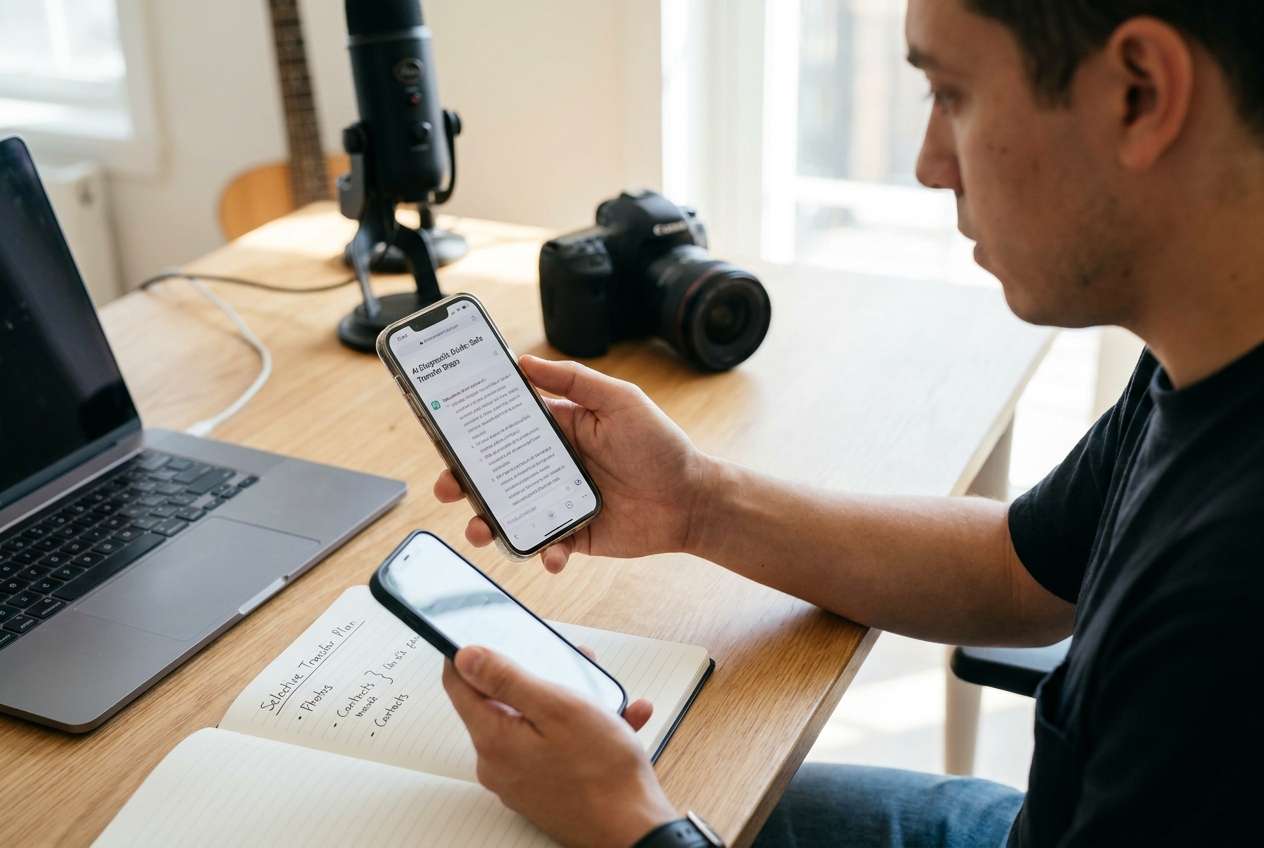
1-1. Define “selective” for creator-critical data
You’re moving from an old phone to a new one, but you don’t want a full clone. You want a clean start—yet you must keep creator-critical items like camera media, editing exports, LUTs/presets, project files, voice notes, reference folders, and app-specific data you’ll regret losing.
1-2. The risk isn’t the list—it’s the order
The uncertainty usually starts after you ask AI “what should I transfer?” and get a list—without a sequence. The risk isn’t the list; it’s the order: transferring before you’ve confirmed backups, overwriting files, or skipping hidden dependencies (2FA apps, licenses, offline downloads, app caches that actually contain work).
1-3. Identify point-of-no-return actions and the proofs required
A common point-of-no-return moment is wiping/resetting the old phone (or trading it in) before you’ve verified: (1) media counts match, (2) key apps can log in, (3) projects open on the new phone, and (4) your 2FA method works.
Part 2. What the AI needs to know (so it can plan correctly)
Provide enough context for the AI to generate a transfer plan you can verify step-by-step.
- Old phone OS/model and new phone OS/model (e.g., iPhone 13 iOS 17 → iPhone 16 iOS 18, or Pixel 7 → Galaxy S25)
- Transfer goal: “clean start” vs “mostly same setup” vs “minimal essentials only”
- Creator assets to preserve (photos/videos, RAW, exports, voice memos, presets/LUTs, fonts, app projects)
- The apps that matter most (camera apps, editors, cloud drives, social apps, password manager, authenticator/2FA)
- Where your work currently lives (on-device only vs iCloud/Google Drive/Dropbox/OneDrive/NAS/SSD)
- Approximate storage sizes (e.g., Photos 220 GB, Downloads 12 GB, Projects 8 GB)
- Any constraints (limited time, slow Wi‑Fi, no computer, one cable, travel)
- Security requirements (work accounts, MDM, sensitive client data)
- What you will not transfer (old chats, junk downloads, duplicate clips, unused apps)
Part 3. AI prompts: build a workflow with verification gates
Use the prompts below to force a sequence with verification gates before any irreversible step.
3-1. Level 1: Basic Prompt
I’m upgrading phones and want a selective transfer, not a full clone. Create a step-by-step plan that prioritizes creator-critical data and includes verification checks before I erase or trade in the old phone. Keep it planning-only and list the “do not proceed until verified” items.
3-2. Level 2: Advanced Prompt
Build a selective transfer workflow with three sections: Preparation / Execution / Verification.
- Mark each item as Critical or Optional.
- Include dependencies (2FA, password manager, app licensing, cloud sync status).
- Add “stop points” where I must verify counts, logins, and project integrity before moving on.
3-3. Level 3: Evidence Prompt
Create a selective transfer plan for my creator upgrade using this context, and include checks before/during/after transfer:
- Old phone → New phone: (iPhone 13 iOS 17 → iPhone 16 iOS 18)
- Storage: (Old phone used 420 GB; Photos 260 GB; Files/Downloads 25 GB; Voice memos 4 GB)
- Critical apps: (CapCut, Lightroom, VN, Instagram, TikTok, Dropbox, Google Drive, Notion)
- Security: (1Password + Authenticator app; work email with 2FA)
- Goal: (clean start; only move essentials + creator assets)
- Risk tolerance: (cannot lose any client footage; can re-download apps)
Output:
1) A transfer inventory (what to move vs what to leave)
2) A verification checklist with measurable evidence (counts, spot-checks, sample projects)
3) A rollback plan if something doesn’t show up on the new phone
4) A “point of no return” warning list (e.g., factory reset/trade-in) and what must be proven first
3-4. Prompt Refinement (follow-up prompts)
Convert my plan into a checklist with gates: “Gate 1 complete when…, Gate 2 complete when…”. Include pass/fail criteria for each gate.
Ask me exactly 10 questions that remove ambiguity (accounts, storage locations, app-specific project locations, 2FA setup), then regenerate the plan.
Produce a creator-asset matrix: asset type → current location → transfer method → verification proof → failure symptoms → fix.
Create a timeboxed plan for a 3-hour window, with a “minimum viable transfer” path and what can wait until later.
Generate a spot-check protocol: how many files to sample (e.g., 20 videos across dates), what to open, what metadata to confirm (duration, resolution, edit timeline).
3-5. AI plan vs. real device constraints
| Planning with AI | Reality on devices |
|---|---|
| Defines what is “critical” vs “optional” | You must confirm where the data actually lives and whether it’s accessible |
| Creates an ordered sequence with verification gates | Transfers can fail silently (permissions, cable issues, storage, app sandboxing) |
| Identifies high-risk moments and dependencies (2FA/licensing) | Account logins, 2FA migration, and app licensing require real authentication |
| Builds evidence-based checks (counts, samples, reopen projects) | Only you/tools can execute transfers and validate file presence on-device |
AI improves planning, but cannot execute transfers, see your files, or prove completeness. Treat the AI output as a workflow blueprint—then use real tools to perform and confirm the transfer.
Part 4. Stop planning and start execution (readiness checklist)
Once these are true, planning is done—and the remaining risk is execution quality and verification discipline.
- Your “move vs leave” inventory is final, including app-specific projects and presets
- You have a verification checklist with measurable proofs (counts, sample opens, login tests)
- You’ve identified the point-of-no-return actions (reset/trade-in) and the required proofs before them
- You have enough time, power, storage, cables, and network stability to complete the transfer plus verification
Part 5. Execute the workflow safely with Dr.Fone
When you’re ready to execute, tools matter because the biggest failures are practical: partial transfers, overwritten folders, missing app data, and “I thought it synced” assumptions that only show up after the old phone is gone. For controlled, selective moves, Dr.Fone - Phone Transfer can help you transfer only the categories you choose, then you validate the result with your AI-generated checklist.
 Move data between iOS to Android and vice versa.
- Transfer contacts, SMS, photos, videos, music, and more types.
- Available with all phones with Android and iOS versions.
- Simple, click-through process.

Execution should follow the order from your AI plan: lock your inventory, transfer in batches, and verify before any point-of-no-return action (factory reset, wipe, trade-in).
-
Step 1 Lock the inventory before moving anything
Confirm your “in-scope” categories (creator media, chosen files, and required app-related items). This prevents accidental full-clone behavior and reduces the chance of overwriting folders you meant to keep clean.

-
Step 2 Set the transfer direction (old phone → new phone)
Choose the correct source and destination devices before starting. A wrong direction is a common cause of overwrites and confusion during selective moves.

-
Step 3 Transfer in smaller batches and label what you moved
Run transfers in smaller, labeled batches (for example, “Camera Roll videos”, “Exports”, “Project folders”) so you can verify each batch immediately. Some app data may still require re-downloads and re-authentication due to OS/app restrictions.

-
Step 4 Verify before the point of no return
Use your AI-generated verification checklist to confirm counts, spot-check files across dates, open real projects end-to-end, and test logins/2FA on the new phone before you reset, wipe, or trade in the old phone. Human verification is still required to prove projects open and export correctly.





Conclusion
Use AI to design a selective transfer plan with clear sequencing, risk gates, and verification proofs; then use Dr.Fone to execute the transfer and rely on your checklist to confirm everything is truly present before any irreversible wipe or trade-in.
FAQ
-
What’s the biggest risk in a selective transfer for creators?
Assuming “it’s in the cloud” or “it’ll sync later,” then wiping the old phone before proving projects/media are complete and usable on the new phone. -
How do I verify transfer completeness without checking every file?
Use evidence checks: total item counts by album/folder, size totals, and a spot-check sample across different dates/types (RAW, 4K clips, exports), plus opening several real projects. -
When should I migrate 2FA/authenticator apps?
Before you sign out or wipe the old phone, and before you rely on the new phone as your only access method. Include a test login to a work-critical account as a verification gate. -
Should I do one big transfer or multiple small ones?
Multiple batches reduce ambiguity. If a batch fails, you know what’s missing and you can re-run only that portion, then verify immediately. -
Can AI tell me exactly where each app stores its project files?
Not reliably. AI can suggest common locations and questions to check, but you must confirm on your device and within each app’s export/backup options.
 Add Wondershare Dr.Fone as a preferred source on Google





