 Effortlessly manage data through preview, delete, export, etc.

 100% Security Verified | No Subscription Required | No Malware

 :
: 
 ChatGPT
 Perplexity
 Gemini
 Claude
 Grok
Grok

My iPhone is stuck on the Apple logo after an update. It’s not moving forward, and I’m not sure if I should use Recovery Mode or wait longer.
Apple Support Community user
Your iPhone may be stuck on the Apple logo (for example, on an iPhone 13 or iPhone 14) right after you tapped Install Now for an iOS update or after a restart. The screen doesn’t progress, and it’s unclear whether it’s still updating or frozen.
AI (like ChatGPT or Gemini) can help you describe the symptoms clearly, narrow the most likely causes, and decide whether Recovery Mode is a reasonable next step—or whether a lower-risk step should come first.
AI can’t see what your device is doing internally, and repeated trial-and-error can increase the chance of data loss or longer downtime. The goal is to use AI for diagnosis and decision-making, then use a dedicated tool for the actual execution.
In this article
- Part 1. Why iPhone is stuck on Apple logo and what it means
- What “stuck on logo” usually indicates
- What to observe on-screen and on a computer
- Recovery Mode risk: why lower-risk checks come first
- Before you prompt the AI
- Part 2. AI prompts to decide if Recovery Mode is needed
- Part 3. When to stop iPhone stuck on logo troubleshooting
- Part 4. Enter or exit recovery mode with Dr.Fone when iPhone is stuck on logo
- Part 5. Recommended tool workflow (guided steps)

Part 1. Why iPhone is stuck on Apple logo and what it means
An iPhone stuck on the Apple logo usually means iOS isn’t completing the boot sequence. This can happen after an update, during a storage crunch, after a battery drop during installation, or when a system process hangs.
In many cases, the phone isn’t “broken”—it’s just not finishing startup. But the right next step depends on what you see: Does it ever show a progress bar? Does it restart on its own? Is it recognized by a computer?
1-1. What “stuck on logo” usually indicates
If the device can’t finish booting, iOS may be stuck mid-update, short on free storage, dealing with interrupted installation conditions (like low battery), or hanging on a system process during startup.
1-2. What to observe on-screen and on a computer
Small differences change the safest next step. For example, “Apple logo only” vs “Apple logo + progress bar” vs “boot loop” can point to different causes. Whether Finder/iTunes detects the iPhone is also a key clue for deciding when Recovery Mode is appropriate.
1-3. Recovery Mode risk: why lower-risk checks come first
The key question behind “Should I use Recovery Mode?” is risk. Recovery Mode can be appropriate, but you typically want to rule out simpler, lower-risk steps first—especially if you care about avoiding unnecessary restore workflows.
Recovery Mode can help when
- iOS isn’t completing startup and basic waiting/charging doesn’t change anything.
- You need a controlled way to get the phone recognized by a computer for repair/update actions.
- You’re stuck in a loop and want a structured next step instead of repeated retries.
Recovery Mode can increase risk when
- You escalate into “Restore” workflows you didn’t intend (potential data loss).
- You keep repeating force restarts and mode switches without new evidence.
- The real issue is hardware/heat/liquid exposure (where continued attempts may be unsafe).
1-4. Before you prompt the AI
Collect a few details first so the AI can narrow causes confidently:
- iPhone model and iOS version (if known)
- What happened right before the issue (update, restore, storage full, drop, water exposure)
- What you see now (Apple logo only, logo + progress bar, looping reboot)
- How long it’s been stuck (e.g., 5 minutes vs 1 hour)
- Whether a computer detects the iPhone (Finder/iTunes)
Part 2. AI prompts to decide if Recovery Mode is needed
2-1. Level 1: Basic Prompt
My iPhone is stuck on the Apple logo. I want to know if I should use Recovery Mode. Ask me the minimum questions needed, then recommend the lowest-risk next step first.
2-2. Level 2: Advanced Prompt
Diagnose my “iPhone stuck on Apple logo” issue and tell me whether Recovery Mode is appropriate.
Requirements:
1) Give 3–5 likely causes ranked by probability.
2) For each cause, list 1–2 observable clues that would support it.
3) Recommend a step-by-step plan starting with the lowest-risk actions.
4) Flag any step that could increase data-loss risk, and offer safer alternatives when possible.
5) End with a clear decision rule: “Use Recovery Mode if ___; avoid Recovery Mode if ___.”
2-3. Level 3: Evidence Prompt
Help me decide whether to use Recovery Mode for an iPhone stuck on the Apple logo. Use my evidence to narrow likely causes and recommend the safest next step.
Evidence:
- iPhone model: (e.g., iPhone 13 Pro)
- iOS update/restore just happened?: (e.g., tapped Install Now; interrupted update)
- Current screen: (Apple logo only / Apple logo + progress bar / black screen / boot loop)
- Duration stuck: (e.g., 20 minutes)
- Storage status before issue: (e.g., nearly full / unknown)
- Battery/charging: (e.g., was under 20% / plugged in)
- Computer detection: (Finder/iTunes sees device? yes/no/unknown)
- Any prior drops/water exposure: (yes/no)
- What I already tried: (force restart, different cable, different port, waited X minutes)
Output format:
1) Most likely cause (with brief why)
2) What to check next (2–3 quick checks)
3) Lowest-risk next action
4) When Recovery Mode becomes the recommended step
5) What not to do yet (to reduce risk)
2-4. Prompt Refinement
If the first answer feels generic, use follow-ups that force specificity:
What one question would change your recommendation the most, and why?
Separate your causes into: update-related, storage-related, hardware-related, cable/port/computer-related.
Rank the causes again, but this time assign confidence levels (high/medium/low) and say what evidence is missing.
List the key evidence that suggests a temporary hang vs a true boot failure.
If I want to avoid restore, what is the safest decision path before using Recovery Mode?
2-5. AI Output vs Reality
AI can map symptoms to likely causes, but it can’t perform device-side actions for you.
| AI can help you decide | Reality you still must do |
|---|---|
| Whether you should wait longer or take action now | Time the wait and observe changes (progress bar, reboot pattern) |
| Whether Recovery Mode is appropriate given symptoms | Put the iPhone into Recovery Mode correctly and confirm computer detection |
| Which risks matter most (data loss vs downtime) | Choose tools/steps that match your risk tolerance |
| What evidence to gather to avoid guesswork | Check cables/ports, try another computer, confirm recognition in Finder/iTunes |
AI closes the thinking gap; you still need a reliable way to carry out the chosen step without improvising.
Part 3. When to stop iPhone stuck on logo troubleshooting
Stop and switch to a more controlled approach if you see any of these signals:
- The iPhone is in a boot loop (repeating Apple logo → black screen) for more than ~10–15 minutes.
- The Apple logo has been static for 45–60+ minutes after an update attempt with no progress bar movement.
- The iPhone is not detected by Finder/iTunes after trying another cable/port/computer.
- The device shows heat, swelling, liquid exposure signs, or abnormal behavior (burning smell, rapid overheating).
Once you’ve used AI to narrow the likely cause and decide that Recovery Mode (or exiting it) is the sensible next step, hand off execution to a purpose-built workflow rather than repeated manual retries.
Part 4. Enter or exit recovery mode with Dr.Fone when iPhone is stuck on logo
If your diagnosis points to Recovery Mode as the next low-risk step—or your iPhone is already in Recovery Mode and you need to exit cleanly—Dr.Fone - System Repair (iOS) becomes relevant because it can execute Enter/Exit Recovery Mode in a guided way. This is useful when button sequences are inconsistent, the device is stuck in a loop, or you want a more controlled attempt before escalating. Use the feature to align with the decision you made from the AI prompts, then proceed based on whether the phone boots normally afterward.
- Confirm your decision criteria: Open your AI notes and proceed only if your symptoms match your “use Recovery Mode if…” rule, avoiding repeated force-restart loops if they aren’t changing anything.
- Connect iPhone to a stable computer setup: Use a reliable cable and a direct USB port (avoid flaky hubs) so the device detection step doesn’t confuse the diagnosis.
- Use a guided Enter/Exit Recovery Mode action: Place the device into Recovery Mode or exit it, and stop if the phone becomes unusually hot.
- Re-check boot behavior and detection: After the attempt, observe whether it boots past the logo and whether Finder/iTunes now detects it consistently.
- Escalate only if your stop signals remain: If the Apple logo loop persists or detection fails, move to the next controlled step you and the AI already agreed is appropriate, rather than trying random sequences.

Part 5. Recommended tool workflow (guided steps)
If you’ve already used AI to set a clear decision rule (when to use Recovery Mode vs when to avoid it), the next step is executing that decision in a consistent, guided workflow—especially when you want to avoid repeated button-sequence retries.
 Fix iOS issues, no data loss.
- One-click repair for all iOS problems.
- Solve recovery mode, Apple logo, black screen, etc.
- Upgrade or downgrade iOS without iTunes

-
Step 1 Open System Repair from the toolbox
Launch Dr.Fone and go to the toolbox area, then enter the System Repair feature so you can access Recovery Mode actions in a guided flow.

-
Step 2 Select the device type/nature
Choose the appropriate device category so the workflow matches your iPhone repair needs and reduces missteps during detection.

-
Step 3 Enter the iOS System Repair area
Open the iOS System Repair screen to access the Recovery Mode tools and proceed based on the decision rule you created from the AI prompts.

-
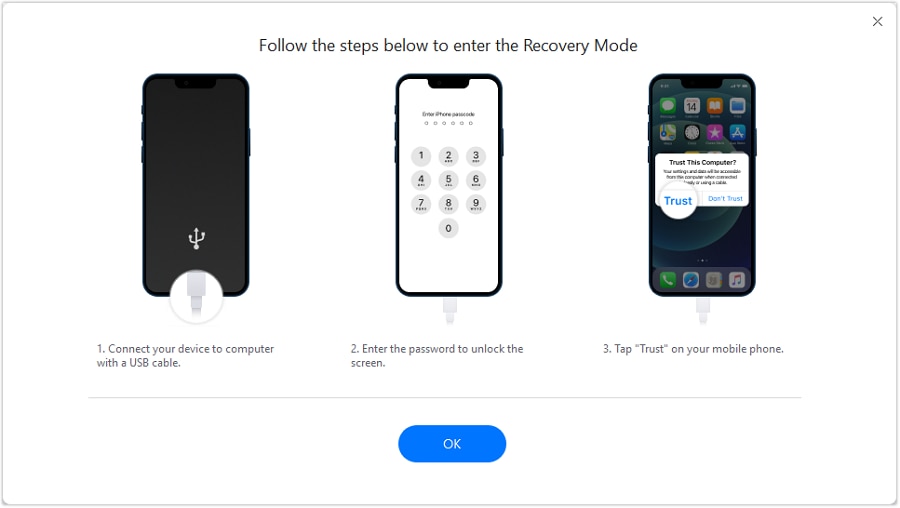
Step 4 Enter or exit Recovery Mode (then re-check behavior)
Use the Enter/Exit Recovery Mode option to place the device into Recovery Mode or exit it cleanly, then observe whether it boots past the Apple logo and whether Finder/iTunes detects it consistently.




Conclusion
Use AI to translate “stuck on the Apple logo” into a structured diagnosis, ranked causes, and a low-risk decision rule for whether Recovery Mode makes sense; then use a dedicated workflow like Dr.Fone - System Repair (iOS)’s Enter/Exit Recovery Mode to carry out that decision consistently and avoid random trial-and-error.
FAQ
-
Should I use Recovery Mode if my iPhone is stuck on the Apple logo with no progress bar?
It can be appropriate if the logo remains static for an extended period and basic checks (power/charge, cable/port/computer) don’t change anything; use AI to confirm you’ve ruled out simple hangs first. -
How long should I wait on the Apple logo before trying Recovery Mode?
If it followed an update, waiting can be reasonable; if nothing changes after ~45–60 minutes, it’s safer to switch from waiting to a controlled next step. -
Does Recovery Mode erase iPhone data automatically?
Recovery Mode itself doesn’t automatically erase data, but actions you take from a computer afterward (like restore) can—decide in advance what you will and won’t do. -
Why is my iPhone stuck in a Recovery Mode loop?
Common reasons include an incomplete update, unstable connection, or repeated failed boot attempts; the key evidence is whether the iPhone is consistently detected and whether it exits Recovery Mode successfully. -
What information should I tell AI to get a reliable recommendation?
Model, what happened right before the issue, exact screen state, how long it’s been stuck, what you already tried, and whether a computer detects it.
 Add Wondershare Dr.Fone as a preferred source on Google





