 Effortlessly manage data through preview, delete, export, etc.

 100% Security Verified | No Subscription Required | No Malware

 :
: 
 ChatGPT
 Perplexity
 Gemini
 Claude
 Grok
Grok

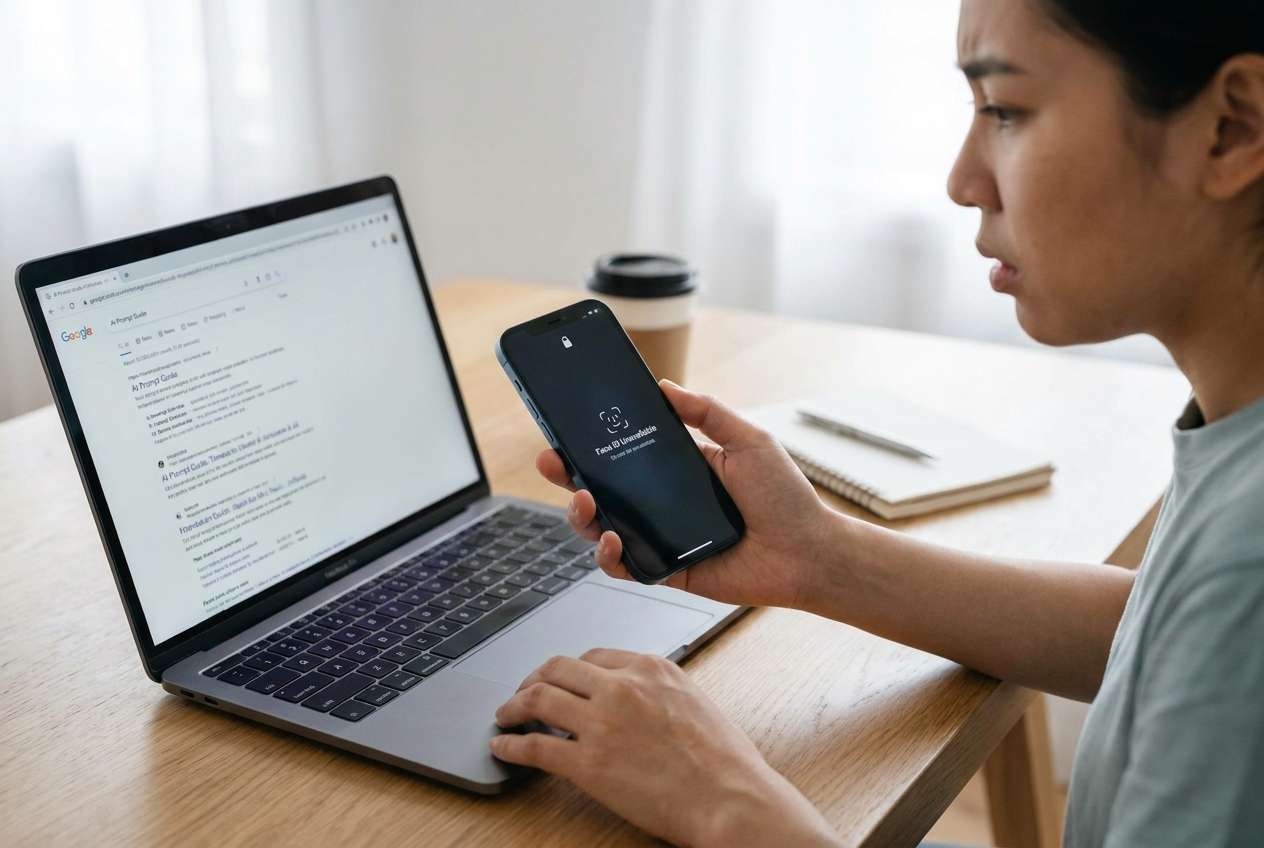
Face ID suddenly shows “Unavailable” and my iPhone won’t unlock—right after an update/restart. It keeps asking for a passcode and Face ID never activates.
Apple Support Community user
Face ID suddenly shows “Unavailable,” and your iPhone won’t unlock—often right after you tapped Install Now, restarted, or picked it up after charging (for example on an iPhone 13 or iPhone 14). The screen keeps asking for a passcode, or Face ID never activates.
AI can help you organize symptoms, narrow likely causes, and choose low-risk next steps by asking the right questions and comparing possibilities (using tools like ChatGPT or Gemini).
AI can’t verify hardware damage, iOS bugs, or security states from your device. Trial-and-error—especially repeated restarts, aggressive resets, or random “fixes”—can increase lockout risk or complicate recovery.
In this article
- Why Face ID is unavailable, and iPhone won’t unlock happens (and what it means)
- Common cause “buckets.”
- Why can it look normal but stay stuck
- What “won’t unlock” can actually mean
- What to capture before you prompt the AI
- Using AI prompts to diagnose safely
- When to stop troubleshooting (avoid lockout/data risk)
- Quick summary: low-risk path you can follow
- Unlock the Android screen when biometrics fail using Dr.Fone
Part 1. Why Face ID is unavailable, and iPhone won’t unlock happens (and what it means)
“Face ID Unavailable” usually points to one of a few buckets: a temporary iOS condition (post-update or post-restart), camera/TrueDepth sensor obstruction or failure, or a security restriction (too many failed attempts, device overheating, or system protection behavior). In many cases, Face ID is disabled until a passcode is entered.
What makes this confusing is that the phone may look “fine,” but nothing changes after several minutes—so it’s unclear whether it’s still processing an update, stuck in a background state, or refusing Face ID for security reasons.
Also, the symptom “won’t unlock” can mean different realities: you forgot the passcode, the touchscreen isn’t registering, the device is disabled, or Face ID is unavailable, but the passcode still works.
1-1. Before You Prompt the AI
Capture the basics first, so the AI can separate software vs sensor vs security lockout:
- iPhone model + iOS version (if known)
- What happened right before it started (update, drop, repair, water exposure, restart)
- Exact on-screen text (e.g., “Face ID Unavailable,” “iPhone Unavailable,” “Try again in 15 minutes”)
- Whether the passcode unlock works and whether the touchscreen responds
- Any camera issues (front camera black, FaceTime not working, sensor blocked)
- Battery level, heat, and whether it’s charging
Part 2. Using AI prompts to diagnose Face ID unavailable and iPhone won’t unlock safely
2-1. Level 1: Basic Prompt
My iPhone shows “Face ID Unavailable” and won’t unlock with Face ID. Ask me the minimum questions needed to narrow the cause, then give the safest next steps that avoid data loss.
2-2. Level 2: Advanced Prompt
Act like a diagnostic assistant. Based on my answers, rank the most likely causes of “Face ID Unavailable” + can’t unlock (from most to least likely), and label each next step as **low risk / medium risk / high risk**. Do not recommend anything that could erase data unless it’s clearly the last resort. Start by asking your top 8 questions.
2-3. Level 3: Evidence Prompt
Help me diagnose “Face ID Unavailable” and iPhone won’t unlock using evidence, not guesses.
**Device:** iPhone model (e.g., iPhone 13 Pro), storage, iOS version (if known)
**Trigger event:** (e.g., tapped Install Now, forced restart, drop, screen repair)
**Current screen text:** (exact words)
**Unlock options:** passcode works? touchscreen works? Face ID attempts fail how?
**Time factors:** how long since the issue started, did it change after 10–30 minutes?
**Camera/sensor clues:** front camera works? FaceTime works? Portrait selfies work? Any warning in Settings > Face ID?
**Environment:** heat, moisture, low battery, charging state
**Security state:** “iPhone Unavailable”? “Security Lockout”? Failed attempts count?
**Goal:** keep data, regain access, or just restore basic unlocking
After I answer, (1) separate likely causes into software / sensor-hardware / security-lockout categories, (2) list what evidence supports or contradicts each, and (3) recommend the lowest-risk sequence of checks.
2-4. Prompt Refinement
Use these follow-ups to force clearer, safer reasoning:
“What 3 questions would most change your diagnosis if answered?”
“Rank causes again, but **exclude** hardware failure—what’s left and why?”
“Now separate your causes into **software**, **hardware/sensor**, and **security/lockout** with one key indicator for each.”
“What single piece of evidence should I check next to distinguish between a TrueDepth sensor issue vs a temporary iOS restriction?”
“List steps I should **not** do yet, and explain the risk (lockout, data loss, wasted time).”
2-5. AI Output vs Reality
Use this table to sanity-check what the AI suggests before you act:
| What AI may conclude | What you should verify in reality |
|---|---|
| “It’s just a temporary iOS glitch.” | Does passcode unlock work, and does the issue persist after the device cools/charges? |
| “Face ID is disabled until the passcode is entered.” | Do you see a prompt requiring a passcode after a restart, or is the device in an unavailable/disabled state? |
| “TrueDepth sensor is failing.” | Does the front camera/FaceTime work, and is there any Face ID error in Settings (if you can access it)? |
| “You should reset/restore.” | Confirm you understand the data-loss impact and whether you have a recent backup before any erase-level action. |
AI can help you choose the right branch (software vs sensor vs lockout), but it can’t perform the device checks or safely execute access recovery steps for you.
Part 3. When to stop troubleshooting Face ID unavailable and iPhone won’t unlock, and avoid risks
Stop prompting and stop experimenting if the situation looks like it’s escalating or becoming a lockout/data-risk scenario:
- You see “iPhone Unavailable” / “Security Lockout” or increasing timed delays after attempts
- The touchscreen is unreliable, or the device is overheating/swollen (safety risk)
- You suspect water impact or a recent screen/Face ID-related repair (sensor risk)
- You’re about to try erase/restore steps without a clear backup and confirmed Apple ID access
Once the AI has helped you narrow the category, shift from “more theories” to one controlled execution path that matches your device and risk tolerance.
Part 4. Quick summary: low-risk path you can follow
1. Capture evidence first (don’t guess).
Write down model/iOS (if known), the exact screen message, what happened right before it started, whether passcode/touchscreen works, camera clues, and heat/charging status.
2. Use AI to sort the problem into categories.
Ask the AI to separate likely causes into software, sensor/hardware, and security/lockout—and to justify each one using the evidence you can actually check.
3. Avoid actions that increase lockout or data-loss risk.
Be cautious with repeated attempts and “random fixes.” If you see lockout screens or escalating delays, stop experimenting and switch to an official recovery path.
4. Execute with the right method for the right device type.
Once the category is clear, follow one controlled path. If it’s actually an Android lock-screen problem, use an Android-appropriate tool rather than iPhone-specific steps.
Part 5. Unlock the Android screen when biometrics fail using Dr.Fone
If your AI diagnosis indicates you’re actually dealing with an Android lock screen scenario (e.g., fingerprint/face unlock stopped working and you can’t get past PIN/pattern), you’ll need an execution tool that can handle screen access recovery steps consistently. Dr.Fone - Screen Unlock (Android) is relevant at this stage because it’s built to remove Android lock screens in guided flows—useful when you’re locked out, and your goal is to regain access without random trial-and-error. This is especially practical if your iPhone remains inaccessible and you need to get back into a secondary Android device for accounts, messages, or work apps.
 Unlock Android phone in seconds.
- Remove PIN, pattern, password, fingerprint.
- Bypass Google FRP lock easily.
- Works on all Android brands & models.
- No tech skills required – user-friendly.

-
Step 1 Open Screen Unlock (Android)
Launch Dr.Fone and select the Android screen unlock feature, keeping your phone sufficiently charged.

-
Step 2 Connect the Android device
Plug in via USB and follow the on-screen prompts carefully to avoid interrupting the process mid-step.

-
Step 3 Access the remove screen lock function
Enter the screen unlock flow and proceed only with the option that matches your current lock type and situation.

-
Step 4 Select the matching device path
Choose the options that match your Android brand/model as closely as possible to reduce mismatch risk.

-
Step 5 Complete the guided removal flow and set a new lock
Proceed through the guided steps and don’t disconnect the cable unless the tool instructs you to. After access is restored, immediately set a new PIN/biometric and review account recovery settings.




Conclusion
Use AI to turn “Face ID unavailable, and iPhone won’t unlock” into a clear diagnosis path—what changed, what the screen says, and which evidence supports software vs sensor vs lockout—then hand off execution to the correct method for your device type (including Dr.Fone for eligible Android screen unlock cases).
FAQ
-
Why does Face ID say unavailable after an update or restart?
iOS may temporarily disable Face ID after certain system events, and it often requires passcode entry before Face ID becomes available again. -
Can I keep trying Face ID repeatedly to force it to work?
Repeated attempts can waste time and may coincide with security restrictions; it’s safer to pause and confirm whether passcode unlock is required or whether the phone is in an unavailable state. -
How do I tell if it’s a TrueDepth hardware issue versus iOS behavior?
Evidence like front camera/FaceTime failures, a recent screen repair, water exposure, or persistent Face ID errors points more toward sensor-related problems than a temporary software state. -
What’s the safest next step if I’m locked out and seeing “iPhone Unavailable”?
Avoid more attempts; focus on confirming backup/Apple ID readiness and follow Apple’s official recovery path to prevent making lockout delays worse. -
Does Dr.Fone Screen Unlock work for iPhone Face ID problems?
Dr.Fone – Screen Unlock (Android) is designed for Android screen lock scenarios; for iPhone Face ID/unlock issues, use AI to clarify the cause and then follow Apple-appropriate execution steps.
 Add Wondershare Dr.Fone as a preferred source on Google





