 Effortlessly manage data through preview, delete, export, etc.

 100% Security Verified | No Subscription Required | No Malware

 :
: 
 ChatGPT
 Perplexity
 Gemini
 Claude
 Grok
Grok

I transferred everything to my new phone, but I’m scared to erase the old one. If Face ID or my banking apps don’t work after I set everything up, I’ll be locked out.
Apple Support Community user
Moving to a new phone is easy to rush, and missing one step can lock you out of accounts or force you into time-consuming recovery.
AI is useful here because it can turn your situation into a clear sequence: what to prepare, what to verify, and what to avoid until you’re sure nothing critical is missing.
AI can’t actually enroll Face ID/fingerprint, move your data, or fix device-side issues—execution still requires real device actions and reliable tools.
In this article
- Part 1. Plan biometric setup after transfer (without missing critical steps)
- What you must verify first
- Where people get stuck (order, gates, rollback)
- The point of no return (don’t erase/trade in yet)
- How to turn your situation into a safe sequence
- Part 2. What the AI needs to know (your device + security context)
- Part 3. AI prompts to build a verification-first workflow
- Part 4. AI plan vs. real device constraints
- Part 5. When to stop planning and start execution
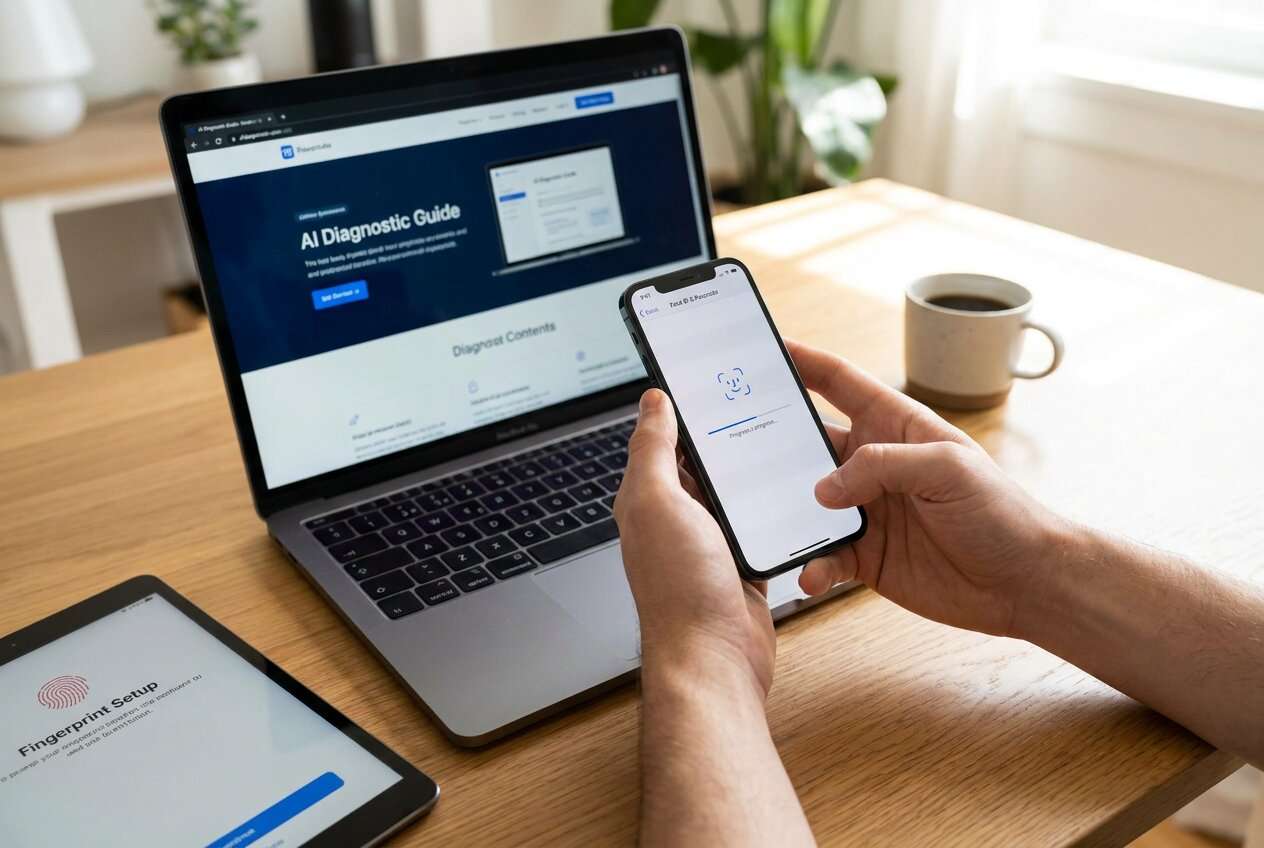
Part 1. Plan biometric setup after transfer (without missing critical steps)
1-1. What you must verify first
You transferred to a new phone and now want Face ID and fingerprint working, but you’re unsure what must be verified first (banking apps, passkeys, 2FA, work profiles, device encryption, and account sign-ins).
1-2. Where people get stuck (order, gates, rollback)
This is where people get stuck after an AI answer: they get a list of “do these settings,” but not the correct order, not the “must-check-before-you-proceed” gates, and not the rollback plan if biometrics fail.
1-3. The point of no return (don’t erase/trade in yet)
The real point of no return is wiping or trading in the old phone before confirming access to every account and security method (especially authenticator apps, passkeys, and banking app device bindings).

1-4. How to turn your situation into a safe sequence
Use AI to force a verification-first sequence with explicit “Stop / Do Not Proceed” gates before anything irreversible.
Part 2. What the AI needs to know (your device + security context)
Share your exact device and security context so the workflow can be sequenced safely.
- Old phone OS and model (e.g., iPhone 12 iOS 17 / Pixel 7 Android 14)
- New phone OS and model
- Transfer method used (e.g., iPhone Quick Start, Android cable transfer, cloud restore)
- Whether you use authenticator apps, passkeys, or hardware keys
- Whether any apps are “device-bound” (banks, crypto wallets, work apps/MDM, MFA apps)
- If you still have the old phone powered on and unlocked
- Your risk tolerance and deadline (e.g., trading in today vs. can wait 3 days)
- Any current errors (Face ID unavailable, fingerprint enrollment failing, repeated passcode prompts)
Part 3. AI prompts to build a verification-first workflow
Use the prompts below to force a safe sequence with verification gates before you touch anything irreversible.
3-1. Level 1: Basic Prompt
I transferred to a new phone and need to set up Face ID and fingerprint safely.
Create a step-by-step plan that includes what to verify before enrolling biometrics, and what I should not do until verification is complete.
Keep it planning-only.
3-2. Level 2: Advanced Prompt
Build me a structured workflow to set up Face ID and fingerprint after a phone transfer.
- Preparation: list prerequisites and “must-have access” items (Apple ID/Google account, passcode, 2FA, key apps).
- Execution (device actions only): the minimal sequence to enroll biometrics and re-enable app logins.
- Verification: specific checks to confirm it worked (system-level, app-level, and account-level).
- Mark steps as Critical vs Optional, and include “Stop / Do Not Proceed” gates before any irreversible actions (like wiping the old phone).
3-3. Level 3: Evidence Prompt
Use my context to create a verification-first plan and include checks before, during, and after biometric setup.
Context:
- Old phone: (iPhone 11, iOS 17.4)
- New phone: (iPhone 15, iOS 17.5)
- Transfer method: (Quick Start + iCloud restore)
- Security: (authenticator app, 3 banking apps, passkeys in iCloud Keychain)
- Constraint: (I plan to trade in the old phone tomorrow)
Output requirements:
- A checklist with “Proof I’m safe to proceed” items (examples: “I can log into Apple ID on the new phone,” “bank app can authenticate without the old device”).
- A failure plan if Face ID/Touch ID setup errors occur (what to try first, what to avoid).
- A point-of-no-return warning listing exactly what must be confirmed before I erase or sign out of the old phone.
- Keep it planning-only; don’t claim you can perform the steps.
3-4. Prompt Refinement (follow-up prompts)
Convert your plan into a table with columns: Step, Critical/Optional, Expected Result, Verification Evidence, Rollback/Fix if Failed.
Ask me exactly 8 questions that eliminate ambiguity (device OS, transfer type, authenticator/passkeys, banking app behavior, trade-in deadline), then regenerate the plan.
Add “Stop gates” that explicitly say what must be true before moving on (e.g., “If you cannot receive MFA on the new phone, stop here.”).
Separate verifications into System, Accounts, and Apps, and list 3 concrete checks for each.
Identify which steps must be done while the old phone is still unlocked and online, and which can be done after it’s powered off.
Part 4. AI plan vs. real device constraints
| AI planning help | What it cannot do on your device |
|---|---|
| Build a safe sequence with stop-gates and verification checks | Enroll Face ID/fingerprint or change device security settings |
| Identify common failure points (MFA, passkeys, bank device binding) | Confirm your biometric hardware is functioning |
| Create a rollback plan if enrollment fails | Transfer apps/data, repair OS issues, or recover locked accounts |
| Produce a “ready to erase old phone” checklist | Guarantee you won’t lose access after wiping the old device |
AI improves planning and risk control, but device setup and transfers require real actions and trusted tools.
Part 5. When to stop planning and start execution
- You can sign into your Apple ID/Google account on the new phone and confirm it’s trusted (no pending security prompts).
- You have working access to your primary MFA method on the new phone (authenticator, SMS/voice, passkeys, or backup codes).
- Your critical apps are present and can authenticate (especially banking/work/security apps) without relying on the old phone.
- You have a rollback path (old phone still unlocked, charger available, Wi‑Fi available, and you have account recovery options noted).
If any bullet above isn’t true, pause—your next “quick fix” could create a lockout.
Set up Face ID and fingerprint after phone transfer: Execute the workflow safely with Dr.Fone
Execution matters now because the safest plan still fails if you can’t reliably preserve data, confirm the transfer, or recover when something doesn’t behave as expected. For transfer execution and validation, Dr.Fone - Phone Transfer can help you confirm what moved over before you make security changes.
 Move data between iOS to Android and vice versa.
- Transfer contacts, SMS, photos, videos, music, and more types.
- Available with all phones with Android and iOS versions.
- Simple, click-through process.

Stabilize and protect what you have
Action: Use Dr.Fone to create/confirm a reliable backup and validate the transferred content you can verify before making security changes.
Limitation: Dr.Fone can’t enroll Face ID/fingerprint or approve account security prompts for you.
Complete transfer-related fixes before biometric enrollment
Action: Use Dr.Fone to address transfer gaps you can detect (missing content or device-side issues that prevent normal setup), then return to the phone’s Settings to enroll Face ID/fingerprint.
Limitation: If an app requires bank/work re-authorization, only the app/provider can finalize that access.
Verify end-to-end access, then avoid the irreversible step until proven
Action: Re-check sign-ins and MFA on the new phone, then only after passing your checklist proceed with old-phone cleanup actions (like erase/trade-in).
Limitation: Once you erase/sign out/reset the old phone, recovering some tokens/keys can be impossible—Dr.Fone can’t guarantee restoration of lost credentials.
-
Step 1 Open Phone Transfer

Launch the tool and choose the phone-to-phone transfer option so you can review and proceed with a controlled transfer/verification flow.
-
Step 2 Set the transfer path (old phone → new phone)

Confirm the source and destination devices match your real situation before you proceed.
-
Step 3 Choose the data categories you can verify

Focus on categories that affect recovery and access (contacts, messages, photos/files you rely on for account verification) so you can confirm what’s present before changing security settings.
-
Step 4 Follow on-screen requirements that prevent sync conflicts

Complete any required sync/connection prerequisites shown by the tool, then return to device Settings to enroll Face ID/fingerprint only after your access checks pass.




Conclusion
Use AI to design a verification-first sequence with clear stop-gates, then rely on real device actions and tools for execution—planning prevents avoidable lockouts, and proper execution prevents permanent loss.
FAQ
-
What’s the biggest risk after a phone transfer when setting up biometrics?
Locking yourself out by wiping the old phone before confirming MFA/passkeys/banking app access on the new phone. -
Should I set up Face ID/fingerprint immediately on the new phone?
Only after confirming you can unlock the phone reliably with passcode and you can sign into critical accounts/apps without depending on the old device. -
How do I know it’s safe to erase the old phone?
When you can complete at least one full login cycle for critical accounts on the new phone (sign in → MFA → access) and you have recovery methods recorded. -
What if Face ID or fingerprint enrollment fails?
Stop and troubleshoot device-side causes (updates, screen protector/sensor issues, policy restrictions, temporary lockouts) before you change accounts or erase anything. -
Can AI verify that my transfer is complete or that biometrics are working?
No—AI can only tell you what to check; you must verify on-device and in your apps.
 Add Wondershare Dr.Fone as a preferred source on Google





