 Effortlessly manage data through preview, delete, export, etc.

 100% Security Verified | No Subscription Required | No Malware

 :
: 
 ChatGPT
 Perplexity
 Gemini
 Claude
 Grok
Grok

I hit “Install Now” and after the restart it’s just the Apple logo with a progress bar that doesn’t move. I can’t tell if it’s still updating or frozen, and I don’t want to make it worse by restarting again.
Apple Support Community user
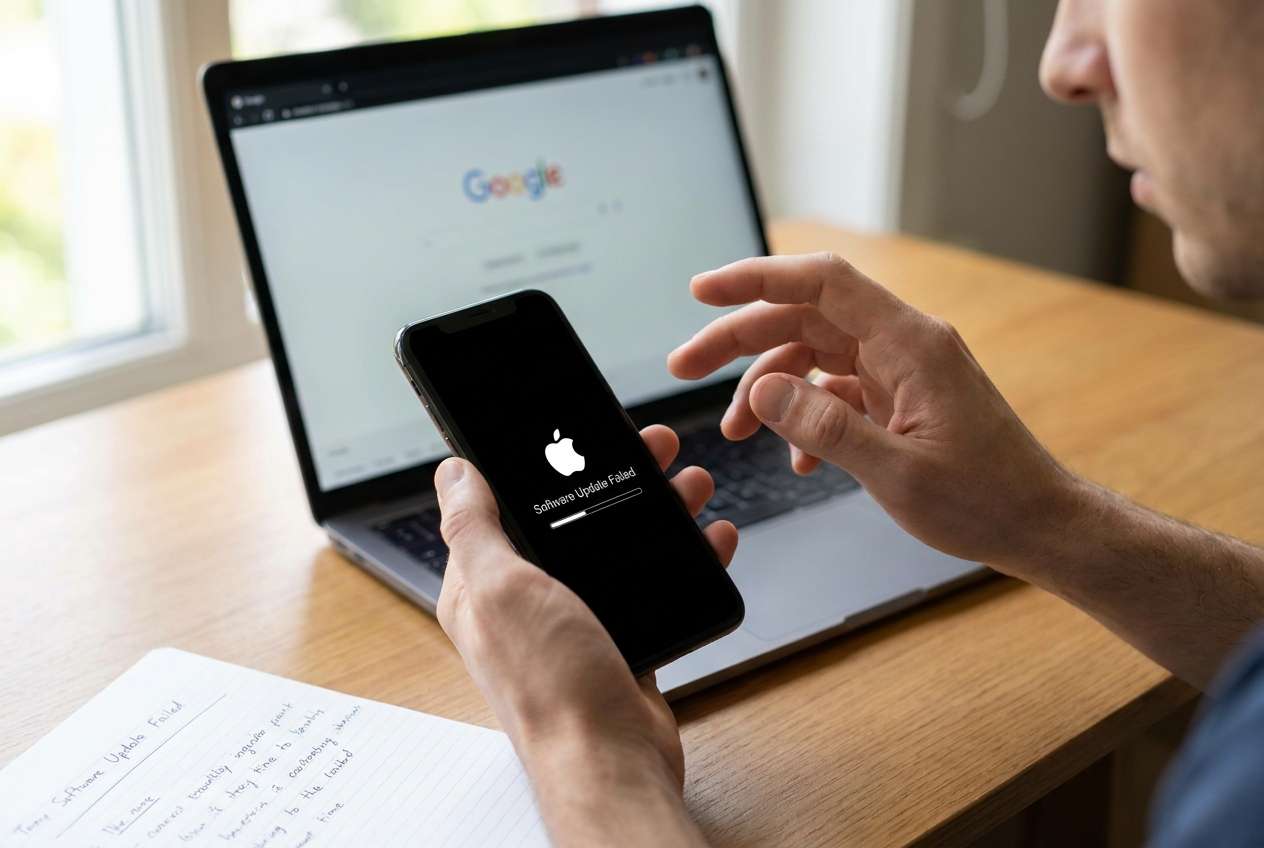
An iPhone software update can fail midway right after you tap Install Now or after a restart, leaving the device stuck on an Apple logo, a progress bar that doesn’t move, or a loop back to the update screen (common on models like iPhone 13 or iPhone 14). It can feel like nothing changes even after several minutes, so it’s unclear whether it’s still updating or already stuck.
AI (like ChatGPT or Gemini) can help you describe the symptoms clearly, narrow likely causes (storage, network, update package, connection drops, partial install), and compare low-risk next steps before you try anything more disruptive.
AI can’t see your device state or guarantee outcomes, and repeated trial-and-error (forced restarts, repeated update attempts, random tools) can increase the risk of longer boot loops or data loss. Use AI for decision support, then use a dedicated tool for execution.
In this article
- Part 1. Why iPhone software update failed midway happens and what it means
- What “failed midway” usually indicates
- Common triggers
- What it means for the safest next step
- Before you prompt the AI: what to gather
- Part 2. Using AI prompts to diagnose iPhone software update failed midway safely
- Part 3. Prompt refinement and verifying AI advice against reality
- Part 4. When to stop troubleshooting iPhone software update failed midway and avoid risks
- Part 5. iPhone software update failed midway: fix or resolve it safely with Dr.Fone
Part 1. Why iPhone software update failed midway happens and what it means
1-1. What “failed midway” usually indicates
When an iPhone software update failed midway, it often means iOS began installing but couldn’t complete a step—download verification, preparing update, installing, or post-install boot. The visible symptom (frozen progress bar, Apple logo loop, “Unable to Verify Update,” or repeated prompts to update) helps narrow which stage broke.
1-2. Common triggers
Common triggers include low free storage, unstable Wi‑Fi, an interrupted power/charging situation, a corrupt or incomplete update file, or a failed handoff during reboot. In some cases, the iPhone can appear “stuck” while it’s still working in the background, but if the screen or progress bar doesn’t change for a long time, it’s more likely stalled.
1-3. What it means for the safest next step
Practically, you should focus on identifying the update stage and choosing the lowest-risk path (confirm it’s truly stuck, avoid repeated retries, and prepare for a system-level fix if the OS can’t boot normally).
1-4. Before you prompt the AI
Gather a few facts first so the AI can classify the failure stage accurately:
- iPhone model and iOS version you were updating from/to (if known)
- What you saw last (Apple logo, progress bar %, “Preparing Update,” error message)
- Rough time stuck (e.g., 10 minutes vs 2 hours)
- Battery level / charging state during update
- Available storage before updating (if you remember)
- Whether Finder/iTunes or OTA (Settings) update was used
- Any recent drops, overheating, or low storage warnings
Part 2. Using AI prompts to diagnose iPhone software update failed midway safely
2-1. Level 1: Basic Prompt
My iPhone software update failed midway. I updated via [Settings OTA / Finder/iTunes] and now it shows [Apple logo / progress bar / loop / error message] for [time]. The phone is [charging / not charging]. Ask me the minimum questions needed, then give 3 low-risk next steps and what evidence would confirm each step helped.
2-2. Level 2: Advanced Prompt
Diagnose this iPhone software update failed midway case like a triage:
1) List the top 5 likely causes ranked by probability.
2) For each cause, label risk level (low/medium/high) for common actions (wait, force restart, retry update, use computer update, system repair tool).
3) Tell me which single observation would best confirm/deny each cause.
My details: iPhone [model], update method [OTA/Finder], symptom [exact screen], time stuck [time], storage [unknown/approx], network [Wi‑Fi type].
2-3. Level 3: Evidence Prompt
Help me analyze an iPhone software update failed midway with evidence-based steps and minimal risk.
Device info:
- iPhone model: (e.g., iPhone 13 Pro)
- Current iOS (if known): (e.g., iOS 16.x)
- Target iOS (if known): (e.g., iOS 17.x)
Trigger: I tapped (e.g., “Install Now”) at [time] and it rebooted to [screen].
Current symptoms: (e.g., Apple logo + progress bar stuck at ~30%, boot loop, “Unable to Verify Update”)
Duration: (e.g., stuck for 45 minutes)
Power/heat: (e.g., charging on 20W adapter, warm to touch)
Storage before update: (e.g., ~3–5 GB free / unknown)
Network: (e.g., home Wi‑Fi, captive portal, VPN on/off)
Computer access: (Mac/Windows, Finder/iTunes available yes/no)
Goal: prioritize keeping data if possible.
Output:
A) Identify the most likely update stage that failed.
B) Give a step order from lowest to higher risk, with a stop condition after each step.
C) List what info is missing and the exact questions to ask me.
Part 3. Prompt refinement and verifying AI advice against reality
3-1. Prompt Refinement (follow-ups)
Use these follow-ups to tighten the diagnosis and avoid guesswork:
What 3 questions would change your recommendation the most in this case?
Separate possibilities into network/download, storage, install/verification, and post-reboot boot failure—then map my symptoms to one bucket.
Rank the causes again, but exclude any step that increases data-loss risk, and explain what you removed.
What single piece of evidence should I check next: error code, time stuck, heat, storage, or computer detection?
If the iPhone is detected by Finder/iTunes, how does that change the most likely cause and next step order?
3-2. AI Output vs Reality
AI can help you choose safer decisions, but it can’t act on the device or validate hidden system state.
| What AI can tell you | What you still must verify on the device |
|---|---|
| Likely failure stage based on symptoms | Whether the progress bar is truly frozen over time |
| Risk ranking of next steps | Whether the phone is overheating, charging reliably, and stable |
| Which evidence matters most (error codes, detection in Finder) | Whether Finder/iTunes actually detects the device consistently |
| A conservative step order to reduce trial-and-error | Whether an execution tool completes the OS reinstall/upgrade process |
AI narrows options and helps you avoid random retries; execution still depends on what the iPhone and your computer can do in recovery/normal modes.
Part 4. When to stop troubleshooting iPhone software update failed midway and avoid risks
Use stop signals to avoid turning a recoverable update failure into a longer boot issue.
- The Apple logo/progress bar hasn’t changed after a long, consistent wait window and repeats after restarts.
- The iPhone becomes unusually hot, drains battery fast, or won’t charge normally during repeated attempts.
- Finder/iTunes shows repeated disconnects or the device won’t stay detected long enough to complete an update.
- You see repeated verification/installation errors after multiple clean retries (not just one transient failure).
Once you’ve used AI to classify the likely stage and choose the least risky path, the next step is using a purpose-built execution method to complete the upgrade/downgrade or restore system stability without improvising.
Part 5. iPhone software update failed midway: fix or resolve it safely with Dr.Fone
If your iPhone software update failed midway and the device can’t finish booting or keeps looping back into the update, this is the point where diagnosis should hand off to execution. Dr.Fone - System Repair (iOS) is relevant here because it’s designed to run a structured iOS Upgrade/Downgrade workflow and system repair process when normal updating gets stuck, helping you complete the OS change in a controlled sequence rather than repeating uncertain retries.
 Fix iOS issues, no data loss.
- One-click repair for all iOS problems.
- Solve recovery mode, Apple logo, black screen, etc.
- Upgrade or downgrade iOS without iTunes

-
Step 1 Confirm your goal (upgrade, downgrade, or stabilize boot)
Decide whether you need to finish the update, roll back, or simply get the phone booting, because choosing the wrong direction can add time and risk.

-
Step 2 Connect iPhone to a reliable computer setup
Use a stable USB cable/port and keep the iPhone charging if possible, since connection drops during system operations can interrupt progress.

-
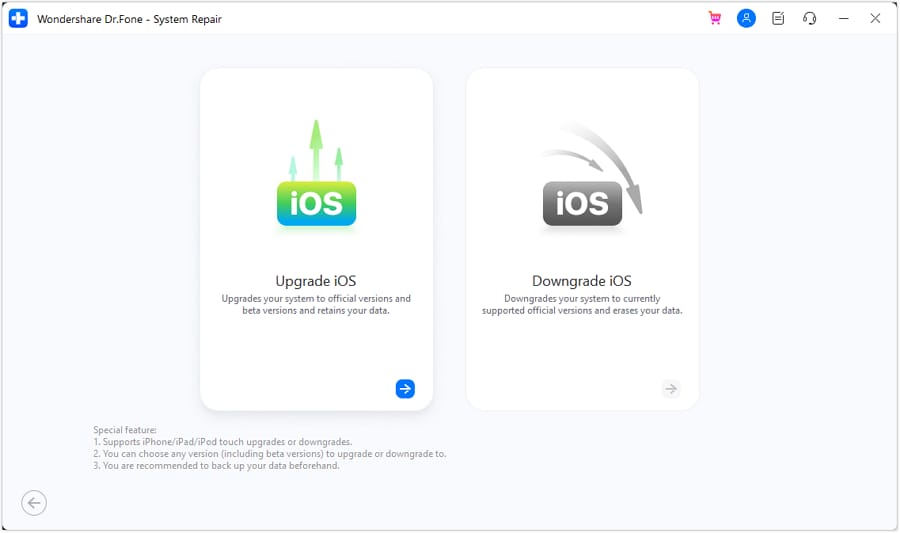
Step 3 Open Dr.Fone – System Repair (iOS) and select iOS Upgrade/Downgrade
Choose the upgrade/downgrade path that matches your goal, and avoid switching modes mid-process unless the tool indicates it’s necessary.

-
Step 4 Download and verify the firmware package inside the workflow
Let the process complete without pausing the computer or changing networks, because partial downloads are a common reason updates fail midway.
-
Step 5 Run the guided repair/upgrade step and wait for completion
Keep the device connected until the tool confirms the operation is finished, then re-check boot behavior and update status before attempting any additional updates.




Conclusion
Use AI prompts to classify the failure stage, rank likely causes, and choose the lowest-risk next step based on evidence; once the pattern is clear and basic checks aren’t changing anything, hand off execution to a structured tool like Dr.Fone – System Repair (iOS) with iOS Upgrade/Downgrade to complete the process reliably.
FAQ
-
What causes an iPhone software update to fail midway?
Most cases trace back to low storage, unstable network/download corruption, interrupted power, or an install-stage failure during reboot. -
How long should I wait if the iPhone progress bar is stuck during update?
If there’s no visible movement for an extended period and the phone repeats the same screen after restarts, treat it as stalled rather than “still updating.” -
Is it safer to retry the update from Settings or use a computer?
A computer-based update can be more stable when OTA is failing, but the safer choice depends on whether the device stays detected consistently and what stage failed. -
What information should I give AI to diagnose the update failure stage?
Provide model, update method (OTA vs Finder/iTunes), exact screen/error text, how long it’s stuck, charging/heat status, and whether a computer detects the device. -
When should I use iOS Upgrade/Downgrade instead of repeated retries?
When symptoms repeat across attempts (boot loop, verification errors, stuck progress), a structured upgrade/downgrade workflow is often more controlled than trial-and-error.
 Add Wondershare Dr.Fone as a preferred source on Google





