 Effortlessly manage data through preview, delete, export, etc.

 100% Security Verified | No Subscription Required | No Malware

 :
: 
 ChatGPT
 Perplexity
 Gemini
 Claude
 Grok
Grok

I tried to free up space and accidentally wiped the only copy of a draft clip—now I’m scared to touch anything in TikTok/Instagram until I know what’s safe to move.
Forum user
Organizing TikTok and Reels draft media on your phone can go wrong fast if you miss one step—especially when storage cleanup accidentally deletes the only copy of a clip.
AI helps by turning your situation into a clear sequence: what to check first, what to export (and from where), what to back up, and what not to touch until verification is complete.
AI can’t access your phone storage, your app draft containers, or confirm what actually transferred, so execution and verification still require real device tools and manual checks.
In this article
- How to plan the workflow without missing critical steps
- Why order matters
- The point-of-no-return actions
- What “good enough planning” looks like
- Where the workflow usually fails
- What the AI needs to know
- Using AI prompts to build a safer workflow
- When to stop planning and start execution
- Execute the workflow safely with Dr.Fone
Part 1. How to Plan Organize TikTok and Reels Draft Media on Phone Without Missing Critical Steps
You’ve got dozens (or hundreds) of draft clips scattered across Camera Roll, Downloads, and editing apps, plus TikTok/Instagram drafts you’re afraid to lose. Storage is low, performance is lagging, and you want a clean system before posting more content.
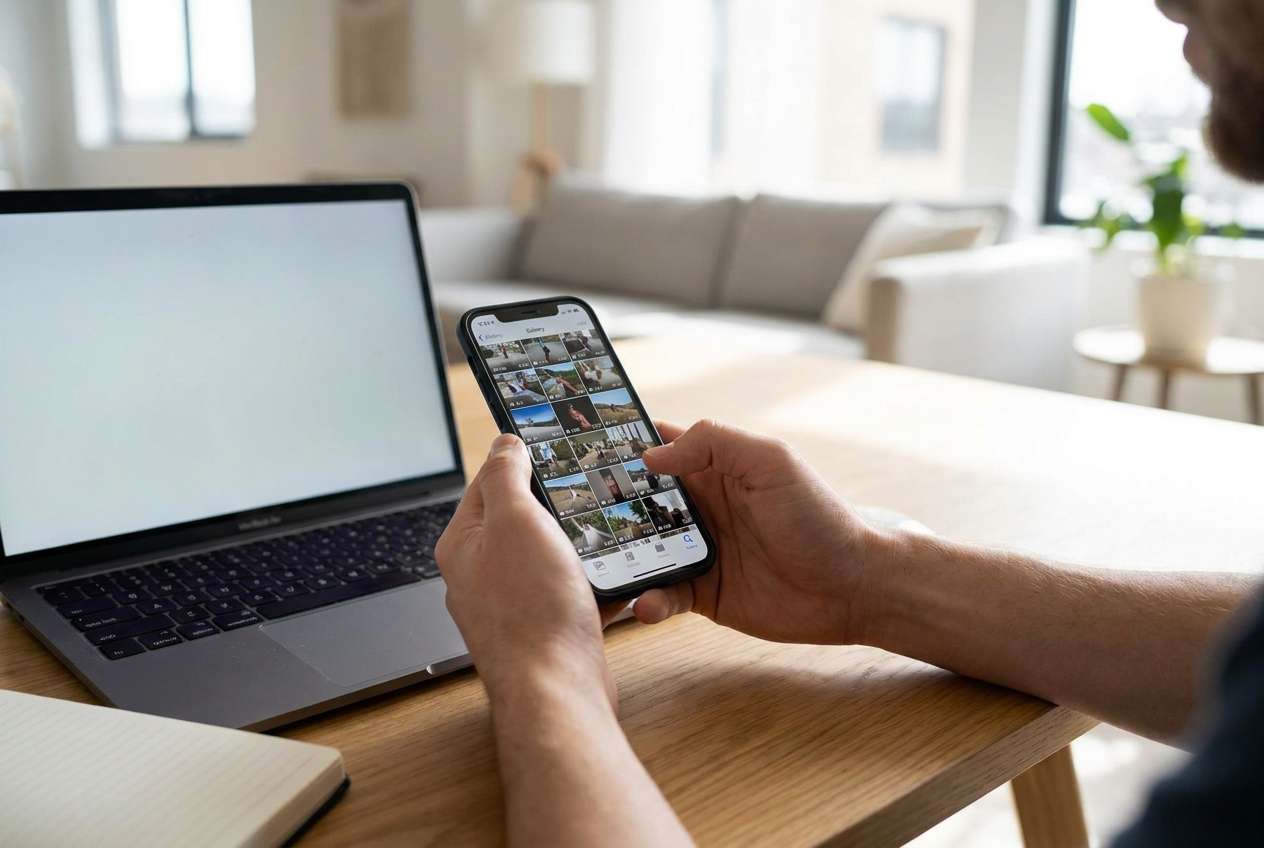
The uncertainty usually isn’t what to do (“organize and back up”), but what order to do it in. People often delete duplicates, clear cache, or uninstall/reinstall apps before confirming what’s safely stored elsewhere.
The point-of-no-return moment is clearing app data/uninstalling TikTok or Instagram (or deleting “junk” media) before confirming exports and backups. If a draft only exists inside the app, it may be unrecoverable after that.
Part 2. What the AI Needs to Know
Answer these so the plan matches your phone, apps, and risk level.
- Phone type and OS version (iPhone iOS 17 / Android 14)
- Where your media currently lives (Camera Roll, Downloads, Files app, SD card, Google Photos/iCloud, CapCut, etc.)
- Approximate volume (e.g., “450 videos, 60GB used, 8GB free”)
- What “drafts” you mean (in-app TikTok drafts, Instagram Reels drafts, exported draft videos, project files)
- Whether you can export drafts from each app (yes/no/unsure)
- Your target organization outcome (folders by date, brand, client, platform, status)
- Your backup destination (PC/Mac, external drive, cloud) and connection method (USB/Wi‑Fi)
- Your deadline and tolerance for disruption (can’t risk losing anything vs. okay to prune aggressively)
Part 3. Using AI Prompts to Build a Safer Organize TikTok and Reels Draft Media on Phone Workflow
Use the prompts below to force a safe order: inventory → export → backup → verify → only then clean up.
3-1. Level 1: Basic Prompt
Help me plan a safe workflow to organize TikTok and Instagram Reels draft media on my phone without losing anything.
I want the steps in the correct order, including what I must verify before I delete or move files.
Assume I have both in-app drafts and exported videos in my camera roll.
3-2. Level 2: Advanced Prompt
Create a structured workflow to organize my TikTok/Reels draft media on my phone.
Split it into: Preparation / Execution / Verification.
Mark steps as Critical vs Optional.
Include: (1) an inventory checklist of where media can be stored, (2) an export plan for in-app drafts, (3) a backup plan, and (4) a cleanup plan that I must NOT start until verification passes.
Also list the top 5 failure modes (e.g., clearing app data, “optimize storage”, deleting originals) and how to avoid each.
3-3. Level 3: Evidence Prompt
Design a safer, evidence-based workflow for organizing TikTok + Instagram Reels draft media on my phone, with checks before/during/after each stage.
Context:
- Device: (iPhone 15, iOS 17.4) or (Samsung S23, Android 14)
- Storage: (6GB free of 128GB)
- Media locations: (Photos/Camera Roll, Downloads, Files app, CapCut, TikTok drafts, Instagram drafts)
- Goal structure: (Folders: Client/Project/Date + Status: To-edit, To-post, Posted)
- Backup target: (Windows PC via USB + external drive)
Requirements:
- Give a “do not cross” point-of-no-return list (e.g., uninstalling apps, clearing data, deleting originals).
- Provide a verification checklist with pass/fail criteria (e.g., “spot-check 20 random videos open and play fully on the destination”).
- Include a minimal viable plan (fast + safe) and a full plan (slow + thorough).
3-4. Prompt Refinement
Ask me only the questions that change the order of operations, then output a single final step sequence.
Create a table: “Asset type” (in-app drafts, exported videos, project files, audio, captions) × “Where it lives” × “How to preserve” × “How to verify”.
Define my verification gates. I want a hard STOP after each gate unless the pass criteria is met.
Assume I’m tempted to free space quickly. Add guardrails that prevent irreversible cleanup until backups and spot-checks are complete.
Give me a naming convention and folder taxonomy that avoids duplicates across TikTok/Reels (include examples like YYYY-MM-DD_Client_Platform_Status_v01).
3-5. AI Plan vs. Real Device Constraints
| AI planning output | Real device constraint |
|---|---|
| A complete list of where your draft media “should” be | AI can’t see your phone; you must confirm actual locations and counts |
| A safe “export then backup” sequence | In-app drafts may not be accessible outside the app; export options vary by app/version |
| A verification checklist with pass/fail gates | Only real playback checks on the destination prove files copied correctly |
AI improves planning, but cannot execute transfers, confirm what copied, or prevent an accidental delete on your device.
Part 4. When to Stop Planning Organize TikTok and Reels Draft Media on Phone and Start Execution
- You can name the exact categories you’re protecting (in-app drafts vs exported videos vs project files)
- You have a written “do not cross” list (e.g., don’t uninstall/clear app data, don’t delete originals)
- You have a destination for backups and enough space there (PC/external/cloud)
- Your verification gates are defined (what you will check, how many samples, what counts as “pass”)
If those are true, planning is now “good enough,” and the next risk is delaying while storage pressure pushes you into rushed cleanup.
Part 5. Organize TikTok and Reels Draft Media on Phone: Execute the Workflow Safely with Dr.Fone
Execution matters because the safest plan still fails if you don’t create a verified copy of your media before you reorganize or delete anything.
Limitation: If a draft exists only inside TikTok/Instagram as an in-app draft, it may not be included unless you export/save it from within the app first.
-
Step 1 Capture a protected copy first
Use Dr.Fone Basic - Data Manager to back up or transfer your phone’s videos/photos (camera roll, downloads, exported clips) to your computer or chosen destination before making changes.

-
Step 2 Choose what to transfer (focus on exported clips and camera roll media)
Select the media categories and locations you intend to preserve first (for example: exported draft videos in Photos/Camera Roll, plus any files in common folders like Downloads/Files), then start the transfer/backup.

-
Step 3 Verify the backup with spot-check rules
Open and play a meaningful sample of transferred videos on the destination (include long clips and recent files) and confirm folder totals match what you intended to preserve. A “completed transfer” is not proof of integrity—preview/playback is.

-
Step 4 Perform cleanup only after verification passes
After verification, use your plan to reorganize folders and remove confirmed duplicates/unneeded copies on the phone to reclaim space. Avoid irreversible actions (deleting originals, clearing app data, uninstalling apps) unless you’ve proven drafts and originals are safely preserved.

Try Dr.Fone Basic to Back Up and Organize Phone Media Before Cleanup
If your storage is tight and you’re worried about deleting the only copy of a clip, the safest approach is to first create a verified copy of your exported videos/photos on a computer (or other destination), then reorganize and clean up only after your checks pass.
 Easily manage data through preview, delete, export, etc.
- Transfer all data between devices.
- Robust backup solutions for reliable data protection.
- Mirror screens to PC for meetings, teaching, and control.

Remember the key constraint: in-app drafts are higher-risk because they may not exist as normal video files you can browse in Photos/Files. Treat exporting/saving those drafts from inside TikTok/Instagram as a separate, critical step before you rely on any device-level transfer or backup.
Once your backup destination can play/preview representative samples (and totals look right), you can proceed with folder organization and space reclamation with much lower risk.




Conclusion
Use AI to design the safest sequence and verification gates, then use real tools to execute the transfer/backup and confirm integrity—because planning prevents avoidable mistakes, but execution is where data is either preserved or lost.
FAQ
-
Can AI tell me where TikTok/Instagram drafts are stored on my phone?
AI can explain common possibilities, but it can’t see your device or confirm where your drafts live; you must verify inside the apps and your phone’s storage.
-
What’s the biggest irreversible mistake when organizing drafts?
Uninstalling TikTok/Instagram or clearing app data (or deleting “junk” videos) before exporting/backup verification—some drafts may vanish permanently.
-
How do I verify a backup without checking every single file?
Use a spot-check gate: sample across dates, file sizes, and lengths (e.g., 20–50 videos), and ensure they open/play fully on the destination.
-
Should I organize first or back up first?
Back up first. Organization can be done after you have a verified copy, because organization often involves moves/deletes that are hard to undo.
-
Can Dr.Fone guarantee preservation of in-app drafts?
No tool can guarantee in-app drafts are preserved if the app doesn’t expose them; treat in-app drafts as high-risk and export/save them before relying on any backup.
 Add Wondershare Dr.Fone as a preferred source on Google





