 Effortlessly manage data through preview, delete, export, etc.

 100% Security Verified | No Subscription Required | No Malware

 :
: 
 ChatGPT
 Perplexity
 Gemini
 Claude
 Grok
Grok

I’m switching work phones and I’m worried I’ll miss one audit-backup step—then lose evidence or violate policy after the device gets wiped.
Forum user
Missing one step in an audit backup on a work phone can mean lost evidence, broken chain-of-custody, or a policy violation you can’t undo.
AI helps by turning a messy situation (multiple apps, accounts, MDM rules, and deadlines) into a clear sequence with checkpoints, dependencies, and “stop” moments.


1. Plan the sequence before touching the device.
Define scope, owners (you vs IT), and “STOP” gates before any irreversible actions like factory reset, MDM unenroll, or device return for wiping.
2. Give AI the minimum context needed to build a safe workflow.
Provide OS/model, MDM/BYOD status, deadline, data scope, accounts/storage, policy constraints, and what verification proof your org requires.
3. Verify on-device and on the new phone before wipe/return.
Use counts, spot checks, timestamps, and audit artifacts (screenshots/exports/logs) to confirm completeness—“transfer complete” is not “audit complete.”
In this article
- How to plan an audit backup on a work phone before switching
- Define what “audit backup” must prove
- Collect device, MDM, and deadline constraints
- Identify the point of no return
- Decide verification proof before execution
- AI prompts to build a safer workflow
- AI plan vs. real device constraints
- When to stop planning and start execution
- Execute the workflow safely with Dr.Fone
Part 1. How to plan an audit backup on a work phone before switching without missing critical steps
You’re switching work phones (upgrade, replacement, offboarding, or device failure risk) and you need an “audit backup” that proves what data was preserved, when, and how—without violating company policy.
The uncertainty is rarely about what to back up; it’s about what order, what counts as evidence, and how to verify across email, chat apps, files, photos, call logs, and managed apps under MDM.
There’s also a point of no return: once you factory reset, unenroll from MDM, or hand the phone back for wipe/recycling, you may permanently lose access to locally stored items and metadata needed for audit defensibility.
1-1. What the AI needs to know
Share enough context so the workflow can be sequenced safely and verified before any irreversible action.
- Phone OS + model (e.g., iPhone 13 iOS 17 / Samsung S22 Android 14)
- “Work phone” type: corporate-owned vs BYOD, and whether it’s MDM-managed (Intune, Workspace ONE, etc.)
- Target device and deadline (same OS? moving iOS→Android? due date/time zone)
- What “audit backup” means in your org (legal hold, eDiscovery, internal audit, simple migration)
- Data scope: email, calendar, contacts, SMS/iMessage, WhatsApp/Teams/Slack, photos, files, call logs, notes, voice memos, authenticator apps, VPN profiles
- Accounts and storage used (Exchange/M365, Google Workspace, iCloud/Google, OneDrive/Drive, local-only apps)
- Any policy constraints (禁止 personal cloud, encryption requirements, approvals needed)
- Whether you still have passcode/biometrics and access to key accounts
- Whether the old phone must be returned and wiped, and who performs the wipe
- What verification proof is required (screenshots, export logs, timestamps, hashes, sign-off)
Part 2. Using AI prompts to build a safer audit-backup workflow
Use the prompts below to force a clear sequence, define verification, and surface “don’t proceed” conditions before you touch the device.
2-1. Level 1: Basic prompt
I need a step-by-step plan to perform an audit backup of a managed work phone before switching to a new device. Build a checklist with verification points so I don’t miss anything important. Do not tell me to wipe/reset until verification is complete.
2-2. Level 2: Advanced prompt
Design a structured workflow for an audit backup on a work phone before switching devices.
Separate it into Preparation, Execution, and Verification, and label each item as Critical or Optional. Include explicit “STOP” gates before any irreversible actions (factory reset, MDM unenroll, device return).
2-3. Level 3: Evidence prompt
Create an audit-ready workflow for my situation: (Android 14, Samsung S22, corporate-owned, MDM-managed, switching to new Android, deadline: Friday 5pm).
Data scope: (M365 email/calendar/contacts, Teams chats, SMS, call logs, Photos, Files in OneDrive, WhatsApp work group, Notes app, Authenticator). Constraints: (no personal Google Drive; device must be returned and wiped by IT).
I need:
- Checks before starting (access, approvals, storage, encryption, legal hold)
- Checks during execution (what to capture/export, where it lands, how to label)
- Checks after (how to verify completeness, sample spot-checks, evidence log fields, failure handling)
Also list common failure modes (MDM blocks, incomplete sync, missing WhatsApp media, 2FA lockout) and how to prevent them.
2-4. Prompt refinement (follow-ups)
Convert the workflow into a table with columns: Step, Owner (me/IT), Inputs, Output artifact, Verification, Stop condition.
Identify the top 10 “quiet loss” risks (items that disappear without obvious errors) and add a specific verification check for each.
Ask me only the minimum questions needed to decide whether data is server-synced vs device-local, and then regenerate the plan.
Add an evidence log template (fields for time, device ID, account, action, result, screenshot reference) and specify where each field is obtained.
Create a rollback/contingency branch for: “new phone setup fails” and “old phone must be returned sooner than expected.”
Part 3. AI plan vs. real device constraints
| Planning element | AI can do | Real constraint | What to verify on-device |
|---|---|---|---|
| Scope + sequence | Build an ordered checklist and dependencies | Apps differ by org policy/MDM | Which apps/accounts are actually present and signed in |
| Risk gates | Flag irreversible moments and define STOP conditions | Deadlines and IT wipe policies override preferences | Who controls wipe timing and whether you can delay return |
| Evidence design | Propose logs, screenshots list, naming conventions | Some apps block export/screenshot under MDM | Whether exports/screenshot capture are permitted and stored properly |
| Completeness checks | Provide spot-check methods and sampling strategy | Sync status isn’t reliably visible via one screen | Actual sync state, last backup time, and accessible restored items |
AI improves planning, but cannot execute backups, access your device state, or confirm what truly transferred—those must be validated with real tools and your organization’s approved process.
Part 4. When to stop planning and start execution
- You have a written scope: what data is included/excluded, and who owns each action (you vs IT).
- You have defined verification proofs (what screenshots/exports/logs you will retain) and where they will be stored.
- You have confirmed the point-of-no-return conditions (factory reset/MDM unenroll/return-for-wipe) and scheduled them after verification.
- You have contingency steps for lockouts (2FA), missing sync, or export restrictions under MDM.
At this point, further planning adds diminishing returns and the risk shifts to execution errors and missed verification.
Part 5. Audit backup on a work phone before switching: execute the workflow safely with Dr.Fone
Execution now matters because timing, sync completion, and evidence capture are easiest to validate while the old phone is still accessible and not yet wiped. For hands-on backup/transfer workflows, Dr.Fone Basic - Data Manager can help you carry out the plan you designed.
 Easily manage data through preview, delete, export, etc.
- Transfer all data between devices.
- Robust backup solutions for reliable data protection.
- Mirror screens to PC for meetings, teaching, and control.

-
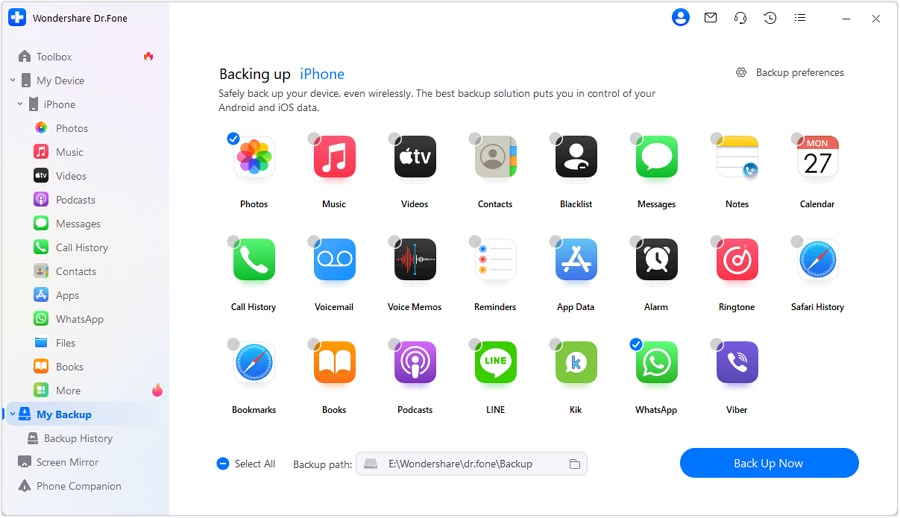
Step 1 Prepare the device and target storage
Start the backup workflow from a stable computer session, confirm you have adequate storage, and decide a clear destination for backup artifacts (aligned with policy).
Limitation: AI cannot confirm your storage, permissions, or whether your organization allows certain backup locations.
-
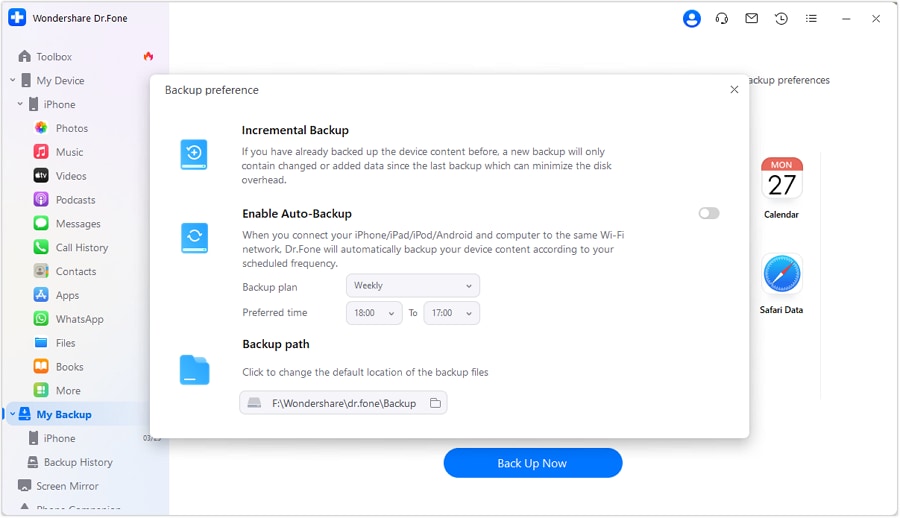
Step 2 Set backup preferences before the run
Confirm what categories are in-scope and how outputs will be named/stored so the artifacts can be matched to your audit evidence log.
-
Step 3 Run the backup/transfer
Perform the planned backup/transfer for the in-scope data categories.
Limitation: AI cannot see what the tool detected, cannot validate what each app permits under MDM, and cannot guarantee every app’s content is exportable.

-
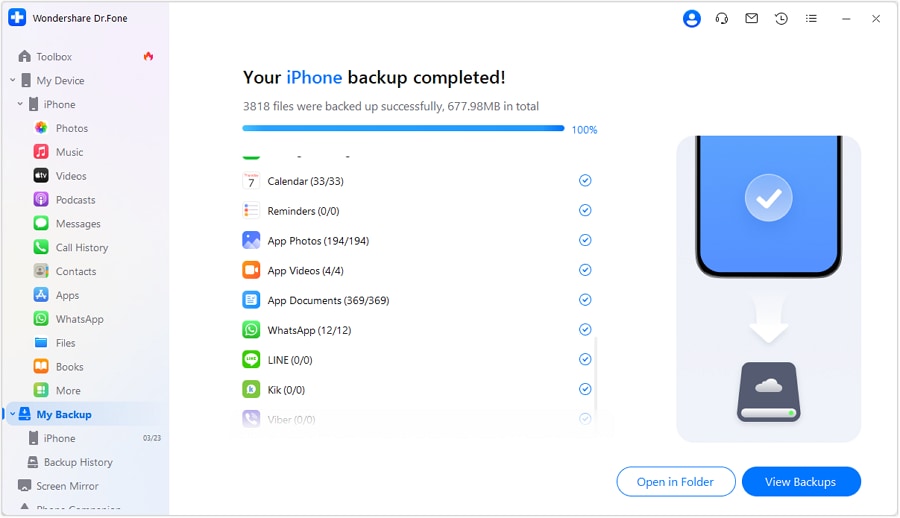
Step 4 Capture proof of completion
Record the completion status/screens that your audit log requires, and keep them with timestamps and identifiers that match your evidence process.
-
Step 5 Verify on the new device before any wipe/return
Use restore/transfer verification plus manual spot-checks (open items, confirm counts, confirm last-updated times) before you allow any factory reset, MDM unenroll, or device return for wiping.
Limitation: AI can suggest what to check, but you must confirm the data actually opens correctly and matches your audit criteria.




Conclusion
AI is best used to plan the audit backup workflow, define verification, and prevent irreversible missteps; once the sequence and checkpoints are clear, you need real execution tools like Dr.Fone (plus your org’s policies) to perform the backup/transfer and confirm results before any wipe or return.
FAQ
-
What’s the biggest “silent failure” in work-phone audit backups?
Assuming “it’s in the cloud” when some items are device-local (chat media, downloads, notes, drafts, offline files) or blocked by MDM from syncing/export. -
When is the true point of no return?
Factory reset, MDM unenroll, or handing the device to IT for wipe/recycling—after that, you may lose access to locally stored data and metadata needed for audit proof. -
How do I verify completeness without checking every item?
Use a sampling plan: counts (photos/files), date-range spot checks, “last updated” timestamps, and opening a few representative threads/files to confirm content renders on the new device. -
What if policy forbids personal cloud backups?
Design the workflow around approved corporate storage (e.g., OneDrive/SharePoint) and IT-managed retention; ask AI to build a plan that explicitly excludes disallowed destinations. -
Can AI tell me whether my Teams/WhatsApp data will be included?
AI can explain typical behaviors and risks, but only on-device checks (and your org’s app policies) can confirm what’s actually available to export/transfer. -
Should I wipe the old phone right after the transfer finishes?
No—treat wipe/return as a separate, gated event after verification and sign-off, because “transfer complete” doesn’t equal “audit complete.”
 Add Wondershare Dr.Fone as a preferred source on Google





