 Effortlessly manage data through preview, delete, export, etc.

 100% Security Verified | No Subscription Required | No Malware

 :
: 
 ChatGPT
 Perplexity
 Gemini
 Claude
 Grok
Grok

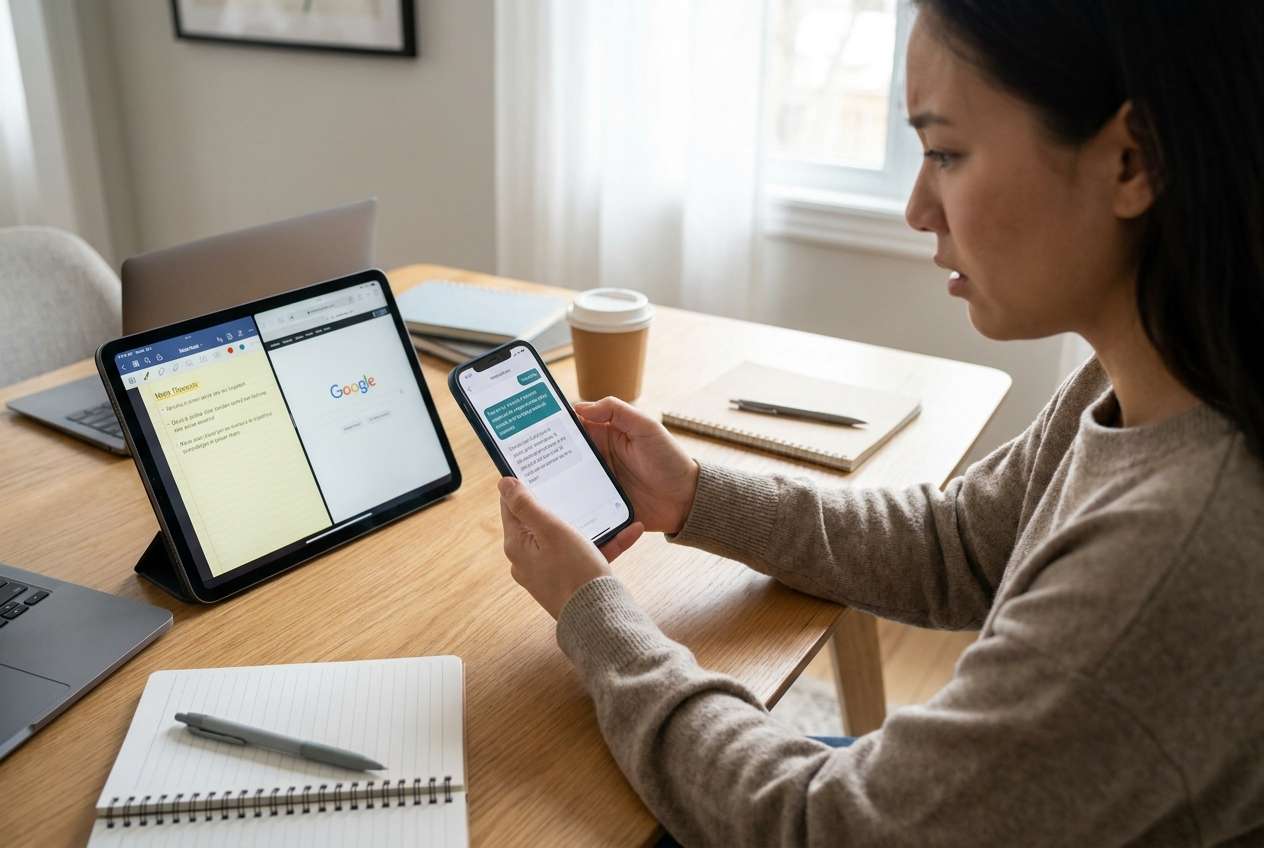
I thought setting up my phone + tablet for studying would be easy—then I “cleaned up duplicates” and realized some notes and PDFs were missing. Now I’m not even sure what’s synced and what isn’t.
Reddit user, r/college
Setting up a study workflow across a phone and tablet seems simple—until one missed step leads to duplicated files, missing notes, broken logins, or lost data after a cleanup.
AI is useful for turning a vague goal (“keep everything synced and distraction-free”) into a sequenced workflow with prerequisites, checkpoints, and a clear “do not proceed” list.
AI still can’t see your devices, confirm what actually synced, or prevent accidental deletions—so once the plan is verified, execution needs real device tools and real confirmations.
In this article
- Part 1. How to plan a phone and tablet study workflow without missing critical steps
- Why “good ideas” fail without a sequence
- Backups and the point of no return
- Verification evidence vs. “seems fine”
- Scope control to prevent overwrites
- Part 2. What the AI needs to know
- Part 3. Using AI prompts to build a safer workflow
- Part 4. When to stop planning and start execution
- Part 5. Execute the workflow safely with Dr.Fone
Part 1. How to plan a phone and tablet study workflow without missing critical steps
You’re trying to study across two devices: a phone for quick capture (tasks, reminders, photos of slides) and a tablet for deep work (reading, note-taking, longer writing). You want consistent folders, consistent apps, and fewer distractions.
The uncertainty usually starts after the first AI answer: you get a list of suggestions, but not the correct order, not the “must-do first” protections (like backups), and not a verification method for each stage.
There’s also a point of no return: once you start “cleaning up duplicates,” deleting old notes, or factory-resetting a device to “start fresh,” you can permanently lose study materials unless you’ve verified backups and transfers end-to-end.
Part 2. What the AI needs to know
Share your current setup so the AI can build a step-by-step workflow with checks before any risky move.
- Devices and OS (e.g., iPhone iOS 17 + Android tablet; or Android phone + iPad)
- Your study content types (PDFs, lecture recordings, photos, handwritten notes, flashcards)
- Core apps you rely on (notes, calendar, tasks, cloud drive, LMS apps)
- What must be available offline vs. online-only
- Storage constraints (low space? large video files?)
- Your “single source of truth” preference (phone-first, tablet-first, or cloud-first)
- Current problems (duplicates, missing files, inconsistent folders, sync delays)
- Security needs (school policy, passcodes, encryption, shared devices)
- Deadline and tolerance for downtime (e.g., “needs to work by tonight”)
- Your risk tolerance (do you want a reversible plan only until final verification?)
Part 3. Using AI prompts to build a safer workflow
Use the prompts below to force sequence, reduce guesswork, and make verification explicit.
3-1. Level 1: Basic prompt
Create a step-by-step plan to set up a study workflow across my phone and tablet. Include the correct order, what to verify after each step, and what not to do until I’m sure nothing is missing. Keep it planning-only—no device actions.
3-2. Level 2: Advanced prompt
Build a structured workflow for setting up my phone + tablet for study with three phases: Preparation, Execution, Verification.
Mark steps as Critical vs Optional, and include “stop points” where I should confirm results before continuing (especially before any cleanup, deletions, or resets).
3-3. Level 3: Evidence prompt
I’m setting up a study workflow across two devices with these constraints:
- Devices/OS: (Android phone, Android 14) + (iPad, iPadOS 17)
- Content: (PDF textbooks ~8GB), (lecture videos ~20GB), (notes), (photos of whiteboard), (assignments)
- Must work offline for: (PDFs + notes)
- Current issue: (duplicates and missing PDFs on the tablet)
- Deadline: (48 hours)
Create a planning-only workflow with:
- Checks before starting (inventory, storage, backup readiness)
- Checks during transfer/sync (spot-check rules, sample file list, failure signals)
- Checks after completion (counts, timestamps, open-and-read tests, “can I find this fast?” tests)
Also list the high-risk actions (e.g., deletions, overwriting, factory reset) and the exact evidence required before each one.
3-4. Prompt refinement (follow-up prompts)
Return the plan as a table with columns: Step, Goal, Critical/Optional, Time estimate, Tools involved, Verification check, Rollback option.
Add a “minimum viable study setup” that I can finish in 30 minutes, plus the full setup I can do later—both with verification steps.
List the top 10 failure modes for this workflow (duplicates, missing offline files, wrong account, overwritten notes, etc.) and add a prevention check for each.
Define objective pass/fail criteria for verification (example: “10 sampled PDFs open offline on tablet,” “notes created on tablet appear on phone within X minutes,” “storage buffer of Y GB remains”).
Ask me only the questions you must have to finalize the plan, then restate the plan with those answers filled in.
3-5. AI plan vs. real device constraints
- AI can produce: A correct sequence and checklist. Reality constraint: Your devices can still fail mid-transfer (battery, cable, Wi‑Fi, storage).
- AI can propose: Verification rules (spot checks, file counts). Reality constraint: Only you can confirm files open correctly and are actually usable offline.
- AI can warn about: High-risk actions (deletions/resets). Reality constraint: A single misclick can be irreversible if you haven’t validated backups.
- AI can standardize: Folder naming and “single source of truth.” Reality constraint: Some apps sync differently across OSes and accounts.
AI improves planning and reduces avoidable mistakes, but it cannot perform device actions or confirm outcomes on your real hardware.
Part 4. When to stop planning and start execution
- You have a written order of operations (what happens first, second, third) with no gaps.
- You have defined verification evidence for each phase (not “seems fine,” but specific checks).
- You have identified point-of-no-return actions (delete/overwrite/reset) and set a rule: not allowed until verification passes.
- You know exactly what you’re moving (scope) and what stays put (to avoid accidental overwrites).
Once those are true, the next step is simply executing the plan carefully—without changing scope midstream.
Part 5. Execute the workflow safely with Dr.Fone
Execution is where mistakes become real outcomes, so this is the moment to follow the verified sequence and avoid improvising—especially before any cleanup or reset.
If you need a more controlled way to back up and transfer your defined study scope, you can use Dr.Fone - Phone Transfer as the execution tool while you keep verification in your own hands.
-
Step 1 Launch the transfer tool and commit to “backup first”
Create verified backups first (separately for phone and tablet) so you have a rollback point before any transfers, deletions, or cleanup. Even when a tool runs the backup, you still need to confirm it completed successfully and is stored somewhere you can access.

-
Step 2 Set the correct device-to-device path (source of truth matters)
Before moving anything, make sure you’ve matched the direction to your plan (phone-first, tablet-first, or cloud-first) so you don’t overwrite the “right version” with an older copy.

-
Step 3 Transfer only the defined study scope (keep scope tight)
Transfer only what your plan says to move (your defined folders/files/media). Keeping scope tight reduces accidental overwrites and makes verification faster.

-
Step 4 Verify results, then (only then) do cleanup
After spot-checking usability (open files, offline access, recent notes, correct counts), proceed with only the cleanup decisions you pre-approved. Deleting duplicates or factory-resetting a device can be irreversible if verification was incomplete.

Recommended tool for safer transfers and backups
If your AI plan is solid but you want the execution to be more controlled (especially before any cleanup), a dedicated transfer tool can help you move data between devices while you follow your verification checklist.
 Move data between iOS to Android and vice versa.
- Transfer contacts, SMS, photos, videos, music, and more types.
- Available with all phones with Android and iOS versions.
- Simple, click-through process.

Use it to execute what you already planned: back up first, transfer only the defined study scope, and then verify with objective pass/fail checks (sample files open offline, timestamps match, counts are consistent) before you delete anything.




Conclusion
AI is best used to design a sequenced workflow with clear verification and “do not proceed” guardrails, while real tools handle execution—so you don’t reach an irreversible moment before you’ve proven your study setup is safe and complete.
FAQ
-
What’s the biggest risk when setting up a phone + tablet study workflow?
Doing cleanup (deleting “duplicates,” overwriting notes, or resetting a device) before you’ve proven your backup and transfer are complete and usable. -
What should I verify before I delete anything?
That your backup completes, your key study files open correctly on the target device, offline requirements are met, and a spot-check sample matches what you expect (counts, dates, and content). -
How do I avoid syncing the “wrong account” across devices?
Add an explicit account-check step: list the exact accounts that must be signed in on each device and verify them before any transfer/sync step begins. -
When should I do the “distraction reduction” settings (focus modes, notifications)?
After your content is confirmed stable, so you don’t block authentication prompts, confirmations, or verification messages during setup. -
Can AI tell me if my transfer worked correctly?
No. AI can define what to check and what evidence to collect, but only real device checks (opening files, offline tests, timestamps) can confirm success.
 Add Wondershare Dr.Fone as a preferred source on Google





