 Effortlessly manage data through preview, delete, export, etc.

 100% Security Verified | No Subscription Required | No Malware

 :
: 
 ChatGPT
 Perplexity
 Gemini
 Claude
 Grok
Grok

My storage is almost full and my battery is draining faster, but I’m worried I’ll delete the wrong thing or uninstall an app and lose important data.
Reddit user, r/Android
When you’re trying to figure out which apps drain both battery and storage, the real risk isn’t only “finding the culprit”—it’s doing fixes in the wrong order and triggering data loss. This guide shows how to use AI to plan a safe, verification-first workflow, then execute it using your phone’s settings and real device tools.
In this article
- How to plan a safe workflow (without missing critical steps)
- Why the order matters
- What to verify before any irreversible cleanup
- What evidence to capture while you test
- How to define “success” before you start
- What the AI needs to know
- Using AI prompts to build a safer workflow
- AI plan vs. real device constraints
- When to stop planning and start execution
Part 1. How to plan which apps drain both battery and storage without missing critical steps
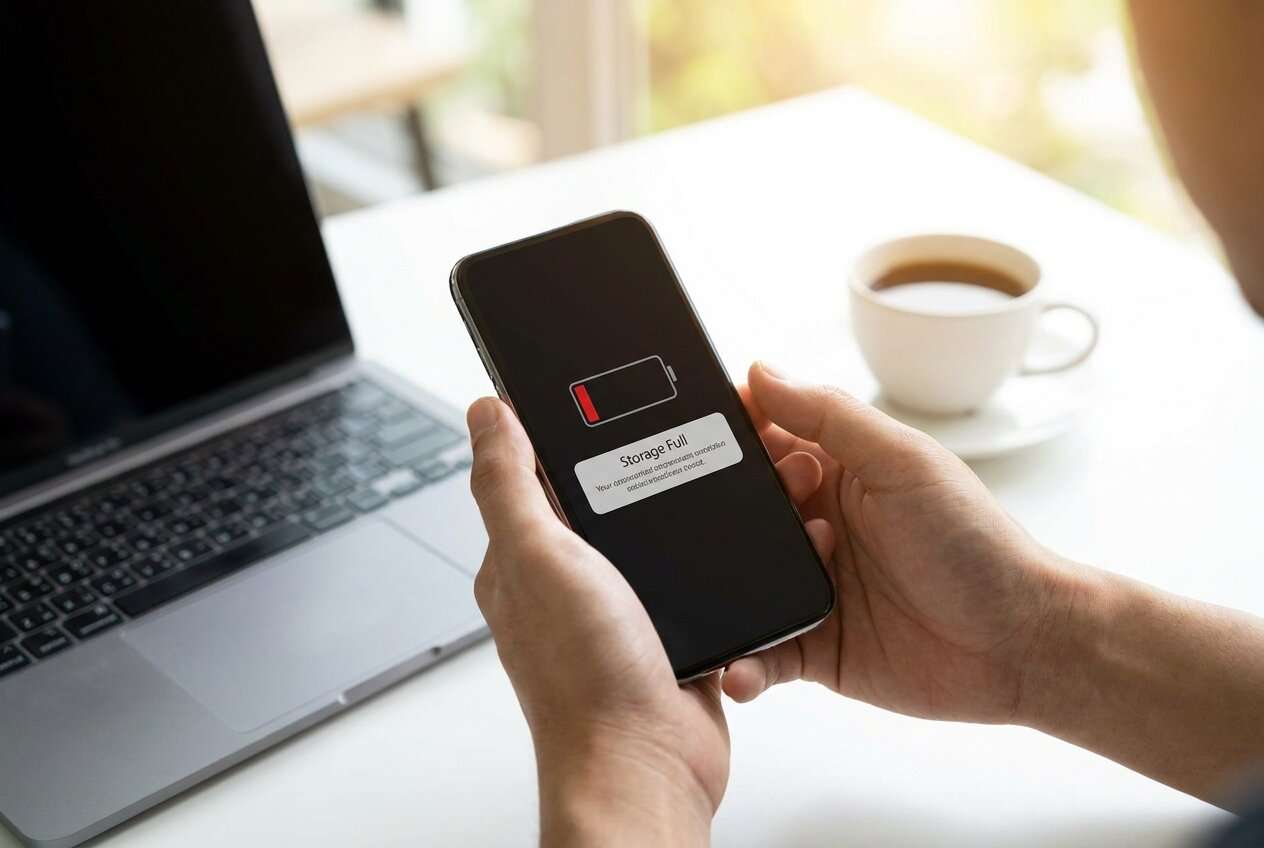
You’re seeing low storage warnings and faster battery drain, but the biggest offenders aren’t always obvious. Some apps drain battery in the background, while others quietly fill storage with downloads, caches, offline files, or repeated media backups.
The uncertainty usually isn’t “what should I do?”—it’s “in what order, with which checks, so I don’t create a bigger problem?” The sequence matters because one change (like disabling background activity) can change what you see in battery stats later.
There’s also a point of no return: deleting app data, removing offline downloads, or uninstalling an app can permanently erase files or local history if it wasn’t synced—so you shouldn’t take those actions until your verification checklist is complete.
Part 2. What the AI needs to know
Share enough device context so the plan matches your settings screens and your risk tolerance.
- Device type and OS (Android model + Android version, or iPhone + iOS version)
- Main symptom (battery drops fast, storage almost full, phone hot, lag, background data use)
- Your constraints (must keep certain apps, limited Wi‑Fi, traveling, low time)
- What “data loss” would mean for you (photos, chats, app drafts, downloads, game progress)
- Current storage status (e.g., “128GB total, 6GB free”) and what categories are biggest if known
- Battery pattern (e.g., “drains overnight,” “drops during screen-off,” “only when on cellular”)
- Suspected apps (social, video, navigation, cloud sync, messaging, games)
- Whether you can sign back into accounts / have 2FA available
- Any recent changes (OS update, new app, new account sync, new wearable, VPN)
Part 3. Using AI prompts to build a safer which apps drain both battery and storage workflow
Use the prompts below to make AI produce a step-by-step plan with verification gates before any irreversible cleanup.
3-1. Level 1: Basic Prompt
I need a workflow to identify which apps drain both my battery and storage on my phone. Give me the safest sequence of checks and changes so I don’t delete anything important. Keep it planning-only and include a “stop before deleting” checkpoint.
3-2. Level 2: Advanced Prompt
Build a structured workflow to find which apps drain both battery and storage, split into Preparation, Execution, and Verification.
Mark each step as critical or optional, and include a risk note for any step that could cause data loss (like clearing app data, removing downloads, or uninstalling).
End with a short checklist that confirms it’s safe to proceed to any irreversible action.
3-3. Level 3: Evidence Prompt
Create a plan to identify which apps drain both battery and storage for my situation:
- Device: (Android 14, Samsung Galaxy S23)
- Storage: (128GB total, 8GB free; “Other” is high)
- Battery issue: (drops ~25% overnight with screen off)
- Constraints: (I can’t lose WhatsApp media or Notes drafts; limited Wi‑Fi)
I want a workflow with checks before, during, and after each action. Include:
- what evidence to capture (screenshots of battery usage, storage breakdown, per-app storage)
- how to confirm whether an app is truly responsible vs. a one-time spike
- what to try first that’s reversible, and what not to do until backup is verified (examples: “clear cache vs clear data,” “remove downloads,” “uninstall”)
3-4. Prompt Refinement
Put the workflow into a table with columns: Step, Where to check, What to record, Decision rule, Risk level, Reversible?
Separate “battery drain suspects” into screen-on, screen-off, and background location/network buckets, with different checks for each.
Add explicit thresholds like: “If an app used > (15%) battery in 24h AND stores > (2GB) locally, treat it as a priority suspect.”
Add a “no return” gate: list exactly which actions I must not take until I confirm sync/backup status for (photos, chats, files, authenticator codes).
Give me two alternative paths: fast triage (15 minutes) vs deep diagnosis (60 minutes), with different verification depth.
Part 4. AI plan vs. real device constraints
| AI can do | Your real device/tools must do |
|---|---|
| Draft the workflow and decision rules | Your phone’s battery and storage screens provide the real evidence |
| Warn about irreversible steps (clear data/uninstall/delete) | Only you can confirm what’s synced vs stored locally |
| Propose safe order and checkpoints | OS menus, permissions, and labels vary by device/OS version |
| Define what to record for comparison | Only device actions will change battery drain and storage usage |
AI improves planning and reduces avoidable mistakes, but it cannot access your live device stats or perform the actions for you.
Part 5. When to stop planning which apps drain both battery and storage and start execution
- You have a short list of suspect apps and the evidence you will collect (battery % + storage size per app).
- You know which actions are reversible (disable background refresh, restrict permissions, clear cache) vs. risky (clear data, delete downloads, uninstall).
- You have a backup/sync verification checklist for any app whose local data matters (chats, notes, offline files).
- You’ve defined success criteria (e.g., “free (10GB) storage and reduce overnight drain to < (5%)”).
If all four are true, you’re no longer “figuring it out”—you’re ready to run the workflow with clear stop points.
Recommended tool: Execute the workflow safely
Once you begin removing files or uninstalling apps, the outcome depends on what was actually backed up or synced—not what you assumed. If you want a more controlled execution phase, you can use Dr.Fone Basic - Data Manager to back up, transfer, and manage data before you do any irreversible cleanup.
 Easily manage data through preview, delete, export, etc.
- Transfer all data between devices.
- Robust backup solutions for reliable data protection.
- Mirror screens to PC for meetings, teaching, and control.

-
Step 1 Connect your phone and open data management
Connect your device to the computer so you can review what’s stored locally before making changes.

-
Step 2 Lock in a rollback point (backup verification first)
Create a device backup (or a targeted backup of critical data) and confirm it completes and is readable before you remove anything. AI cannot verify your backup integrity or confirm what specific app data is included—verify inside the tool and your account sync status.

-
Step 3 Reduce storage pressure without deleting app history
Transfer large personal files (photos/videos) off the device to free space first, then re-check storage to see which apps are still abnormally large.

-
Step 4 Apply “point of no return” fixes last (only for confirmed offenders)
After confirming backup/sync, remove the offender’s offline downloads/cached content or uninstall the app if needed, then re-check battery over the next 24 hours and storage immediately after. Clearing data/uninstalling can permanently remove local-only content—only proceed after verification.





Conclusion
Use AI to plan the safest sequence, define verification gates, and avoid irreversible mistakes; then use real device tools (including Dr.Fone) to execute backups, transfers, and cleanup actions with confidence.
FAQ
-
How do I avoid blaming the wrong app for battery drain?
Compare at least two periods (e.g., “last 24h” and “last 7 days”) and separate screen-on vs screen-off drain; one spike isn’t a trend. -
Is “clear cache” safe compared to “clear data”?
Usually, clearing cache is reversible (performance may temporarily change), while clearing data can remove logins, settings, downloads, or local history—treat “clear data” as high-risk. -
When is it safe to uninstall an app suspected of draining both battery and storage?
Only after you confirm you can sign back in, you have any needed 2FA access, and any local-only content (downloads, drafts, chats) is backed up or synced. -
How long should I wait to verify battery improvements after changes?
For background drain, use at least one full day (or an overnight period) to confirm improvement; immediate results can be misleading. -
Can AI tell me exactly which app is the culprit?
No—AI can only interpret what you report and propose a structured test; the device’s battery/storage screens provide the actual evidence.
 Add Wondershare Dr.Fone as a preferred source on Google





