 Effortlessly manage data through preview, delete, export, etc.

 100% Security Verified | No Subscription Required | No Malware

 :
: 
 ChatGPT
 Perplexity
 Gemini
 Claude
 Grok
Grok

My Android gets really hot while gaming and the FPS suddenly drops after a few minutes. It started right after an update, and I can’t tell if it’s still “optimizing” or if something is wrong.
Forum user
Your Android phone gets hot during gaming, and the frame rate suddenly dips or stutters—sometimes after you just tapped Install on a system update, reinstalled the game, or restarted the device. Nothing seems to improve after several minutes, and it’s unclear whether the phone is “still optimizing” or actively throttling.
AI (like ChatGPT or Gemini) can help you organize symptoms, narrow likely causes, and choose low-risk checks—especially when multiple factors overlap (thermal limits, battery health, background apps, corrupted system components). Even if you’re comparing behavior to a newer device like an iPhone 13 or iPhone 14, Android performance drops can have different triggers.
AI has limits: it can’t directly confirm hardware faults or apply system-level changes safely on your behalf. Repeated trial-and-error (random boosters, hidden developer toggles, or aggressive resets) can increase instability or data-loss risk, so use prompts to guide careful decisions.
In this article
- Why Android phone overheating and FPS drops while gaming happen
- Thermal throttling basics
- Common triggers
- Why the symptoms can be misleading
- Before you prompt the AI
- Using AI prompts to diagnose gaming overheating safely
- When to stop troubleshooting overheating and avoid data-loss risks
- Android gaming overheating: resolve it safely with Dr.Fone
- Conclusion and FAQs
Part 1. Why Android phone overheating and FPS drops while gaming happen
Overheating with FPS drops usually means the phone is reducing CPU/GPU performance to control temperature (thermal throttling). This can happen even on capable devices like a Samsung Galaxy S21 or Galaxy S23, especially during long sessions, high brightness, poor airflow, or while charging.
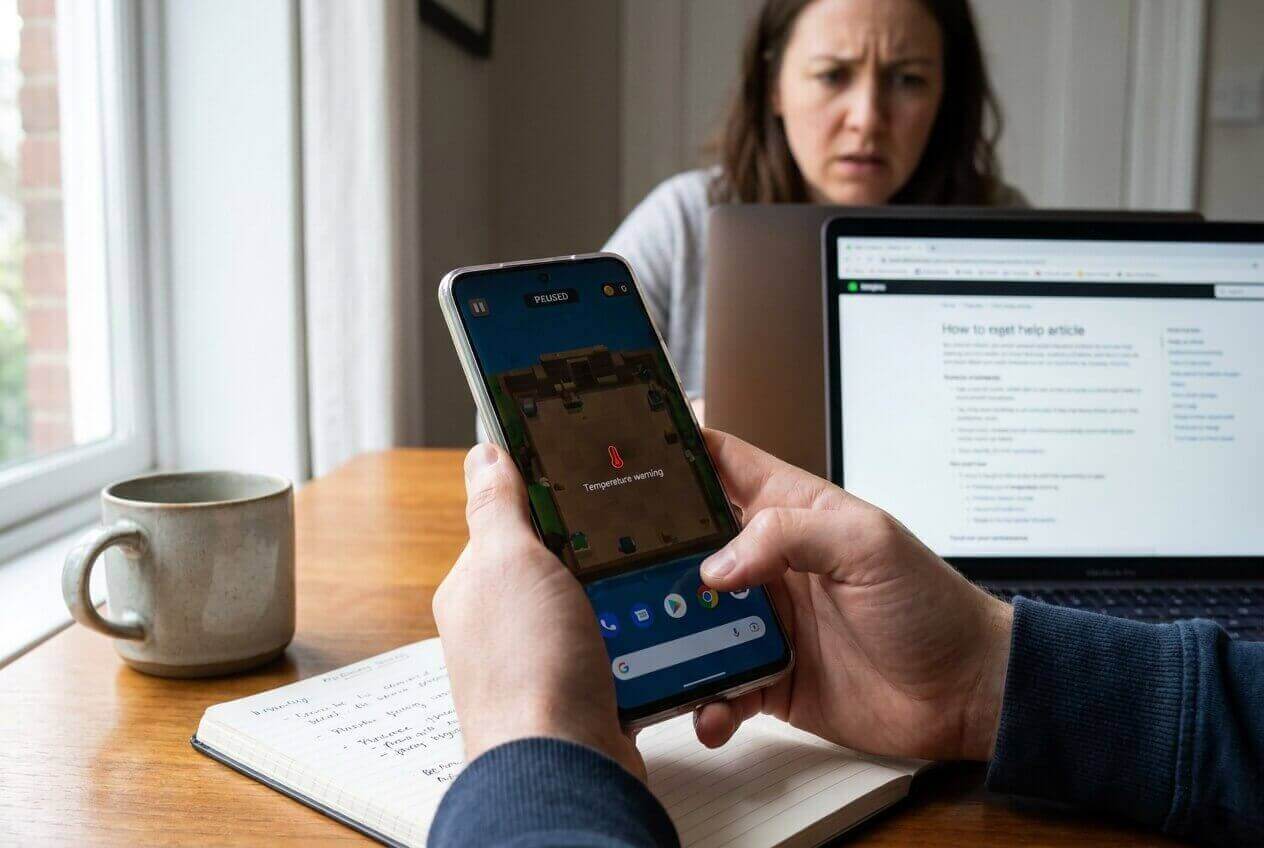
It often starts right after a trigger: a firmware update, a new game patch, enabling higher graphics/FPS, or restoring apps from backup. You might notice the phone feels hot near the camera area, the game becomes choppy, and the battery drains faster than normal.
The uncertainty is key: the same symptoms can come from settings/load (safe to adjust), app conflicts (manageable), or system-level issues (riskier to poke at). That’s where AI-assisted diagnosis helps you avoid guesswork.
1-1. Before You Prompt the AI
Gather a few details first so the AI can separate “normal throttling” from “something’s wrong”:
- Phone model and Android version
- Game name + graphics/FPS settings used
- When it started (after update, after reinstall, after charging while playing)
- Temperature pattern (hot immediately vs after 10–20 minutes)
- What changed recently (new app, VPN, launcher, “optimizer,” battery setting)
- Any warnings (battery temp alert, app crashes, UI lag outside the game)
Part 2. Using AI prompts to diagnose gaming overheating safely
2-1. Level 1: Basic Prompt
My Android phone overheats and my FPS drops while gaming. Ask me the minimum questions needed to narrow the cause, then give a short list of the most likely reasons and the safest first checks (no risky steps).
2-2. Level 2: Advanced Prompt
Diagnose my gaming overheating + FPS drops like a decision tree.
1) List the top 6 likely causes and rank them by probability.
2) For each cause, list what evidence would confirm/deny it.
3) Recommend low-risk steps first, and flag anything that could cause data loss, boot issues, or warranty concerns.
4) End with a “stop here if…” section.
2-3. Level 3: Evidence Prompt
Help me diagnose overheating + FPS drops while gaming using the evidence below.
Device info:
- Phone model: (e.g., Galaxy S22 / Pixel 7)
- Android version + security patch (if known):
- Chipset (if known):
What I was doing:
- Game title + version:
- Graphics preset + FPS mode: (e.g., High + 60/90/120)
- Was it charging?: (Yes/No, charger wattage if known)
- Case on / ventilation: (Yes/No)
Symptoms:
- Time to heat up: (e.g., 3 minutes / 20 minutes)
- Where it gets hottest:
- FPS behavior: (gradual drop vs sudden stutter)
- Does the whole phone lag outside the game?:
Recent changes:
- OS update, new app, game update, settings changes:
Battery:
- Battery health clues: swelling, fast drain, unexpected shutdowns:
What I already tried:
Output:
- A ranked list of causes (with confidence %)
- 5 safest checks in order
- 3 key pieces of evidence I should collect next
- Clear “do not do” warnings for risky actions
2-4. Prompt Refinement
Use these follow-ups to force clearer, safer conclusions:
What two questions would change your ranking the most, and why?
Separate causes into thermal environment, game/settings load, background processes, system/firmware, and hardware.
Rank the causes again assuming: (A) it happens only in one game vs (B) it happens in every game.
What specific evidence would indicate thermal throttling versus GPU driver/system instability?
List checks that are reversible and don’t require factory reset, bootloader steps, or unknown apps.
2-5. AI Output vs Reality
AI can suggest likely causes, but you still need to confirm what’s true on your phone:
| AI diagnosis output | What to verify on the device |
|---|---|
| “It’s thermal throttling from load/heat.” | Does FPS drop after heat builds, and improve after cooling/airflow changes? |
| “A background app is spiking CPU.” | Does lag happen outside the game, and does it correlate with a specific app/service running? |
| “Recent update caused instability.” | Did the issue begin right after an OS/game patch, and does it persist after basic safe checks? |
| “Battery/charging is contributing.” | Does it worsen while charging, with fast chargers, or with battery temperature warnings? |
AI helps you decide what to test next and what to avoid; execution still depends on device tools, safe system actions, and (when needed) a structured repair approach.
Part 3. When to stop troubleshooting overheating and avoid data-loss risks
If your checks point to system instability (not just “the phone gets warm”), stop experimenting and switch to safer, more controlled steps.
- The phone overheats during light tasks (camera, messages) or becomes hot while idle.
- FPS drops are paired with system-wide lag, random reboots, app crashes, or boot loops.
- You see temperature warnings, charging stops unexpectedly, or the battery shows physical swelling.
- You’ve tried basic safe checks (cooling, closing background apps, lowering settings) and the problem is getting worse.
At this point, treat the situation as a stability issue rather than a “game settings” issue—your next move should prioritize protecting data and avoiding actions that can escalate failure.
Part 4. Android gaming overheating: resolve it safely with Dr.Fone
Once AI has helped you narrow the likely cause (settings/load vs background conflict vs system instability), you may need a reliable way to address Android system issues without relying on random tweaks. If your symptoms suggest firmware or system component problems—especially on Samsung devices—Dr.Fone - System Repair (Android) provides a structured path to handle Repair Samsung Phone Issues and restore stability, after you’ve finished low-risk diagnosis.
 Fix Android instantly – no skills needed.
- Solve boot loop, black screen, won’t turn on, etc.
- High success rate for all system issues.
- User-friendly interface with easy-to-follow steps.

-
Step 1 Confirm the symptom scope
Reproduce the FPS drop after cooling down first, and avoid testing while charging to reduce heat-related false signals.

-
Step 2 Back up essentials
Save photos, chats, and game account logins first in case deeper system actions are needed later.

-
Step 3 Run System Repair (Android)
Use Dr.Fone’s Android System Repair workflow to address system-level instability contributing to overheating/performance drops, following the on-screen model/firmware matching carefully.

-
Step 4 Retest with controlled settings
Reopen the same game at a fixed brightness and FPS cap to see whether stability improves without changing multiple variables at once.

-
Step 5 Reintroduce changes gradually
Add back high refresh rate, higher graphics, or background apps one-by-one to identify the threshold that triggers throttling again.




Part 5. Conclusion and FAQs
The final steps are about choosing a careful path: use AI to prioritize low-risk checks, stop when the symptoms suggest instability, and only then consider a structured repair workflow to reduce guesswork.
Conclusion
Use AI to translate your symptoms into a ranked set of likely causes and a low-risk test plan, then hand off execution to a structured tool when the evidence points to system-level instability—so you reduce guesswork while avoiding risky trial-and-error.
FAQ
-
Why does my Android phone get hot only when gaming?
Gaming pushes CPU/GPU and can trigger thermal throttling, especially with high FPS, max graphics, high brightness, poor airflow, or playing while charging. -
How can I tell if FPS drops are thermal throttling?
A common pattern is smooth gameplay at first, then gradual FPS decline as heat builds; performance improves after cooling or lowering graphics/FPS. -
Can a system update cause overheating and stuttering in games?
Yes. Updates can change drivers, background indexing behavior, or power management; if the timing matches, treat it as a likely contributing factor. -
Is it safe to use “game booster” or “RAM cleaner” apps to fix FPS drops?
Many add background load or aggressive process killing that can worsen stutter; prefer reversible, built-in checks and controlled testing first. -
When should I consider Android system repair for overheating and lag?
If the phone lags outside games, crashes/reboots, or the issue began after an update and persists despite basic safe checks, system instability becomes more likely.
 Add Wondershare Dr.Fone as a preferred source on Google





