 Effortlessly manage data through preview, delete, export, etc.

 100% Security Verified | No Subscription Required | No Malware

 :
: 
 ChatGPT
 Perplexity
 Gemini
 Claude
 Grok
Grok

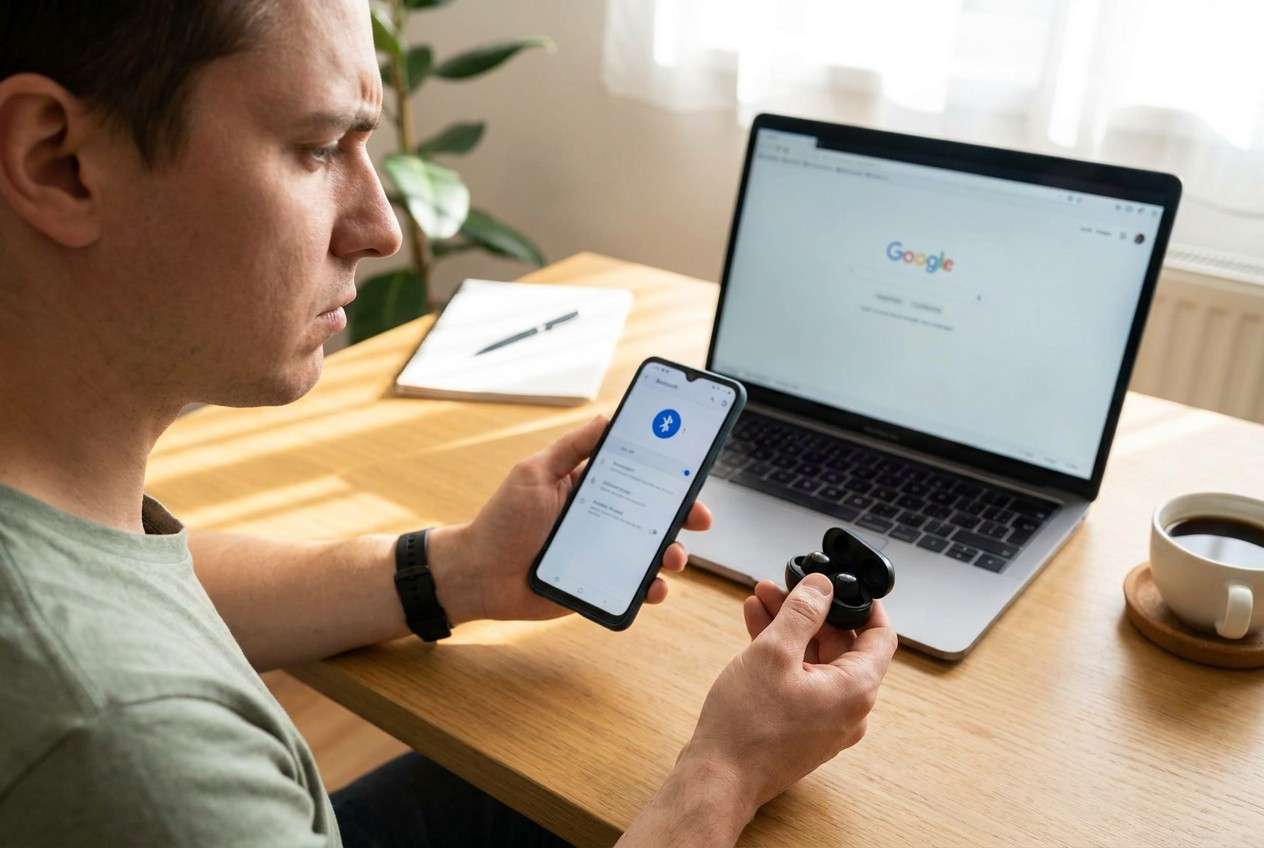
After the update, my phone still shows Bluetooth is “On,” but it won’t find anything and drops connections that used to be stable.
Samsung Community user
After a system update, Bluetooth on Android can suddenly stop pairing, keep disconnecting, or refuse to find devices—even though it worked yesterday. This often happens right after you tap Install now and the phone restarts, and then nothing changes no matter how many times you toggle Bluetooth.
AI can help you describe the symptoms precisely, narrow likely causes (settings, cached data, compatibility, or firmware-level issues), and choose low-risk next steps based on what you’ve already tried. You can use tools like ChatGPT or Gemini to structure the diagnosis.
AI can’t verify your phone’s internal state or safely “test” changes for you, and trial-and-error can create new problems (lost pairings, unstable network settings, or reset-related data loss). Treat AI as a decision aid—then use a reliable execution tool when you’re ready to act.
In this article
- Part 1. Why android bluetooth problems after system update happens and what it means
- What changed in the update
- Common symptom pattern after reboot
- Accessory vs phone: how scope matters
- Before you prompt the AI
- Part 2. Using AI prompts to diagnose Bluetooth not working after Android update safely
- Part 3. When to stop troubleshooting Bluetooth keeps disconnecting after Android update and avoid risks
- Part 4. Android system repair for Bluetooth issues after an update with Dr.Fone
- Part 5. Low-risk decision checklist before making changes
Part 1. Why android bluetooth problems after system update happens and what it means
“Android Bluetooth problems after system update” usually means the update changed something Bluetooth depends on: radio firmware, permissions, background services, battery rules, or device profiles. The result can look like a simple pairing glitch, but it may actually be a deeper system-level mismatch.
A common pattern is: update completes → reboot → Bluetooth can’t discover devices, won’t connect to earbuds/car audio, or connects briefly then drops. If you’re pairing to another phone (for example, an iPhone 13 hotspot or an iPhone 14 used for car calls), it may be unclear whether the Android phone or the other device is the trigger.
What it means is you should avoid random resets first and instead pin down: what changed, which devices fail, and whether the issue is app-level, settings-level, or system-level.
1-1. Before You Prompt the AI
Collect these details first so the AI can triage accurately:
- Android brand/model (Samsung, Pixel, OnePlus, etc.)
- Android version before/after the update (if known)
- What fails: pairing, connecting, audio quality, or staying connected
- Which devices are affected (car, earbuds, smartwatch, another phone)
- Any recent changes: new earbuds, new car head unit, new VPN/security app
- What you already tried (toggle Bluetooth, reboot, forget device, reset network)
Part 2. Using AI prompts to diagnose Bluetooth not working after Android update safely
2-1. Level 1: Basic Prompt
My Android phone’s Bluetooth started failing right after a system update. It [can’t discover / won’t pair / connects then disconnects / no audio]. I’ve tried [list what you tried]. Ask me the minimum questions needed to narrow the cause and suggest the lowest-risk next steps first.
2-2. Level 2: Advanced Prompt
Diagnose my Bluetooth issue after an Android system update using a ranked list of likely causes.
**Symptoms:** [pairing/discovery/disconnect/no audio/calls fail]
**Scope:** affects [one device / multiple devices], works on [Wi‑Fi/cellular unaffected?]
**What changed:** update + reboot, plus any new apps/accessories
**What I tried:** [steps]
**Constraints:** I want low-risk steps first; avoid anything that could erase data unless clearly necessary.
Output:
1) Top 5 likely causes (ranked)
2) Evidence to confirm/deny each cause
3) Safest next action for each cause (with risk level: low/medium/high)
2-3. Level 3: Evidence Prompt
Help me troubleshoot Android Bluetooth problems after a system update using evidence.
**Phone brand/model:** (e.g., Samsung Galaxy S22)
**Android version now:** (e.g., Android 14 / One UI 6)
**Security patch date (if visible):** (e.g., 2026-03)
**Update trigger:** (e.g., tapped “Install now,” rebooted once)
**Bluetooth failure mode:** (e.g., won’t discover devices / pairs but fails to connect / audio stutters / calls fail in car)
**Affected devices:** (e.g., Sony earbuds, VW head unit, iPhone 13 for car calls)
**Does the phone see any devices at all?:** (yes/no)
**Does Wi‑Fi + hotspot work normally?:** (yes/no)
**Battery optimization status for Bluetooth/system apps:** (default/optimized/unrestricted)
**Developer options changed recently?:** (yes/no/unknown)
**What I already tried (in order):** (e.g., toggle Bluetooth, reboot, forget device, reset network settings)
**Error messages:** (exact text)
**Goal:** restore stable Bluetooth with minimal risk to data
Please:
1) Classify the issue as settings-level vs cache/profile-level vs system-level.
2) List the 3 most informative checks I should do next (no data loss).
3) Tell me what outcome would indicate I should stop DIY troubleshooting.
2-4. Prompt Refinement
If the AI answer feels broad, use these follow-ups to force clarity:
“What key question is missing from your diagnosis that would change the top-ranked cause?”
“Separate possible causes into: (A) Bluetooth settings, (B) paired-device profile issues, (C) system update/firmware issues, (D) hardware failure.”
“Rank the causes again, but only using evidence from my symptoms—no assumptions.”
“What single observation would most strongly confirm a system-level issue vs a device-compatibility issue?”
“List the next 3 actions in strict lowest-risk order, and say what not to do yet.”
2-5. AI Output vs Reality
AI can help you choose directions; real devices sometimes behave differently than the model predicts.
| AI output (what you’ll get) | Reality check (what can differ) |
|---|---|
| “It’s likely a pairing/profile corruption issue.” | Some devices fail due to updated Bluetooth stack/firmware, not the saved pairing. |
| “Reset network settings is safe.” | It can remove Wi‑Fi passwords and VPN/APN configurations you rely on. |
| “Clear Bluetooth cache” is suggested. | Many phones hide or restrict this; steps vary by brand and Android skin. |
| “It’s your earbuds/car system.” | Multiple devices failing points back to the phone’s system update changes. |
Use AI to narrow the hypothesis and pick the safest test. For anything that touches system components, you’ll need a controlled execution method rather than repeating random toggles and resets.
Part 3. When to stop troubleshooting Bluetooth keeps disconnecting after Android update and avoid risks
If your checks keep circling without new evidence, stop before you trade a Bluetooth issue for a bigger configuration or data problem.
- Bluetooth fails with multiple devices (car + earbuds + watch) after the update, suggesting a system-level change.
- The phone shows no discoverable devices at all, even in busy areas, after basic safe steps.
- You see system instability alongside Bluetooth (random reboots, overheating, severe lag).
- The only remaining “tips” are high-impact resets you can’t confidently reverse (factory reset, repeated hidden menu changes).
Once you’ve identified whether it’s likely settings/profile vs system-level, you’re ready to move from diagnosis to controlled execution.
Part 4. Android system repair for Bluetooth issues after an update with Dr.Fone
If AI-based triage points to a system-level Bluetooth regression after the update—especially on Samsung devices—use an execution tool designed for Android system issues. Dr.Fone - System Repair (Android) can help you run a guided repair workflow (including the Repair Samsung Phone Issues capability) instead of repeating risky trial-and-error changes. This is most relevant when Bluetooth issues started immediately after the update and persist across multiple accessories, indicating the system layer—not just one pairing—may need attention.
 Fix Android instantly – no skills needed.
- Solve boot loop, black screen, won’t turn on, etc.
- High success rate for all system issues.
- User-friendly interface with easy-to-follow steps.

-
Step 1 Confirm the symptoms scope
Verify Bluetooth fails with at least two device types (e.g., earbuds and car) to avoid chasing a single accessory issue.

-
Step 2 Prepare essentials
Ensure stable power and a reliable USB connection to reduce interruption risk during system operations.

-
Step 3 Run Android System Repair
In Dr.Fone – System Repair (Android), select the Android repair path and follow the guided model/firmware matching steps carefully to avoid mismatches.

-
Step 4 Re-test Bluetooth cleanly
After the process, pair one device from scratch and test stability before restoring multiple old pairings.





Part 5. Low-risk decision checklist before making changes
Use AI to narrow the hypothesis, but make decisions with risk in mind—especially right after an update when Bluetooth behavior can reflect system-layer changes.
- Clarify scope first: is it failing with one accessory or multiple devices?
- Prefer evidence-driven checks over random resets; write down what changed and what you already tried.
- Be cautious with network resets if you rely on saved Wi‑Fi passwords, VPN profiles, or APN configurations.
- If Bluetooth issues coincide with broader instability (reboots/overheating/lag), consider stopping DIY troubleshooting and moving to a controlled execution method.
Conclusion
Use AI to translate your Bluetooth symptoms into a ranked set of likely causes and low-risk checks, then hand off to a controlled execution approach when evidence points to system-level update fallout—where a tool like Dr.Fone – System Repair (Android) is relevant for carrying out the next step safely and consistently.
FAQ
-
Why did Bluetooth break right after an Android system update?
Updates can change Bluetooth services, radio firmware, or permission/battery behaviors; any of these can disrupt pairing or connection stability.
-
How do I know if it’s my earbuds/car stereo or my phone?
If multiple accessories fail (not just one), the phone is the more likely common factor; if only one accessory fails, it’s more likely compatibility or that device’s firmware.
-
Is “Reset network settings” a safe fix for Bluetooth issues?
It’s medium risk: it can remove Wi‑Fi passwords, VPN profiles, and sometimes APN settings; use it only after low-risk checks don’t change anything.
-
What’s the lowest-risk thing to try before deeper changes?
Forget the affected Bluetooth device(s), reboot, then re-pair one device at a time while keeping battery optimization settings unchanged.
-
When should I treat this as a system-level problem?
When Bluetooth fails across multiple devices immediately after an update and persists after basic safe steps (toggle, reboot, re-pair), it’s reasonable to suspect system-level changes.
 Add Wondershare Dr.Fone as a preferred source on Google





