 Effortlessly manage data through preview, delete, export, etc.

 100% Security Verified | No Subscription Required | No Malware

 :
: 
 ChatGPT
 Perplexity
 Gemini
 Claude
 Grok
Grok

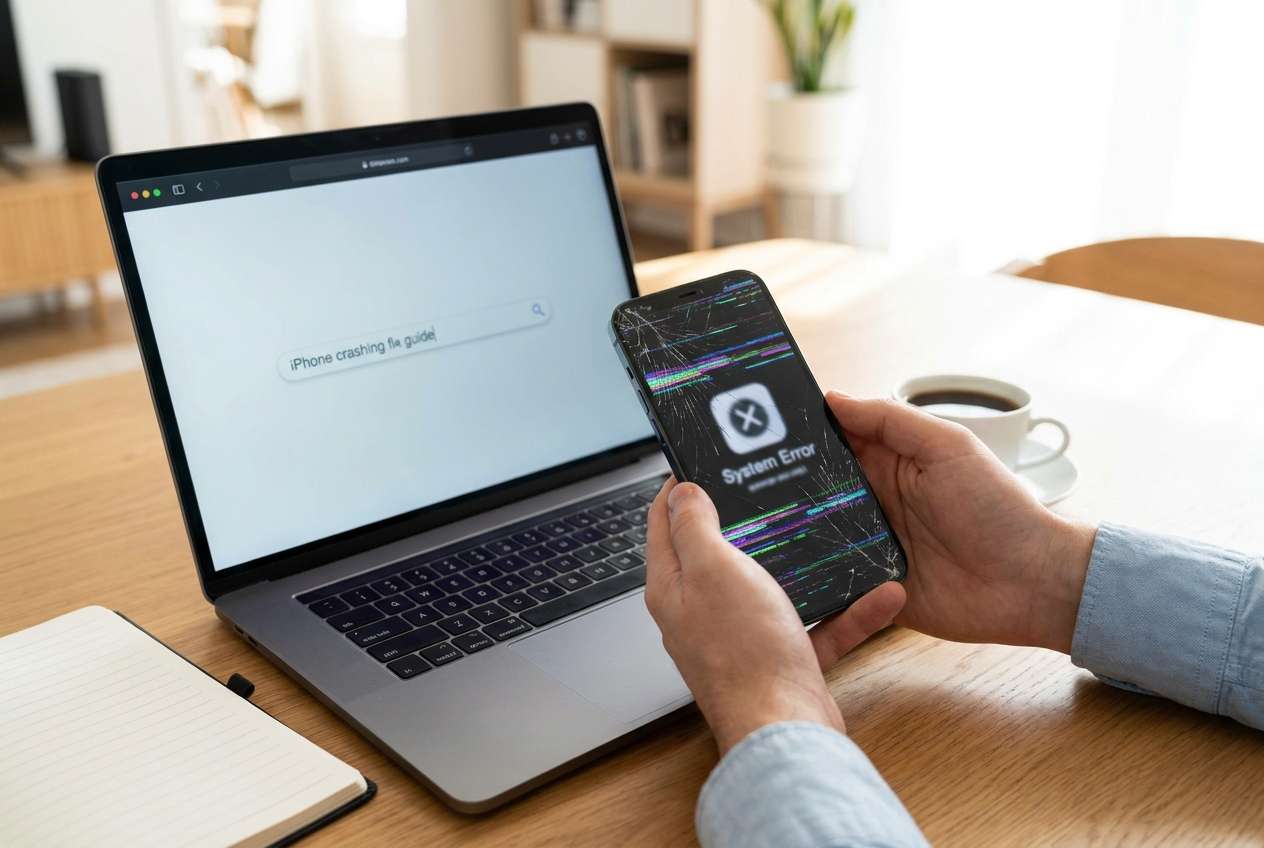
My iPhone keeps crashing after an iOS update—apps close, the screen freezes, and sometimes it just restarts. I’m stuck deciding whether to try a repair first or factory reset and risk losing data.
Apple Support Community user
Your iPhone keeps crashing—apps close suddenly, the screen freezes, or the phone restarts at random. This often happens right after you tapped Install Now for an iOS update or after a routine restart on models like an iPhone 13 or iPhone 14, and it’s unclear whether the issue is software corruption or something deeper.
AI (like ChatGPT or Gemini) can help you organize symptoms, narrow the most likely causes, and compare “repair first” vs “factory reset” based on risk and evidence—before you take an irreversible step.
AI can’t verify your phone’s internal state, and trial-and-error can increase data-loss risk (especially if you reset too early). The goal is to use prompts to make a safer decision, then use a dedicated tool to carry out the chosen action.
In this article
- Part 1. Why a crashing iPhone happens and what it means
- Common software stability triggers
- Hardware-adjacent signals to watch
- Why a factory reset can backfire
- Before you prompt the AI
- Part 2. Using AI prompts to diagnose whether to repair or factory reset
- Part 3. AI output vs reality: what you must verify
- Part 4. When to stop deciding to avoid risks
- Part 5. Repair-first vs reset-likely: safer decision checkpoints
1. Use AI to rank causes from evidence, not guesses.
Prompts help you organize symptoms (when it crashes, after what change, storage level, backups) and decide between “repair-first” vs “reset-likely” with less trial-and-error.
2. Don’t reset until you verify backups and Apple Account access.
A factory reset can create a bigger problem than the crashes if you can’t restore data or get past Activation Lock/2FA afterward.
3. Treat AI guidance as planning, then execute with controlled steps.
AI can’t confirm device state; once you pick a direction, use structured repair/reset steps and re-test the crash pattern to confirm progress.
Part 1. Why a crashing iPhone happens and what it means
1-1. Common software stability triggers
A crashing iPhone is usually a software stability problem: an iOS update that didn’t finish cleanly, low storage during install, a buggy app, or a misbehaving setting syncing from iCloud. It can look like “random restarts,” but the trigger is often consistent (right after unlocking, opening the camera, or connecting to Wi‑Fi).
1-2. Hardware-adjacent signals to watch
Less commonly, repeated crashes point to hardware-adjacent signals (battery health issues, storage errors), which changes whether “repair” steps make sense before you consider a full erase.
1-3. Why a factory reset can backfire
The tricky part: a factory reset can hide the root cause temporarily, and if you reset before confirming backups and account access, you can create a bigger problem than the crashes themselves.
1-4. Before you prompt the AI
Collect a few details first so the AI can reason from evidence, not guesses:
- iPhone model and iOS version (if known)
- What you did right before crashes started (update, restore, new app, storage cleanup)
- Crash pattern (specific app vs whole system, restarts vs freezes)
- Storage free space estimate
- Backup status (iCloud/Finder) and whether you know your Apple Account password
- Any warnings (temperature, battery, storage full)
Part 2. Using AI prompts to diagnose whether to repair or factory reset a crashing iPhone
2-1. Level 1: Basic Prompt
My iPhone is crashing (apps closing/freezing/restarting). Based on common iOS causes, help me decide whether I should try system repair steps first or go straight to a factory reset. Ask me the minimum questions needed, and prioritize options that minimize data-loss risk.
2-2. Level 2: Advanced Prompt
Act like a troubleshooting analyst. Given my iPhone crash symptoms, produce:
1) a ranked list of likely causes (with confidence levels),
2) “repair-first” steps vs “factory reset” triggers,
3) risk notes for each step (data loss, lockout, time).
Keep recommendations conservative and explain what evidence would change the decision.
2-3. Level 3: Evidence Prompt
Diagnose whether an iPhone should be repaired (system-level remediation) or factory reset for crashing. Use my evidence, then:
- separate causes into: iOS corruption, app-level, storage/memory pressure, account/sync, hardware indicators
- rank the top 5 causes with reasons tied to evidence
- recommend the lowest-risk next step and what result should happen if I’m on the right track
Evidence:
- iPhone model: (e.g., iPhone 13 Pro)
- iOS version / update status: (e.g., updated last night, unsure if it completed)
- Trigger event: (e.g., tapped Install Now; restored from iCloud; installed a VPN app)
- Symptoms: (e.g., restarts every 10–20 minutes; Settings app crashes)
- When it crashes: (e.g., after unlock; on Wi‑Fi; when charging)
- Storage free space: (e.g., ~1–3 GB free)
- Battery health / recent battery message: (e.g., “service” / unknown)
- Recent changes: (apps, profiles, MDM, beta iOS)
- What I’ve tried: (force restart, offload app, safe mode not available)
- Backup status: (iCloud backup date; Finder backup yes/no)
- Apple Account access: (password known? 2FA available?)
- Any error screens: (Apple logo loop, black screen, spinning wheel)
Output format:
- Quick verdict: “repair-first” or “reset-likely”
- Ranked causes (1–5)
- Decision checkpoints (what to verify before erasing)
- Safer sequence of actions (least to most disruptive)
2-4. Prompt Refinement
Use these follow-ups to force clarity and reduce guesswork:
“What 3 questions would most change your recommendation between repair-first and reset-likely?”
“Rank causes separately for: random restarts, app-only crashes, and crashes only while charging.”
“List the key evidence that points to iOS corruption vs storage pressure vs battery instability.”
“If I can’t confirm a recent backup, what is the safest path that still moves diagnosis forward?”
“What outcome after a repair attempt would indicate I should stop and avoid further trial-and-error?”
Part 3. AI output vs reality: what you must verify
AI can guide decisions, but it can’t perform device actions or confirm outcomes. Use this gap-check:
| What AI can infer | What you must verify on the device |
|---|---|
| Whether symptoms match update corruption patterns | Backup status and last successful backup time |
| Whether low storage likely triggered instability | Actual free storage and whether iOS can boot reliably |
| Whether a reset is premature | Apple Account access, 2FA, activation lock readiness |
| Whether hardware seems plausible | Battery/charging behavior and whether crashes persist in clean state |
AI helps you choose a low-risk direction; execution still depends on what the phone actually does in your hands, especially around backups, account access, and whether the device can stay on long enough to complete steps.
Part 4. When to stop deciding to avoid risks
Stop and switch to a safer, more controlled approach if you hit any of these:
- Crashes escalate into boot loops, repeated restarts, or you can’t stay powered on long enough to back up
- You can’t confirm a backup and don’t have a safe path to preserve data before erasing
- You suspect Apple Account lockout risk (unknown password, lost 2FA device, activation concerns)
- The phone shows strong hardware indicators (overheating, swelling, charging instability, “battery service” warnings)
Once you’ve used prompts to narrow the likely cause and the lowest-risk next step, it’s time to execute that choice in a way that avoids unnecessary resets and reduces interruption.
Part 5. Repair-first vs reset-likely: safer decision checkpoints
Before you do anything irreversible, prioritize checkpoints that reduce datarestoring-loss and lockout risk: confirm you have a usable backup (iCloud or Finder), and confirm Apple Account password/2FA access. Then, proceed from the least disruptive actions to the most disruptive actions, re-testing whether the crash pattern changes after each step.
Repair-first (lower risk when you can’t afford data loss)
1. Common post-update crashing can align with incomplete installs or iOS instability, where repair-style steps are often safer than erasing.
2. Helps you stabilize the phone long enough to confirm backups and credentials before considering a reset.
3. Let's you re-test the same crash conditions (same app/charging/network) to see if the underlying pattern changes.
Factory reset (only when evidence supports “reset-likely”)
1. Can create a bigger problem if you reset before confirming backups and Apple Account/2FA access.
2. May temporarily hide the root cause if the issue returns after restore or syncing settings back in.
3. Is hard to undo once performed, so it should follow clear decision checkpoints.
Recommended Tool: Dr.Fone System Repair (iOS)
When your iPhone keeps crashing, and you’re trying to avoid an unnecessary factory reset, Dr.Fone - System Repair (iOS) becomes relevant once you’ve decided to attempt a system-level repair path first—or you need a more controlled reset workflow after confirming backups and account access. Instead of guessing which action might stabilize iOS, you can use Dr.Fone to carry out a structured system repair or proceed with a guided reset operation using the Reset iOS Device feature, based on the decision you reached from your AI-assisted diagnosis. (See Dr.Fone – System Repair (iOS) details here and the Reset iOS Device guide here.)
 Fix iOS issues, no data loss.
- One-click repair for all iOS problems.
- Solve recovery mode, Apple logo, black screen, etc.
- Upgrade or downgrade iOS without iTunes

-
Step 1 Confirm your “repair-first vs reset” decision
Re-check backup status and Apple Account access before doing anything that could erase data or trigger lockout.

-
Step 2 Launch Dr.Fone System Repair (iOS)
Connect your iPhone via cable and choose the iOS system repair workflow that matches your situation, avoiding erase-style options unless you’ve accepted the data-loss tradeoff.

-
Step 3 Run the repair workflow with minimal disruption
Proceed with the recommended repair mode for crashes, and do not disconnect the device during the process to reduce interruption risk.

-
Step 4 Re-test the crash pattern
After completion, observe whether crashes persist in the same conditions (same app, same charging state, same network), because that evidence determines whether a reset is actually justified.
-
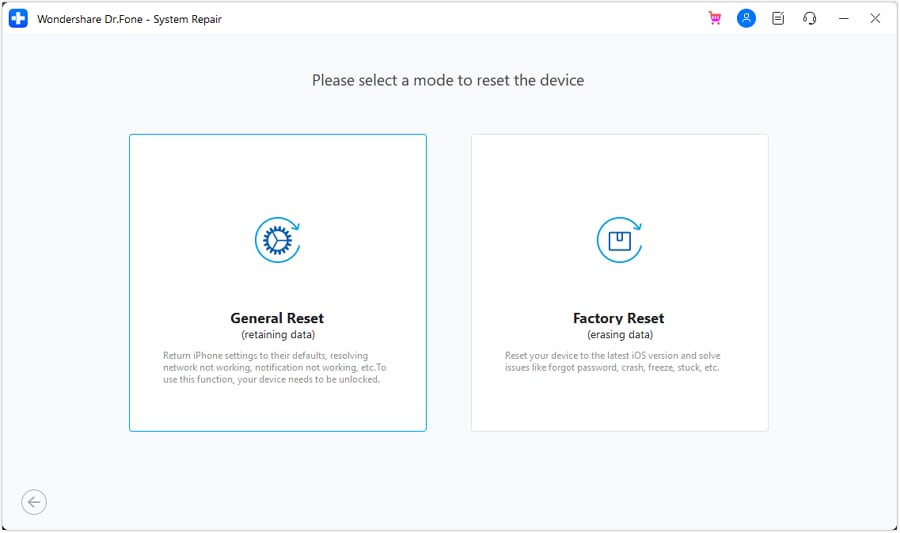
Step 5 Use Reset iOS Device only if warranted
If your decision checkpoints point to “reset-likely,” use the reset feature only after verifying backups and credentials, since a factory reset is hard to undo.




Conclusion
Use AI prompts to turn messy crash symptoms into a ranked, evidence-based decision about “repair-first” versus “reset-likely,” then carry out the chosen path in a more controlled way to avoid unnecessary resets and reduce interruption.
FAQ
-
Should I factory reset my iPhone if it keeps crashing after an iOS update?
Not automatically. Post-update crashing often aligns with incomplete installs or iOS instability, so a repair-first approach is usually lower risk if you can confirm backups and account access.
-
How do I know if crashes are caused by a specific app or iOS itself?
If only one app crashes, it’s more likely app-level. If Settings, Home Screen, or random restarts occur across multiple apps, iOS-level instability becomes more likely.
-
What evidence makes a factory reset the better choice?
Persistent crashes after repair attempts, crashes in a clean setup state, or signs that configuration/data corruption is reintroduced after restore can justify a reset—if backups and credentials are confirmed.
-
Can low storage really cause an iPhone to crash repeatedly?
Yes. Very low free space can destabilize updates, caching, and system processes, which can look like random crashes or freezes.
-
What should I confirm before any reset to avoid getting locked out?
Verify you know your Apple Account password and have 2FA access, and confirm you have a usable backup (iCloud or Finder) if you need your data later.
 Add Wondershare Dr.Fone as a preferred source on Google





