 Effortlessly manage data through preview, delete, export, etc.

 100% Security Verified | No Subscription Required | No Malware

 :
: 
 ChatGPT
 Perplexity
 Gemini
 Claude
 Grok
Grok

I just need my work stuff on the new phone—not my photos, not my personal chats—but I’m worried one wrong “restore” click will pull everything over.
Reddit user, r/iphone
Moving only work data to a new phone sounds simple until one missed step causes accidental personal-data transfer, lost business chats, or an account lockout.
AI can help you slow down and structure the workflow: what to include, what to exclude, what to verify, and what order prevents rework. But AI can’t touch your device, inspect your settings, or complete the transfer for you—execution still needs real tools and real confirmations at the point of action.
In this article
- How to plan a “work-data only” transfer without missing critical steps
- Define your “work-only” scope and exclusions
- Identify the high-risk sync/restore moment
- Use AI prompts to produce a verification-gated plan
- Understand AI planning vs real-device constraints
- What the AI needs to know (so the plan is specific)
- AI prompts: Level 1–3 + Prompt Refinement
- When to stop planning and start execution
- Recommended tool for execution: Dr.Fone - Phone Transfer
Part 1. How to plan a “work-data only” transfer without missing critical steps
You’re switching phones and want only work data moved (work contacts, work apps, work files, work messages), while keeping personal photos, personal chats, and personal accounts off the new device. That split is where most mistakes happen.
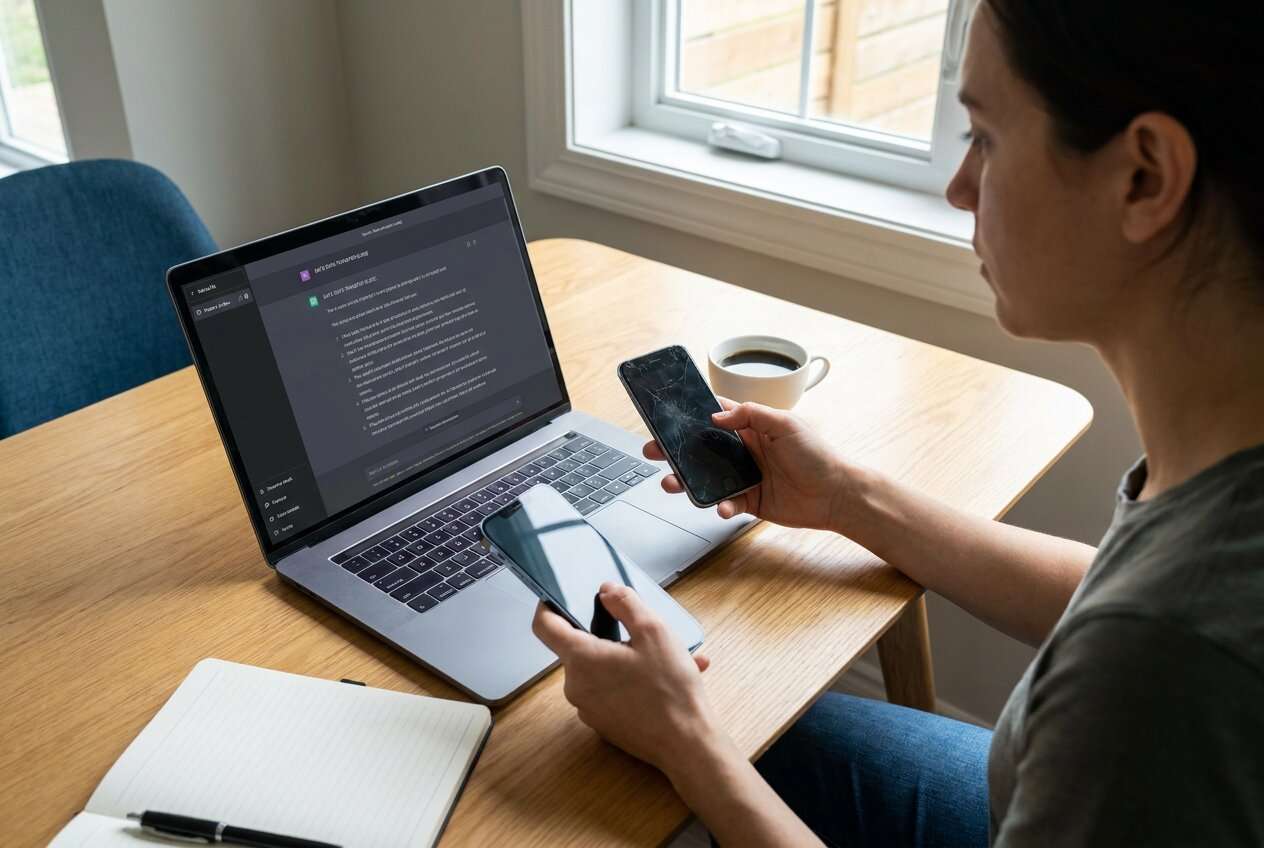
1-1. Define your “work-only” scope and exclusions
After asking AI “how do I transfer only work data,” you may get a list of options but still feel unsure about sequencing: which accounts to sign into first, which apps to install later, and what to verify before anything syncs automatically.
Start by writing down two lists:
- Must transfer (work-only): work contacts, work calendar, work files, work messaging (Teams/Slack), work PDFs, etc.
- Must NOT transfer: personal photos, personal chats (e.g., personal WhatsApp), personal contacts, personal accounts, browser history, and any personal backups.
1-2. Identify the high-risk sync/restore moment
The point of no return is when you enable sync/restore on the new phone (or allow an app to “restore from cloud”) before you’ve confirmed the right account scope—at that moment, personal data can start merging into the new device and may be difficult to unwind cleanly.

1-3. Use AI prompts to produce a verification-gated plan
AI is most useful when it outputs a checklist-driven workflow with “stop points” (verification gates). You want explicit proofs like counts, folder sizes, and app sign-in states—so you can confirm “work-only” actually stayed “work-only.”
1-4. Understand AI planning vs real-device constraints
AI improves planning, but cannot execute. The actual transfer requires device access, correct credentials/2FA, and a tool that can perform the move reliably under real constraints.
| Planning element AI can help with | What real devices/tools must handle |
|---|---|
| Defining “work-only” scope and exclusions | Actual account sign-in, sync toggles, and managed profile enrollment |
| Sequencing steps to avoid accidental sync | Transfers, restores, and migrations between phones |
| Designing verification checks and stop points | Capturing real counts/screenshots and confirming device state |
| Risk analysis and rollback planning | Executing remediation (disconnect accounts, remove profiles, re-transfer) |
Part 2. What the AI needs to know (so the plan is specific)
Share only what’s needed so the plan can be specific and verifiable.
- Old phone OS + model (e.g., Android 13 / Galaxy S21)
- New phone OS + model (e.g., iOS 17 / iPhone 15)
- What “work data” means for you (email, contacts, calendar, Teams/Slack, WhatsApp/Signal, work photos, docs)
- How work identity is managed (MDM/Work Profile, managed Apple ID, Google Workspace, Microsoft 365, none)
- Where work files live (OneDrive/SharePoint, Google Drive, local storage, SD card)
- Messaging scope (work number vs personal number; separate app instance or same)
- Security constraints (company policy, encryption, 2FA requirements, SIM restrictions)
- Deadline and acceptable downtime (minutes vs hours)
- Anything that must not transfer (personal photos, personal chat history, personal contacts, browser history)
Part 3. AI prompts: Level 1–3 + Prompt Refinement
Use the prompts below to make AI produce a checklist-driven plan with clear verification gates.
1. Lock the scope before any sync/restore.
Define exactly what counts as “work data” and what must not transfer, then set a hard verification gate before the first cloud restore/account sync.
2. Make AI output verification evidence, not just steps.
Ask for measurable proofs (counts, folder sizes, screenshots/logs) and explicit stop points so you can confirm “work-only” stayed “work-only.”
3. Separate planning from execution.
Use AI to plan and de-risk; use real tools and on-device checks to execute, because AI cannot see settings, policies, or your actual transfer selections.
3-1. Level 1: Basic Prompt
I’m moving to a new phone and only want to transfer work data, not personal data.
Please outline a safe sequence of steps and list what I should verify before any syncing/restoring happens.
Focus on planning only—no device actions.
3-2. Level 2: Advanced Prompt
Build a structured workflow to transfer work data only to my new phone.
Split your answer into Preparation / Execution / Verification.
- Mark each step as Critical or Optional.
- Include “stop points” where I must confirm settings before proceeding (e.g., before enabling account sync, before restoring app data).
- Include a rollback/containment plan if personal data begins syncing by mistake.
3-3. Level 3: Evidence Prompt
Create a risk-controlled plan to move only work data from my old phone to my new phone with explicit checks before / during / after the transfer.
Context:
- Old phone: (Android 13, Samsung Galaxy S21)
- New phone: (iPhone 15, iOS 17)
- Work identity: (Microsoft 365 + Teams + Outlook; 2FA enabled)
- Work files: (OneDrive + a local “Work” folder ~12 GB)
- Must transfer: (work contacts, work calendar, OneDrive files, Teams, work PDFs)
- Must NOT transfer: (personal photos, personal WhatsApp, personal contacts)
- Constraint: (I can’t factory reset again after setup; device must be ready in 2 hours)
Output:
1) A step-by-step sequence with dependencies
2) A “verification table” listing what evidence confirms each step worked (example: “Contacts count in Work account matches ~850”)
3) A single high-risk moment warning that I should not proceed past until verification is complete
3-4. Prompt Refinement (follow-up prompts)
Re-write the plan as a two-column checklist: “Action” vs “Proof to Collect (screenshot/log/count)” and include a final go/no-go gate.
Ask me 10 yes/no questions that determine whether a work-profile/MDM approach is required, then generate two separate workflows based on my answers.
Convert the workflow into decision branches (Android→Android, iPhone→iPhone, Android→iPhone, iPhone→Android) and highlight which steps change.
Produce a data scope map: each app/service (Outlook, Contacts, Files, Teams, Drive/OneDrive) → where data originates → where it syncs → how to prevent personal crossover.
Part 4. When to stop planning and start execution
Pause planning and move to execution only when all of the following are true:
- You have a written “work-only” inventory (what moves vs what must not).
- You’ve identified the single high-risk moment (first sync/restore) and set a verification gate before it.
- You know which account(s) will be used on the new phone and how 2FA will be completed.
- You have a verification method (counts, folder sizes, app-level checks) that you can perform immediately after transfer.
If any of these are unclear, refine the plan first—because undoing an incorrect sync is harder than preventing it.
4-1. Execute the workflow safely with Dr.Fone (step-by-step)
Execution now matters because the most common failures are operational: wrong cable mode, wrong device trust settings, interrupted transfer, or selecting the wrong data categories under time pressure.
-
Step 1 Pre-execution gating (scope + device readiness)
Confirm the exact work-only categories you will transfer and ensure both devices are charged, unlocked, and ready to be connected. AI can’t see your device state or confirm which categories you actually selected.

-
Step 2 Set the correct transfer direction before moving any data
In the transfer tool, double-check the source phone and destination phone are correct (for example, iPhone → Android or Android → iPhone). This prevents “wrong direction” errors that can force rework.

-
Step 3 Select work-only categories and start the transfer
Transfer only the work categories you defined in your plan. Do not add personal accounts or enable extra syncing while the transfer is in progress.

-
Step 4 Post-transfer verification before enabling additional sync/restore
Validate results using your evidence checks (counts, folder sizes, app sign-in status). Do not proceed past the high-risk sync/restore moment until verification is complete.

Part 5. Recommended tool for execution: Dr.Fone - Phone Transfer
If you already have a verified plan and you want a more controlled execution step, Dr.Fone - Phone Transfer can help you move selected data types between phones while you stay focused on your work-only scope and verification gates.
 Move data between iOS to Android and vice versa.
- Transfer contacts, SMS, photos, videos, music, and more types.
- Available with all phones with Android and iOS versions.
- Simple, click-through process.

To keep the workflow “work-only,” treat the transfer as a controlled execution step inside your larger plan:
- Use your AI-generated checklist to decide what categories are in-scope before you connect devices.
- Transfer first, verify second, and only then sign into additional (especially personal) accounts.
- If personal data begins syncing by mistake, stop immediately and follow your containment/rollback plan (disconnect accounts, disable syncing, remove the profile/account if needed) before continuing.




Conclusion
Use AI to define scope, sequence the safest order, and add verification gates before the high-risk sync/restore moment—then use Dr.Fone to execute the transfer and validate results against your checks.
FAQ
-
How do I avoid accidentally transferring personal photos or chats?
Define exclusions first, then treat the first “restore/sync” on the new phone as a gated step: do not proceed until you confirm you’re using the correct work account(s) and only the intended categories are selected. -
What’s the most dangerous moment in this workflow?
When you enable cloud sync/restore (or an app’s “restore backup”) on the new phone before confirming account scope—this can merge personal data into the new device quickly. -
Should I sign into my personal Apple ID/Google account during setup?
Only after work transfer and verification are complete, unless your plan explicitly requires it. Early sign-in can trigger automatic sync of personal contacts, photos, and app data. -
How can I verify “work-only” transfer worked?
Use measurable checks: contact counts under the work account, calendar visibility, OneDrive/Drive folder size, app sign-in status, and a spot-check of a few known work files. -
Can AI tell me which exact toggles to change on my phone?
AI can suggest where to look and what to verify, but it can’t see your OS build, policies, or MDM constraints—so you must confirm on-device before proceeding.
 Add Wondershare Dr.Fone as a preferred source on Google





