 Effortlessly manage data through preview, delete, export, etc.

 100% Security Verified | No Subscription Required | No Malware

 :
: 
 ChatGPT
 Perplexity
 Gemini
 Claude
 Grok
Grok

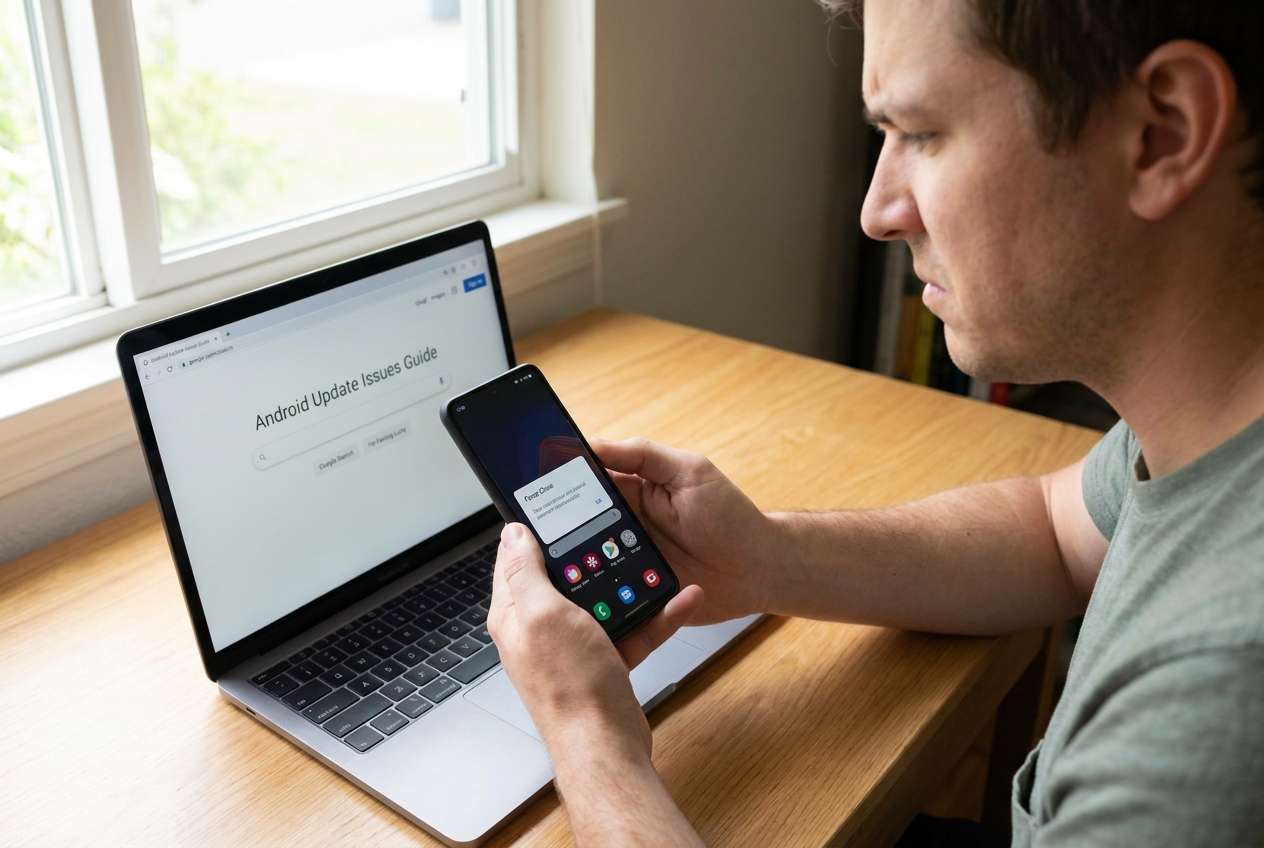
I hit “Install now,” my phone rebooted, and the update looks finished—but now a bunch of apps just crash, freeze, or won’t open at all.
Reddit user, r/Android
Apps can suddenly crash, freeze, or refuse to open after a major Android update—often right after you tap Install now and the phone reboots. On devices like a Samsung Galaxy S22 or Google Pixel 7, it may look like the update finished, but nothing changes after several minutes, and your most-used apps still won’t behave normally.
AI (like ChatGPT or Gemini) can help you describe the symptoms clearly, narrow the most likely causes (app compatibility, corrupted cache, permission changes, Play services issues), and choose low-risk next steps based on what you’re seeing.
AI can’t verify what’s happening inside your phone or safely “try everything” for you. Trial-and-error—especially around accounts, device security, or resets—can create extra risks, including lockouts or data loss, so it helps to diagnose first and act carefully.
In this article
- Why apps break after a major Android update (and what it means)
- What changes after an Android update
- Common symptoms you’ll see
- Per-app issues vs system-level problems
- Before you prompt the AI
- Using AI prompts to diagnose safely
- When to stop troubleshooting and avoid risks
- Fix access problems safely with Dr.Fone
- Step-by-step execution guide (regain access, then stabilize)
Part 1. Why are apps broken after a major Android update happens, and what does it mean
After a major Android update, apps may break because the system changed how permissions, background activity, storage access, or battery restrictions work. Some apps also need time to optimize after the update, and certain versions may not be fully compatible yet.
Another common pattern is update-side “leftovers”: stale cache, corrupted app data, or a Play Store / Google Play services mismatch. Symptoms often include repeated crashes, blank screens, login loops, missing notifications, or “App keeps stopping.”
If you tried multiple restarts and only some apps fail (while others work), that usually points to per-app compatibility/data issues rather than a full system failure—unless core apps like Settings or Play Store are also unstable.
1-1. Before You Prompt the AI
Gather a few facts first so the AI can separate “normal post-update behavior” from real faults:
- Android version before/after the update (if known)
- Phone model and brand
- Which apps fail (all apps vs 2–3 specific apps)
- Exact error text (or “keeps stopping” / black screen / stuck loading)
- What have you already tried (restarting, clearing cache, reinstalling)
- Whether you can still unlock the phone normally
Part 2. Using AI prompts to diagnose apps broken after a major Android update safely
2-1. Level 1: Basic Prompt
My apps are broken after a major Android update. Ask me the minimum questions needed to narrow the most likely cause, then suggest the lowest-risk steps first. My phone model is: ____. Android version is: ____. Symptoms: ____.
2-2. Level 2: Advanced Prompt
Diagnose why apps are broken after a major Android update on my phone.
1) List the top 5 likely causes and rank them by probability.
2) For each cause, give low-risk checks first (no factory reset).
3) Flag any step that could risk data loss, account lock, or device access.
My details: phone model ____, Android version ____, apps affected ____, exact errors ____, what I tried ____.
2-3. Level 3: Evidence Prompt
Act as a triage assistant for “apps broken after major Android update.” Use my evidence to:
- Separate causes into: (A) app-level, (B) Google services/Play Store, (C) storage/permission, (D) system-level.
- Tell me which category is most likely and why.
- Give a safe test plan with 5–8 steps ordered by lowest risk.
- Tell me what result would confirm/deny each hypothesis.
Evidence:
- Phone model: (e.g., Samsung Galaxy S22)
- Android version: (e.g., Android 14)
- Update trigger: (e.g., tapped “Install now,” rebooted once)
- Apps affected: (e.g., only banking apps, or most apps)
- Error messages: (e.g., “keeps stopping,” black screen)
- Storage free space: (e.g., 3 GB free)
- Battery optimization status: (e.g., on for most apps)
- Play Store/Google Play services behavior: (e.g., updates stuck)
- Safe mode test result (if tried): (e.g., apps work in Safe mode / still broken)
- What I already tried: (e.g., restart, clear cache, reinstall)
- Current risk: (e.g., I’m now locked out / forgot PIN/fingerprint failing)
2-4. Prompt Refinement
Use these follow-ups to force clearer, safer answers:
What 3 questions do you still need from me to decide between app compatibility, corrupted app data, and Play services issues?
Rank the causes again after I tell you: only some apps fail / all apps fail / Play Store also crashes.
Split your steps into ‘no data risk’ and ‘possible data/access risk,’ and explain why each risky step is risky.
What single piece of evidence would most strongly confirm the top cause?
If I can’t access Settings reliably, what alternatives can I use to gather evidence without making the problem worse?
2-5. AI Output vs Reality
AI guidance is best used as triage; your device still needs real actions to test outcomes.
| AI can help you do | Reality check, you still need |
|---|---|
| Turn messy symptoms into a clear checklist | Some issues only show up during real device interaction |
| Compare likely causes and rank them | Rankings are guesses until you test on-device evidence |
| Suggest low-risk sequencing | One “standard” step can behave differently by brand/version |
| Warn about reset/lockout risks | AI can’t see your exact security state or account protections |
AI narrows the decision tree; execution (and safeguards) happen on your device, where mistakes can escalate into access problems.
Part 3. When to stop troubleshooting apps broken after a major Android update and avoid risks
Stop and switch from experimentation to a controlled approach if you see any of these signals:
- You’re now locked out (forgot PIN/pattern, fingerprint stops working, or too many attempts)
- Core functions are unstable (Settings won’t open, Play Store crashes constantly, phone reboots)
- You’re considering a factory reset “just to try,” but you’re unsure about backups or account credentials
- Each attempt makes things worse (more apps failing, increased lag, repeated security prompts)
At this point, the goal shifts from “keep trying random fixes” to “regain reliable access first,” so you can apply changes safely and consistently.
Part 4. Apps broken after a major Android update: fix or resolve it safely with Dr.Fone
If the update fallout has escalated into an access problem (for example, you can’t get past the lock screen to manage apps, storage, permissions, or updates), execution becomes the bottleneck. That’s where Dr.Fone - Screen Unlock (Android) is relevant: it’s designed to help you remove certain Android lock screens so you can get back into the device environment and continue the safer, evidence-based steps your AI triage recommended—without relying on repeated guesswork that could trigger more lockouts.
 Unlock Android phone in seconds.
- Remove PIN, pattern, password, fingerprint.
- Bypass Google FRP lock easily.
- Works on all Android brands & models.
- No tech skills required – user-friendly.


Part 5. Step-by-step execution guide (regain access, then stabilize)
-
Step 1 Confirm the lock situation
Identify whether you’re blocked by PIN/pattern/password or a biometric failure, so you choose the appropriate unlock path.

-
Step 2 Open Screen Unlock (Android)
Launch the Unlock Android Screen feature and select the option that matches your device and lock type, avoiding unnecessary modes that could increase risk.

-
Step 3 Follow the guided on-screen flow
Proceed step-by-step and don’t improvise sequence changes, since the wrong path can cause repeated attempt delays or additional restrictions.

-
Step 4 Regain access and stabilize basics
Once you can access the phone, prioritize low-risk stabilization (free storage space, update Play services, check app permissions) before reinstalling everything.

-
Step 5 Re-check the AI diagnosis plan
Resume the ranked test plan from the prompts and validate causes with evidence rather than jumping to resets.




Conclusion
Use AI prompts to structure symptoms, rank likely causes, and pick low-risk checks in the right order; when the situation turns into an access barrier (like being locked out), hand off execution to a purpose-built tool such as Dr.Fone Screen Unlock so you can return to safe, evidence-based troubleshooting.
FAQ
-
Why do apps crash after a major Android update?
Common causes include app-version incompatibility, corrupted cache/data after migration, new permission rules, tighter battery/background limits, and Play services/Play Store update issues. -
How do I know if it’s a single app problem or a system problem?
If only a few apps fail while Settings and Play Store work, it’s often app-level. If core apps fail, installs won’t update, or the phone is unstable, it leans system-level. -
Is reinstalling apps always safe after an update?
It’s usually low risk, but it can remove local app data for some apps. AI can help you decide when to clear cache first vs reinstall, based on the app type and symptoms. -
What should I avoid doing when apps are broken after a major Android update?
Avoid factory resets without confirming backups and account credentials, and avoid repeated lock-screen attempts that can trigger timeouts or account/device security restrictions. -
What if I can’t unlock my Android phone to apply the fixes?
If access is the blocker, use a controlled screen-unlock approach (such as Dr.Fone – Screen Unlock for Android) to regain entry, then apply the lowest-risk stabilization steps first.
 Add Wondershare Dr.Fone as a preferred source on Google





