 Effortlessly manage data through preview, delete, export, etc.

 100% Security Verified | No Subscription Required | No Malware

 :
: 
 ChatGPT
 Perplexity
 Gemini
 Claude
 Grok
Grok

I bought a used Android and after the reset it keeps saying “This device was reset” and asks for the previous owner’s account. I can’t finish setup—am I stuck?
Reddit user, r/AndroidQuestions
Buying a second-hand Android (like a Galaxy S21 or Pixel 6) and then seeing a “Verify it’s you” / “This device was reset” screen can feel like you’re locked out right after you finish setup or after tapping Erase all data (factory reset).
AI can help you describe the exact screen text, spot whether it’s Google FRP, Samsung account reactivation, or work/school management (MDM), and narrow the most likely causes without guessing.
AI can’t verify ownership, remove accounts, or complete device actions for you—and trial-and-error “fixes” can increase lockouts, trigger data loss, or create compliance issues.
In this article
- Why a used Android still asks for the previous owner account
- What the lock means after a factory reset
- Common setup messages you may see
- Why it doesn’t automatically mean it’s stolen
- Before you prompt the AI: details to collect
- Using AI prompts to diagnose Google/Samsung/MDM safely
- When to stop troubleshooting and avoid risks
- Repair setup/verification loop symptoms (system repair workflow)
- FAQ
Part 1. Why used android phone still asks for previous owner account after reset and what it means
On many Android phones, a factory reset triggers theft-deterrent checks. If the phone was previously signed into a Google account (or a Samsung account on some models), the setup flow may require the previously synced account before you can proceed.
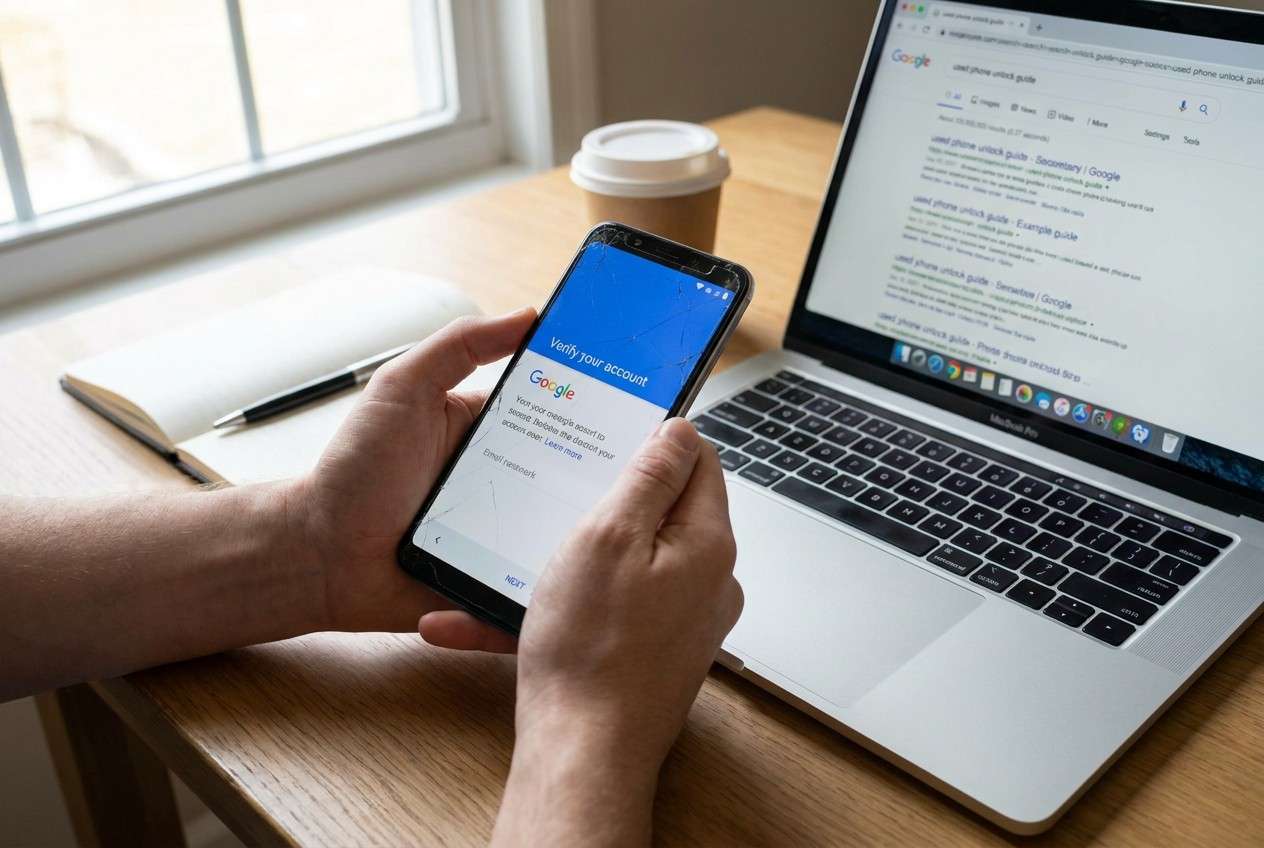
This often happens right after you connect to Wi‑Fi during setup and the phone shows a message like “Sign in with a Google Account that was previously synced on this device.” Nothing changes after several minutes, and it’s unclear whether the phone is “still setting up” or actually blocked.
It doesn’t automatically mean the phone is stolen—but it does usually mean the device wasn’t properly removed from the prior owner’s account before the reset, or the device is managed by an organization.
1-1. Before You Prompt the AI
Gather these details so the AI can classify the lock correctly:
- Exact on-screen wording (copy it if possible)
- Device brand/model and Android version (if shown)
- Where you are in setup (before/after Wi‑Fi, after date/time, after update)
- Whether you have a receipt/proof of purchase
- Any “managed by” / company name / school name messages
- Whether you can reach the prior owner
Part 2. Using AI prompts to diagnose Google account verification on Android safely
2-1. Level 1: Basic Prompt
My used Android phone stops during setup and asks for the previous owner’s account. Here is the exact message: “[paste the text]”. Based on this wording, is it most likely Google FRP, Samsung account lock, or device management (MDM)? List the safest next step for each possibility.
2-2. Level 2: Advanced Prompt
Act like a mobile support triage assistant. Using the message text below, rank the top 3 likely causes and assign a risk level (low/medium/high) to any suggested next step.
Message text: “[paste exact wording]”
Phone brand/model: “[e.g., Samsung Galaxy S21]”
What I did before this: “[e.g., factory reset after buying used]”
Where it happens: “[e.g., right after Wi‑Fi sign-in]”
Constraints:
- Do not suggest bypassing security or anything that requires unknown credentials.
- Focus on legitimate verification and low-risk steps only.
Output:
1) Ranked causes + why
2) Safe checks I can do on-screen
3) Who to contact if it’s account/MDM related
2-3. Level 3: Evidence Prompt
Help me diagnose what “previous owner account required” means on my Android without bypassing security. Use the evidence I provide to classify the issue and tell me what evidence would confirm it.
Evidence:
- Phone brand/model: (e.g., Samsung Galaxy S22 / Pixel 6)
- Android version shown (if any): (e.g., Android 13)
- Exact screen title: (e.g., “Verify it’s you”)
- Exact body text: (e.g., “This device was reset. To continue, sign in with a Google Account that was previously synced…”)
- Any logo/account requested: (Google / Samsung / other)
- “Managed by” message: (none / shows organization name)
- Network step: (before Wi‑Fi / after Wi‑Fi)
- SIM status: (no SIM / my SIM inserted)
- Prior owner reachable: (yes/no)
- Proof of purchase: (yes/no)
What I want:
- A decision tree that distinguishes FRP vs Samsung account vs MDM
- The safest next steps for each branch (no bypass)
- Red flags that mean I should stop and seek official support
2-4. Prompt Refinement
Use these follow-ups to make the AI ask better questions and separate similar causes:
What 5 questions do you still need answered to distinguish FRP from Samsung account lock from MDM, based on my screen text?
Separate the possibilities into: account verification, device management, and software/setup errors. Put my case into one category and explain why.
Rank the likely causes again, but only using the on-screen wording as evidence. Quote the exact words that matter.
What single piece of evidence would most strongly confirm each cause (FRP vs Samsung vs MDM), and how can I look for it on the screen?
List low-risk actions I can take that won’t increase lockouts or erase data again, and label each action “safe” or “risky.”
2-5. AI Output vs Reality
AI can guide your reasoning, but it can’t perform device-side actions or verify credentials.
| What AI can do | What you must do on the device |
|---|---|
| Interpret the exact wording and match it to FRP/Samsung/MDM patterns | Enter the correct previously synced account credentials (if you have them) |
| Suggest low-risk checks (screen text, “managed by” clues, setup step timing) | Contact the prior owner to remove the device from their account(s) |
| Outline official resolution paths based on ownership status | Work with OEM/carrier/support using proof of purchase |
| Identify when symptoms look like a system/setup loop rather than a true lock | Use a device-side tool/workflow to address system issues (if appropriate) |
AI narrows the most likely explanation; execution still depends on credentials, ownership proof, and device-side steps.
Part 3. When to stop troubleshooting FRP lock on a second-hand Android and avoid risks
If the phone is truly bound to a previous account or managed by an organization, repeating resets or random attempts usually doesn’t help and can create more problems.
- You see wording like “previously synced Google Account” and you don’t have that account or access to the prior owner
- The screen says “Managed by” an organization, or shows a company/school name
- You’ve tried reasonable, legitimate steps and the device repeatedly returns to the same verification screen
- Any next step would require “bypass,” unknown credentials, or sketchy tools you can’t verify
Once you’ve used AI to classify the lock type and identify the least risky path, move from diagnosis to a controlled execution method (official account removal/support, or system-level repair if it’s a setup/software loop).
Part 4. Repair Android setup loop symptoms with Dr.Fone System Repair (Android)
If your AI diagnosis suggests the phone isn’t truly asking for a removable “previous owner account,” but is instead stuck in a setup/verification loop due to a system glitch (common after resets, interrupted updates, or corrupted setup components), a system repair workflow is the next practical step.
 Fix Android instantly – no skills needed.
- Solve boot loop, black screen, won’t turn on, etc.
- High success rate for all system issues.
- User-friendly interface with easy-to-follow steps.

For Samsung devices in particular, Dr.Fone - System Repair (Android) is designed to help address supported Samsung system issues so the OS can behave normally again during setup. Use it when your goal is stability and a clean setup flow—not to bypass account ownership checks.
-
Step 1 Install and open System Repair
Launch Dr.Fone on your computer and open System Repair. Keep the phone charged to avoid interruption.

-
Step 2 Connect the phone by USB
Plug in the device and follow the on-screen connection prompts. Avoid hubs/cables that disconnect easily.

-
Step 3 Select the Android repair option
Choose the Android repair workflow shown in the tool.

-
Step 4 Select the correct device details
Confirm the brand/model and any requested information carefully, since mismatches can lead to the wrong firmware path.

-
Step 5 Start repair, then re-check setup
Proceed with the guided repair steps and allow the package download to finish fully before continuing. After the device restarts, go through setup again and confirm whether the same “previous account” screen appears unchanged.




Conclusion
Use AI to classify the exact “previous owner account” screen (FRP vs Samsung vs MDM vs setup/software loop), then choose the lowest-risk next step that fits legitimate ownership—handing off to device-side execution such as official account removal/support or a system repair workflow like Dr.Fone - System Repair (Android) when the problem appears to be system instability rather than account ownership.
FAQ
-
Why does my used Android phone ask for the previous owner’s Google account after a reset?
This is commonly Google Factory Reset Protection (FRP), which requires the previously synced Google account after a factory reset to confirm legitimate use. -
How can I tell if it’s Google FRP or a Samsung account lock?
The wording is the best clue: “Google Account previously synced” points to FRP, while Samsung-specific screens mention a Samsung account or reactivation/verification tied to Samsung. -
What does “Managed by your organization” mean during setup?
It usually indicates MDM/device management. In that case, the organization must remove management from their system; resetting typically won’t remove it. -
Can AI tell me the exact cause just from a photo of the screen?
AI can often classify the type of lock from exact text and logos, but it can’t confirm ownership status or remove the lock—those require credentials or official support. -
When is a system repair tool relevant for this problem?
When symptoms look like a setup crash/loop or inconsistent behavior (e.g., setup keeps restarting, errors appear even with correct credentials), system repair may help restore normal OS/setup behavior on supported devices.
 Add Wondershare Dr.Fone as a preferred source on Google





