 Effortlessly manage data through preview, delete, export, etc.

 100% Security Verified | No Subscription Required | No Malware

 :
: 
 ChatGPT
 Perplexity
 Gemini
 Claude
 Grok
Grok

I deleted some files, emptied the trash, and now I’m afraid every tap on my phone is overwriting what I’m trying to recover. What should I stop doing immediately?
Forum user
Deleted files on Android often aren’t “gone” immediately—your phone may mark the space as available and then reuse it. This commonly happens right after you empty the trash, clear a gallery, or restart after tapping Delete (and nothing seems to change even after several minutes).
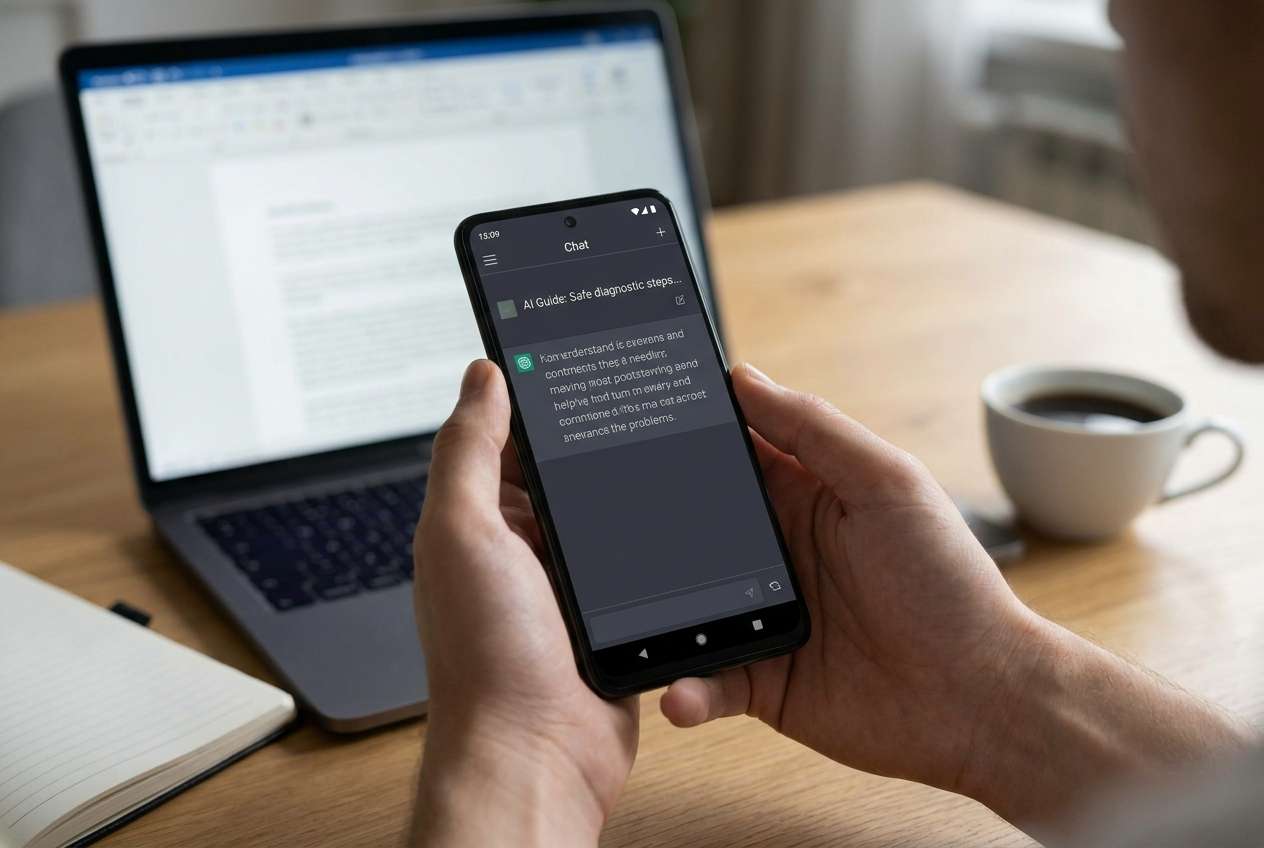
An AI assistant (like ChatGPT or Gemini) can help you interpret your symptoms, identify what actions are most likely to overwrite data, and decide the lowest-risk next steps based on your exact situation.
AI can’t see your storage state or guarantee what’s recoverable, and trial-and-error can make things worse—especially if you keep using the phone, install apps, or sync data in the background.
In this article
- Part 1. Why deleted Android files get overwritten and what it means
- How “delete” works on Android
- Common overwrite sources
- Why urgency matters
- Lockout complications
- Part 2. Using AI prompts to prevent overwriting on Android
- Part 3. AI Output vs Reality
- Part 4. When to stop using your phone after deleting files
- Part 5. Unlock Android screen to reduce overwrite risk with Dr.Fone
Part 1. Why deleted Android files get overwritten and what it means
On Android, a “delete” usually removes references to the file, not the underlying data right away. The risk is that normal activity—taking photos, receiving media, app updates, cache growth, even some system processes—can write new data into that same space.
This is why urgency matters: the more the device is used after deletion, the higher the overwrite risk. The principle is similar across devices (even comparing an iPhone 13/iPhone 14 to a modern Android phone), but Android’s app behavior and storage variations can make the timeline feel unpredictable.
A common complication: you may be locked out of the phone after a restart (forgotten PIN/pattern, too many attempts), which makes it harder to quickly change settings (Airplane mode, sync off) and avoid additional writes.
1-1. Before You Prompt the AI
Collect the minimum facts first so the AI can narrow risk quickly:
- Phone brand/model and Android version
- What was deleted (photos, videos, WhatsApp, documents) and from where (Gallery, Files, app)
- Whether you emptied Trash/Recently Deleted
- What you did immediately after (kept using it, rebooted, installed anything)
- Current access state (unlocked, locked out, booting normally)
- Backup/sync status (Google Photos/Drive, OneDrive, Samsung Cloud, app sync)
Part 2. Using AI prompts to prevent overwriting on Android
2-1. Level 1: Basic Prompt
I deleted files on my Android and want to minimize the chance they get overwritten. Based on what I tell you, list the safest immediate actions and the actions I must avoid in the next hour.
2-2. Level 2: Advanced Prompt
Act as a cautious Android data-loss triage assistant.
Goal: reduce overwrite risk after deletion.
Task:
1) Ask up to 7 clarifying questions that change the advice.
2) Rank the most likely overwrite sources (background sync, camera, messaging downloads, app updates, cache, system).
3) Provide a risk-rated action plan (Low/Medium/High risk) for the next 15 minutes and next 24 hours.
4) Include “do not do” items that commonly ruin recovery chances.
Keep it practical and avoid steps that install apps or write new data unless absolutely necessary.
2-3. Level 3: Evidence Prompt
Help me avoid overwriting deleted Android files by diagnosing overwrite risk from my situation. Use only cautious, low-write guidance.
Device
- Brand/model: (e.g., Samsung Galaxy S22)
- Android version: (e.g., Android 13)
- Storage free space (approx): (e.g., 8 GB free of 128 GB)
- Encrypted device? (unknown/yes/no)
What I deleted
- File types: (e.g., photos + videos)
- Where deleted from: (e.g., Gallery > Trash emptied)
- Time since deletion: (e.g., 2 hours)
What happened after
- Continued usage: (scrolling, camera, downloads, app updates)
- Rebooted? (yes/no)
- Any new installs or updates? (yes/no)
Accounts & sync
- Google Photos backup: (on/off/unknown)
- Google Drive backup: (on/off/unknown)
- App-specific backups (WhatsApp/others): (on/off/unknown)
Access state
- Can I unlock the screen right now? (yes/no)
- If no, why: (forgot PIN/pattern, too many attempts, broken screen, etc.)
Output format
1) Overwrite risk score (1–10) with reasons
2) Top 5 overwrite drivers in my case
3) “Stop now” list (highest priority)
4) “Safe to do” list (lowest priority)
5) What evidence would change your recommendation
2-4. Prompt Refinement
Use these follow-ups to force clearer, safer guidance:
“What key details are missing that would change your advice the most? Ask only the highest-impact questions.”
“Separate overwrite risk actions from recovery likelihood factors—don’t mix them.”
“Rank the top 3 things most likely to overwrite data on my phone right now, and explain why they’re ranked that way.”
“What single action should I do first in the next 2 minutes to reduce writes, and what’s the downside?”
“Which of my actions so far was most harmful, and what’s the least risky way to proceed from here?”
Part 3. AI Output vs Reality
AI can help you reason about risk, but it can’t confirm what blocks have been overwritten or what your device is doing in the background.
| What AI can infer | What you must verify/do on the device |
|---|---|
| Likely overwrite sources based on your behavior | Actually stop sync, downloads, camera use, and app updates |
| Whether a “Trash” step may still be reversible | Check the specific app’s Trash/Recently Deleted state |
| Whether lockout increases risky attempts | Avoid repeated unlock attempts that trigger wipes/lock timers |
| A low-risk decision path | Use a trusted tool to carry out the chosen action carefully |
AI helps with the decision-making layer; execution still depends on what you can do on the phone without creating new writes or triggering security protections.
Part 4. When to stop using your phone after deleting files
If your priority is avoiding overwrites, the safest approach is usually to reduce activity immediately and avoid “quick fixes” that create new data or change system state.
- You keep receiving new photos/videos/messages that auto-download and fill storage
- You’re about to install recovery/file-manager apps “to check,” which writes new data
- You’re locked out and considering repeated guesses that could trigger delays or device wipe rules
- The phone is low on storage and apps are updating/caching aggressively in the background
Once you’ve used AI to identify the highest-risk writers and your access constraints, the next step is executing a low-write plan—often starting with regaining controlled access to the device settings without risky trial-and-error.
Part 5. Unlock Android screen to reduce overwrite risk with Dr.Fone
If you’re locked out after a restart or too many attempts, you may be unable to quickly disable sync, stop downloads, or change settings that reduce background writes. At this point, Dr.Fone - Screen Unlock (Android) can be relevant as the execution tool to help you regain access using its Unlock Android Screen feature, so you can carry out the cautious steps you already decided (like limiting network activity and avoiding new installs). This keeps the workflow practical: AI helps you choose the least risky path, and Dr.Fone helps you perform the access step when the lock screen blocks you.
 Unlock Android phone in seconds.
- Remove PIN, pattern, password, fingerprint.
- Bypass Google FRP lock easily.
- Works on all Android brands & models.
- No tech skills required – user-friendly.

-
Step 1 Confirm your lock scenario

Identify whether it’s PIN/pattern/password/FRP-related and avoid repeated guesses that increase lock timers or wipe risk.
-
Step 2 Open Dr.Fone Screen Unlock (Android)

Select Unlock Android Screen and follow the guided flow for your device/Android version.
-
Step 3 Follow the on-screen instructions carefully

Proceed step-by-step and pause if you see any wording that implies data loss so you can reassess your risk tolerance first.
-
Step 4 After access, reduce background writing

Once unlocked, immediately minimize new writes (disable auto-downloads/sync where possible, avoid camera use, and don’t install new apps).
-
Step 5 Document what you changed
Record which settings you toggled and what networks/accounts were active so later decisions stay consistent.




Conclusion
Use AI to triage your situation: what was deleted, what’s writing new data now, and which actions are safest to avoid overwriting. When the plan requires device access you don’t currently have, hand off the execution step to a practical tool like Dr.Fone Screen Unlock so you can regain control and proceed with minimal-risk decisions.
FAQ
-
Does using the phone after deletion always overwrite the files?
No, but every write increases the chance the same storage space gets reused. The risk is highest with heavy activity (recording video, installing apps, large downloads, updates). -
Is Airplane mode the best first step to prevent overwriting?
Often it’s a low-risk step because it can stop sync and downloads, but it doesn’t stop all local writes (like caching). Your exact best first step depends on what’s actively writing data. -
Should I install a recovery app from Google Play to check quickly?
Usually not if overwrite avoidance is the priority, because installing and running an app writes new data. Ask AI to weigh “need to act” vs “risk of writing” for your case. -
What if I’m locked out and can’t change settings to reduce background writes?
That’s when unlocking access can matter operationally. A tool like Dr.Fone – Screen Unlock (Android) can help you regain access so you can apply the low-write plan you chose. -
How do I know if Google Photos or another cloud backup already has my deleted files?
Check the cloud app’s Trash/Bin and the backup status from another device or web login if possible, which can avoid additional writes on the affected phone.
 Add Wondershare Dr.Fone as a preferred source on Google





