 Effortlessly manage data through preview, delete, export, etc.

 100% Security Verified | No Subscription Required | No Malware

 :
: 
 ChatGPT
 Perplexity
 Gemini
 Claude
 Grok
Grok

I thought “decluttering” my old phone was just deleting stuff—then I realized one wrong tap could wipe photos or lock me out of 2FA when I switch devices.
Apple Support Community user
Decluttering an old phone before moving to a new one sounds simple, but missing a single step can mean lost photos, broken 2FA access, or wiping the wrong device.
AI can help you map a clean, low-risk sequence: what to review first, what to back up, what to transfer, and what to delete only after verification.
AI still can’t see your device, confirm what’s actually synced, or perform the transfer/erase actions—so you’ll need real tools for the execution stage.
In this article
- How to plan a declutter workflow without missing critical steps
- Why “simple cleanup” becomes risky
- Set a dependable order of operations
- Define irreversible steps (point of no return)
- Build verification into the plan
- What the AI needs to know
- Using AI prompts to build a safer workflow
- When to stop planning and start execution
- Execute the workflow safely with Dr.Fone
Part 1. How to Plan declutter old phone before transferring to a new one Without Missing Critical Steps
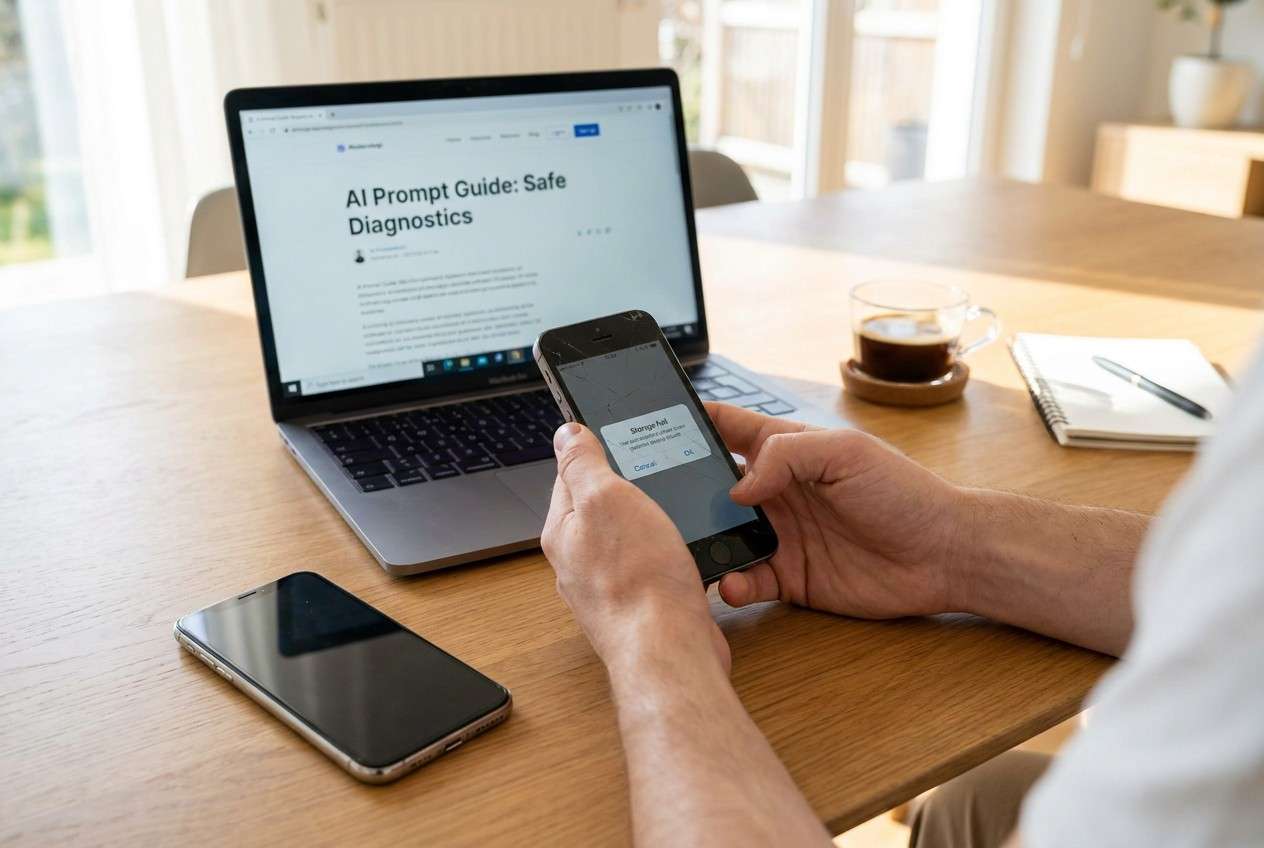
You’re upgrading phones and want the new device to feel clean—no duplicate apps, no cluttered photo rolls, and none of the “I forgot where that file lived” mess. At the same time, you can’t risk losing messages, contacts, authenticator access, or important media.
The uncertainty usually starts after you ask for advice: you get a list of ideas, but not a dependable order (what must be backed up before you delete?) and not enough verification (how do you prove everything is safely on the new phone?).
The point-of-no-return moment is any irreversible action like factory reset or secure erase of the old phone. Your plan should explicitly prevent reaching that step until your checks pass.
Part 2. What the AI Needs to Know
Answer these so the AI can build a workflow that matches your devices and risk tolerance:
- Old phone model + OS (e.g., iPhone 12 on iOS 17 / Samsung S21 on Android 14)
- New phone model + OS
- Transfer goal: “move everything” vs “move only essentials”
- Data types that matter: photos/videos, messages, contacts, WhatsApp, notes, files, call logs, calendar, browser data
- 2FA/authenticator apps used (Google Authenticator, Microsoft Authenticator, Authy, bank apps)
- Cloud accounts in use (Apple ID/iCloud, Google account, OneDrive, Dropbox) and whether sync is enabled
- Storage constraints (new phone storage, cloud storage limits)
- Privacy needs: selling/trading in the old phone vs keeping it as a backup
- Time window and connectivity (Wi‑Fi quality, access to a computer or not)
Part 3. Using AI Prompts to Build a Safer declutter old phone before transferring to a new one Workflow
Use the prompts below to make AI produce a sequence + checks, not just tips.
3-1. Level 1: Basic Prompt
I’m decluttering my old phone before switching to a new one. Create a step-by-step plan that prevents data loss and includes a “do not delete yet” list. Focus on what to verify before I remove anything.
3-2. Level 2: Advanced Prompt
Build a structured workflow to declutter my old phone before transferring to a new one.
Split it into Preparation, Execution, and Verification phases, and label items as critical vs optional.
Include explicit “stop points” where I must confirm backups/transfers before any deletion or reset.
3-3. Level 3: Evidence Prompt
Here’s my situation: old phone (iPhone 11, iOS 17), new phone (iPhone 15), primary account (Apple ID: iCloud Photos ON), messaging (iMessage + WhatsApp), 2FA (Google Authenticator), storage (old phone 62/64 GB; iCloud 190/200 GB), and I’m trading in the old phone.
Design a declutter-and-transfer workflow with checks before/during/after each phase.
Include example acceptance criteria like “Photos count on new phone matches (e.g., ~18,400 items)” and “WhatsApp last backup date is today.”
Also list the irreversible steps and what must be proven true before I reach them.
3-4. Prompt Refinement
Put the workflow in a table with columns: Step, Why it matters, How to verify, Rollback/alternative if verification fails, Risk level.
Split “apps” into three buckets: must transfer with data, reinstall only, do not install—and define the rule for each bucket.
Create a “2FA safety plan” that names the exact moment I should move authenticator access, and what to do if I lose access mid-transfer.
Add a pre-reset checklist that I can tick off, including proof items (screenshots to capture, dates to confirm, counts to compare).
Identify the top 5 ways people lose data during this process and add a prevention step for each.
3-5. AI Plan vs. Real Device Constraints
| Planning item AI can help with | What AI cannot confirm on your device |
|---|---|
| The safest order of operations | Whether your last backup actually completed successfully |
| A “do not delete yet” list | Whether every photo/message/file truly exists on the new phone |
| Risk flags (2FA, WhatsApp, encrypted notes) | Whether a specific app stores data locally vs cloud-only on your setup |
| Verification criteria (counts, timestamps, spot-checks) | Whether you’re about to erase the correct device/account |
AI improves the plan and reduces avoidable mistakes, but it cannot execute transfers, run backups, or validate what’s physically on your phone.
Part 4. When to Stop Planning declutter old phone before transferring to a new one and Start Execution
- You have a written order that separates transfer/backup first from delete/reset last.
- You’ve defined verification checks for each critical data type (photos, messages, contacts, 2FA, key apps).
- You’ve identified all irreversible steps (factory reset/secure erase) and placed them at the end with strict prerequisites.
- You have the needed access ready (passwords, charging cables, stable Wi‑Fi, sufficient storage, time buffer).
If those are true, you’re ready to follow the plan using an execution tool—without improvising mid-process.
Part 5. Declutter old phone before transferring to a new one: Execute the Workflow Safely with Dr.Fone
Execution matters now because the risk comes from actions (overwriting, partial transfers, deletions), not from the plan itself—so you want a controlled run with verification pauses. To do that, use Dr.Fone Basic - Data Manager.
 Easily manage data through preview, delete, export, etc.
- Transfer all data between devices.
- Robust backup solutions for reliable data protection.
- Mirror screens to PC for meetings, teaching, and control.

-
Step 1 Backup first (protect the point of no return)
Use Dr.Fone to create a backup of the old phone (or targeted critical categories) before you remove data. Limitation: AI can’t confirm the backup integrity—verify completion and that you can view/restore the backup contents before proceeding.

-
Step 2 Transfer what you’re keeping (move essentials before cleanup)
Use Dr.Fone to transfer the selected data from the old phone to the new phone according to your “critical vs optional” list. Limitation: AI can’t see what actually arrived—spot-check totals, recent items, and app-specific data on the new phone.

-
Step 3 Verify key categories before any deletion
Before removing anything on the old phone, verify the most failure-prone categories (photos/videos, messages, contacts, WhatsApp, 2FA/authenticator access) using counts, last backup timestamps, and spot-checks on the new phone.

-
Step 4 Clean up and erase only after verification passes (irreversible)
After your checks pass, use Dr.Fone (or your device settings) to remove remaining clutter and, if you’re trading in the phone, erase the old device. Limitation: Once erased/reset, recovery may be impossible—do not proceed unless every verification item is confirmed.





Conclusion
Use AI to produce a careful sequence with clear stop-points and verification checks, then use Dr.Fone to carry out the backup, transfer, and (only after validation) the irreversible cleanup steps.
FAQ
-
What should never be deleted early?
Anything tied to access or irreplaceable data: authenticator/2FA setups, messages you must keep, unsynced photos/videos, local-only notes/files, and app data that doesn’t automatically restore.
-
How do I verify photos/videos moved correctly?
Compare counts and date ranges, open several recent and older items, and confirm cloud sync status (not just that thumbnails appear).
-
Why is 2FA a special risk during phone changes?
Because losing authenticator access can lock you out of email, banking, and cloud accounts—move or recover 2FA before wiping the old phone.
-
When is it safe to factory reset the old phone?
Only after you’ve confirmed backups/transfers and successfully logged into key accounts on the new phone (including 2FA) and verified critical data.
-
Can AI tell me whether an app stores data locally or in the cloud?
AI can suggest common behavior, but it can’t confirm your specific app state—treat this as a verification item you must check on-device.
 Add Wondershare Dr.Fone as a preferred source on Google





