 Effortlessly manage data through preview, delete, export, etc.

 100% Security Verified | No Subscription Required | No Malware

 :
: 
 ChatGPT
 Perplexity
 Gemini
 Claude
 Grok
Grok

My iPhone says my Bluetooth headphones are connected, but the sound still comes from the phone speaker (or there’s no sound at all). It started right after an iOS update and I can’t tell if audio is actually routing to Bluetooth.
Apple Support Community user
Bluetooth shows “Connected” on your iPhone, but audio still plays through the phone speaker (or you hear nothing at all). This often happens right after tapping Install Now for an iOS update or after a restart on models like iPhone 13 or iPhone 14, and it’s unclear whether the connection is actually being used for audio.
AI (like ChatGPT or Gemini) can help you interpret symptoms, narrow likely causes, and choose low-risk checks based on what you see in Settings, Control Center, and the Bluetooth device behavior.
AI can’t confirm hardware faults or take actions on your device, and repeated trial-and-error (especially forgetting devices, resetting settings, or changing accessibility/audio routes) can create new issues or wipe preferences—so it’s best to be systematic.
1. “Connected” doesn’t mean audio is routed.
Your iPhone can stay linked to a Bluetooth device while still sending sound to the speaker/receiver, to AirPlay, or to a different Bluetooth profile (for calls only).
2. Use AI to rank causes and keep checks low-risk.
Well-structured prompts help you separate routing vs device vs app issues and follow a safest-first sequence (instead of random resets or repeated unpairing).
3. Stop when the next step adds risk without new evidence.
If you haven’t confirmed the output route yet, avoid escalating to resets that erase settings or force re-pairing.
In this article
- Part 1. Why bluetooth connected but no sound on iphone happens and what it means
- What “Connected” really means
- Common audio routing mix-ups
- Update/restart glitches and profile mismatch
- Before you prompt the AI
- Part 2. Using AI prompts to diagnose bluetooth connected but no sound on iphone safely
- Part 3. When to stop troubleshooting bluetooth connected but no sound on iphone and avoid risks
- Part 4. Bluetooth connected but no sound on iphone: fix or resolve it safely with Dr.Fone
- Conclusion
Part 1. Why bluetooth connected but no sound on iphone happens and what it means
“Connected” in Bluetooth only means the device is paired and linked—it doesn’t guarantee iOS is routing audio to it. Your iPhone may still be using the wrong output route (speaker/receiver), a different audio destination (AirPlay), or the Bluetooth device may be connected for calls only.
This problem is common after switching between earbuds, car audio, speakers, or conferencing gear: the device can show connected, but audio is muted, on a different profile, or blocked by a per-app output choice. Sometimes nothing changes after several minutes, so it feels like the phone is “stuck” using the wrong output.
If the issue started right after an update/restart, it may point to a temporary routing glitch, a Bluetooth profile mismatch, or an app-level audio session behaving unexpectedly.
1-1. Before You Prompt the AI
Gather a few specifics first, then prompt the AI with consistent facts:
- iPhone model and iOS version (Settings > General > About)
- Bluetooth device type (car stereo, AirPods, speaker) and brand/model
- Where audio fails (Music, YouTube, phone calls, FaceTime, all audio)
- Current output route (Control Center audio card / AirPlay icon)
- Whether volume is up on both iPhone and the Bluetooth device
- Any recent change (update, reboot, new device pairing, new app)
Part 2. Using AI prompts to diagnose bluetooth connected but no sound on iphone safely
2-1. Level 1: Basic Prompt
My iPhone shows Bluetooth “Connected” but there’s no sound through the Bluetooth device. Ask me the minimum questions needed to determine whether this is an output routing issue, a device volume/profile issue, or an app-specific audio issue, and give the safest checks first.
2-2. Level 2: Advanced Prompt
Diagnose “Bluetooth connected but no sound on iPhone” using a ranked list of likely causes.
Constraints: start with zero-risk checks, then low-risk changes; flag anything that could erase settings (like resets).
Output: (1) top 5 causes ranked by likelihood, (2) what evidence would confirm/deny each cause, (3) a shortest safe sequence of checks.
2-3. Level 3: Evidence Prompt
Help me troubleshoot “Bluetooth connected but no sound on iPhone” by analyzing my evidence and proposing the lowest-risk next step each time.
**Device details**
- iPhone model: (e.g., iPhone 13 Pro)
- iOS version: (e.g., iOS 17.5)
- Bluetooth device: (e.g., Sony WH-1000XM4 / 2022 Honda Civic)
- Connection type: (earbuds / speaker / car / other)
**What I see**
- Bluetooth status: (Connected / Connected + shows battery / Connected but no icon)
- Output route shown in Control Center audio panel: (iPhone / Headphones / Speaker / AirPlay / device name)
- Volume behavior: (volume bar moves / stuck / very low / normal)
**What fails**
- Apps affected: (Apple Music / YouTube / Spotify / calls / FaceTime)
- Calls work but media doesn’t (yes/no)
- Media works but calls don’t (yes/no)
**Recent changes**
- Just updated iOS or restarted: (yes/no)
- Paired a new Bluetooth device recently: (yes/no)
**Goal**
- I want audio through: (Bluetooth device name)
Provide: a ranked cause list, the single safest next check, and what result I should report back.
2-4. Prompt Refinement
If the AI answer feels generic, steer it with targeted follow-ups:
“What 3 questions are you missing that would change your ranking the most?”
“Separate causes into iPhone settings, Bluetooth device issues, app-specific issues, and network/streaming misconceptions (like muted video).”
“Rank the causes again assuming calls work but media doesn’t; then rank again assuming nothing outputs anywhere.”
“Tell me the one piece of evidence I should look for in Control Center that most strongly confirms audio routing is wrong.”
“Which steps are reversible, and which ones could remove saved Wi‑Fi/Bluetooth settings or require re-pairing?”
2-5. AI Output vs Reality
AI can propose likely paths; your screen and device behavior determine what’s true.
| AI suggests | What you should verify on the iPhone |
|---|---|
| Output route is wrong | Control Center audio panel shows the expected Bluetooth device name |
| Bluetooth device is muted / wrong profile | Device has its own volume, and it’s in the correct mode (media vs calls) |
| App audio is the problem | Another app plays fine (or fails the same way) with the same route |
| iOS glitch after update | A simple reconnect/restart changes routing consistently (not randomly) |
AI helps you choose what to check next; it doesn’t execute taps, confirm what your device displays, or guarantee the cause—so treat its result as a decision guide, not a final verdict.
Part 3. When to stop troubleshooting bluetooth connected but no sound on iphone and avoid risks
Stop escalating once the next “fix” increases risk more than clarity.
- You’re about to use Reset Network Settings (you can’t confirm the output route problem yet).
- The iPhone has no audio on any output (speaker and Bluetooth) after basic checks, suggesting a broader system issue.
- The Bluetooth device behaves inconsistently across multiple phones, suggesting device hardware/firmware rather than iOS.
- You’re repeating pair/unpair cycles and results are random, increasing the chance of lost pairings without new evidence.
Once you’ve narrowed the cause category (routing vs device vs app vs system), it’s time to switch from diagnosis to a controlled execution step that lets you observe settings clearly and document what changes.
Part 4. Bluetooth connected but no sound on iphone: fix or resolve it safely with Dr.Fone
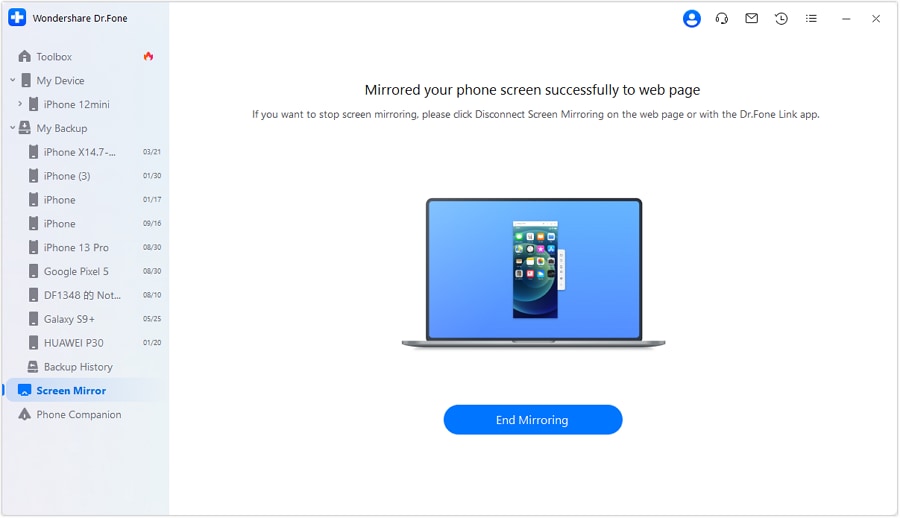
When Bluetooth audio won’t route correctly, it helps to see and manage iOS audio and connection settings on a bigger screen, especially if you’re comparing Control Center output routes, app playback behavior, or guiding someone else remotely. Dr.Fone Basic - Screen Mirroring is relevant at this stage because it supports mirroring your iOS screen to a PC, making it easier to verify what iPhone is actually doing while you run the low-risk checks your AI diagnosis recommended.
 Easily manage data through preview, delete, export, etc.
- Transfer all data between devices.
- Robust backup solutions for reliable data protection.
- Mirror screens to PC for meetings, teaching, and control.

4-1. Steps
-
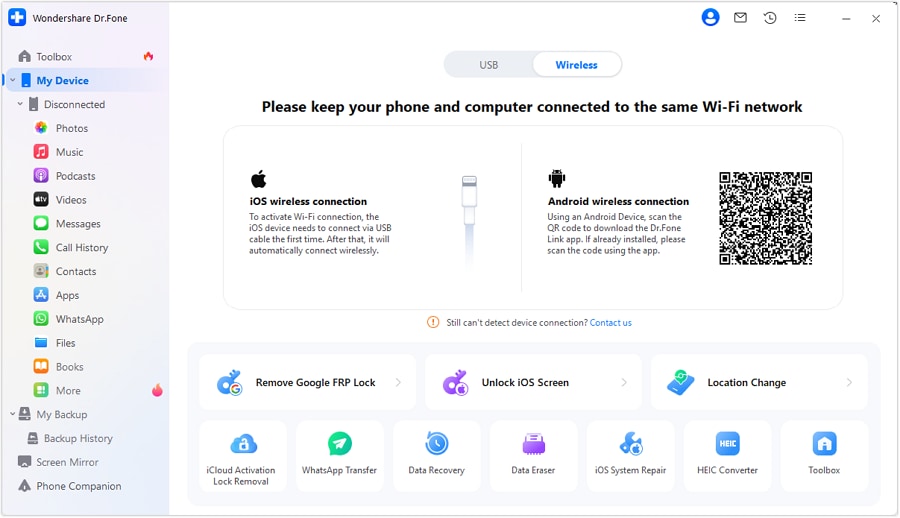
Step 1 Open Screen Mirroring
Launch Dr.Fone Basic on your PC and choose the option to mirror iOS so you can view iPhone audio/output controls clearly.
-
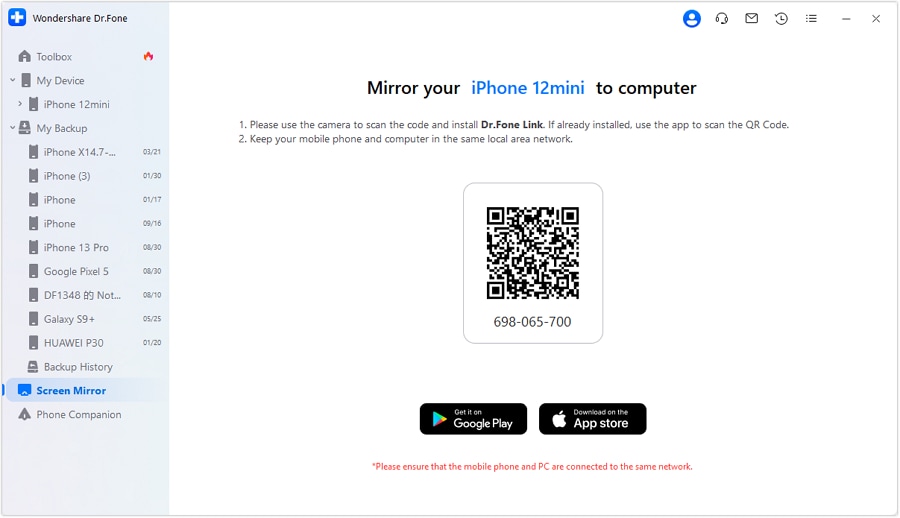
Step 2 Connect iPhone for mirroring
Follow the on-screen pairing method to start mirroring, and keep the iPhone unlocked so Control Center can be accessed.
-
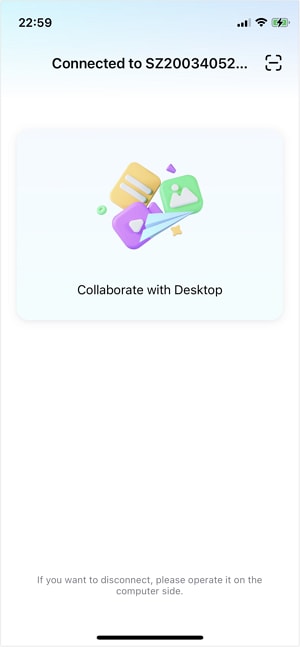
Step 3 Verify audio route live
With the mirrored screen visible, open Control Center and confirm the output route shows the intended Bluetooth device before testing playback.
-
Step 4 Reproduce the symptom with evidence
Play a known audio track and note what changes (device name, volume bar behavior, app differences) to confirm whether it’s routing or app-specific.
-
Step 5 Share consistent results
Use what you observed to apply the next lowest-risk step your AI ranked (or to communicate clearly to support/IT without guessing).




Conclusion
Use AI to turn “connected but no sound” into a short list of evidence-based causes and the safest next checks, then hand off execution to a controlled setup—like mirroring your iOS screen to a PC with Dr.Fone—so you can verify audio routing changes clearly and avoid repetitive, high-risk trial-and-error.
FAQ
-
Why is my iPhone Bluetooth connected but still playing through the speaker?
Usually the audio output route is still set to iPhone speaker, or audio is going to a different destination (like AirPlay), even though Bluetooth shows “Connected.” -
Can a Bluetooth device be connected for calls but not media audio?
Yes. Some devices or profiles prioritize hands-free calling while media uses a different profile, which can make music silent while calls still work (or the reverse). -
Does iOS update cause Bluetooth no sound issues?
It can. Updates and restarts may trigger temporary routing glitches or profile renegotiation problems, especially if multiple devices were previously paired. -
How do I know if it’s an app problem or an iPhone routing problem?
Test the same Bluetooth route with two different apps; if only one fails, it’s likely app-specific audio behavior rather than system-wide routing. -
Will forgetting the Bluetooth device fix no sound?
Sometimes, but it’s higher friction because you must re-pair and may lose device-specific settings. It’s better after you’ve confirmed routing and volume aren’t the issue.
 Add Wondershare Dr.Fone as a preferred source on Google





