 Effortlessly manage data through preview, delete, export, etc.

 100% Security Verified | No Subscription Required | No Malware

 :
: 
 ChatGPT
 Perplexity
 Gemini
 Claude
 Grok
Grok

My phone won’t pair with my Bluetooth earbuds. They either don’t show up, or pairing just spins forever, or I get “Pairing rejected.”
Apple Support Community user
Your phone won’t pair with your Bluetooth earbuds—pairing spins forever, the earbuds don’t show up, or it says “Pairing rejected.” This can happen on an iPhone 14 or iPhone 13 after tapping Install Now, or on Android after a restart, and it’s unclear whether anything is still happening after several minutes.
AI (like ChatGPT or Gemini) can help you interpret symptoms, narrow down likely causes (earbuds, phone, settings, interference), and suggest low-risk next checks in a sensible order.
AI can’t “see” your device state, and random trial-and-error (resetting everything, deleting profiles, toggling developer options) can create new issues—so use prompts to reduce risk and let a practical tool handle the hands-on steps.
In this article
- Why phone will not pair with Bluetooth earbuds happens and what it means
- What “pairing failure” usually means
- Discovery vs authentication vs connection/profile
- What changed recently (updates, device switching, multipoint)
- Why the symptom can look the same with different causes
- Before you prompt the AI: what to collect first
- Using AI prompts to diagnose Bluetooth earbuds pairing failure safely
- When to stop troubleshooting Bluetooth pairing problems and avoid risks
- Execute the plan consistently (without guessing in Settings)
Part 1. Why phone will not pair with Bluetooth earbuds happens and what it means
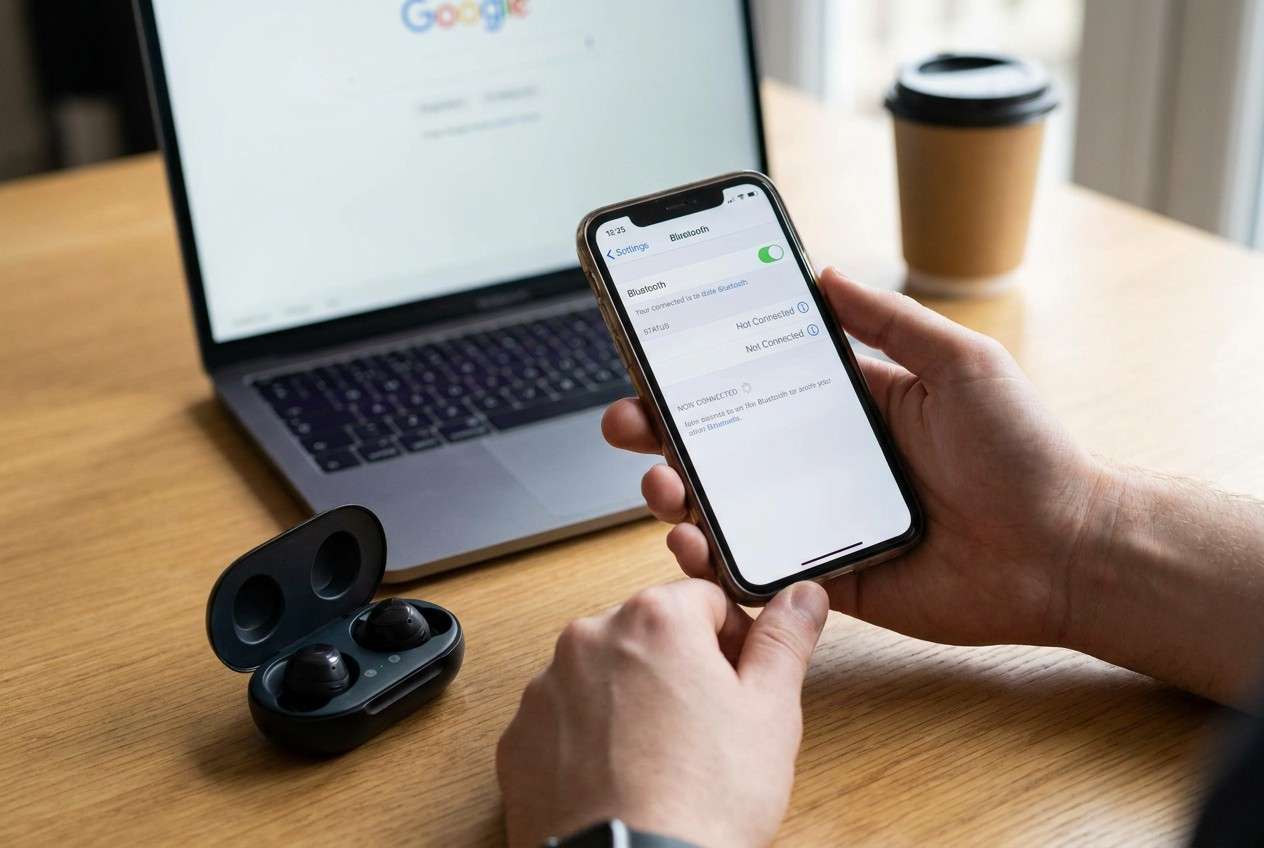
When a phone will not pair with Bluetooth earbuds, it usually means the pairing handshake fails at one of three points: discovery (can’t find), authentication (pairing rejected / PIN mismatch), or connection/profile (pairs but won’t connect or no audio).
A common trigger is a recent change—after an OS update, after you tapped Pair, after you switched earbuds between devices, or after the earbuds entered multipoint mode. The symptom can look the same even though the cause differs.
The uncertainty is normal: the earbuds may be in the wrong mode, the phone may be holding a “ghost” record of an old pairing, or a Bluetooth profile conflict may be blocking the final connection.
Part 2. Before you prompt the AI: what to collect first
Collect a few basics first so the AI can narrow causes quickly:
- Phone type + OS version (Android/iOS)
- Earbuds model + whether they support multipoint
- Exact message shown (e.g., “Pairing rejected”)
- Whether earbuds appear in Bluetooth list at all
- What changed right before it started (update, new device, reset)
- Approx distance + nearby Bluetooth/Wi‑Fi devices
Part 3. Using AI prompts to diagnose Bluetooth earbuds pairing failure safely
3-1. Level 1: Basic Prompt
My phone won’t pair with my Bluetooth earbuds. It either can’t find them / shows them but won’t connect / says “pairing rejected.” Ask me the minimum questions needed, then give the 5 most likely causes and the safest order to test them without resetting everything.
3-2. Level 2: Advanced Prompt
Diagnose my Bluetooth earbuds pairing failure like a decision tree.
Requirements:
1) Separate possibilities into: earbuds-side, phone-side, environment/interference, and compatibility/profile.
2) Rank causes by likelihood based on my answers.
3) For each test step, label risk level (low/medium/high) and what it might break (saved pairings, network settings, firmware states).
4) Stop before any destructive steps unless clearly justified.
3-3. Level 3: Evidence Prompt
Act as a troubleshooting analyst for a Bluetooth pairing problem and only infer what is supported by evidence.
Device info
- Phone model: (e.g., Galaxy S23 / iPhone 13 Pro)
- OS version: (e.g., Android 14 / iOS 17.5)
- Earbuds model: (e.g., WF‑1000XM4 / AirPods Pro)
- Earbuds firmware known? (yes/no/unknown)
What I observe
- Do earbuds appear in Bluetooth scan? (yes/no/sometimes)
- If yes, what happens when I tap Pair? (connects / stuck / rejected / disconnects)
- Exact error text: (copy it)
- Do they pair with another device right now? (yes/no)
- Are the earbuds already connected to something else? (yes/no/unknown)
Recent changes
- What happened right before this: (OS update / switched devices / reset earbuds / new phone)
Constraints
- I want lowest-risk steps first and I prefer not to reset network settings.
Output:
1) Top 3 likely root causes with reasoning tied to my evidence
2) A step-by-step test plan (max 8 steps) with “what result means” for each step
3) Clear “stop” conditions to avoid data loss or wasted time
3-4. Prompt Refinement
Use these follow-ups to make the AI’s diagnosis more accurate and less guessy:
What 3 questions would most change your ranking of causes in my case?
Rank the likely causes again, but separate discovery vs pairing vs connection/audio stages.
List only low-risk checks first; put anything involving resets or developer options in a ‘last resort’ bucket.
What single observation would confirm a ‘multipoint/connected elsewhere’ issue?
Tell me what evidence would indicate a Bluetooth cache/stack issue versus an earbuds-mode issue.
3-5. AI Output vs Reality
AI can suggest the most probable path; your device behavior determines the outcome.
| What AI may conclude | What you should verify on the device |
|---|---|
| Earbuds are not in pairing mode | Pairing indicator behavior matches the manual (light/sound) |
| Phone has a stale pairing record | “Forget device” exists and re-scan behavior changes |
| Multipoint/other device is blocking | Earbuds disconnect from the other device and then pair works |
| Interference or range issue | Pairing succeeds in a quieter area / with Wi‑Fi toggled off temporarily |
AI narrows the decision tree, but execution still depends on what you can reliably do on-screen—especially if the phone UI is laggy, you need to follow exact sequences, or you want a clearer view while testing.
Part 4. When to stop troubleshooting Bluetooth pairing problems and avoid risks
Stop and reassess when the next step increases risk more than the likely benefit.
- Pairing attempts repeatedly fail and the phone starts freezing, rebooting, or overheating
- You’re about to reset network settings or erase Bluetooth data without confirming basics (pairing mode, other-device connections)
- The earbuds won’t pair with any device (suggesting hardware/firmware trouble) and you don’t have a safe firmware update path
- You can’t reliably navigate settings (screen issues, UI glitches, accessibility limitations) and you’re guessing steps
Once you’ve used AI to identify the most likely branch, move to a controlled way to carry out the on-device steps consistently and observe results clearly.
Part 5. Execute the plan consistently (without guessing in Settings)
If your phone will not pair with Bluetooth earbuds, the hardest part is often not the diagnosis—it’s carefully executing the right sequence in Bluetooth settings (forget/re-scan, toggles, permissions) without missing a step.
A screen mirroring workflow can help you follow the AI’s “lowest-risk” plan one step at a time, read the full error message wording, and confirm what changed after each attempt.
Recommended tool: Screen mirroring workflow with Dr.Fone Basic
To carry out your troubleshooting plan on a larger display and keep your on-device steps consistent, you can use Dr.Fone Basic - Screen Mirroring on Android.
 Easily manage data through preview, delete, export, etc.
- Transfer all data between devices.
- Robust backup solutions for reliable data protection.
- Mirror screens to PC for meetings, teaching, and control.

-
Step 1 Start Android screen mirroring to PC
Open Dr.Fone and mirror your Android to the PC so you can navigate Bluetooth menus more precisely (avoid changing multiple settings at once).

-
Step 2 Re-run the AI’s lowest-risk checklist on a big screen
Toggle Bluetooth off/on, confirm earbuds pairing mode, and re-scan while watching for exact system prompts.

-
Step 3 Forget and re-pair in a controlled sequence
From the mirrored screen, forget the earbuds entry (if present) and attempt a fresh pair, stopping to record any new error text.

-
Step 4 Validate the result with one variable change at a time
Test in a different room or temporarily reduce nearby Bluetooth devices, then retry pairing so you know what actually affected the outcome.

Document the precise error wording and behavior changes so you can decide (with AI) whether to escalate to firmware updates or service.




Conclusion
Use AI to structure the diagnosis—what stage fails, what changed recently, and what evidence would confirm the top causes—then hand off the careful on-device steps to a controlled workflow like Android screen mirroring so your tests stay consistent, observable, and low-risk.
FAQ
-
Why do my earbuds show up but pairing fails?
Often it’s a stale pairing record, earbuds connected to another device (multipoint), or an authentication/profile mismatch; the exact error text helps narrow it. -
Why can’t my phone find my Bluetooth earbuds at all?
Common reasons are earbuds not in pairing mode, low battery, being out of range, or the earbuds still being connected to a previously paired device. -
Is it safe to reset network settings for Bluetooth issues?
It’s higher risk because it can remove saved Wi‑Fi networks and Bluetooth pairings; it’s usually better after you’ve confirmed pairing mode and tested with another device. -
How do I tell if multipoint is blocking pairing?
If the earbuds pair to another device immediately (or audio routes there), disconnect them there first, then retry pairing on your phone. -
Can screen mirroring help with Bluetooth troubleshooting?
Yes—mirroring can make it easier to follow exact sequences in settings, read full error messages, and change one variable at a time without losing track.
 Add Wondershare Dr.Fone as a preferred source on Google





