 Effortlessly manage data through preview, delete, export, etc.

 100% Security Verified | No Subscription Required | No Malware

 :
: 
 ChatGPT
 Perplexity
 Gemini
 Claude
 Grok
Grok

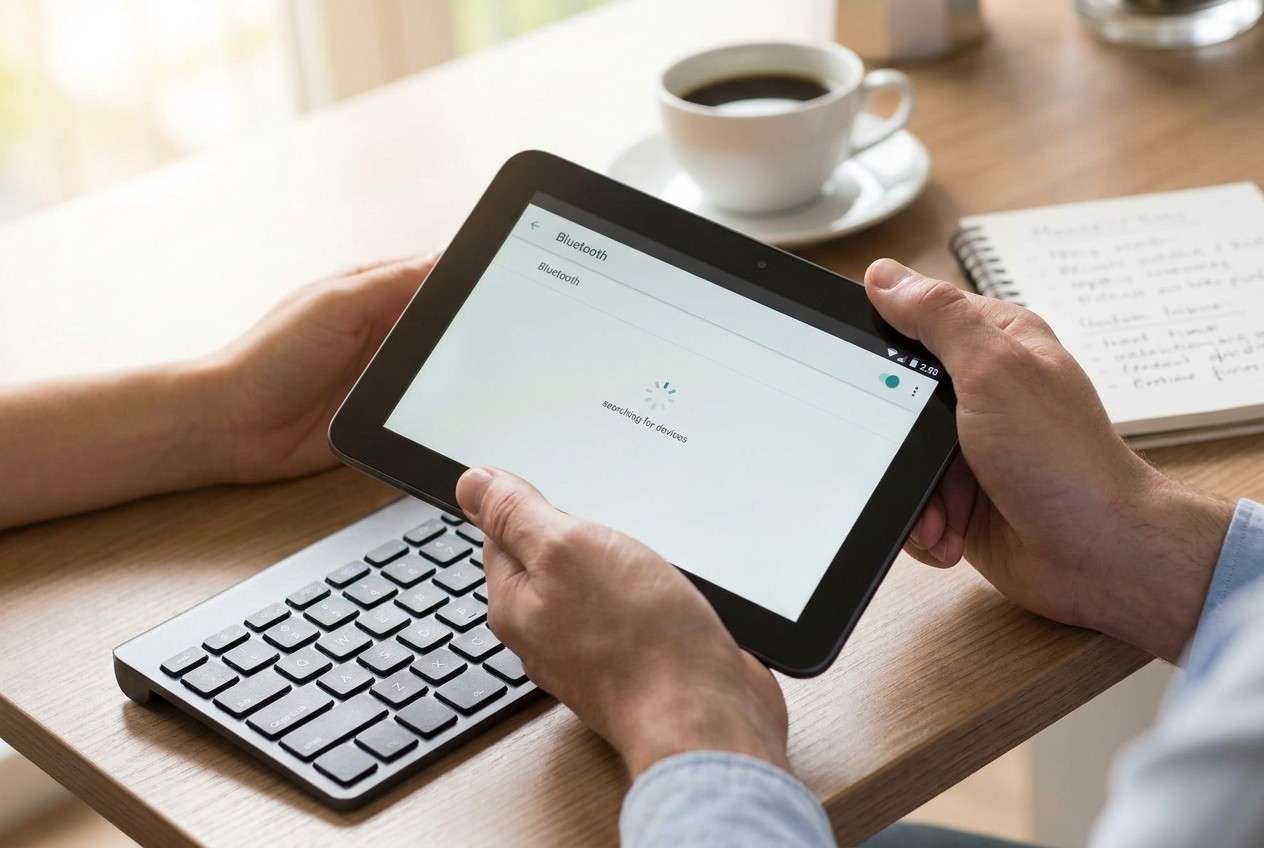
My Android tablet finds my Bluetooth keyboard, but when I tap Pair it just spins forever or says “Couldn’t pair.” I’ve toggled Bluetooth and restarted, but nothing changes.
Reddit user, r/AndroidQuestions
Your Android tablet won’t pair with a Bluetooth keyboard—maybe after you tapped Pair, toggled Bluetooth off/on, or restarted—and now it either spins forever, fails silently, or says “Couldn’t pair.” Nothing changes after several minutes, so it’s unclear whether the tablet is actually trying.
AI (like ChatGPT or Gemini) can help you interpret symptoms, narrow likely causes, and decide the lowest-risk next step based on what you observe on-screen and what you already tried.
AI can’t verify hardware condition or execute fixes for you, and random trial-and-error (resetting networks, clearing services, factory resets) can create new problems like losing saved devices or settings.
In this article
- Why Android tablet Bluetooth pairing fails (and what it means)
- What’s usually happening during a failed pairing
- Common symptom patterns
- What the symptom “means” (discovery vs pairing vs input)
- What to capture before asking AI
- AI prompts to diagnose pairing failure safely
- When to stop troubleshooting to avoid risks
- Low-risk ways to keep control while you troubleshoot
- Mirror Android screen to PC when the keyboard won’t connect
Part 1. Why android tablet wont pair with bluetooth keyboard Happens and What It Means
1-1. What’s usually happening during a failed pairing
Bluetooth pairing failures usually come from a mismatch between what the tablet expects during pairing and what the keyboard is actually doing—often caused by pairing mode timing, stale Bluetooth records, or a system service getting “stuck.” If you recently switched tablets (even from something like an iPhone 13 or iPhone 14), Android’s Bluetooth flow and menus can feel different enough to miss small but important steps.
1-2. Common symptom patterns
Common patterns include: the keyboard appears but won’t connect, it connects then disconnects, or it never appears unless you refresh scanning. The trigger is often simple—pairing right after a system update, right after a restart, or after pairing the keyboard to another device.
1-3. What the symptom “means” (discovery vs pairing vs input)
What it “means” depends on the exact symptom: can’t discover (visibility/compatibility), can’t pair (authentication/service state), or pairs but won’t type (input method/accessibility/layout).
1-4. Before You Prompt the AI
Capture a few details first so the AI can narrow causes quickly:
- Tablet brand/model + Android version (if known)
- Keyboard brand/model + whether it uses a dongle or pure Bluetooth
- Exact message shown (or that it fails with no message)
- Whether the keyboard was paired to another device recently
- What you already tried (restart, forget device, toggle Bluetooth, etc.)
Part 2. Using AI prompts to diagnose Bluetooth keyboard pairing failure on Android tablet safely
What AI can do well
- Interpret on-screen symptoms and categorize the problem (discovery vs pairing vs input).
- Help you rank likely causes based on what you already tried.
- Suggest the lowest-risk next step and what evidence to look for.
What AI can’t verify for you
- Hardware condition (battery, Bluetooth radio, keyboard fault).
- Your exact menus, timing, and pop-ups (PIN prompts can be easy to miss).
- RF interference or environment-specific issues.
2-1. Level 1: Basic Prompt
My Android tablet won’t pair with my Bluetooth keyboard. Ask me the key questions needed to identify whether this is a discoverability issue, a pairing/authentication issue, or an input/typing issue, then suggest the lowest-risk next steps.
2-2. Level 2: Advanced Prompt
Diagnose my Bluetooth keyboard pairing failure on an Android tablet.
Symptoms:
- What I see when pairing: [describe exactly]
- Does the keyboard show up in the scan list? [yes/no]
- Does it ever connect then drop? [yes/no]
- Any PIN/pairing code prompt? [yes/no + details]
Constraints:
- Avoid steps that risk data loss or big settings resets unless clearly justified.
- Rank the top 5 likely causes from most to least likely.
- For each cause, give 1–2 tests I can do and the safest next action.
End with: “Stop and escalate” criteria if the next steps could worsen the situation.
2-3. Level 3: Evidence Prompt
Act as a diagnostic assistant for Android Bluetooth pairing.
Device details:
- Tablet model: (e.g., Samsung Galaxy Tab S8)
- Android version: (e.g., Android 13)
- Keyboard model: (e.g., Logitech K380)
- Connection type: (Bluetooth only / has USB receiver / both)
- Power state: (fresh batteries? charging level?)
What happened right before the issue:
- (e.g., paired the keyboard to a laptop, installed an update, restarted the tablet)
Observed behavior (be specific):
- Discovery: (e.g., keyboard never appears / appears after 30 seconds)
- Pairing: (e.g., “Couldn’t pair” / no message / asks for PIN)
- After pairing: (e.g., connects but typing does nothing)
What I already tried:
- (e.g., toggle Bluetooth, forget device, reboot, safe mode, update keyboard firmware)
Ask clarifying questions if needed, then:
1) Categorize the issue: discovery vs pairing vs input
2) List likely causes with probability estimates
3) Propose the lowest-risk test sequence (max 6 steps)
4) Identify what evidence would confirm each cause
2-4. Prompt Refinement
Use these follow-ups to force clearer, safer outputs:
What 3 questions do you still need answered to avoid guessing?
Rank causes again, but separate: keyboard-side causes vs tablet-side causes vs environment/interference.
Which single observation would most strongly distinguish a Bluetooth service glitch from a keyboard pairing-mode problem?
Give me a minimal test plan that avoids resets (no network reset, no factory reset) and explain what each step proves.
If the keyboard was paired to another device, what is the safest way to ensure it’s truly in pairing mode?
2-5. AI Output vs Reality
AI can help you reason; your device’s behavior decides what’s true.
| AI suggests | What you should verify on your tablet |
|---|---|
| “The keyboard isn’t in pairing mode.” | Pairing LED behavior and whether it appears consistently during scanning. |
| “Stale pairing records are blocking authentication.” | Whether “Forget device” exists, and whether re-pairing prompts for a code/PIN. |
| “Android Bluetooth service is stuck.” | Whether Bluetooth toggles normally, and whether other Bluetooth devices can pair. |
| “It’s connected but not typing due to input settings.” | Whether an external keyboard appears under Language & input / Physical keyboard. |
AI can propose the most likely path, but it can’t see your exact menus, confirm RF interference, or validate hardware—so the “execution gap” is closing the loop with real on-screen evidence.
Part 3. When to stop troubleshooting Android Bluetooth pairing issues to avoid risks
If quick, low-risk checks aren’t changing the symptom, don’t keep escalating to destructive steps.
- You’re about to use Reset Wi‑Fi, mobile & Bluetooth without understanding what will be removed.
- The tablet shows Bluetooth crashing, frequent reboots, or other system instability during pairing attempts.
- The keyboard won’t pair with any device, suggesting a keyboard-side fault (battery, hardware, firmware).
- You’re relying on the tablet for work/school and further experimentation could lock you out of input or accessibility options.
Once you’ve used AI to narrow the most likely category (discovery vs pairing vs input), hand off the practical “do it now” part to a safe execution path—often meaning a temporary control method that doesn’t depend on Bluetooth.
Part 4. Low-risk ways to keep control while you troubleshoot
If your tablet is hard to control while you troubleshoot Bluetooth (especially when you need to navigate settings precisely), a temporary control method can help you execute checks calmly and capture accurate on-screen evidence (PIN prompts, permission dialogs, and exact error text) before you attempt any higher-risk resets.
Part 5. Mirror Android screen to PC when Bluetooth keyboard won’t connect
If you need a more stable way to see and operate your tablet while you test Bluetooth changes, screen mirroring to a PC can help. Dr.Fone Basic - Screen Mirroring is relevant here because it can help you handle the “hands-on” steps—view the tablet on a larger screen and continue diagnosis—without depending on the Bluetooth keyboard working first.
 Easily manage data through preview, delete, export, etc.
- Transfer all data between devices.
- Robust backup solutions for reliable data protection.
- Mirror screens to PC for meetings, teaching, and control.

-
Step 1 Prepare tablet and PC
Connect both devices reliably (keep them on the same stable network if using wireless mirroring to avoid disconnects mid-test).

-
Step 2 Open Screen Mirroring
Launch Dr.Fone Basic and choose the option to mirror the Android screen to your PC.

-
Step 3 Start the mirroring session
Follow the on-screen pairing steps carefully and keep the tablet unlocked so permission prompts don’t block mirroring.

-
Step 4 Re-check Bluetooth settings on the mirrored view
Navigate to Bluetooth and re-test discovery/pairing while you can clearly see prompts (PIN requests, permission dialogs, or “Connected” status).

-
Step 5 Document outcomes for the next AI prompt
Note the exact messages and timing you observe so AI can update the ranked causes without guesswork.




Conclusion
Use AI to turn your specific pairing symptom into a ranked shortlist of causes and a low-risk test plan, then use a practical execution method—like mirroring your Android screen to a PC with Dr.Fone Basic—so you can carry out the checks and capture reliable evidence without depending on the Bluetooth keyboard first.
FAQ
-
Why does my Android tablet see the keyboard but won’t pair?
Often it’s stale pairing data, the keyboard not truly being in pairing mode, or an authentication/PIN prompt being missed or dismissed too quickly. -
Why does the keyboard pair but not type on the tablet?
This can be an input configuration issue (physical keyboard settings, language/layout, accessibility services) rather than Bluetooth itself. -
Should I reset network settings to fix Bluetooth pairing?
Only after low-risk tests fail and you understand the impact—network resets can remove saved Wi‑Fi and Bluetooth device history. -
How do I know if the problem is the keyboard or the tablet?
Test the keyboard with a second device and test the tablet with a different Bluetooth accessory; one successful pairing can isolate the side at fault. -
Can screen mirroring help if I can’t use the Bluetooth keyboard at all?
Yes—mirroring can give you a clearer way to navigate tablet settings and capture exact error messages while you troubleshoot pairing.
 Add Wondershare Dr.Fone as a preferred source on Google





