 Effortlessly manage data through preview, delete, export, etc.

 100% Security Verified | No Subscription Required | No Malware

 :
: 
 ChatGPT
 Perplexity
 Gemini
 Claude
 Grok
Grok

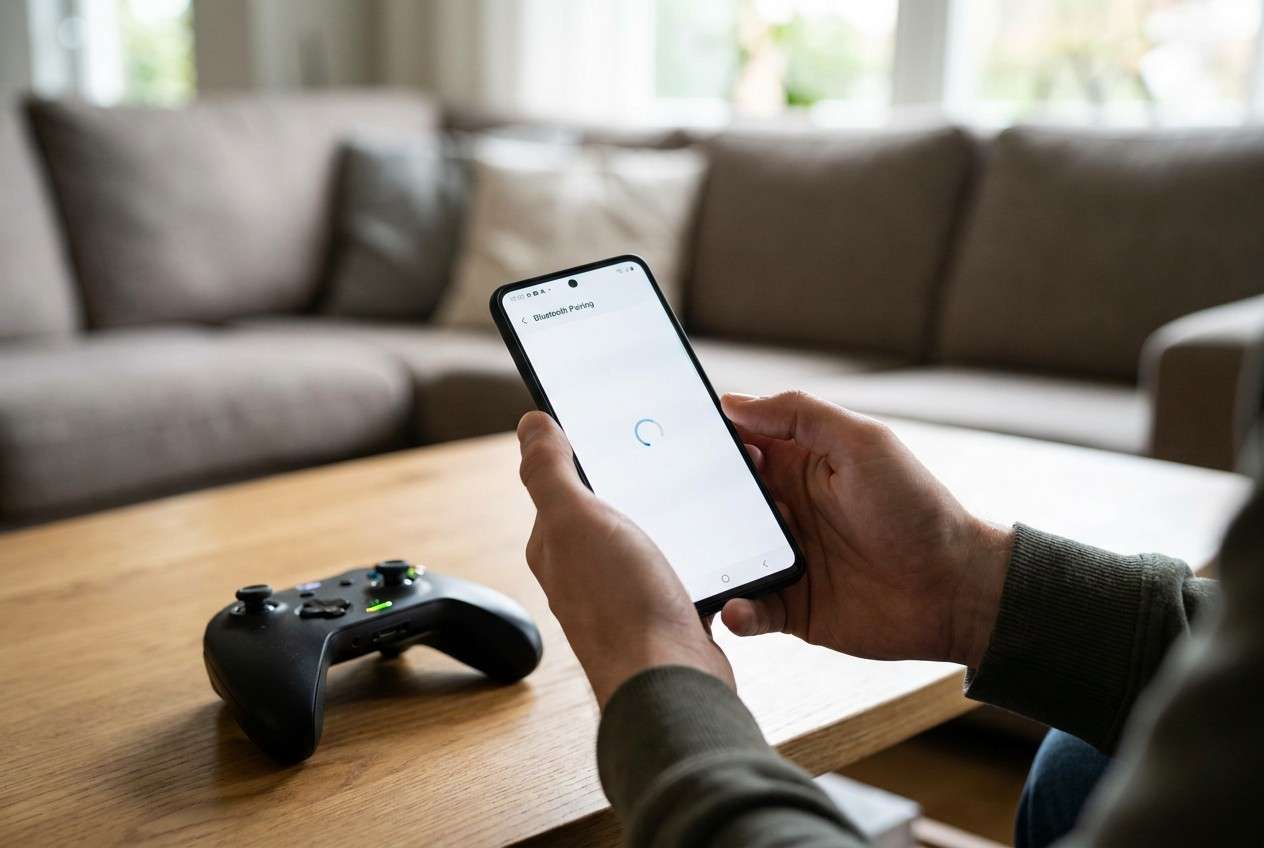
My Android phone “pairs” with my controller, but it won’t actually connect—or it disconnects right away after a restart. Bluetooth just keeps spinning and I can’t tell if the phone or the controller is stuck.
Reddit user, r/Android
Your Android phone won’t pair with a game controller (or it “pairs” but won’t connect), often right after you tap Pair in Bluetooth settings or after a restart—common on devices like a Samsung Galaxy S23 or Pixel 7. After a few minutes, nothing changes, and it’s unclear whether the controller or the phone is actually stuck.
AI can help you sort symptoms into likely causes (Bluetooth vs controller mode vs Android input support vs app/game limitations), identify what evidence is missing, and suggest low-risk checks to try first. You can use tools like ChatGPT or Gemini to keep the diagnosis structured.
AI can’t see your device state, and repeated trial-and-error (random resets, wiping Bluetooth data, reinstalling games) can create new variables or risk data loss. Use AI to plan, then use a practical tool to observe and execute steps carefully.
In this article
- Why controller pairing fails on Android (and what it means)
- Common symptoms and triggers
- The four main cause buckets
- Pairing issues vs input/compatibility issues
- What to capture before asking AI
- AI prompts to diagnose pairing problems safely
- When to stop troubleshooting and avoid risks
- Mirror Android screen to PC to check pairing
- Recommended tool for mirroring and evidence capture
1. Categorize the failure first (A/B/C/D).
Most cases are discovery/mode mismatch, Android Bluetooth stack issues, compatibility/input mapping limits, or controller power/firmware problems—each needs different tests.
2. Use AI to ask fewer, better questions (not random resets).
Structured prompts help you capture the missing facts, rank likely causes, and pick the lowest-risk checks before you try anything disruptive like network resets.
3. Verify on the device with controlled, repeatable runs.
Mirror your Android screen to a PC so you can watch Bluetooth states, record exact messages/timing, and confirm whether the issue is pairing or in-game input recognition.
Part 1. Why game controller pairing fails on Android phone and what it means
If your controller doesn’t show up in the Bluetooth list, shows up but fails to pair, or pairs but immediately disconnects, the cause is usually one of four buckets: discoverability/mode mismatch, Bluetooth stack issues on Android, compatibility limits (HID/gamepad profiles), or power/firmware problems on the controller.
A common trigger is an Android update, switching between devices (controller remembered elsewhere), or pairing right after enabling Bluetooth. You might see “Pairing…” spin forever, “Couldn’t pair,” or a connection that drops as soon as you open a game.
The tricky part is that “pairing issues” can actually be input issues (paired successfully, but the game ignores it), which changes what you should test next.
1-1. Before You Prompt the AI
Capture a few facts first so the AI can narrow causes quickly:
- Android phone model + Android version
- Controller brand/model and connection type (Bluetooth/USB/2.4G dongle)
- What you last did before it started (update, restart, paired to another device)
- Exact on-screen message (or whether it silently fails)
- Whether the controller works on another phone/PC
Part 2. Using AI prompts to diagnose Android controller pairing problems safely
2-1. Level 1: Basic Prompt
My Android phone won’t pair with my game controller over Bluetooth. Ask me the minimum questions needed to narrow it down, then suggest the lowest-risk checks to try first (no factory reset).
2-2. Level 2: Advanced Prompt
Diagnose my Android controller pairing problem.
1) List the top 5 likely causes and rank them by probability.
2) For each cause, give one quick test and one low-risk fix.
3) Flag any step that could cause data loss or create new variables.
Symptoms: [what I see on screen]
Phone: [model + Android version]
Controller: [model]
Trigger: [what changed right before it started]
What I tried: [steps]
2-3. Level 3: Evidence Prompt
Act as a troubleshooting triage assistant for Android Bluetooth game controller pairing.
Goal: determine whether this is (A) discovery/mode issue, (B) Bluetooth stack issue, (C) compatibility/input mapping issue, or (D) controller hardware/firmware issue.
Evidence I can provide:
- Android phone: (e.g., Pixel 7)
- Android version/security patch: (e.g., Android 14, April patch)
- Controller: (e.g., Xbox Wireless Controller)
- Pairing method: (Bluetooth / USB-C OTG / dongle)
- What the phone shows: (e.g., “Pairing…”, “Couldn’t pair”, connects then drops)
- Does it appear in Bluetooth scan list? (yes/no)
- Does it connect to another device? (yes/no; which device)
- Battery level / charging state: (approximate)
- Is the controller in the correct pairing mode? (LED behavior if known)
- Any related settings: Location/Bluetooth scanning, battery saver, airplane mode
- Apps/games affected: (one game only or all apps)
Task:
1) Ask up to 8 targeted questions.
2) Provide a ranked diagnosis with reasoning tied to the evidence.
3) Give a step-by-step plan starting with the lowest-risk actions.
4) Tell me what result would confirm or rule out each category (A/B/C/D).
2-4. Prompt Refinement
Use these follow-ups to make the AI’s diagnosis more actionable:
“What one missing detail would change your ranking the most, and why?”
“Separate causes into phone-side vs controller-side vs app/game-side.”
“Rank the next steps by risk level (low/medium/high) and explain the risks.”
“What single observation would most strongly confirm a Bluetooth-stack problem on Android?”
“Give me a 2-minute test plan that avoids resets and avoids uninstalling anything.”
2-5. AI Output vs Reality
AI can propose likely causes, but you still need to verify what’s true on your device.
| AI suggests | What to verify on your phone/controller |
|---|---|
| “Controller isn’t in pairing mode.” | Confirm the correct button combo/LED behavior and that it’s not auto-connecting elsewhere. |
| “Bluetooth cache/stack is stuck.” | Check whether other Bluetooth devices connect normally and whether a reboot changes scan/pair behavior. |
| “It’s compatibility or input mapping.” | Verify whether it’s paired but ignored in multiple apps (not just one game). |
| “Battery/firmware issue on controller.” | Charge fully and test the controller on a second device to isolate hardware. |
AI helps you choose which evidence matters; it doesn’t replace confirming results in Settings, in-game, and across devices. Execution still depends on what your Android UI and controller actually do.
Part 3. When to stop troubleshooting Bluetooth controller pairing on Android and avoid risks
Stop and switch to safer, more controlled steps if you hit any of these:
- Pairing attempts repeatedly fail and other Bluetooth devices also start misbehaving (suggests broader Bluetooth instability).
- You’re about to try high-impact steps (reset network settings, clearing system data, factory reset) without a clear reason.
- The controller gets hot, swollen, or behaves erratically while charging or pairing (possible hardware risk).
- You can’t reliably reproduce results because too many variables changed (multiple apps reinstalled, settings toggled, repeated resets).
Once you’ve used AI to narrow the most likely category, it helps to observe the phone’s behavior clearly while you run the next checks—this is where mirroring your Android screen to a PC can make each step easier to follow and document.
Part 4. Mirror Android screen to PC to check controller pairing with Dr.Fone
When controller pairing is inconsistent, a simple way to reduce mistakes is to mirror your Android screen to a PC so you can watch Bluetooth prompts, connection state changes, and in-game input tests on a larger display while you retry the exact same steps. With Dr.Fone Basic - Screen Mirroring (feature: Mirror Android Screen to PC), you can keep Settings, pairing dialogs, and test apps visible and stable while you compare outcomes across attempts, using the same sequence each time (reference: the Screen Mirror Android guide on the Dr.Fone site).
4-1. Steps (execution)
-
Step 1 Start Android mirroring
Open Dr.Fone Basic on your PC and begin Android screen mirroring so Bluetooth pop-ups and status changes are easy to see in real time.

-
Step 2 Record the pairing sequence
With the screen mirrored, open Android Bluetooth settings and attempt pairing once while noting the exact message/timing (avoid rapid repeated attempts).

-
Step 3 Run a controlled re-pair test
Remove/Forget the controller entry (if present), toggle Bluetooth once, then pair again in a single clean run to avoid mixing results.

-
Step 4 Validate input vs pairing
After it connects, open a controller test app or a second game to confirm whether it’s a true pairing issue or an input/compatibility issue.

-
Step 5 Capture evidence for next decisions
Take screenshots or short recordings of the mirrored screen (pairing screen + device status) so you can compare attempts or share clear evidence when escalating.

Part 5. Recommended tool for mirroring and evidence capture
If you’re stuck in a loop of “it paired yesterday” vs “it won’t connect now,” the fastest way to reduce guesswork is to make each attempt repeatable and observable. Mirroring helps you watch the exact Bluetooth messages, connection drops, and app behavior on a larger screen while keeping your troubleshooting steps consistent.
 Easily manage data through preview, delete, export, etc.
- Transfer all data between devices.
- Robust backup solutions for reliable data protection.
- Mirror screens to PC for meetings, teaching, and control.

After you mirror, rerun your pairing attempt once (not repeatedly), then compare outcomes: does the controller fail to appear, fail to pair, connect then drop, or connect but not register in apps? That single clean run—plus a screenshot of the message and device state—often provides the key evidence an AI prompt (or support escalation) needs.




Conclusion
Use AI to turn vague “pairing issues” into a short list of testable causes and a low-risk plan, then hand off to execution by mirroring your Android screen to a PC with Dr.Fone so you can run clean, repeatable pairing and input checks with clearer visibility and better evidence.
FAQ
-
Why does my Android phone see the controller but won’t pair?
Usually it’s a mode mismatch (wrong pairing mode), the controller is already connected elsewhere, or Android’s Bluetooth stack is temporarily unstable. -
Why does the controller pair but not work in my game?
That often points to app/game input support or mapping rather than Bluetooth pairing; test in another app to separate “connected” from “recognized.” -
Should I reset network settings to fix controller pairing?
Only after low-risk checks fail and you’ve isolated the issue to Bluetooth broadly; it can wipe saved Wi‑Fi/Bluetooth data and make troubleshooting noisier. -
How can I tell if the controller is the problem or the phone is the problem?
Test the controller on a second device (another phone or a PC); if it fails there too, it’s likely controller-side. -
Does Android version matter for controller pairing?
Yes—updates can change Bluetooth behavior or HID handling; noting your Android version helps AI rank compatibility vs temporary Bluetooth issues.
 Add Wondershare Dr.Fone as a preferred source on Google





