 Effortlessly manage data through preview, delete, export, etc.

 100% Security Verified | No Subscription Required | No Malware

 :
: 
 ChatGPT
 Perplexity
 Gemini
 Claude
 Grok
Grok

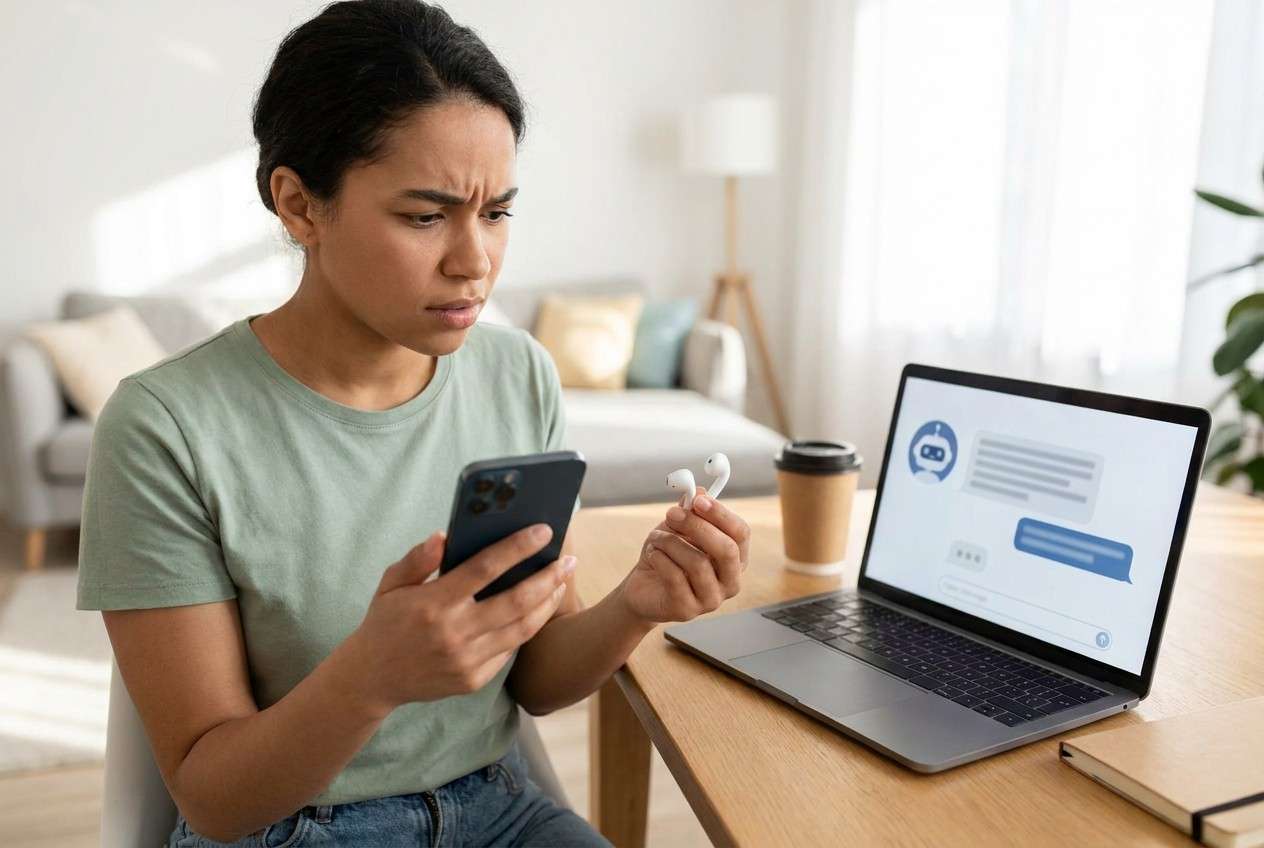
My Bluetooth earbuds pair and connect fine, but after I restart or update my phone they won’t auto reconnect anymore. I have to open Bluetooth and tap Connect every time.
Reddit user, r/Android
Your Bluetooth earbuds, car stereo, or smartwatch pairs fine—but it won’t auto reconnect later. This often shows up after you tapped Install now for a system update or after a restart, and it can feel like the connection is “stuck” even though Bluetooth is on.
AI (like ChatGPT or Gemini) can help you diagnose the pattern: which settings matter, what evidence to collect, and which likely causes fit your exact symptoms—without immediately trying risky trial-and-error steps.
AI can’t see your device state, and repeated “forget/re-pair/reset” attempts can waste time or create side effects (lost pairings, flaky profiles, or missed notifications). Use AI to narrow the cause first, then hand off execution to a controlled workflow.
In this article
- Why Bluetooth won’t auto reconnect (what it means)
- Permissions & background behavior
- Saved pairing/profile state
- Accessory reconnect logic
- Before you prompt the AI
- AI prompts to diagnose auto reconnect issues safely
- When to stop troubleshooting (avoid risky steps)
- Resolve it safely with Dr.Fone (mirroring workflow)
- Quick checklist to keep testing controlled
Part 1. Why Bluetooth device will not auto reconnect to phone happens and what it means
If a Bluetooth device won’t auto reconnect, it usually means one of three things changed: permissions/background behavior, saved pairing/profile state, or the accessory’s reconnect logic. On a Pixel 7 or Samsung Galaxy S23, this can appear right after an update, a Bluetooth toggle, or switching between multiple previously paired devices.
The key symptom is consistent: manual connect works, but automatic reconnection doesn’t happen when you return to range, wake the device, or start the car. It’s also common that nothing visibly changes after several minutes—so it’s unclear whether the phone is “trying” to reconnect.
This is different from “can’t pair at all.” Auto reconnect failures are often tied to battery optimization, location/nearby permissions, multipoint conflicts, corrupted Bluetooth cache, or accessory firmware quirks.
1-1. Before You Prompt the AI
Collect a few facts first so the AI can narrow causes quickly:
- Phone make/model and OS version
- Bluetooth accessory type (earbuds, car head unit, watch) and brand/model
- Whether manual reconnect works every time
- When it started (after update, after reset, after pairing a second device)
- Whether the issue happens with one accessory or all accessories
Part 2. Using AI prompts to diagnose Bluetooth auto reconnect issues safely
2-1. Level 1: Basic Prompt
My Bluetooth device pairs and connects manually, but it will not auto reconnect to my phone. Ask me the minimum questions needed to narrow the most likely causes, and give a short list of low-risk checks first (no factory resets yet).
2-2. Level 2: Advanced Prompt
Diagnose why my Bluetooth device won’t auto reconnect.
- First, list the top 5 likely causes and rank them by probability.
- For each cause, tell me what evidence would confirm/deny it.
- Only suggest low-risk steps first; flag any step that could erase pairings, reset networks, or affect other devices.
Context: manual reconnect works, auto reconnect fails, and it started recently.
2-3. Level 3: Evidence Prompt
Act as a Bluetooth troubleshooting assistant. Use my details to build a differential diagnosis and a safe plan.
Device info
- Phone model: (e.g., Samsung Galaxy S23)
- OS version: (e.g., Android 14)
- Bluetooth accessory: (e.g., Sony earbuds / car head unit model)
- Accessory firmware/app installed?: (yes/no/unknown)
Symptoms
- Does it reconnect after phone reboot?: (yes/no)
- Does it reconnect after toggling Bluetooth?: (yes/no)
- Does it reconnect when accessory is taken out/turned on?: (yes/no)
- Manual connect always works?: (yes/no/intermittent)
- Happens with other Bluetooth devices too?: (yes/no)
Environment
- Any battery saver modes on?: (yes/no)
- Location/Nearby devices permission status: (allowed/denied/unknown)
- Multipoint or paired to multiple phones?: (yes/no)
- Recent changes: (system update, new device paired, reset, new launcher, VPN, etc.)
What I want
1) Rank likely causes with reasoning.
2) Give a low-risk step order.
3) Tell me what to avoid until the end.
4) Give “stop” criteria where I should not continue trial-and-error.
2-4. Prompt Refinement
Use these follow-ups to force clearer, safer output:
What 3 questions would change your diagnosis the most, and why?
Separate causes into: phone settings, OS bugs, accessory behavior, and environment/interference.
Rank the causes again assuming the issue started immediately after a system update.
What single piece of evidence should I check first to eliminate half the causes?
Give a step order that preserves my existing pairings as long as possible.
2-5. AI Output vs Reality
AI can propose likely causes; your phone’s actual settings and logs decide what’s true.
| AI suggests | What to verify on your phone |
|---|---|
| Battery optimization is blocking background Bluetooth behavior | Check battery saver/app optimization and whether any companion app is restricted |
| A permission change (Nearby devices/Location) prevents auto reconnect | Confirm Nearby/Location permissions and related toggles are allowed for Bluetooth/companion apps |
| The pairing record is corrupted | See if the issue is limited to one device and whether re-pairing fixes it temporarily |
| Multipoint or competing connections are stealing the link | Check whether the accessory is connecting to another phone/tablet/car profile first |
AI helps you choose the next safest check; it can’t apply changes or confirm outcomes without the evidence you observe while testing.
Part 3. When to stop troubleshooting Bluetooth auto reconnect problems and avoid risks
Stop and pause if you hit any of these:
- Auto reconnect fails across many devices after you changed network/Bluetooth settings and you’re unsure what changed
- You’re about to reset network settings but rely on stored Wi‑Fi/VPN/eSIM setup you can’t easily restore
- The phone starts showing new symptoms (Bluetooth toggles off, crashes, overheating, rapid battery drain)
- The accessory behaves unpredictably (random disconnects) suggesting a firmware/hardware issue rather than settings
Once you’ve used AI to narrow the likely cause and pick a low-risk sequence, it’s time to execute carefully and consistently—so you don’t lose track of what changed.
Part 5. Quick checklist to keep testing controlled
If you want the AI’s advice to be actionable (and reversible), keep your testing controlled and repeatable:
- Change only one setting at a time, then re-test with the same accessory state and distance.
- Write down what changed (and when), especially if the issue started right after an update or reboot.
- Prioritize checks that don’t erase pairings (permissions, battery optimization, competing connections) before “Forget device” or network resets.
- Stop if new system-level Bluetooth symptoms appear (crashes, toggle turning off, overheating, rapid drain).
Part 4. Bluetooth device will not auto reconnect to phone: resolve it safely with Dr.Fone
When you’re ready to run the checks AI recommended (permissions, battery optimization, Bluetooth settings, re-pairing order), Dr.Fone Basic - Screen Mirroring is useful because it lets you mirror your Android screen to a PC so you can follow a precise checklist, capture what you see, and avoid rushed taps while switching between settings pages. This is especially helpful if the reconnect behavior is subtle (no pop-ups, silent failures) and you want a clear view while testing reconnect scenarios.
 Easily manage data through preview, delete, export, etc.
- Transfer all data between devices.
- Robust backup solutions for reliable data protection.
- Mirror screens to PC for meetings, teaching, and control.

Below is a simple “one change, one test” workflow you can run while mirrored, so you can observe small status changes clearly and document what actually improved auto reconnect.
-
Step 1 Start Android screen mirroring
Open Dr.Fone Basic and mirror your Android screen to your PC so you can navigate Bluetooth settings calmly and see small status changes clearly.

-
Step 2 Reproduce the reconnect failure on a clean timeline
With the screen mirrored, toggle Bluetooth off/on or move the accessory out of range and back, and watch whether the device attempts reconnection before changing any settings.

-
Step 3 Validate the exact setting AI flagged
Go to the relevant page (for example, Nearby devices permission or battery optimization for the companion app) and change only one item at a time to keep cause-and-effect clear.

-
Step 4 Run the “one change, one test” loop
After each change, repeat the same reconnection test (same distance, same accessory state) to confirm whether auto reconnect behavior actually improved.

-
Step 5 Document outcomes for the next AI pass
Record what changed and what you observed (timestamps, whether it reconnected after wake/reboot) so AI can re-rank causes without guessing.




Conclusion
Use AI to narrow the most likely reasons your Bluetooth device won’t auto reconnect, identify the evidence that matters, and choose a low-risk step order; then use Dr.Fone screen mirroring to execute that plan carefully and consistently while you observe and document the results.
FAQ
-
Why does my Bluetooth connect manually but not automatically?
Manual connect can succeed even when background restrictions, permission changes, or competing connections prevent the phone from initiating reconnection on its own.
-
Does battery saver affect Bluetooth auto reconnect?
Yes. Some battery modes limit background activity for companion apps or Bluetooth behaviors, which can reduce auto reconnect reliability.
-
Should I “Forget device” to fix auto reconnect?
Only after low-risk checks, because forgetting removes the pairing record and can create extra steps (and sometimes doesn’t address the underlying cause).
-
Why does my car Bluetooth stop auto reconnecting after an update?
Updates can change Bluetooth profiles, permissions, or power behavior. Treat it as a “recent change” clue and verify the specific settings AI highlights.
-
How can screen mirroring help with Bluetooth troubleshooting?
Mirroring makes it easier to follow a consistent test sequence, observe subtle status changes, and document exactly what you changed for a cleaner diagnosis.
 Add Wondershare Dr.Fone as a preferred source on Google





