 Effortlessly manage data through preview, delete, export, etc.

 100% Security Verified | No Subscription Required | No Malware

 :
: 
 ChatGPT
 Perplexity
 Gemini
 Claude
 Grok
Grok

My Galaxy Watch keeps disconnecting from my Samsung phone randomly—sometimes right after an update—and I can’t tell if it’s actually disconnected or just not syncing.
Samsung Community user
Your smartwatch keeps disconnecting from your Samsung phone at random times—often right after you updated the Galaxy Wearable app, toggled Bluetooth, or restarted the phone—and it’s not clear whether the watch is actually losing connection or just failing to sync.
AI can help you describe symptoms clearly, narrow likely causes (Bluetooth stability, power saving, app permissions, firmware mismatch), and choose low-risk checks in a sensible order using tools like ChatGPT or Gemini.
AI can’t “see” your devices or confirm what’s happening in the background, so repeated trial-and-error (resetting, unpairing, reinstalling) can create new issues like lost settings, missed health data, or pairing loops.
In this article
- Why random disconnects happen (and what it means)
- What “disconnect” can look like
- Common contexts that trigger drops
- Why it feels confusing
- What to gather before prompting AI
- AI prompts to diagnose safely
- When to stop troubleshooting (avoid risky steps)
- Fix or resolve safely with Dr.Fone
- FAQs
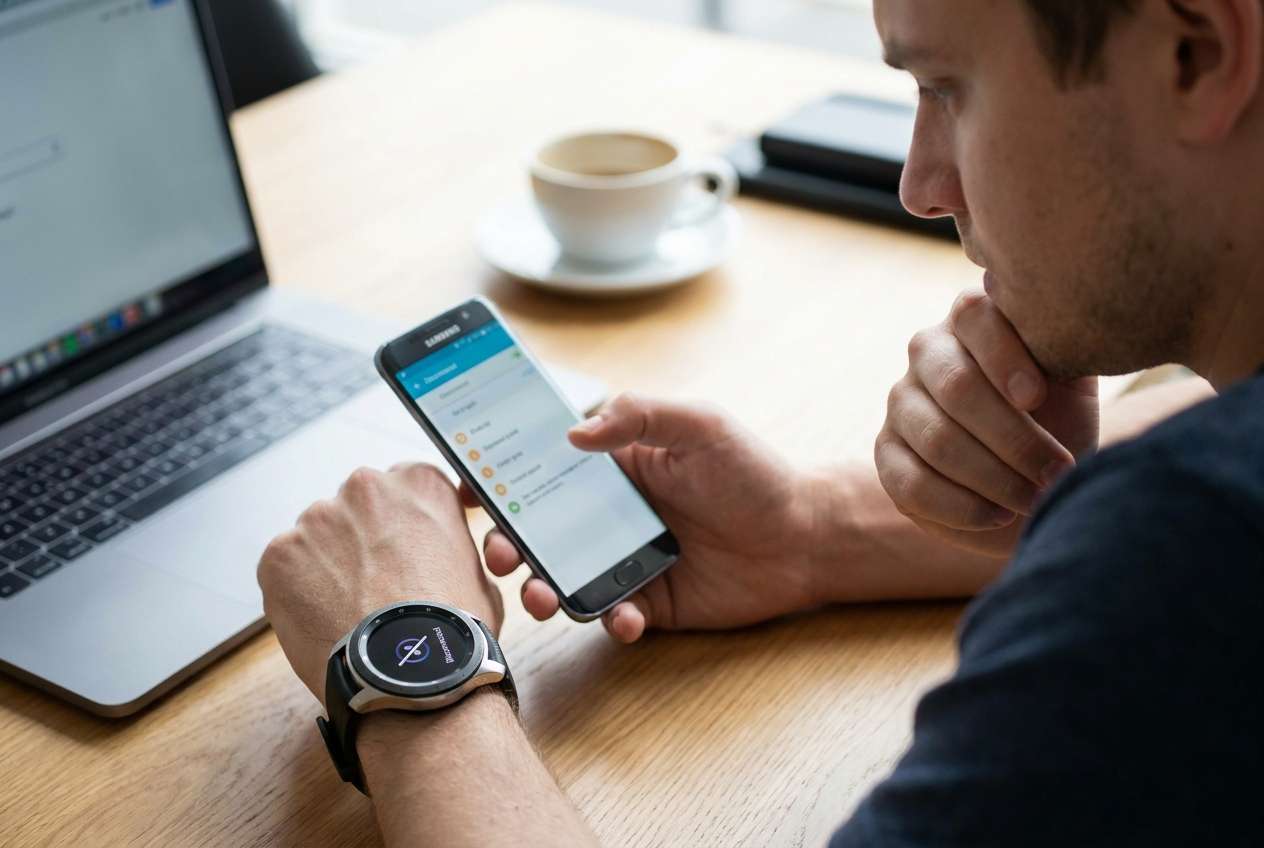
1. Random disconnects are usually stability or background issues, not always “true” disconnects.
On Galaxy phones, drops often come from an unstable Bluetooth session, background limits on the companion app, or update-related conflicts (phone OS, watch firmware, Wearable app/plugin).
2. Use AI to ask better questions and test low-risk causes first.
With the right prompt, AI can triage likely causes, then output a safest-first checklist (battery optimization, permissions, interference patterns) before suggesting resets or re-pairing.
3. Don’t escalate to resets until you’ve verified patterns and evidence.
Changing many variables (unpairing/reinstalling/resetting) can create new problems like pairing loops or lost settings/data, so use a controlled test plan and stop before high-risk actions.
Part 1. Why smartwatch disconnects randomly from samsung phone happens and what it means
1-1. What it often indicates on Samsung Galaxy phones
On a Samsung Galaxy phone (for example, a Galaxy S23 or S24), random smartwatch disconnects usually indicate an unstable Bluetooth session, background restrictions on the companion app, or a conflict introduced by a recent update (phone OS, watch firmware, or Galaxy Wearable plugin).
1-2. What “disconnect” can look like in real use
This can look like: the Bluetooth icon stays on but the watch shows “Disconnected,” notifications stop arriving, or reconnects happen only after opening the Wearable app.
1-3. Common contexts that correlate with drops
It may also correlate with certain contexts—screen off, battery saver on, Wi‑Fi switching, or being around many Bluetooth devices.
From a user perspective, it’s confusing because waiting doesn’t always help: after several minutes, nothing changes, and you can’t tell if it’s still “syncing” or truly disconnected.
1-4. Before You Prompt the AI
Gather a few facts first so the AI can reason from evidence, not guesses:
- Phone model + Android version
- Watch model + watch OS version
- Companion apps installed (Galaxy Wearable + plugin name)
- When it started (after update, new phone, new watch, new earbuds, etc.)
- What “disconnect” means for you (icons, notifications, calls, health sync)
- Battery/power settings (Power saving, app sleeping, background limits)
Part 2. Using AI prompts to diagnose smartwatch disconnects randomly from samsung phone safely
2-1. Level 1: Basic Prompt
My smartwatch disconnects randomly from my Samsung phone. Ask me the minimum questions needed to identify the most likely causes, then give a low-risk checklist I can try in order without factory resetting anything.
2-2. Level 2: Advanced Prompt
Act like a troubleshooting triage assistant for a smartwatch that disconnects randomly from a Samsung phone.
1) Ask up to 8 targeted questions first.
2) Then rank the top 5 likely causes from most to least probable.
3) For each cause, give:
- Why it fits
- One low-risk test to confirm/deny it
- The risk level (low/medium/high) and what data/settings I might lose
4) Avoid steps that require factory resets or unpairing unless clearly justified.
2-3. Level 3: Evidence Prompt
Help me diagnose random smartwatch disconnects from a Samsung phone using evidence and a decision tree.
Device details
- Samsung phone model: (e.g., Galaxy S23)
- Android version:
- Watch model: (e.g., Galaxy Watch6)
- Watch software version:
- Galaxy Wearable version:
- Relevant plugins installed:
- Other Bluetooth devices used daily: (e.g., earbuds, car kit)
Trigger + pattern
- When it started: (e.g., after Wearable app update)
- Frequency: (e.g., 3–5 times/day)
- Typical moment: (e.g., when screen turns off / after leaving Wi‑Fi / during workouts)
- Range: (same room vs across rooms)
- Does it reconnect by itself? If yes, how long?
What “disconnect” looks like
- On the phone: (Bluetooth icon state, Wearable app status)
- On the watch: (message shown, icon, missing notifications)
- What stops working first: (notifications, calls, health sync, media control)
What I’ve tried
- Toggled Bluetooth / airplane mode:
- Restarted phone/watch:
- Cleared cache for Wearable:
- Battery saver settings changed:
- Re-paired: (yes/no)
Output format I want
- 3 most likely causes + confidence %
- What evidence would increase/decrease each
- A safest-first test plan (max 8 steps)
- A “stop here” line before any high-risk actions
2-4. Prompt Refinement
Use these follow-ups to make the AI’s diagnosis sharper and less generic:
“What are the 5 missing questions that would most change your ranking, and why?”
“Separate causes into categories: Bluetooth radio issues vs app/background restrictions vs firmware/version mismatch vs interference.”
“Rank causes again assuming the disconnect happens mostly when the screen is off.”
“What single piece of evidence should I collect next (exact setting, screenshot, or timestamp) to confirm the top cause?”
2-5. AI Output vs Reality
AI can guide your reasoning, but the devices still need real-world verification.
| AI suggests | What you verify on your device |
|---|---|
| Background limits are killing the Wearable app | Check Sleeping/Deep sleeping apps, background battery restrictions, and notification permission behavior |
| Bluetooth instability is causing session drops | Watch whether drops correlate with distance, motion, or specific locations/devices |
| A recent update introduced a compatibility issue | Confirm app versions, watch firmware version, and whether the issue began immediately after an update |
| Interference from other Bluetooth devices | Test with other Bluetooth devices temporarily off and compare disconnect frequency |
AI can narrow the “most likely” list, but it can’t confirm your exact settings, radio environment, or what your phone is doing in the background—so the execution step is where careful, low-risk checks matter.
Part 3. When to stop troubleshooting smartwatch disconnects randomly from samsung phone and avoid risks
If you keep changing multiple variables at once, it becomes hard to know what actually helped—and some actions can create new pairing or data-sync problems.
- Disconnects persist after basic checks and you’re about to factory reset the watch “just to try.”
- You’re stuck in a re-pair loop or the watch won’t complete setup without failing.
- Health/notification syncing becomes inconsistent and you can’t trust what data is current.
- The issue is time-sensitive (work calls, medical notifications) and you need a stable interim workflow now.
Once you’ve used AI to identify the most likely causes and a safest-first order, the next step is executing checks consistently and observing behavior without adding extra variables.
Part 4. Smartwatch disconnects randomly from samsung phone: fix or resolve it safely with Dr.Fone
When the disconnects are intermittent, the hardest part is often observing what changes right before the drop—especially if the phone needs to stay in a specific screen (Bluetooth settings, Galaxy Wearable status, battery settings) while you move around or reproduce the issue. Dr.Fone Basic - Screen Mirroring helps by mirroring your Android screen to a PC, so you can keep the relevant status pages visible, capture timestamps and patterns, and make the same settings checks repeatedly without constantly handling the phone during the test.
 Easily manage data through preview, delete, export, etc.
- Transfer all data between devices.
- Robust backup solutions for reliable data protection.
- Mirror screens to PC for meetings, teaching, and control.

4-1. Mirror your Samsung screen to PC (wireless) so you can observe drops
-
Step 1 Start screen mirroring on your computer
Open Dr.Fone on your PC, then choose the Screen Mirroring feature to begin a controlled observation session.

-
Step 2 Select wireless mirroring for Android
On the mirroring page, select the wireless connection option so your Samsung phone can connect without a cable.

-
Step 3 Scan the QR code to connect
Use your phone to scan the on-screen QR code and follow the prompts to complete the connection.

-
Step 4 Confirm the device is mirrored
Once connected, keep Bluetooth, Galaxy Wearable, and battery/optimization screens visible on the mirrored display while you reproduce the disconnect.

4-2. Execute a low-risk, controlled test plan (one variable at a time)
-
Step 1 Start a controlled test window
Pick a 15–30 minute period and keep your conditions consistent (same room, same watch face/app usage) so your observations mean something.
-
Step 2 Keep Bluetooth/Wearable status visible
Keep the relevant status pages visible while you move around or reproduce the disconnect (Bluetooth connected devices, Galaxy Wearable status, battery settings).
-
Step 3 Record what changes right before the drop
When the watch disconnects, note the exact time and what the phone shows (Wearable app state, Bluetooth connected devices list) so you can correlate cause-and-effect.
-
Step 4 Repeat one variable at a time
Change only one factor per run (e.g., disable Power saving or remove Wearable from Sleeping apps) to avoid confusing results.
-
Step 5 Document the outcome for the next decision
Summarize: what you changed, whether disconnect frequency changed, and what the mirrored screen showed—so you know whether to stop or continue to deeper steps.




Conclusion
Use AI to turn your symptoms into a ranked set of likely causes and a low-risk test order, then hand off to consistent real-world execution—mirroring your Android screen to a PC can make intermittent disconnect patterns easier to observe and document without escalating to risky resets too early.
FAQ
-
Why does my smartwatch disconnect when my Samsung phone screen turns off?
It’s often linked to battery optimization or background limits restricting the companion app when the phone becomes idle. -
Can Power saving mode cause random smartwatch disconnects?
Yes—Power saving can reduce background activity and connectivity behavior, which may interrupt syncing or reconnection. -
Should I unpair and re-pair the watch to fix random disconnects?
Only after you’ve tested low-risk causes first; re-pairing can reset connection state and may affect settings or sync history depending on your setup. -
How do I tell if it’s Bluetooth interference or an app restriction?
Interference usually correlates with location/devices and distance, while app restrictions often correlate with screen-off, idle time, or battery optimization settings. -
What information should I collect before contacting support?
Device models, OS/app versions, when it started (especially after updates), disconnect frequency, and what the phone/watch shows at the moment it happens.
 Add Wondershare Dr.Fone as a preferred source on Google





